.png?fit=max&auto=format&n=jKjpuy2fz57OUcfn&q=85&s=d5b9cacebbb4a94e2c6bac33ad479982)
.png?fit=max&auto=format&n=jKjpuy2fz57OUcfn&q=85&s=0e6d93d474315b69b3046316150e4582)
1. Research in the table. Find the path in the graph.
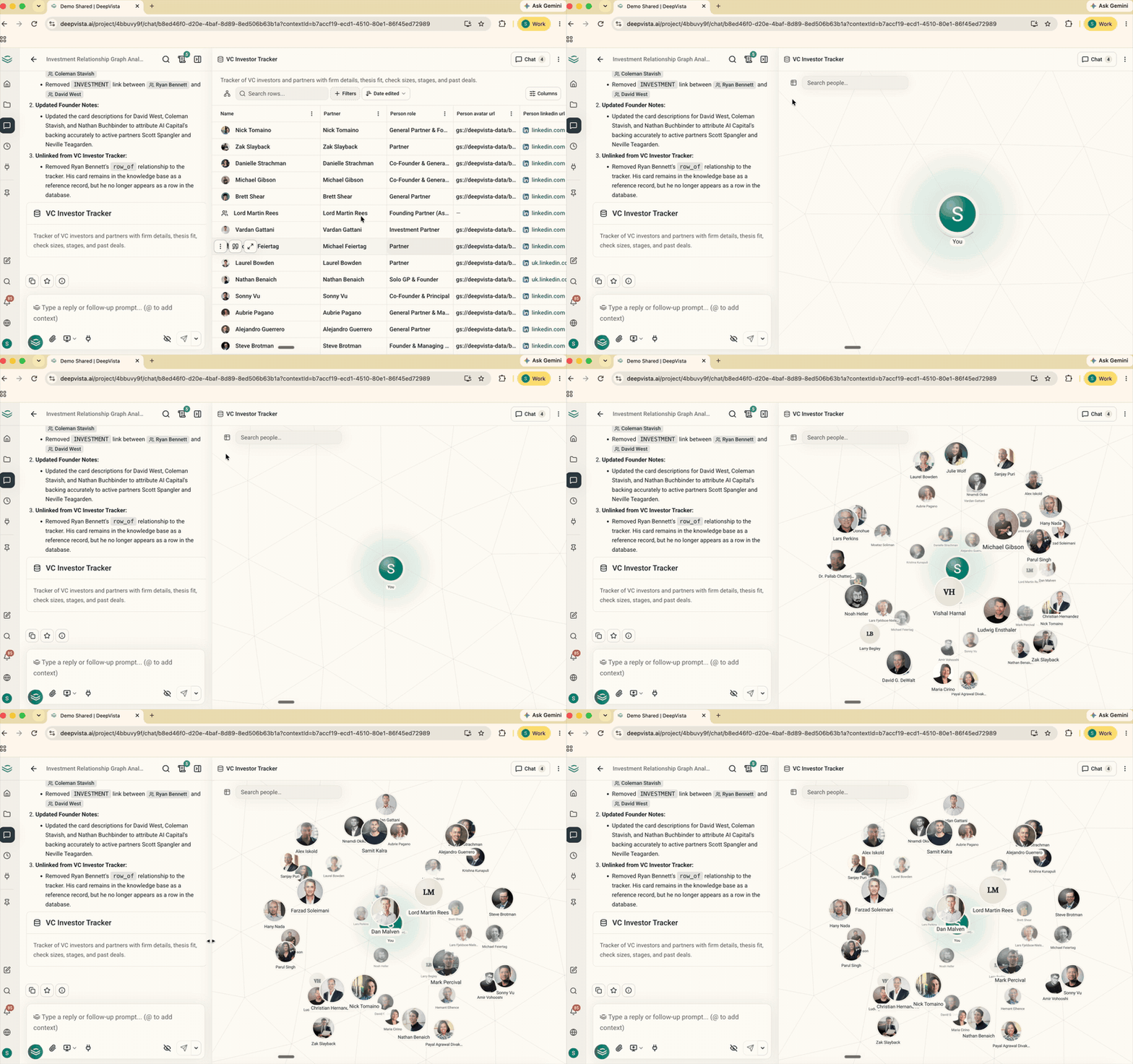
- Most prospecting treats people as isolated rows. Deals close on shared history: who worked together, which founders share investors, who can make the intro.
- Table view is for volume. Run batch research, track buying signals in custom columns, and scan dozens of profiles fast.
- Graph view is for the target you’ve picked. See how that person connects to everyone else in your network, and who can introduce you.
2. Start from you, and see every warm path
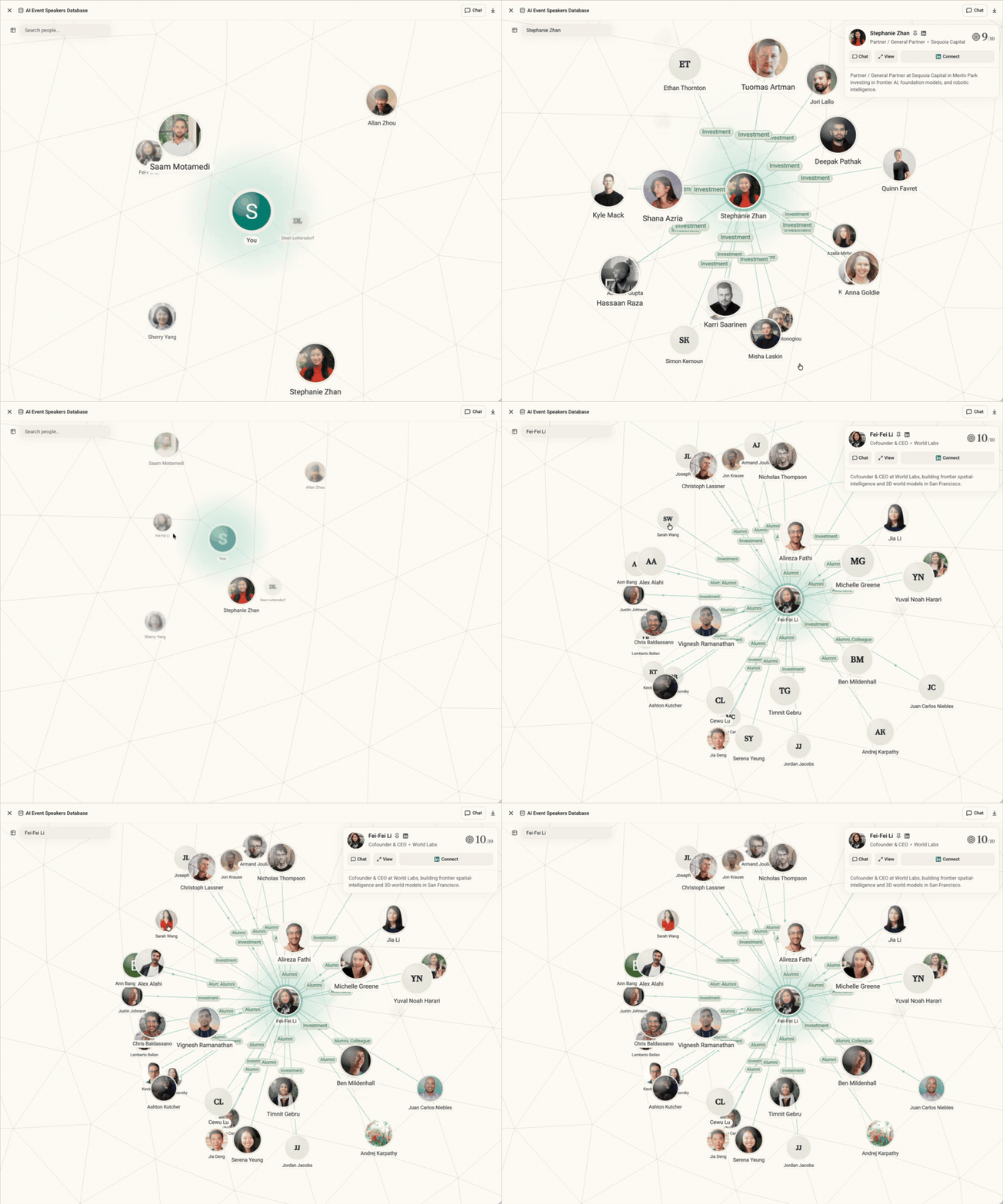
- Your profile sits at the center of the graph. Everyone you research links outward from you, with direct ties and mutual connections visible.
- DeepVista maps four kinds of business connection: investments, hiring, speaking at events, and software buyers or vendors.
- It also links shared backgrounds: former coworkers, university alumni, professional communities, and event co-attendees.
3. Tell the agent who you know. It draws the line.
- Skip the relationship forms. Mention people in chat or write notes about past deals, and the agent maps them into your graph.
- It classifies the tie for you, whether coworker, investor, or customer, and connects it to your profile.
4. Outreach that remembers the conversation
- When you ask the agent to draft a LinkedIn message, it reads your past thread with that person first. No duplicate pitches, no ignoring what was already said.
- Open a person’s card and scroll down to see their recent posts and topics of interest, so you have a timely way to start.
- Teammates in the same project can share one connected LinkedIn account for research and outreach, with no individual logins.
Also in this release
- Split-view onboarding: Setup opens with chat on the left and your live tracker on the right. Enter your name, LinkedIn URL, and goal on the homepage to start.
- Side-panel tabs: Open profiles, notes, and trackers side by side in browser-style tabs. Click any card to open a tab, click + for more, and drag headers to reorder or resize.
- Enrich card properties: Define AI-researched properties instead of blank text fields. On any card, click Add a property > Enrich and enter your prompt.
- Shareable live trackers: Click Share in the tracker header to send a public, read-only link. Guests can toggle views, see top recommended contacts, or clone the project.
- Two-factor authentication: Turn on two-step verification in Settings > Security with your authenticator app.
- Session cleanup: Password resets now disconnect active sessions, and logging out clears stored local tokens.