.png?fit=max&auto=format&n=jKjpuy2fz57OUcfn&q=85&s=d5b9cacebbb4a94e2c6bac33ad479982)
.png?fit=max&auto=format&n=jKjpuy2fz57OUcfn&q=85&s=0e6d93d474315b69b3046316150e4582)
1. Get automatic AI summary briefs across your workbenches
Opening a workbench now shows an automatic summary brief in the right panel by default. View total card counts, track recent updates, and read suggested next actions for your workflow without clicking through individual cards or calculating metrics by hand.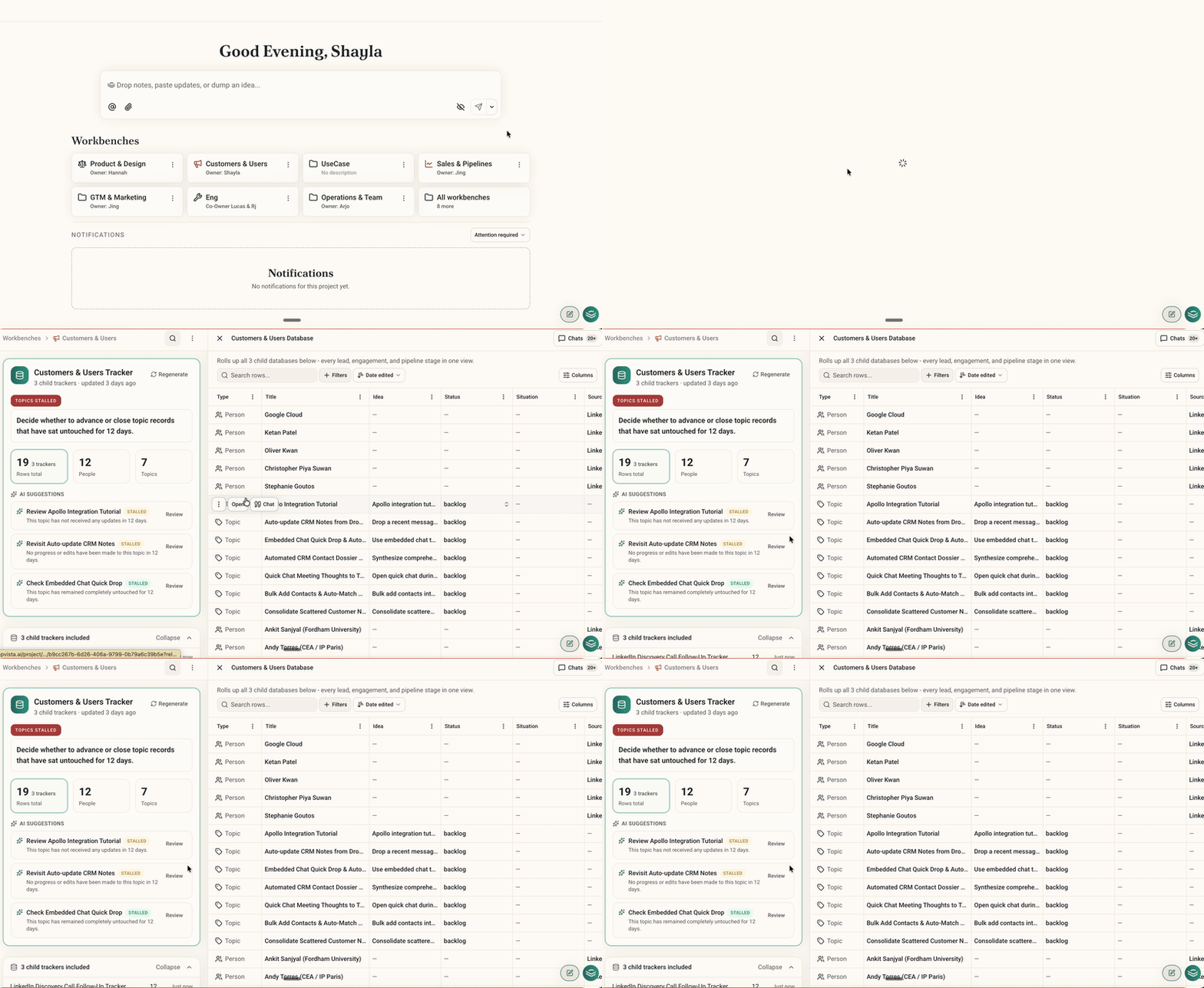
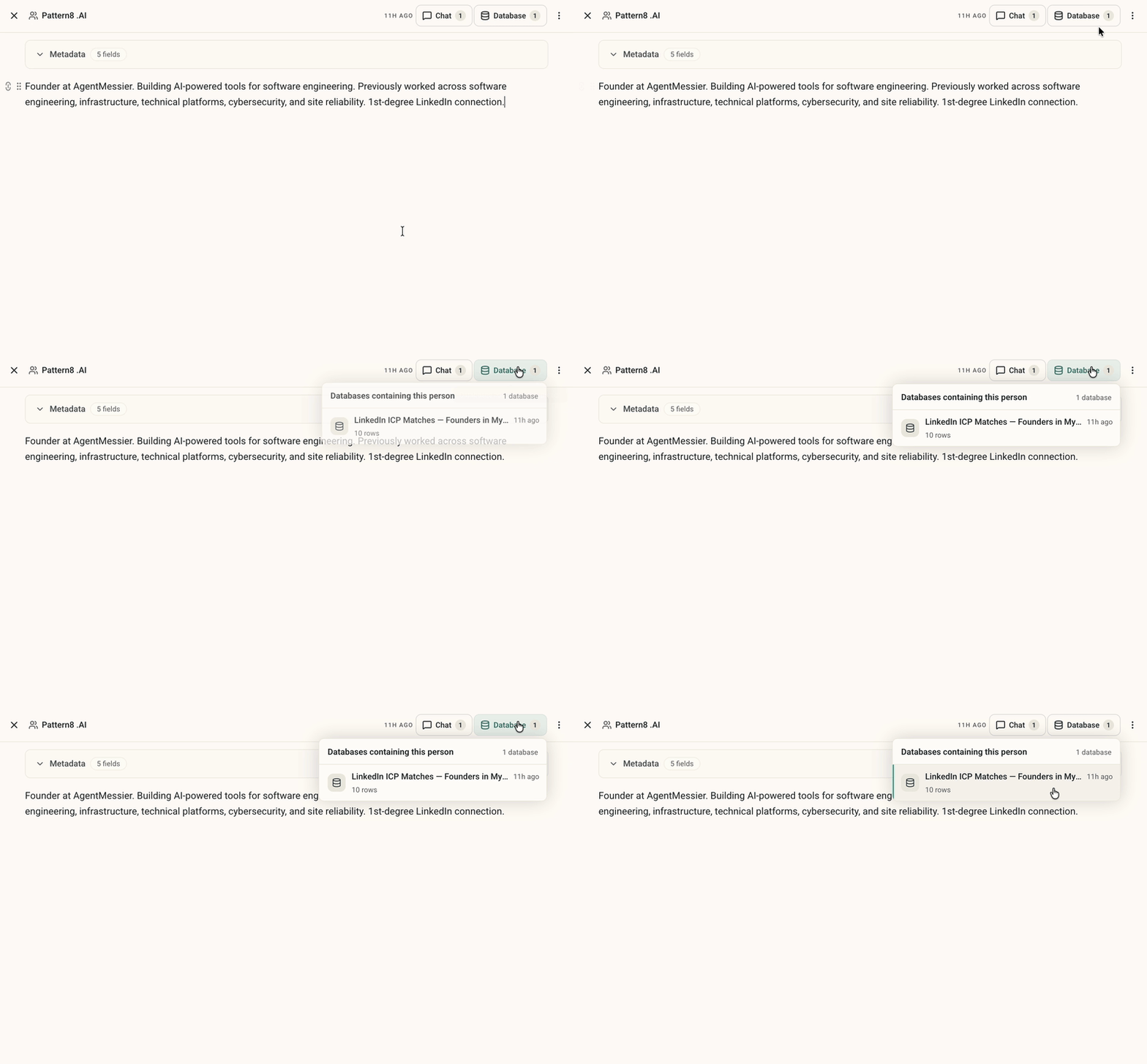
2. Jump directly from cards to parent databases
When viewing a context card that lives inside one or more databases, you can now trace its parent tables immediately. Click the newDatabase button in the card header to open a popover listing every database the card belongs to, complete with direct navigation links.
3. Navigate card mentions faster in the editor
Typing@ inside any note or card editor to link context cards is now much smoother. Search filtering and arrow-key navigation respond instantly, and typing symbols or punctuation inside your search query no longer closes the mention menu unexpectedly.
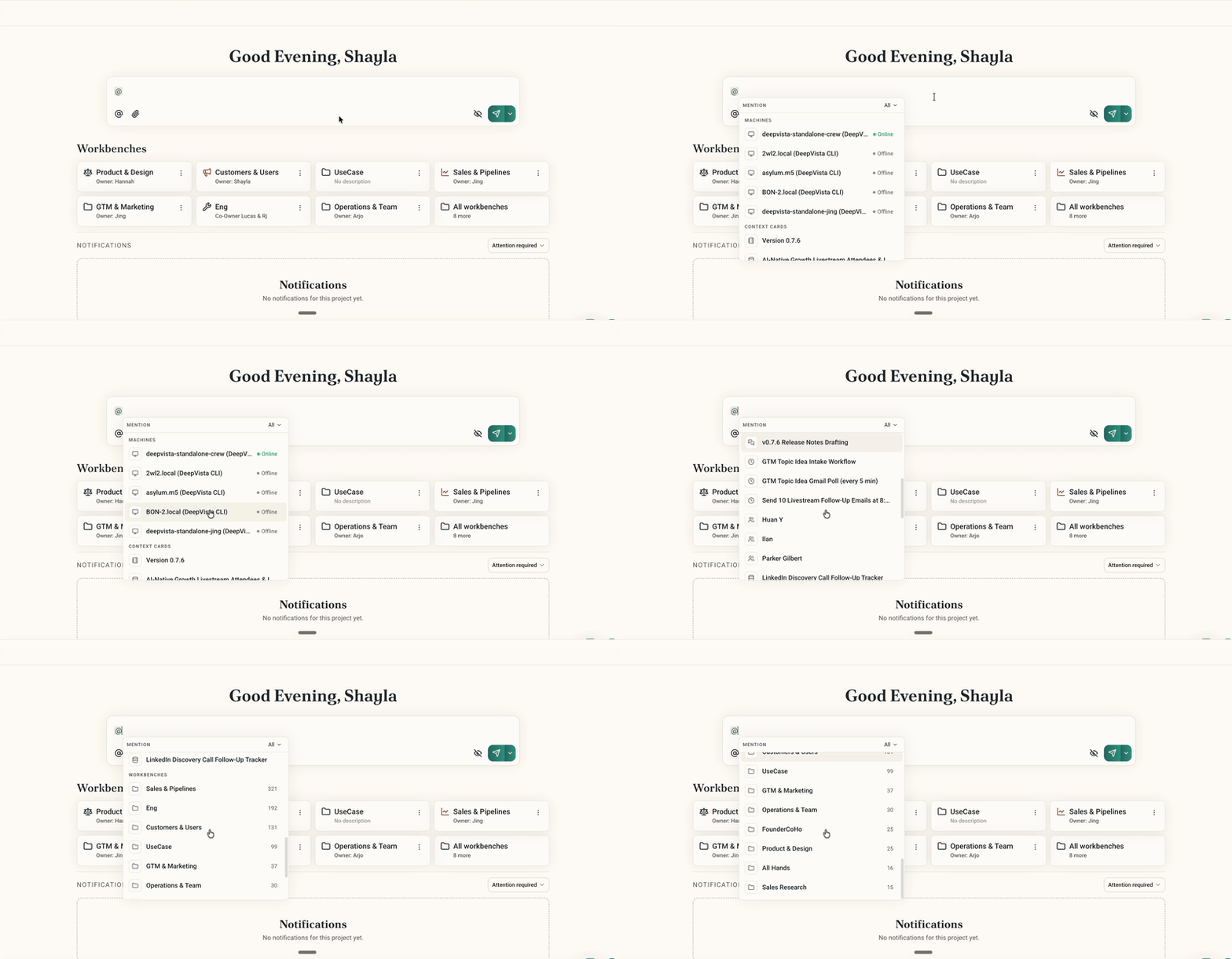
@ inside any note or context card to search and link related cards.
4. Copy chat responses with full formatting intact
Copying assistant replies now preserves complete markdown formatting, including headers, bullet lists, code blocks, and bold emphasis.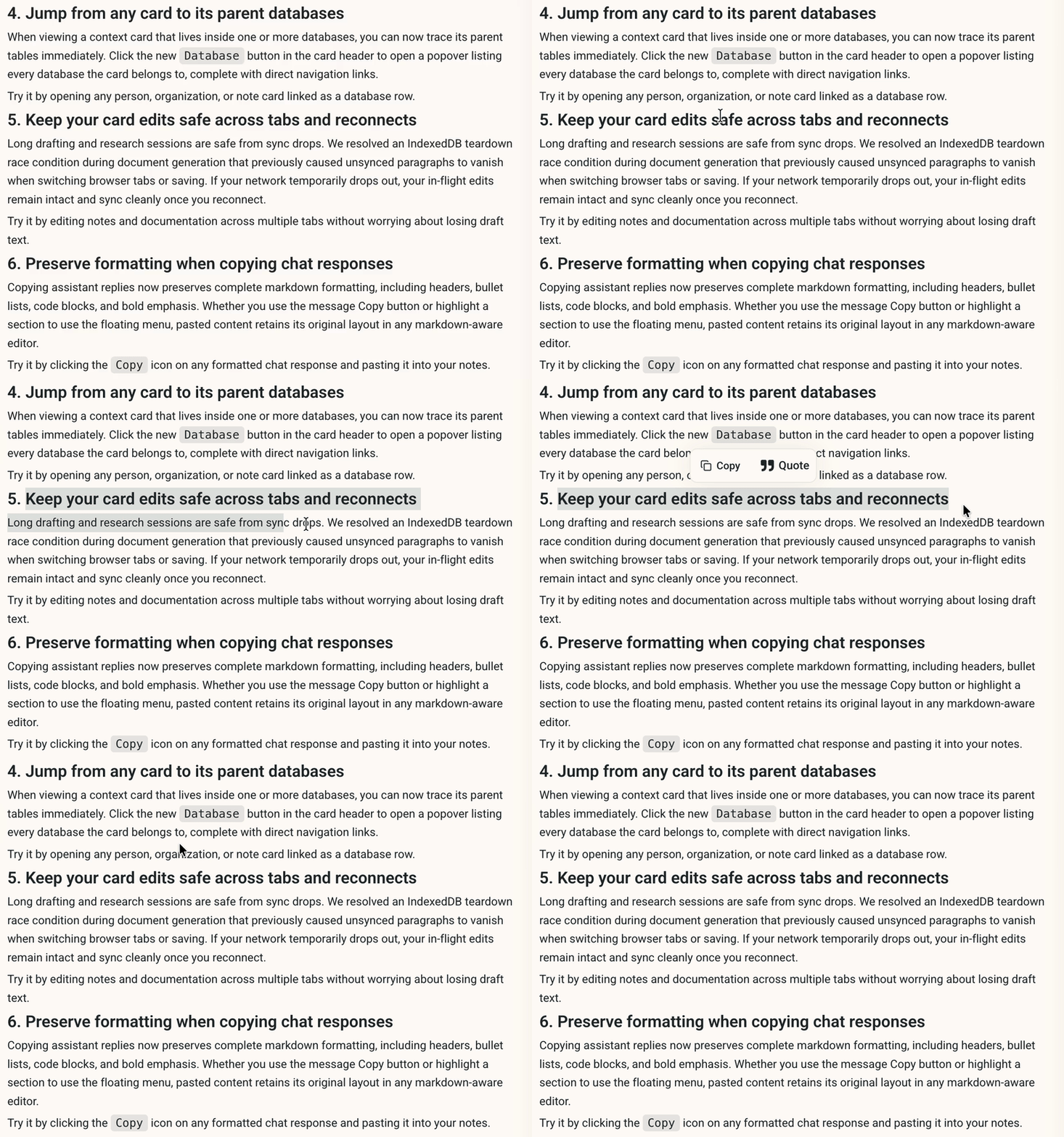
Copy icon on any formatted chat response and pasting it into your notes.
5. Pin key table columns
Pin your primary column, such as Company, Name, or Status, so it stays anchored to the left border while you scroll through long rows of data.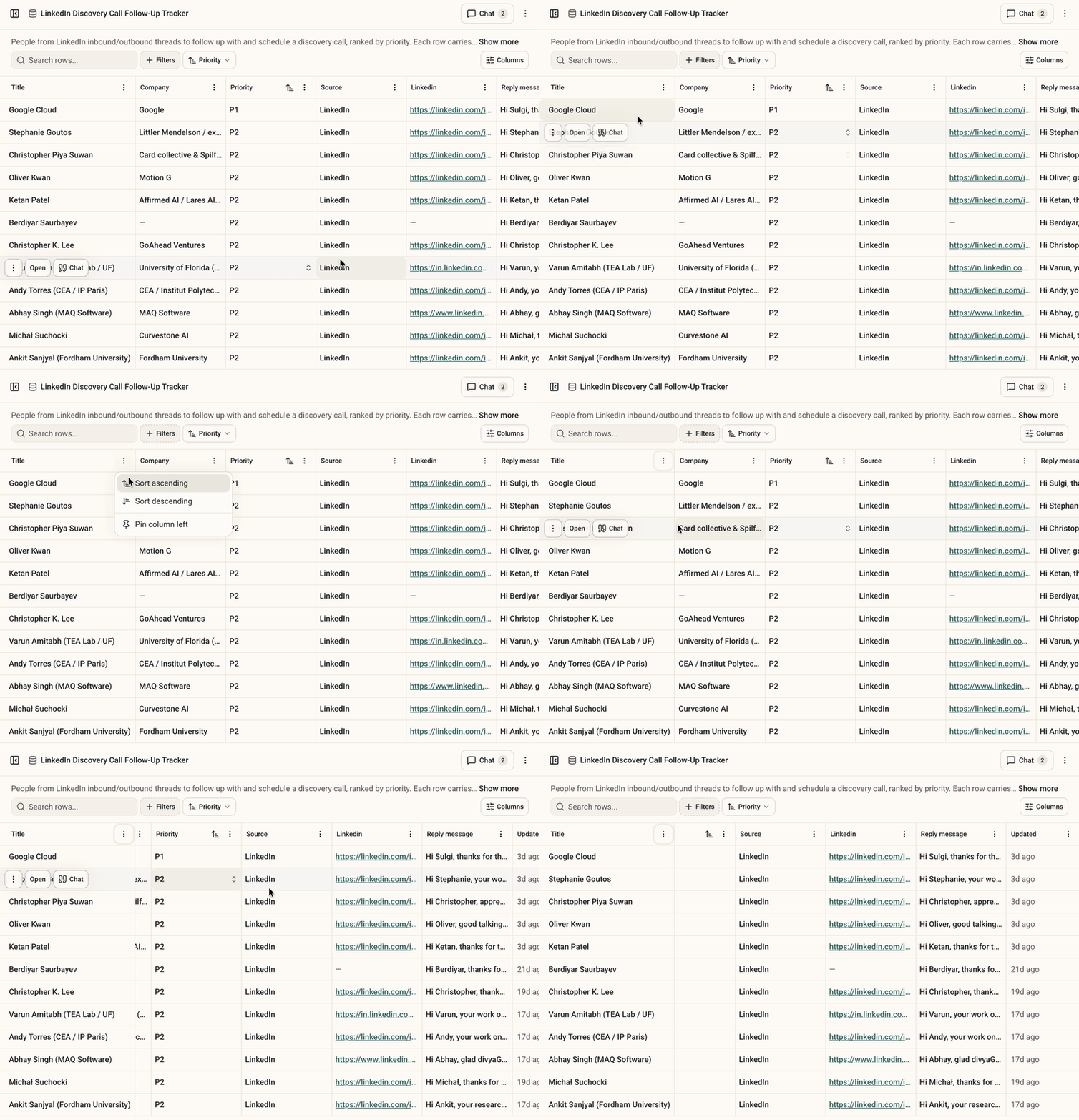
Pin column.