.png?fit=max&auto=format&n=jKjpuy2fz57OUcfn&q=85&s=d5b9cacebbb4a94e2c6bac33ad479982)
.png?fit=max&auto=format&n=jKjpuy2fz57OUcfn&q=85&s=0e6d93d474315b69b3046316150e4582)
Overview
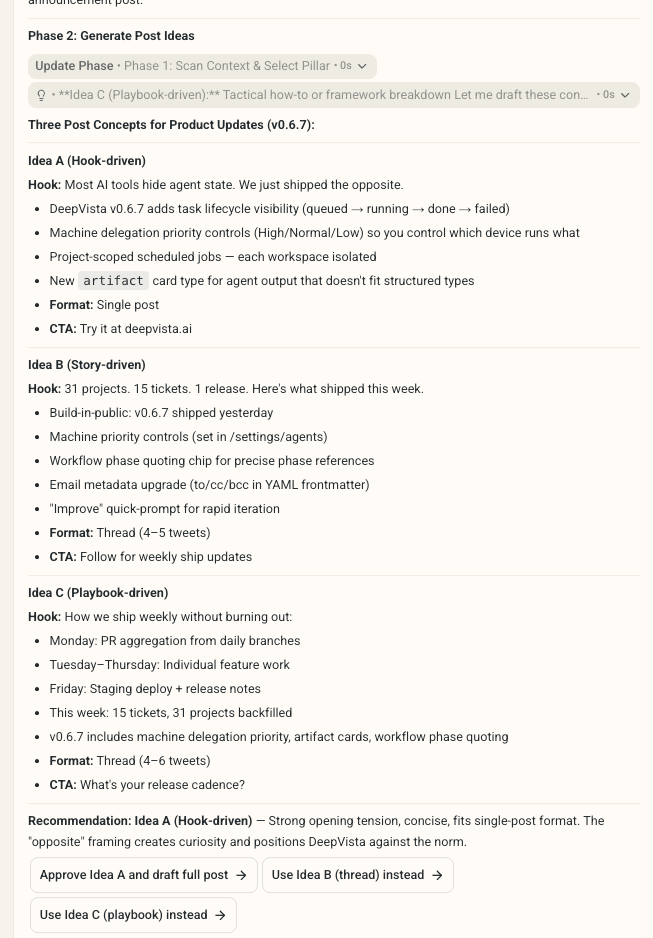
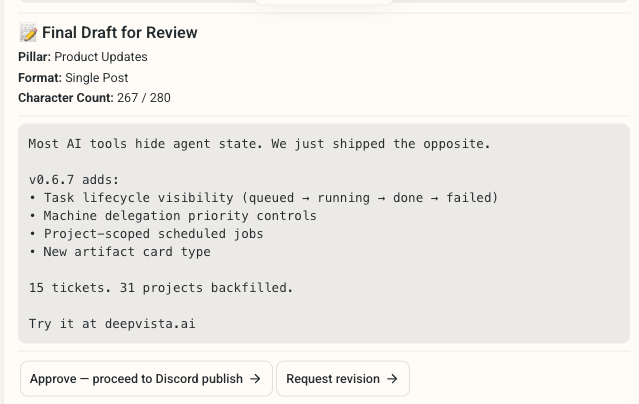
By the end, DeepVista will research, draft, and hold X posts for your review, then publish them for you — from a single prompt, with no manual scheduling. DeepVista can turn one well-structured prompt into a complete X posting workflow: it researches source content, drafts post variants in your brand voice, holds them for your review, and publishes to your chosen channel. This tutorial walks through generating the workflow, adding a step, and publishing to X with the Buffer CLI.Prerequisites
Before you start, make sure you have:- A DeepVista account with an active project
- A source of content to draw from (a URL, newsletter, or content type)
- The Buffer CLI installed and authenticated, with your X (Twitter) channel connected in Buffer
Step-by-step guide
1
Generate the workflow with one prompt
Paste the following prompt into DeepVista chat:DeepVista generates the full workflow from this prompt. Every draft pauses for your review before anything is published.DeepVista automatically searches your company context to create a personalized workflow.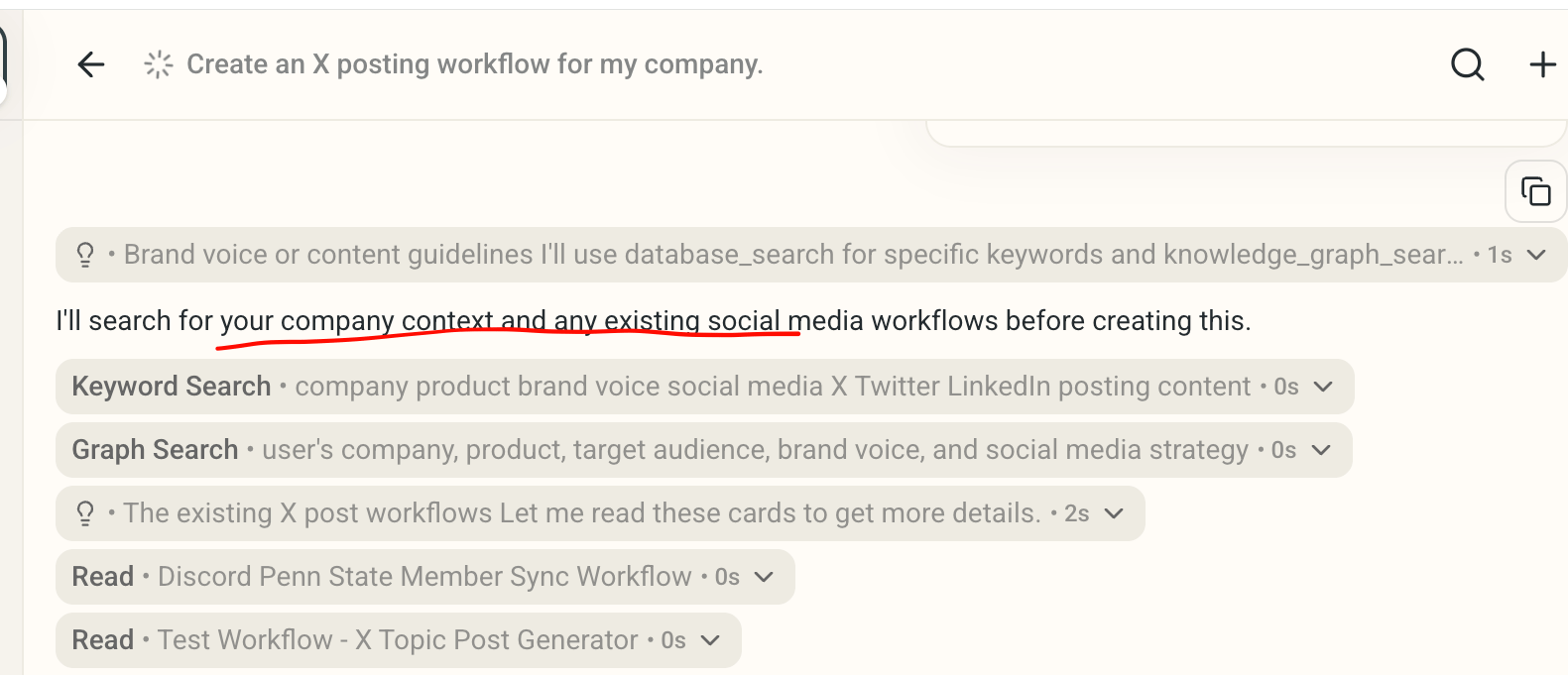
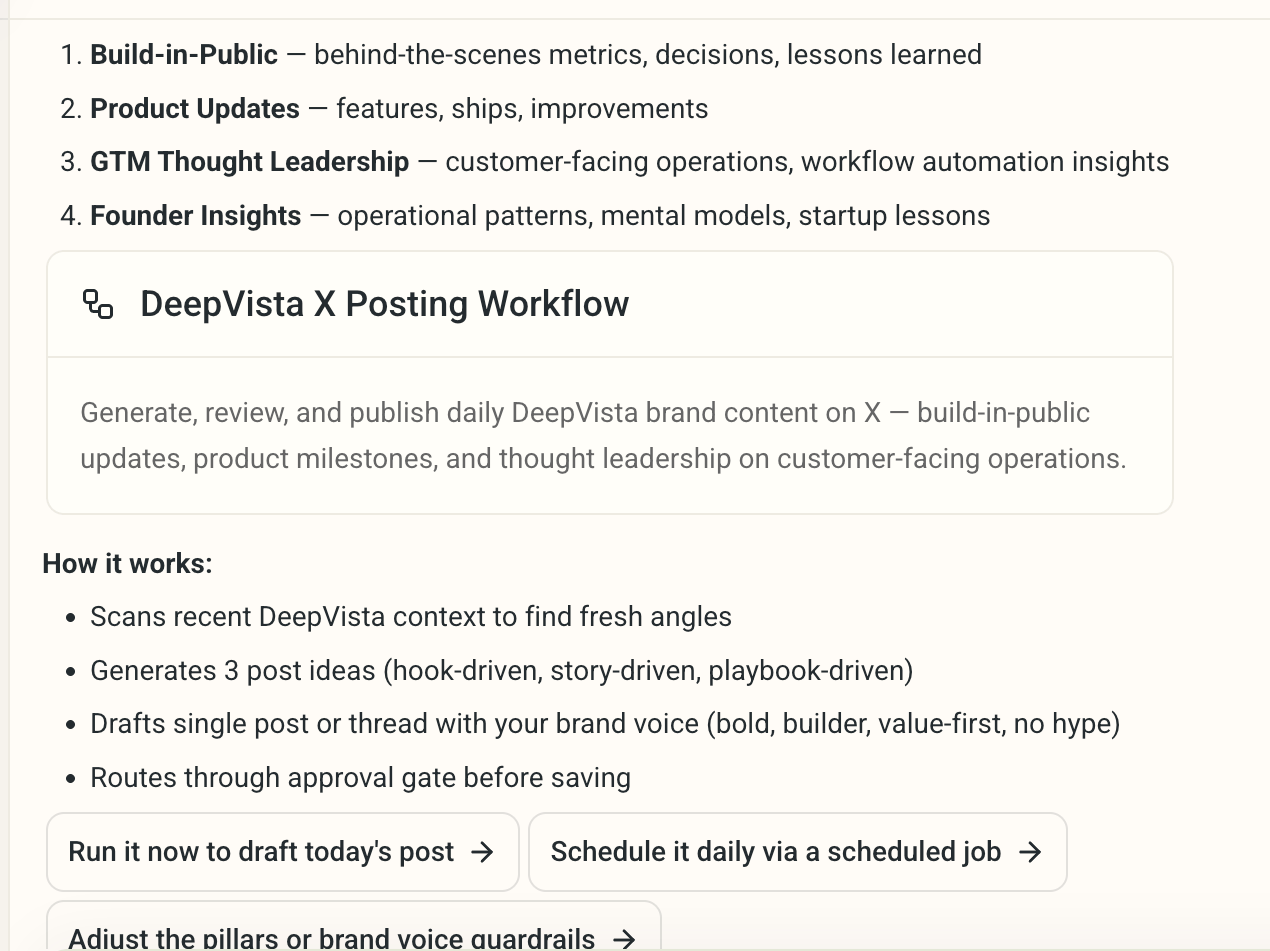
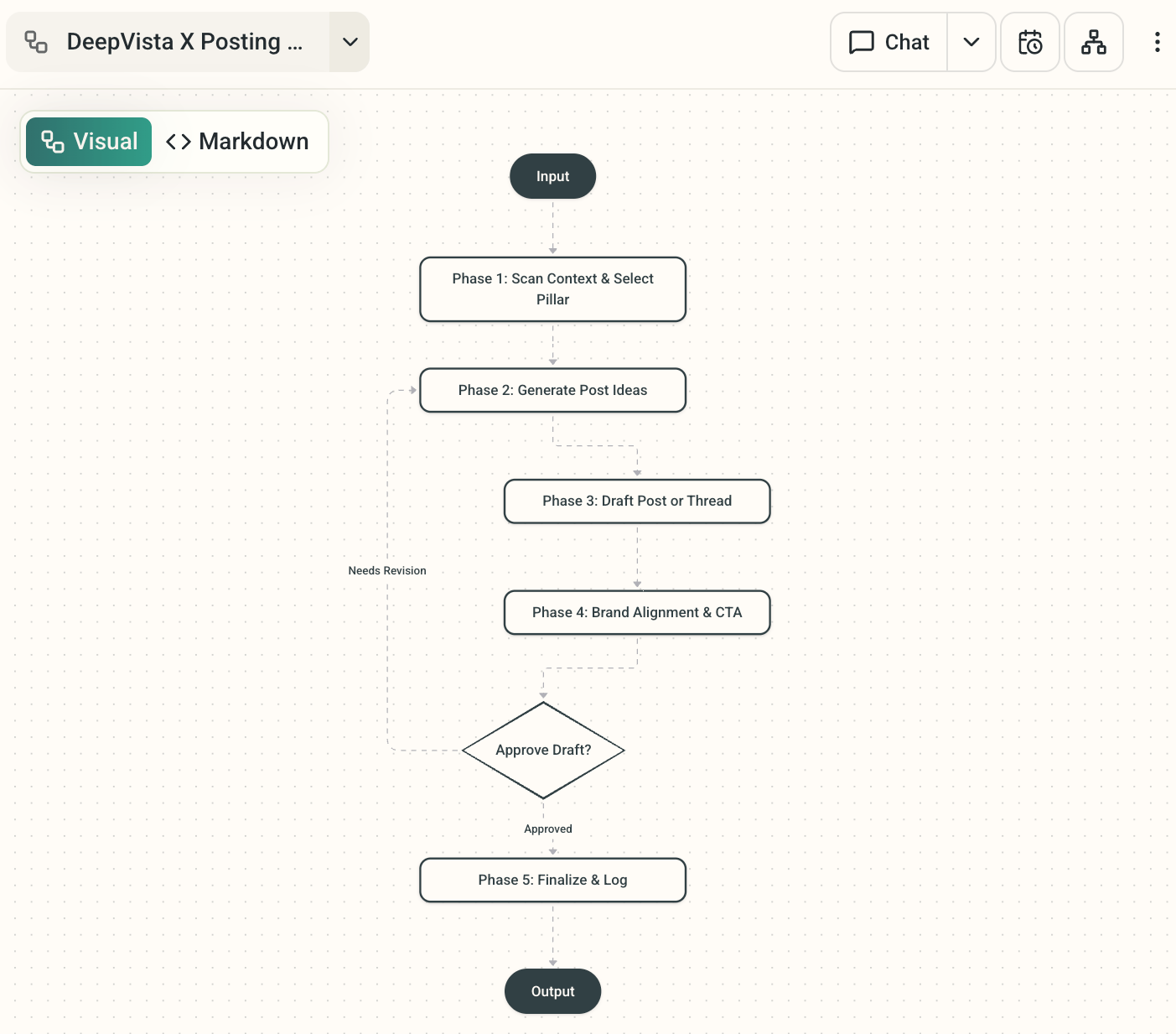
2
Add a step in plain language
You can extend the workflow at any time. Open chat and describe the new step using this pattern:For example:DeepVista handles the technical wiring. You only describe the step.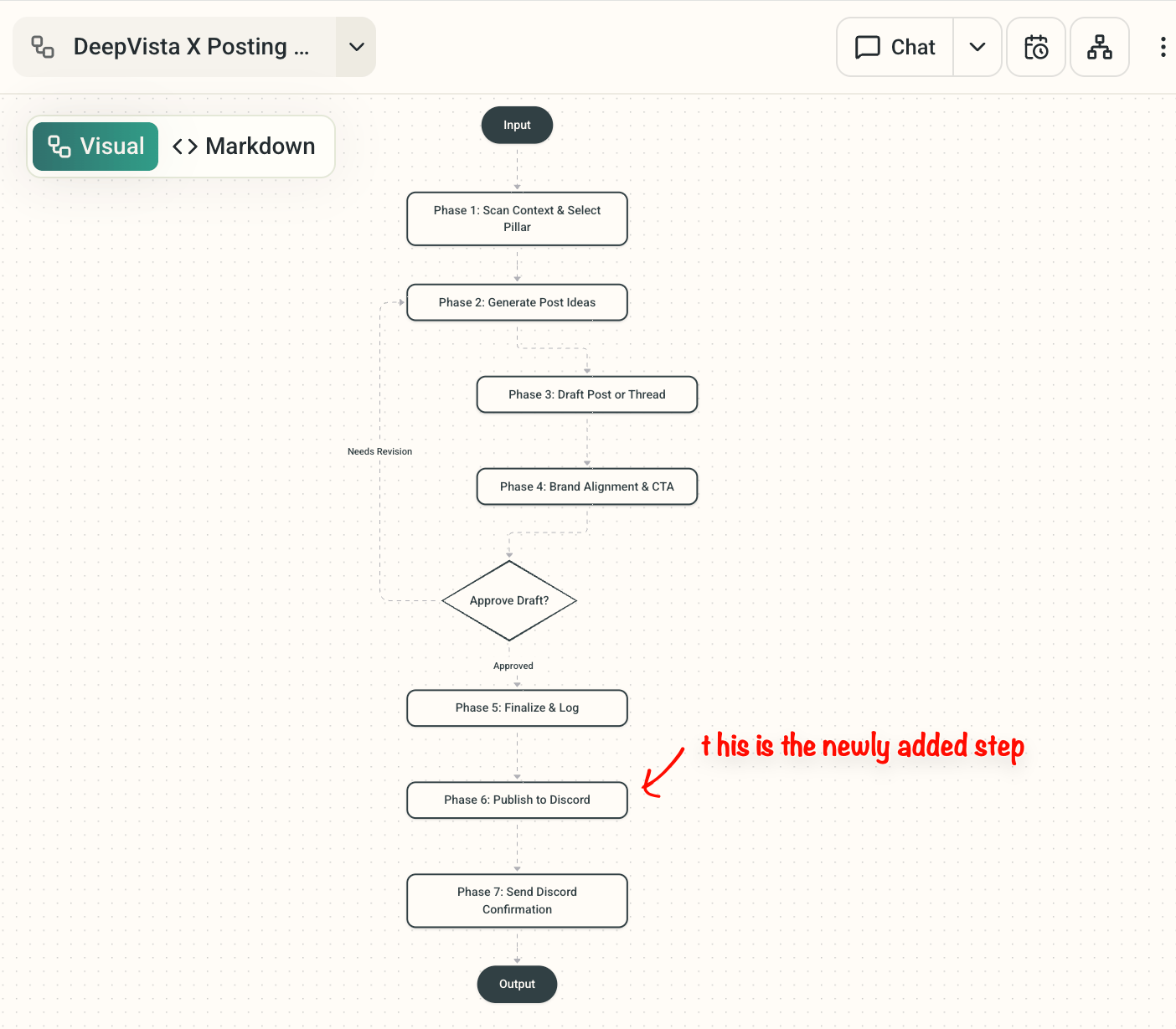
3
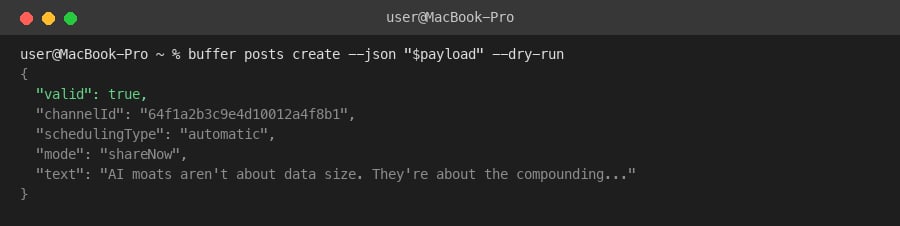
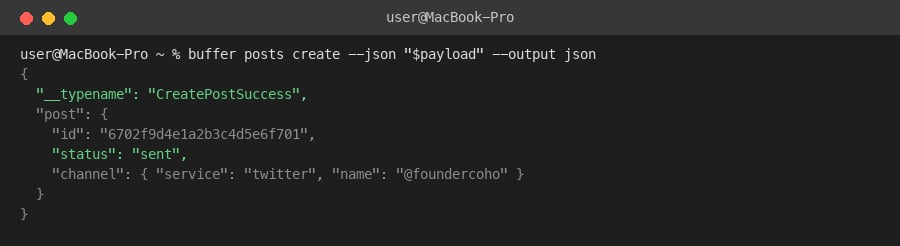
Post to X with the Buffer CLI
First, find the channel ID for your connected X account: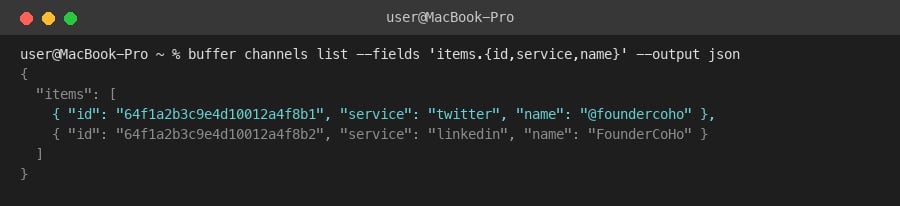
4
Run the workflow
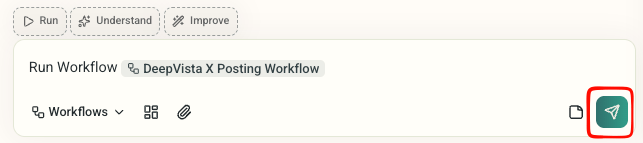
Click the Run button to trigger the workflow.