.png?fit=max&auto=format&n=jKjpuy2fz57OUcfn&q=85&s=d5b9cacebbb4a94e2c6bac33ad479982)
.png?fit=max&auto=format&n=jKjpuy2fz57OUcfn&q=85&s=0e6d93d474315b69b3046316150e4582)
1. Set up a new project in two simple steps
Creating a project now takes two simple steps instead of one long form. First, name your workbench using ready-made presets instead of a blank field. Then DeepVista opens that workbench and fills in a starting prompt for you automatically. Adding a workbench from the right-hand menu also shows its default database right away.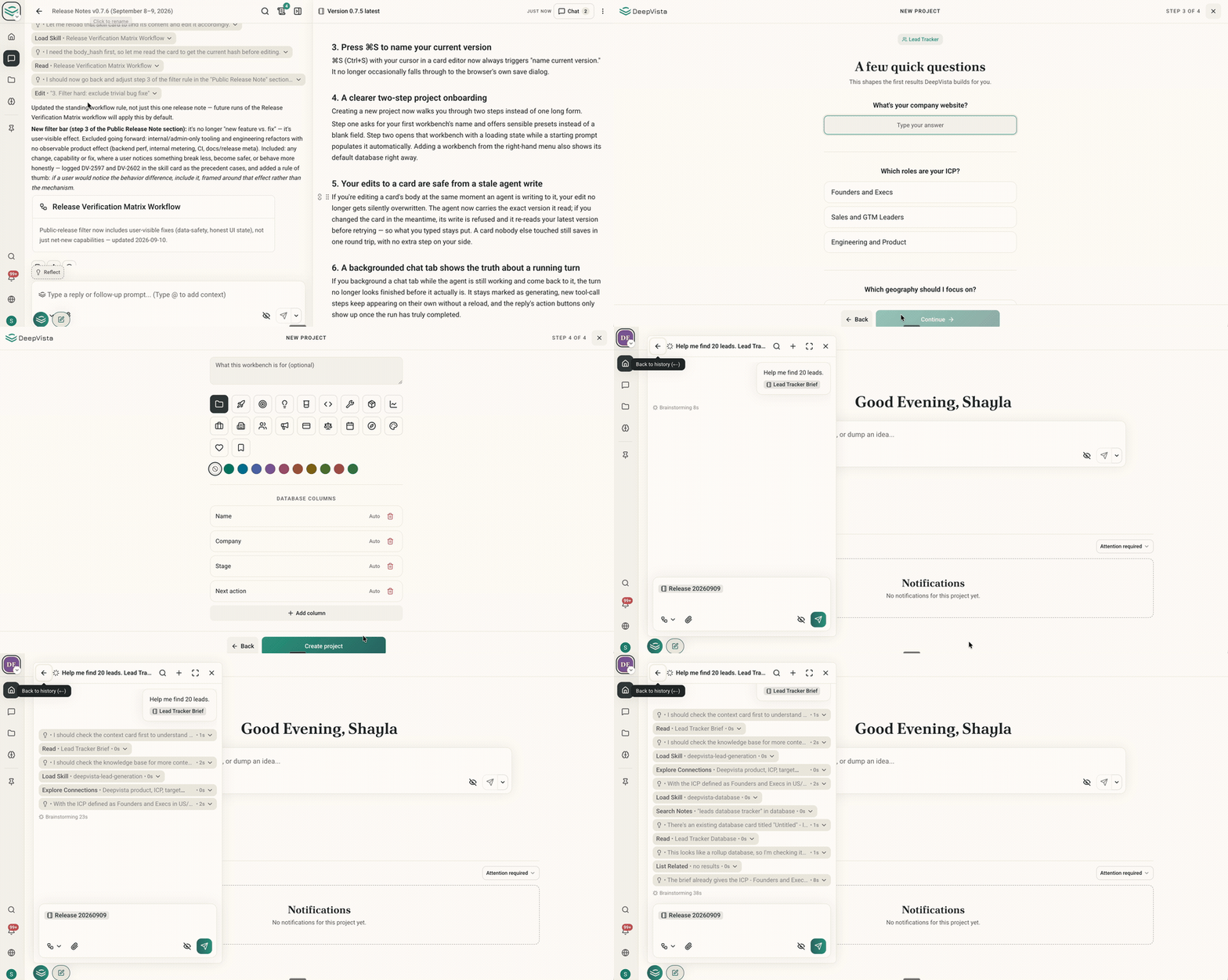
2. Rename a version by clicking its name
Click a saved version’s name to rename it in place, just like a file in Google Docs. No separate dialog needed.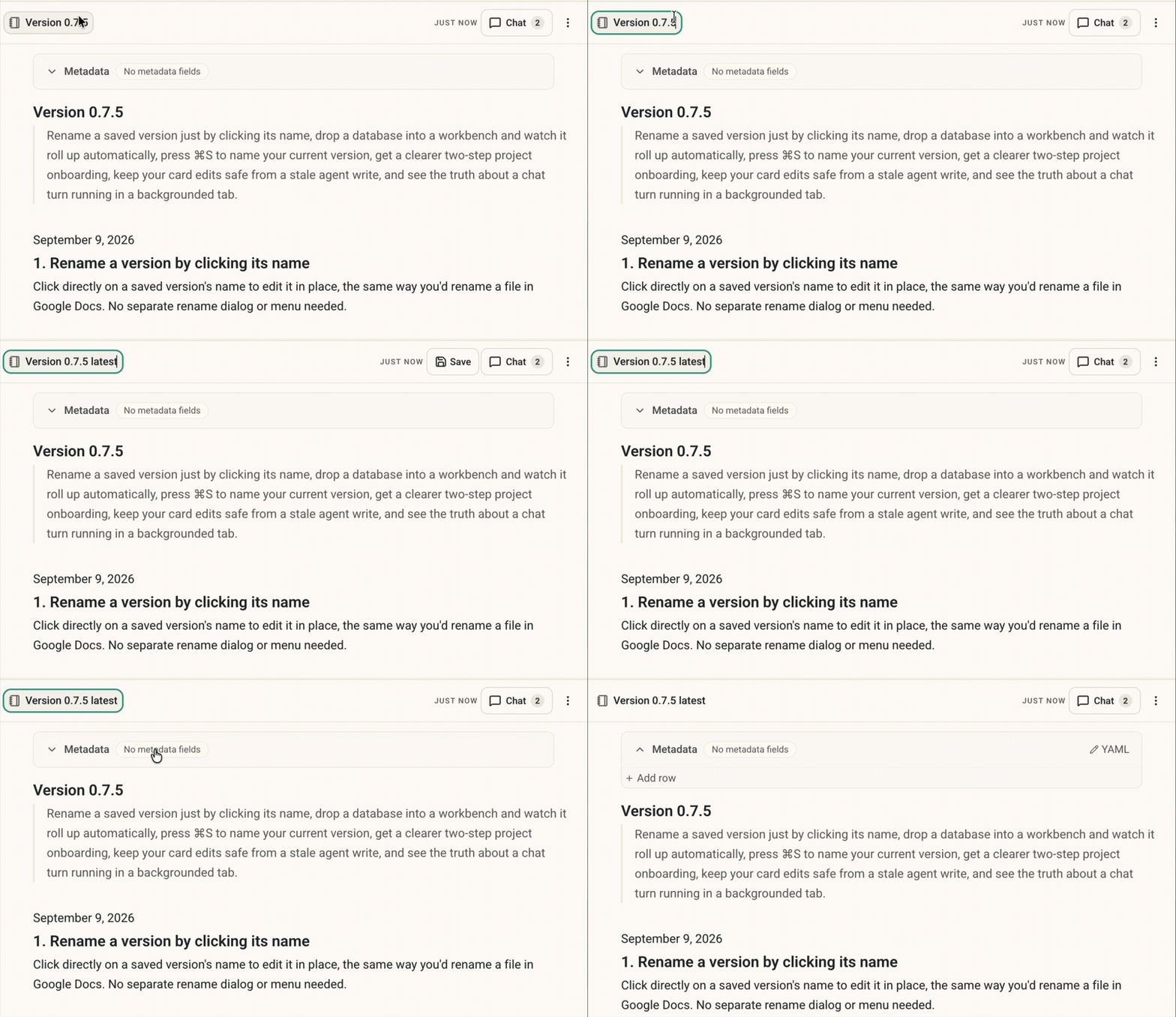
3. Customize your database in any workbench
Every workbench keeps one combined database of everything inside it, including nested workbenches. Add or move a database in and it’s included right away, no setup needed. You can customize that combined database’s own columns, sort order, and views just like any other database.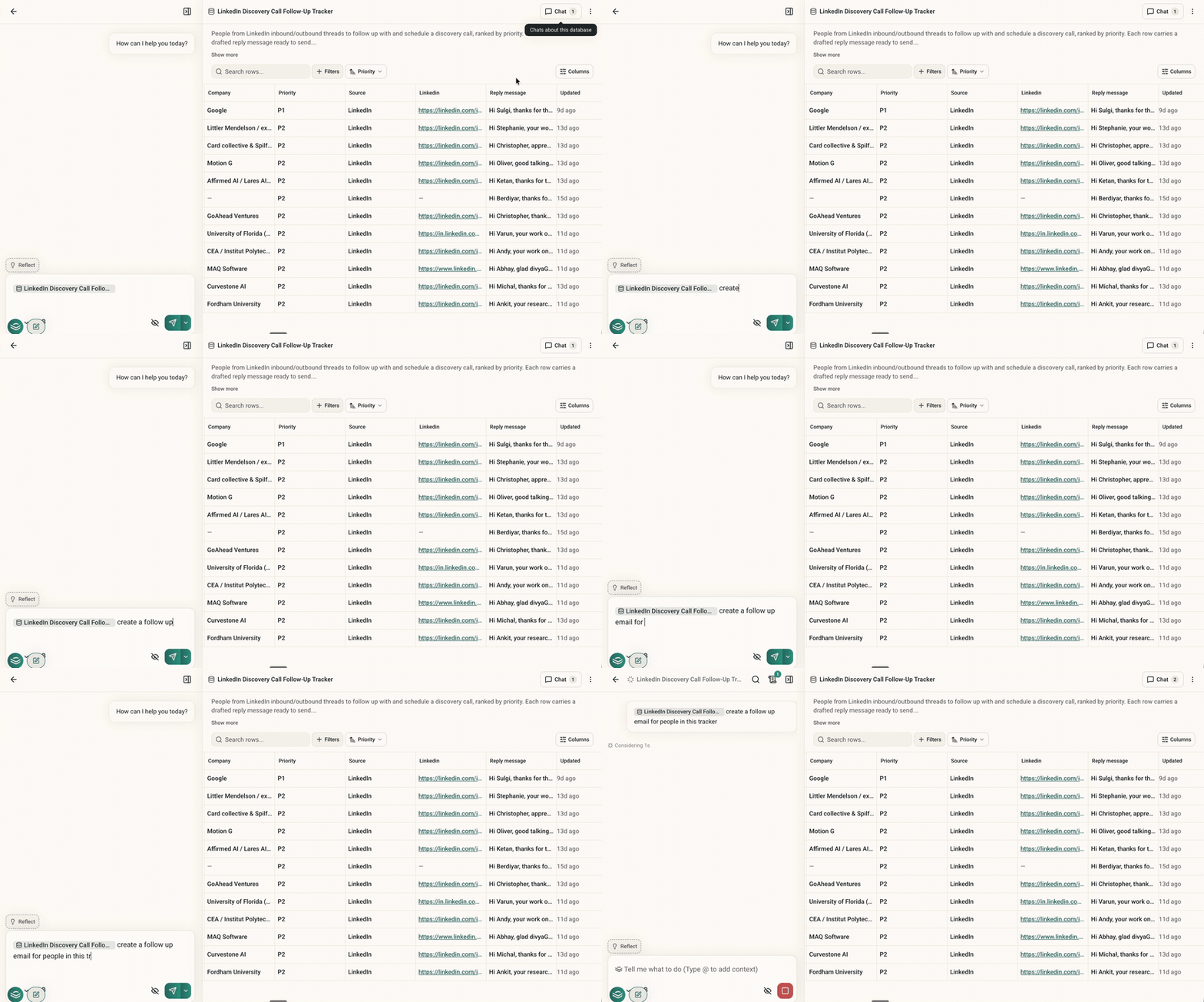
4. Press ⌘S to name your current version
⌘S (Ctrl+S) in a card editor now always names your current version. It no longer falls through to the browser’s save dialog.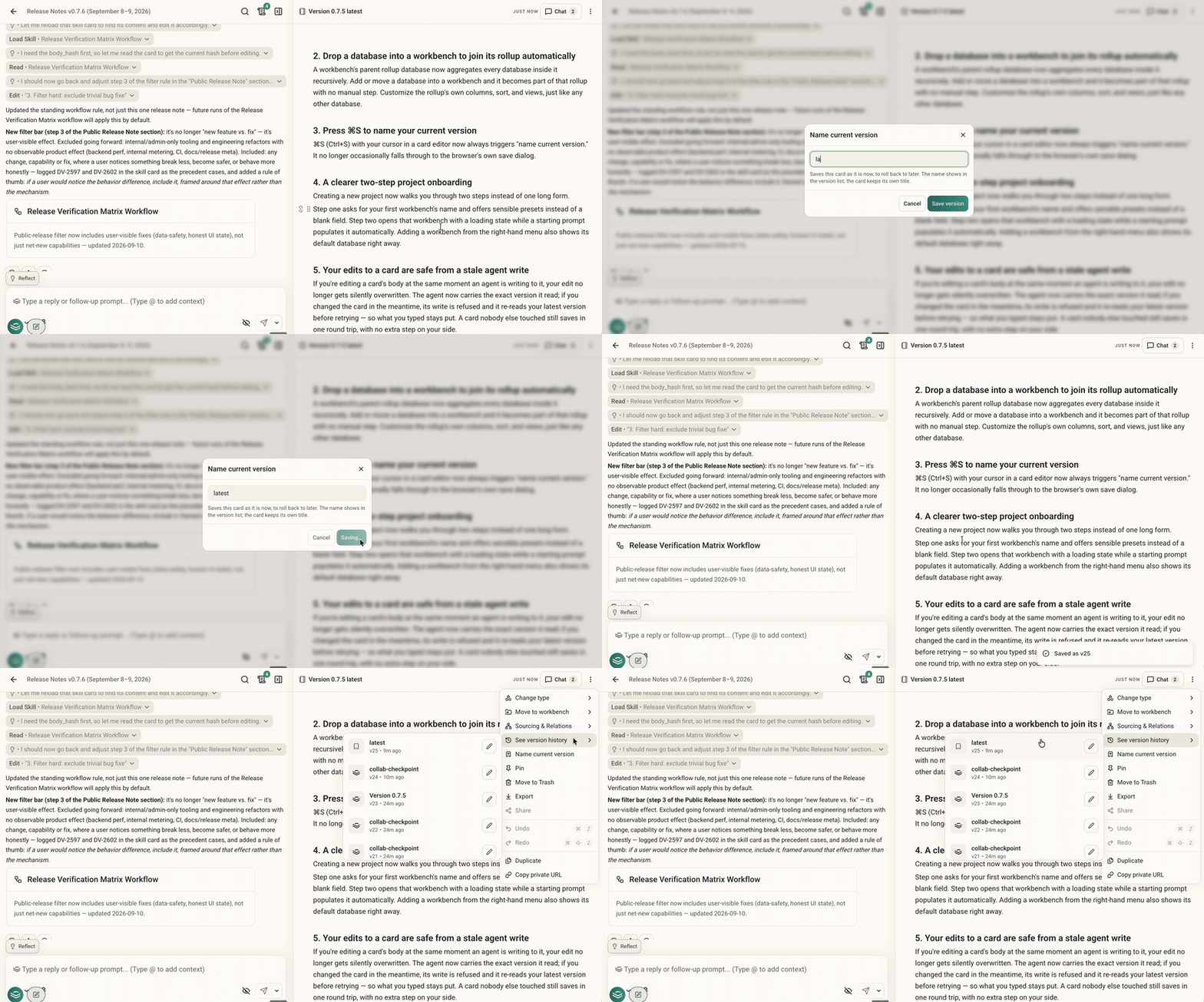
5. Co-edit a note with your DeepVista agent safely
If you edit a card while an agent is writing to it too, your edit no longer gets overwritten. The agent’s write is rejected the moment it detects your change, so it re-reads your latest version and tries again. A card nobody else is touching still saves in a single step.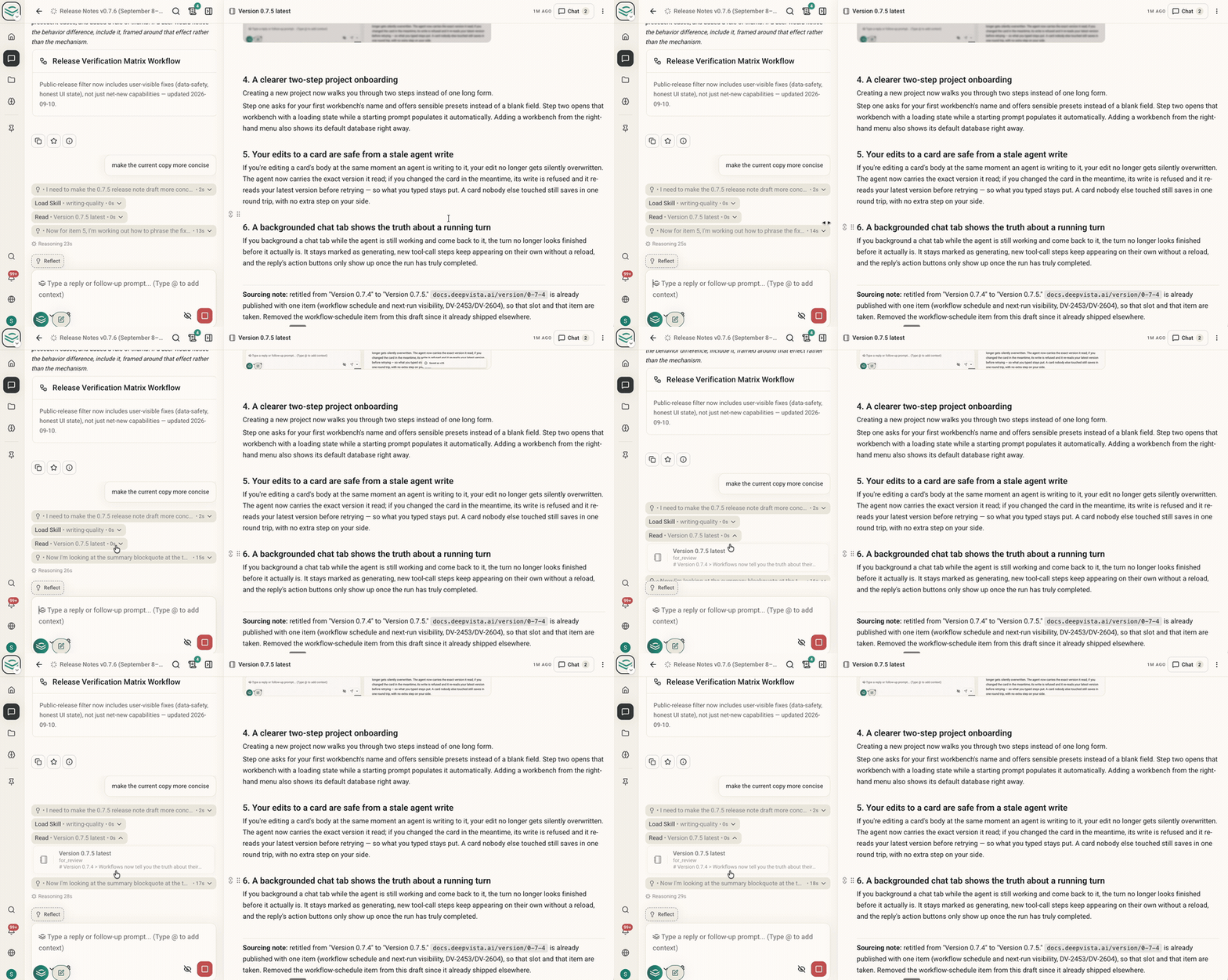
6. Check a workflow’s schedule and next run at a glance
Every workflow’s list and detail view now shows whether its schedule is enabled and the time of its next run, so you don’t have to open it to check.