.png?fit=max&auto=format&n=jKjpuy2fz57OUcfn&q=85&s=d5b9cacebbb4a94e2c6bac33ad479982)
.png?fit=max&auto=format&n=jKjpuy2fz57OUcfn&q=85&s=0e6d93d474315b69b3046316150e4582)
Who should read this
- Founders & Operators: Automate GTM busywork and maintain pipeline visibility.
- Growth & Sales Leads: Qualify inbound leads and draft personalized outreach instantly.
What you’ll learn
- Build your own intelligent CRM tracker in minutes.
- Learn how DeepVista handles the busywork for you by researching outbound leads, sending outreach emails, and capturing and following up with inbound leads.
- Win the new metric for AI-native GTM: Speed to context.
1. Research Leads and Set Up a CRM Tracker
Prerequisites
Before you start, make sure you have a DeepVista account with an active project. To create an account, sign up here. Once you’re in, you’ll land on your homepage with quick-start cards, ready to go.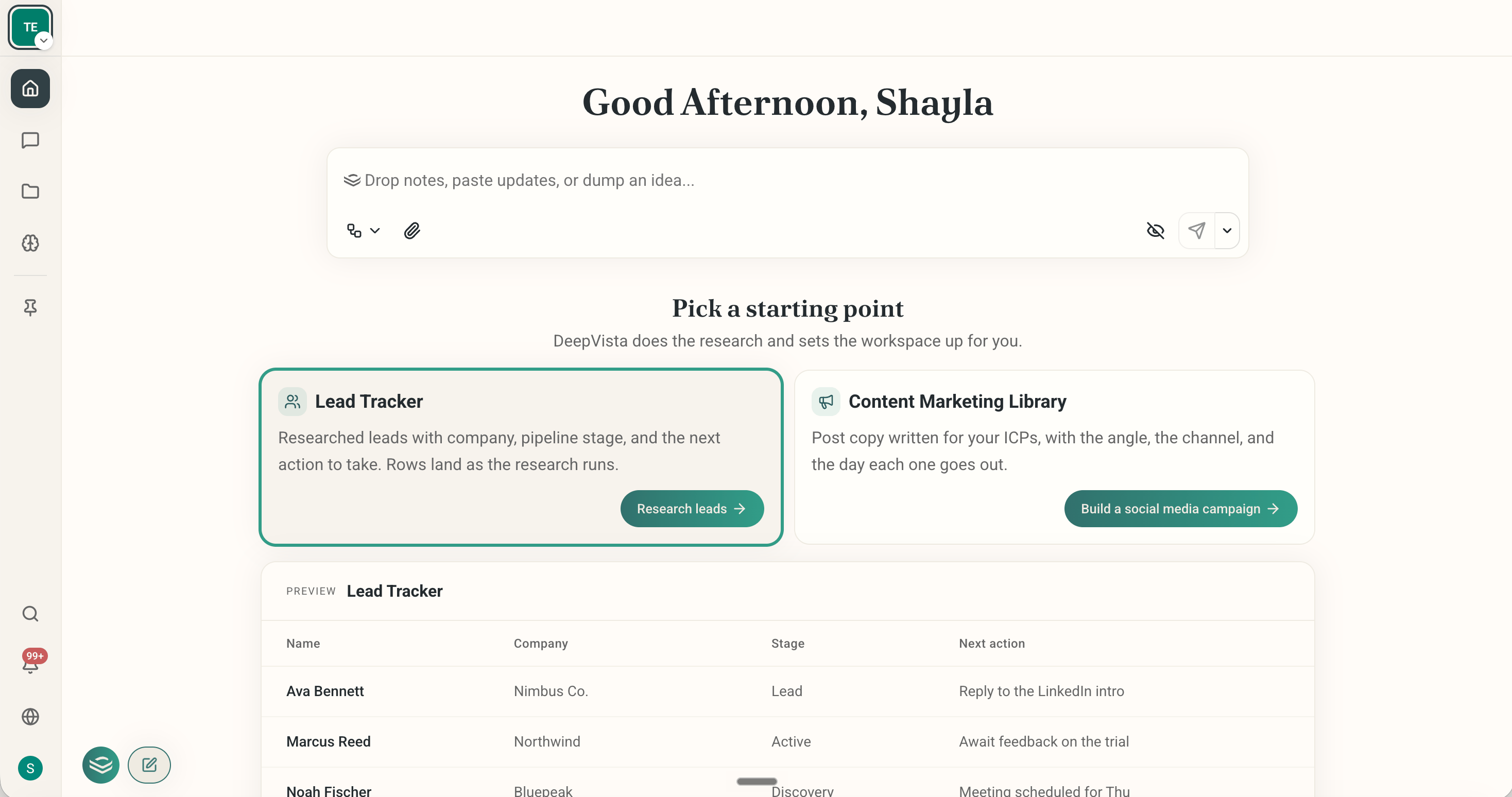
Onboard Your Company and Ask DeepVista to Search Leads for You
Click "Research leads" on the Lead Tracker card.
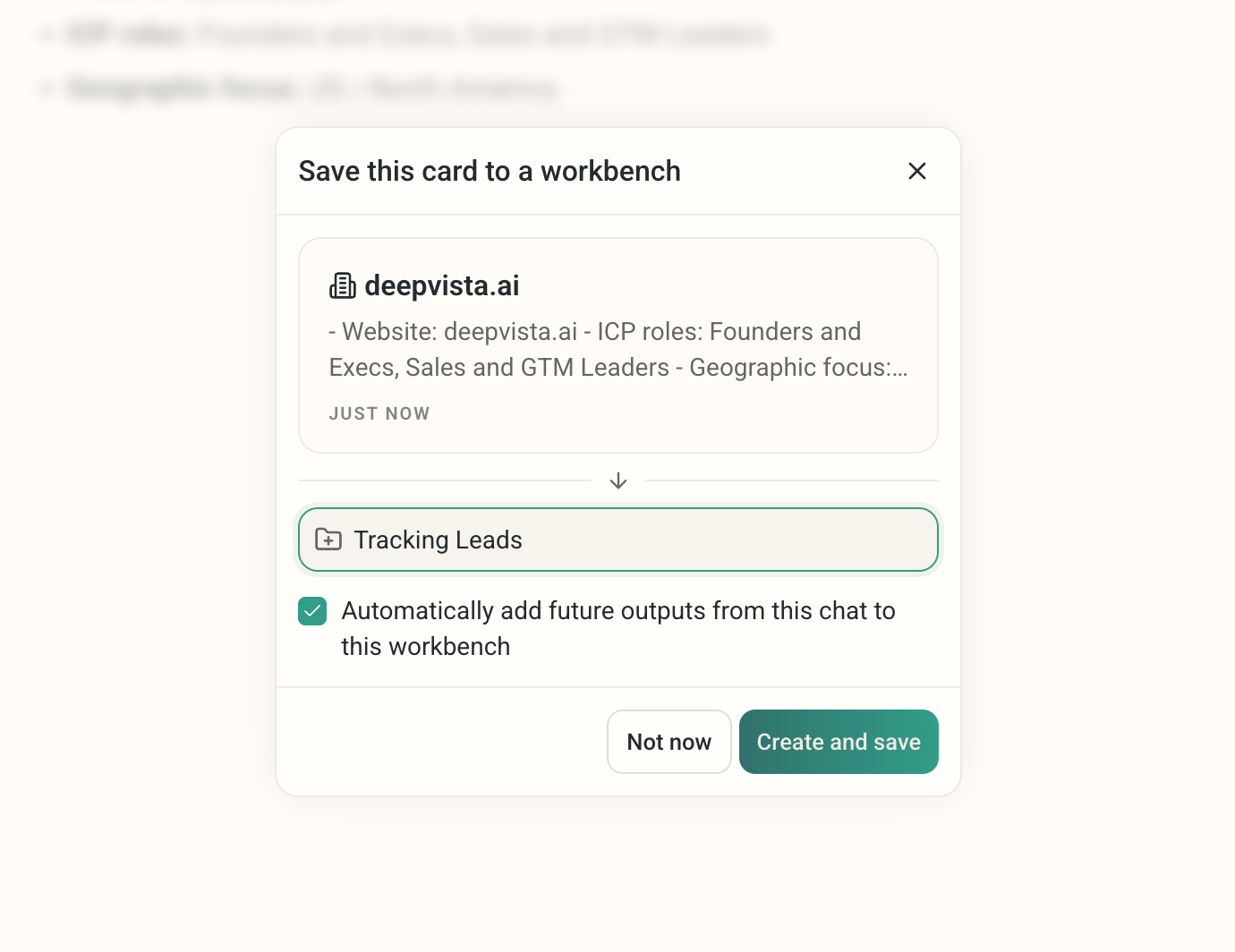
Save your company card to a workbench.
After DeepVista finishes its work, you'll receive a table card with your leads. Click to expand the full list.
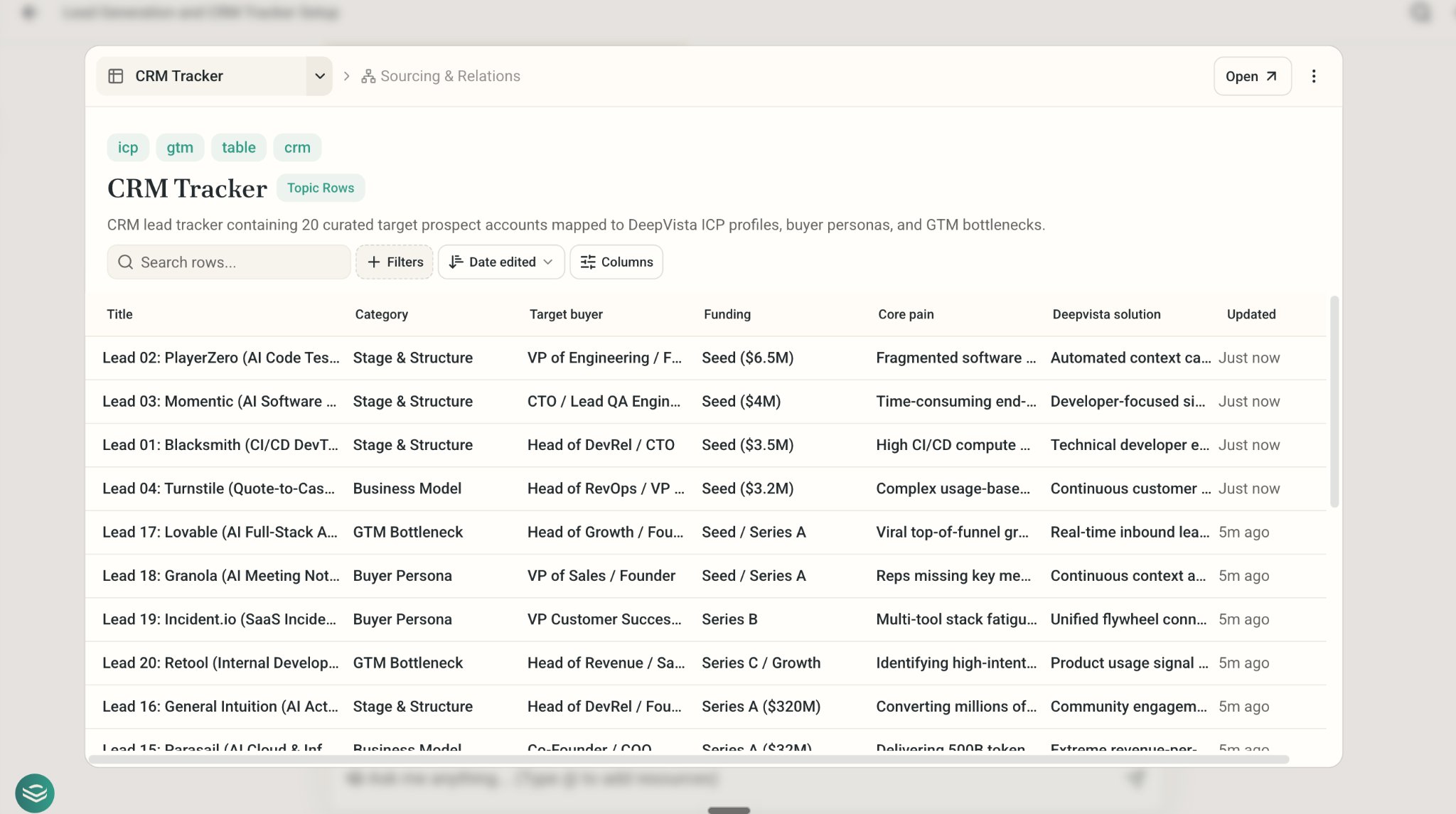
To view details for a specific entry, hover over the table row and click "Open."
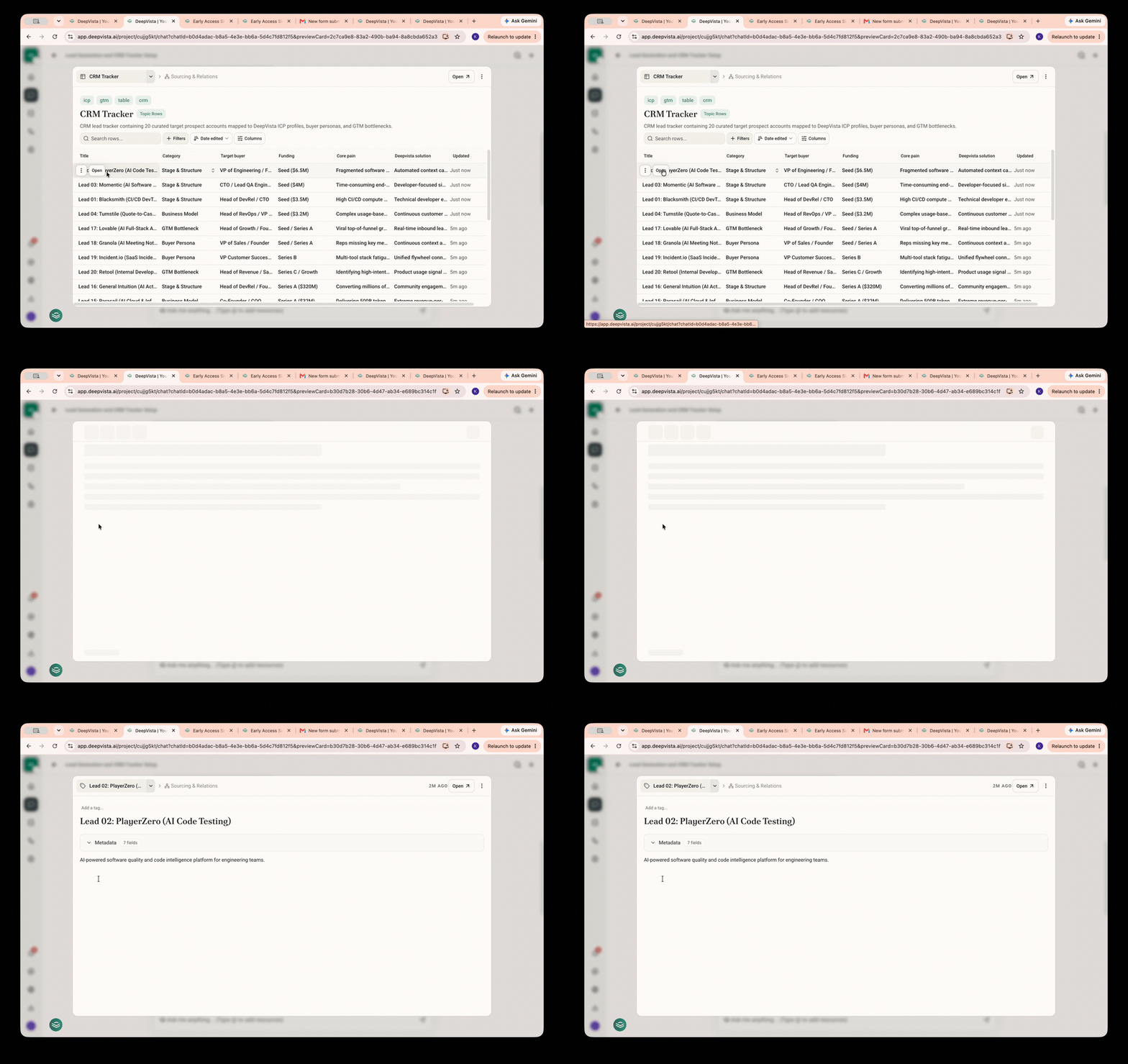
Customize Your Search Fields
- To retrieve additional information, prompt DeepVista: “Please add a column for the LinkedIn page. Research and populate it.” The system will automatically add and populate the new column with the requested data.
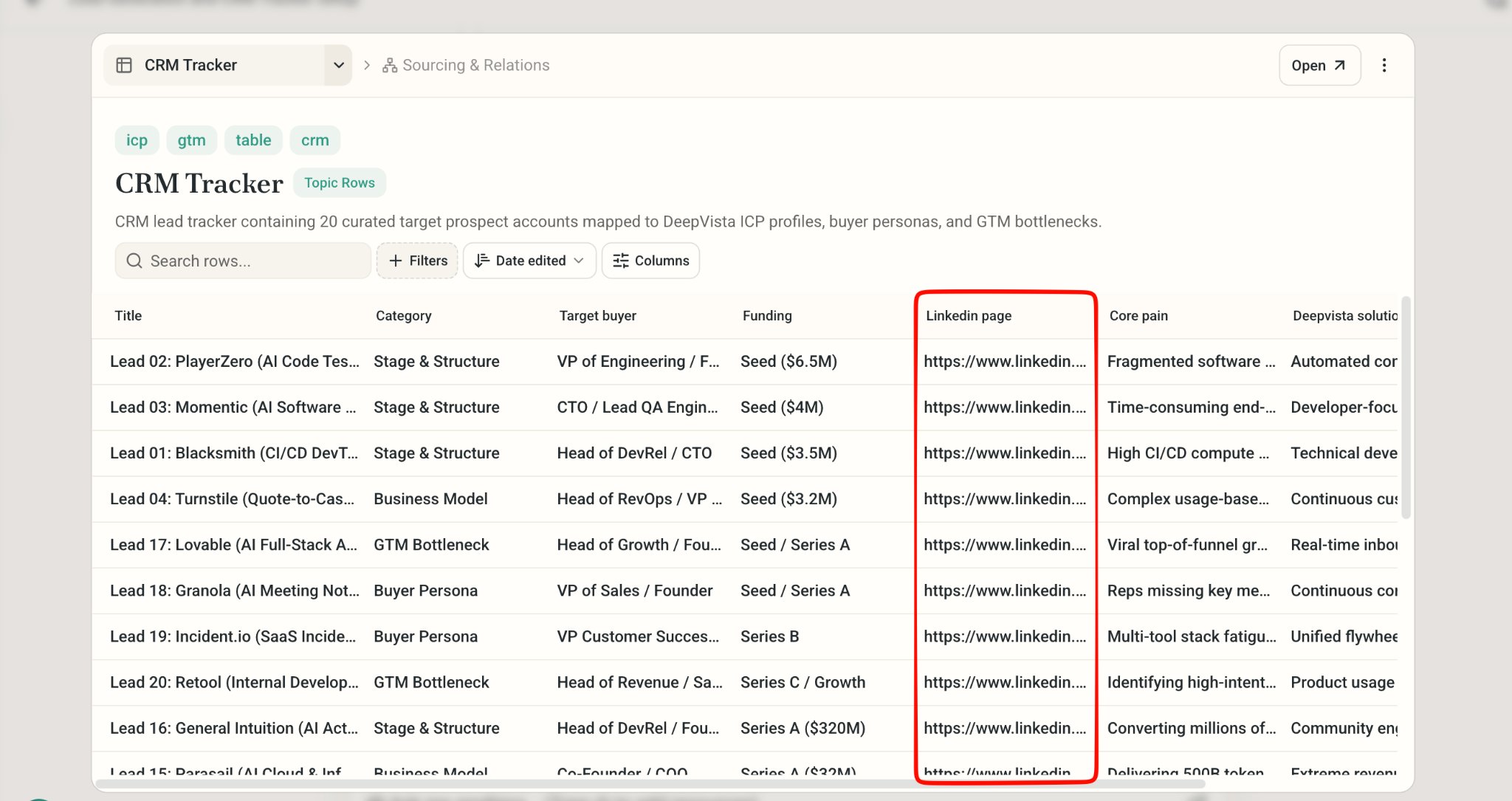
2. Draft, Send, and Schedule Outreach Email
Ask DeepVista to Draft Outreach Email
Ask DeepVista: "Help me draft outreach emails for all of the leads."
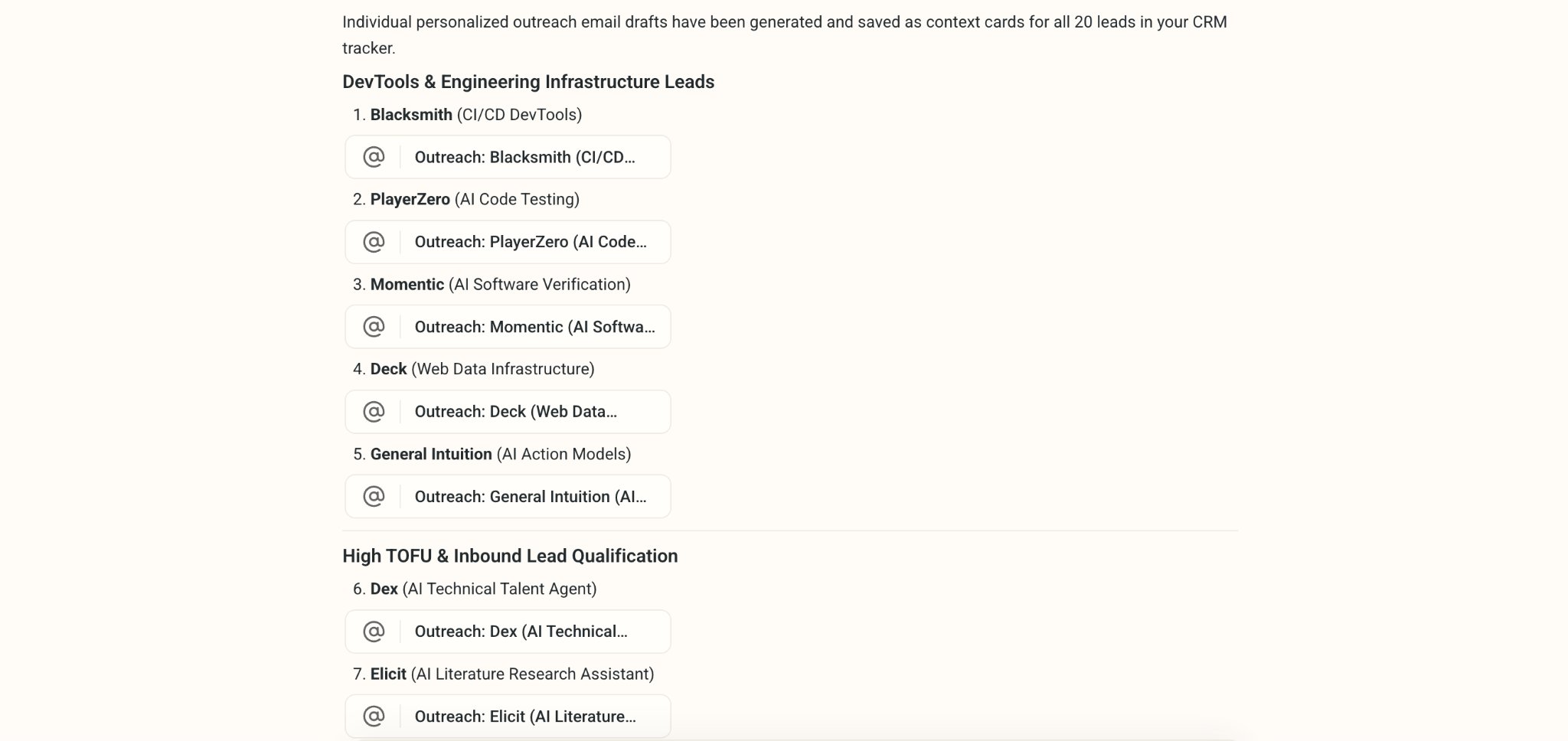
Click into the email card to view and edit the draft.
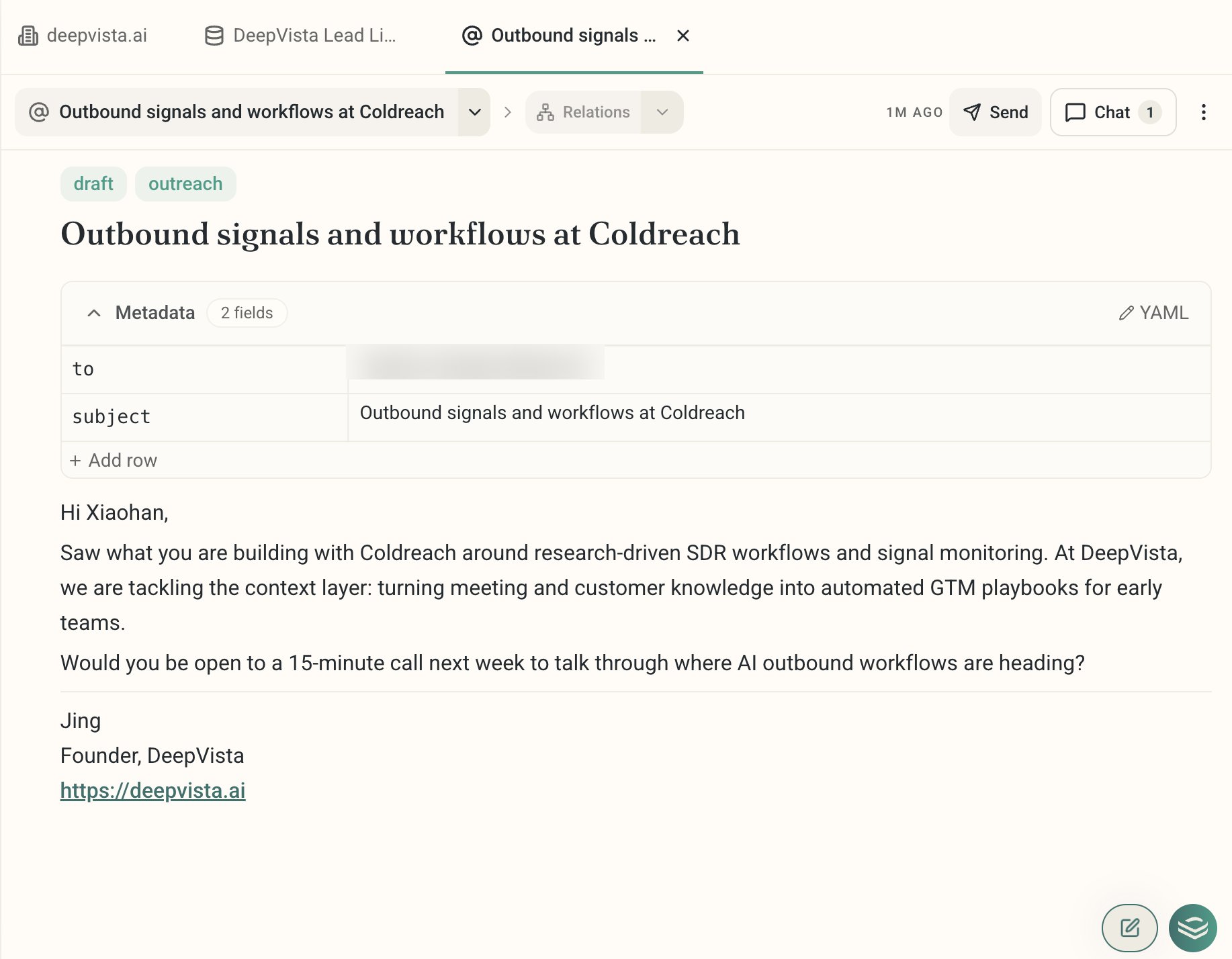
Connect Your Gmail and Send Your Email
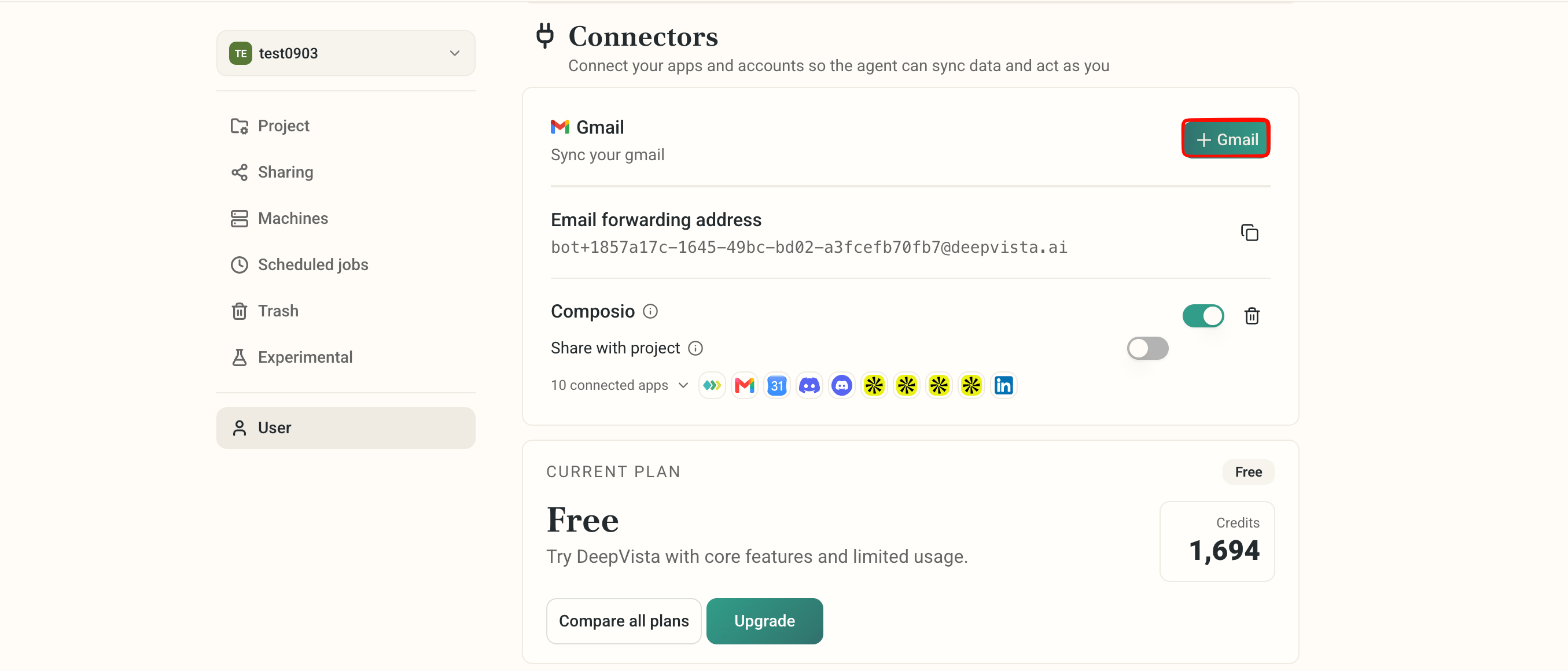
Go to your account menu, then Settings > Users > Connectors, and click + Gmail.
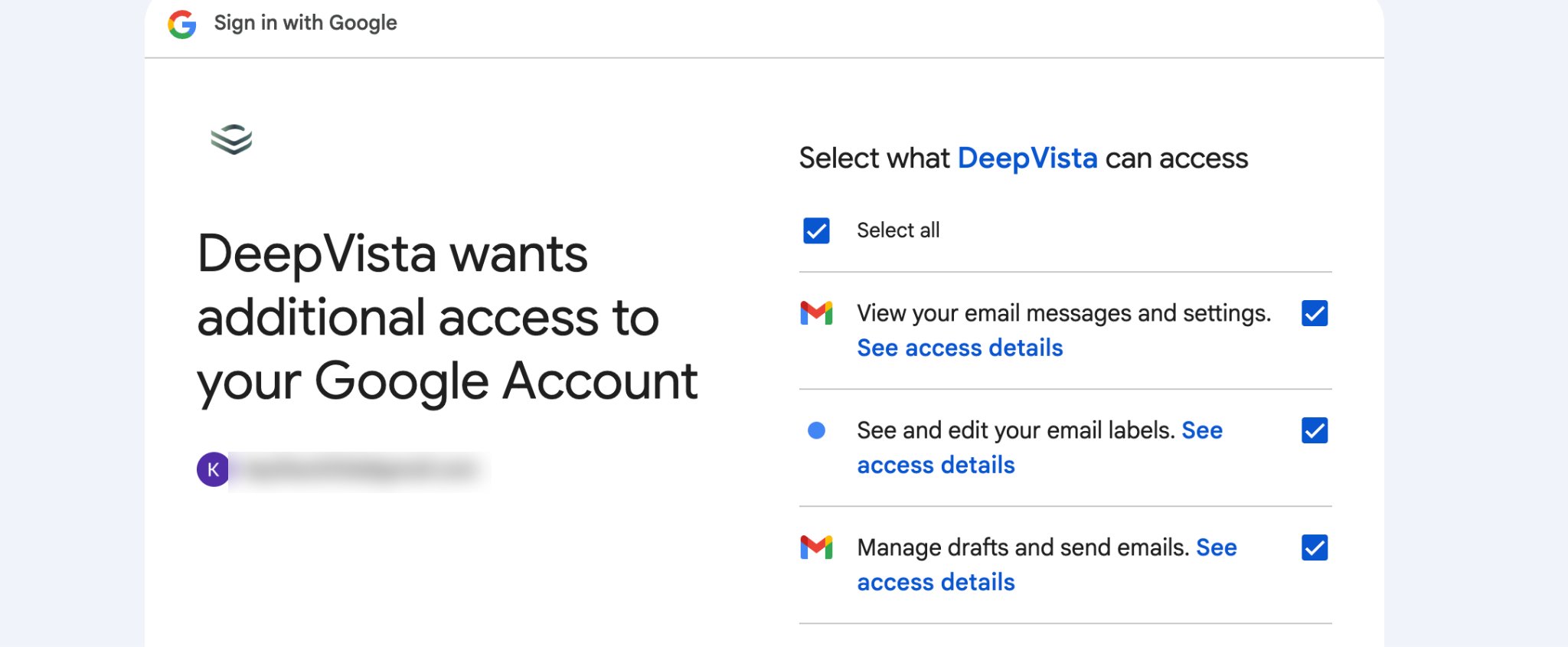
Make sure DeepVista has all the access it needs.
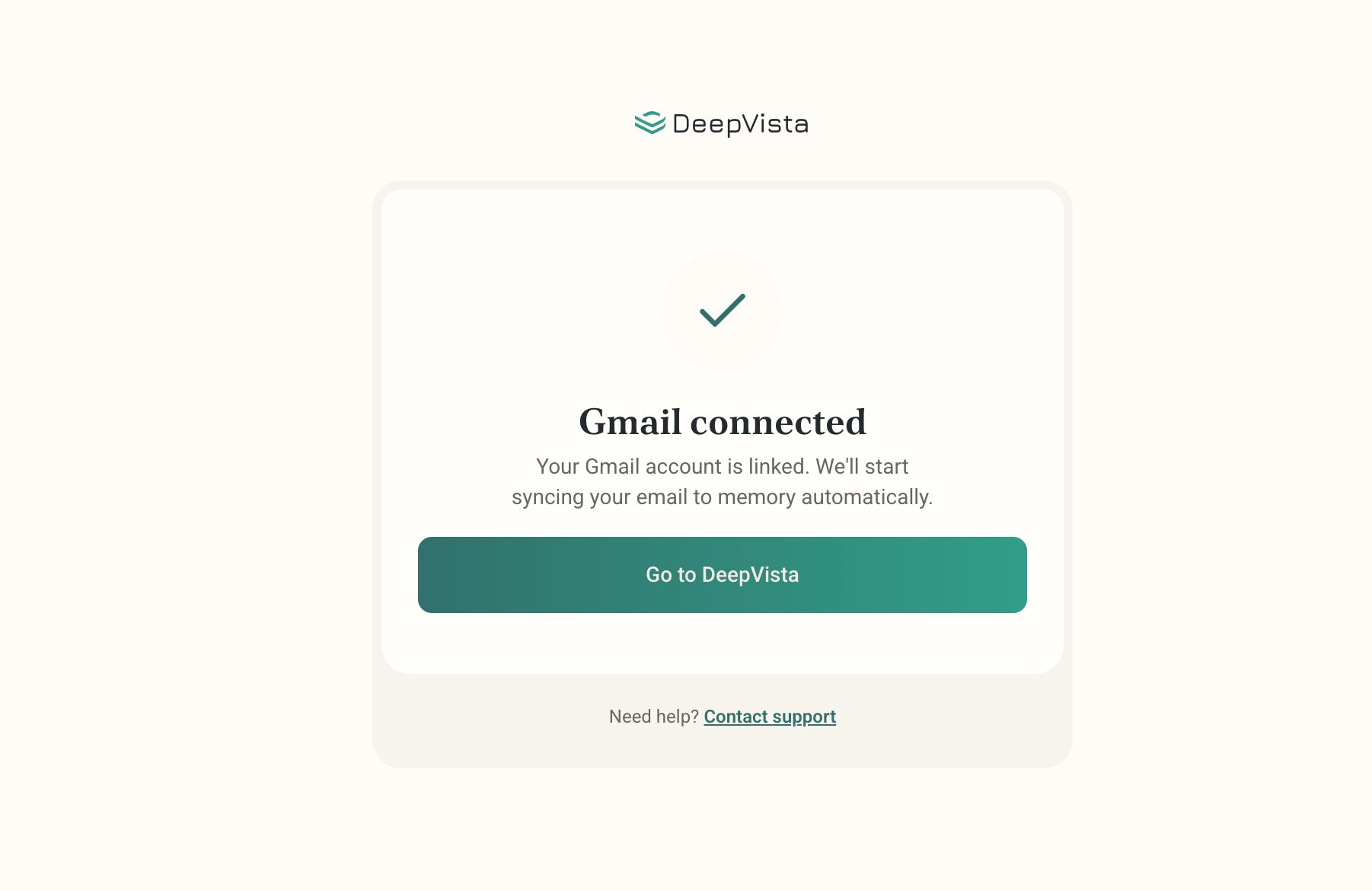
Upon success, you'll see the confirmation page below.
Once ready, click Send at the top of the email card, or ask DeepVista to send all of them automatically.
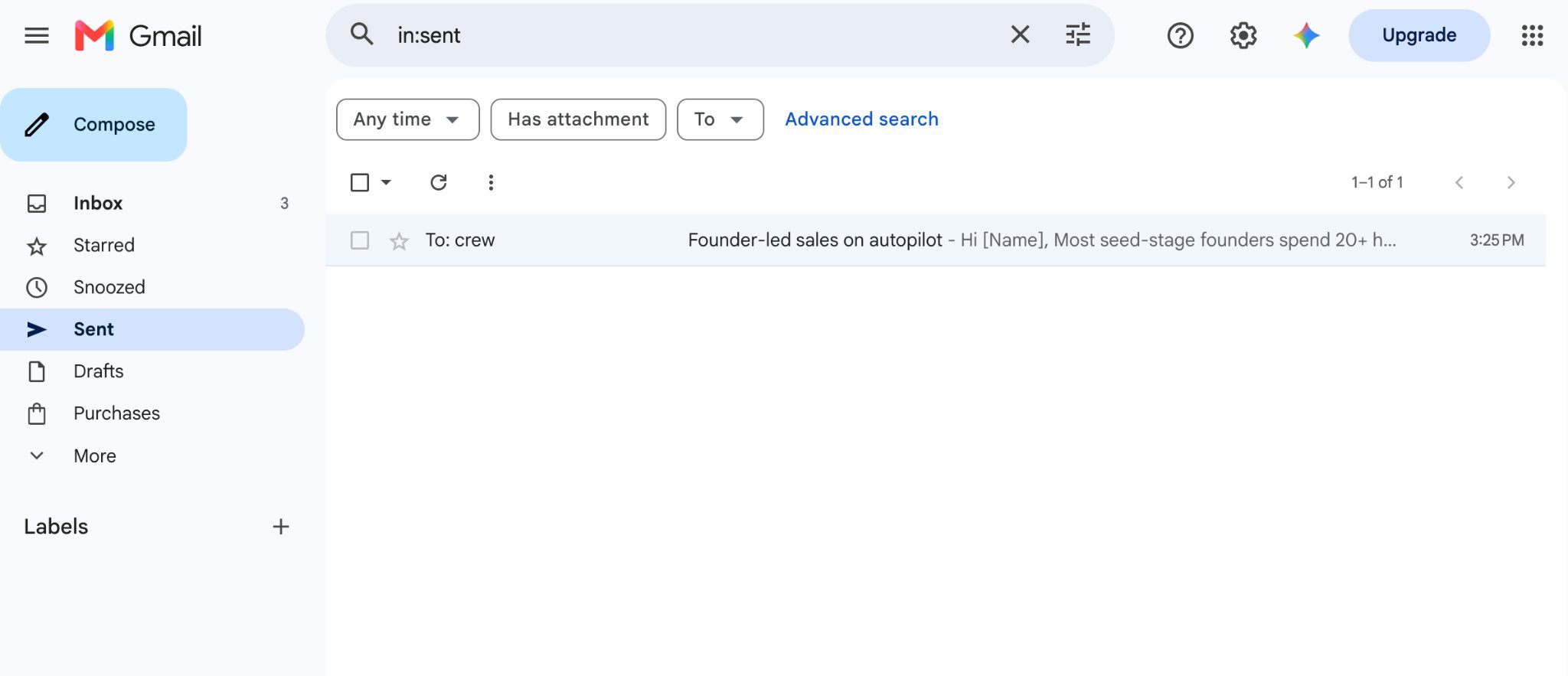
To confirm, open Gmail and find the sent email in your Gmail "Sent" tab.
Ask DeepVista to Schedule a Daily Job
Ask DeepVista: "Schedule a daily task to source 20 new leads every day. Never repeat companies already in the tracker."
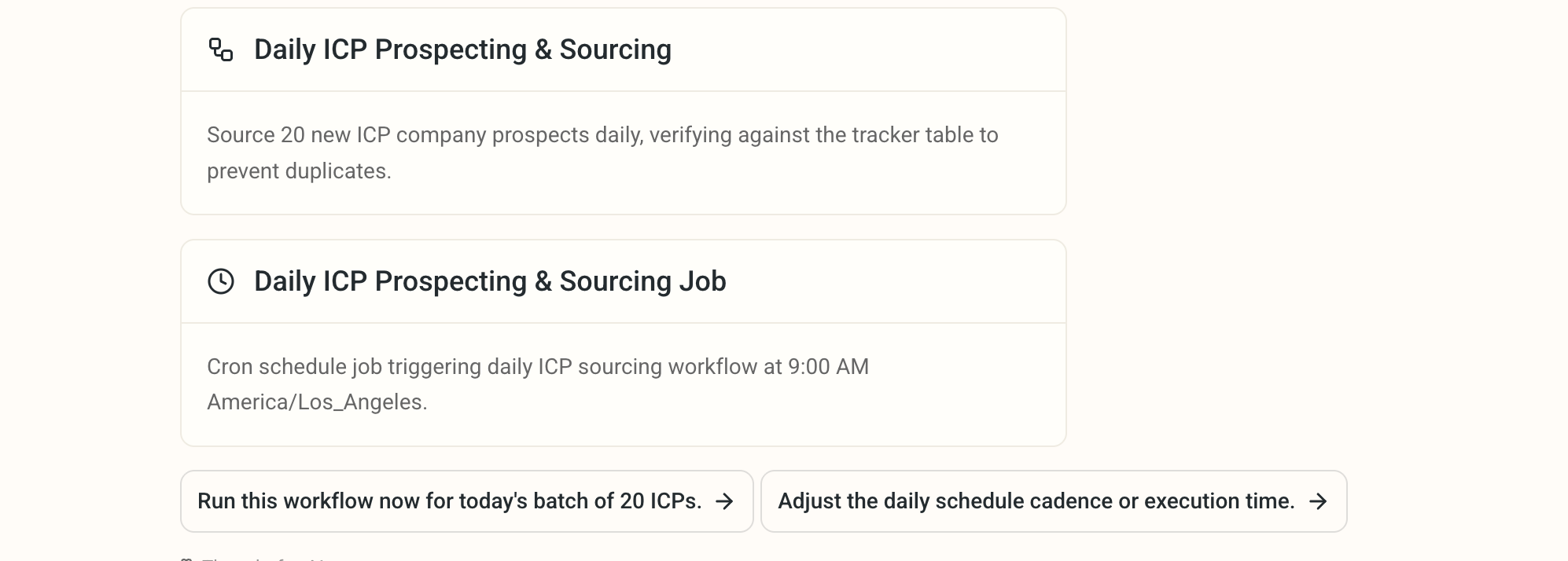
Click the context cards to view details and make changes.
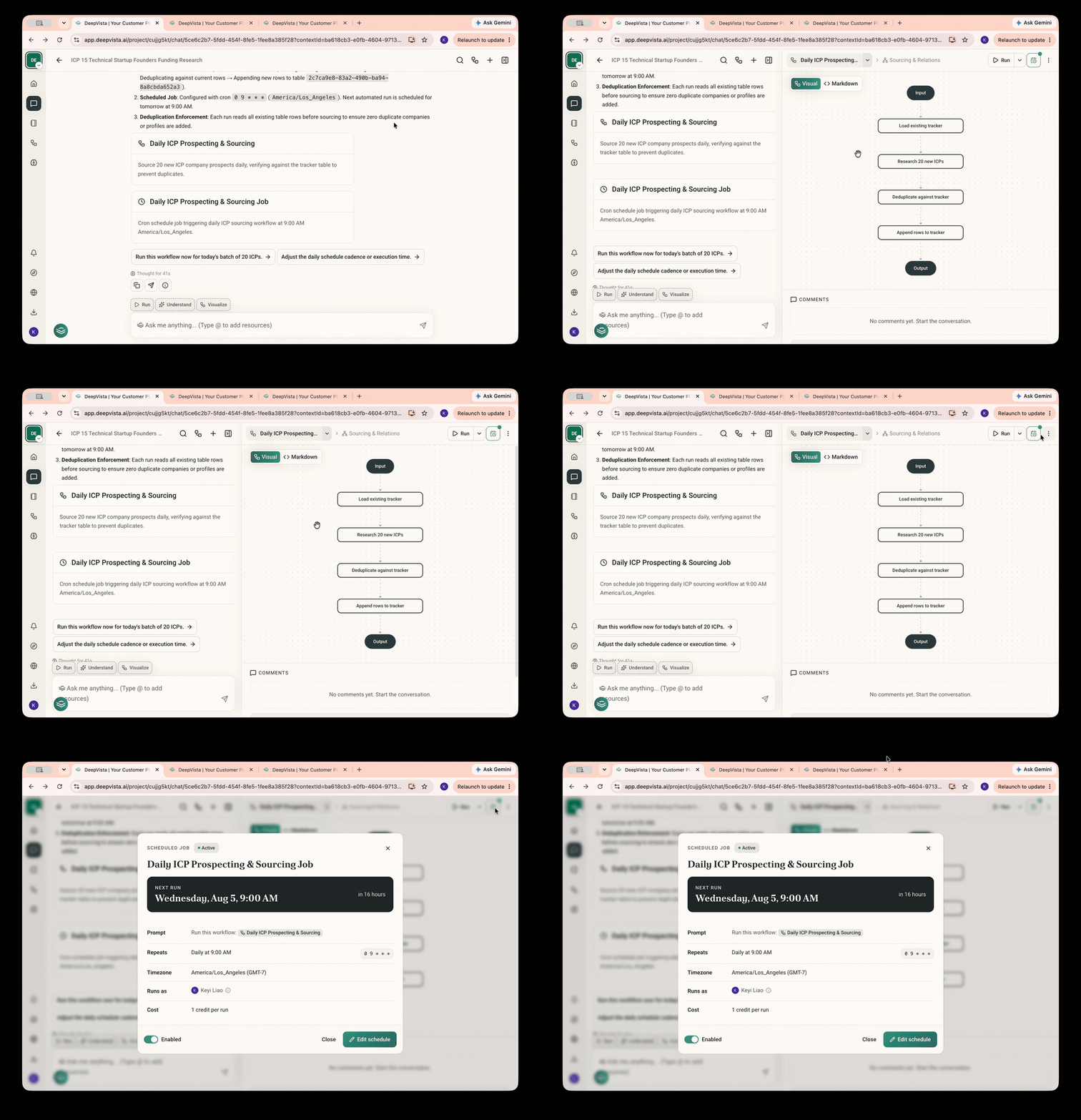
3. Keep Your CRM Running With You
Capture a Note or a Screenshot
- Copy and paste it in chat, ask DeepVista to “add customer A to my CRM Tracker.” DeepVista will automatically update the row.
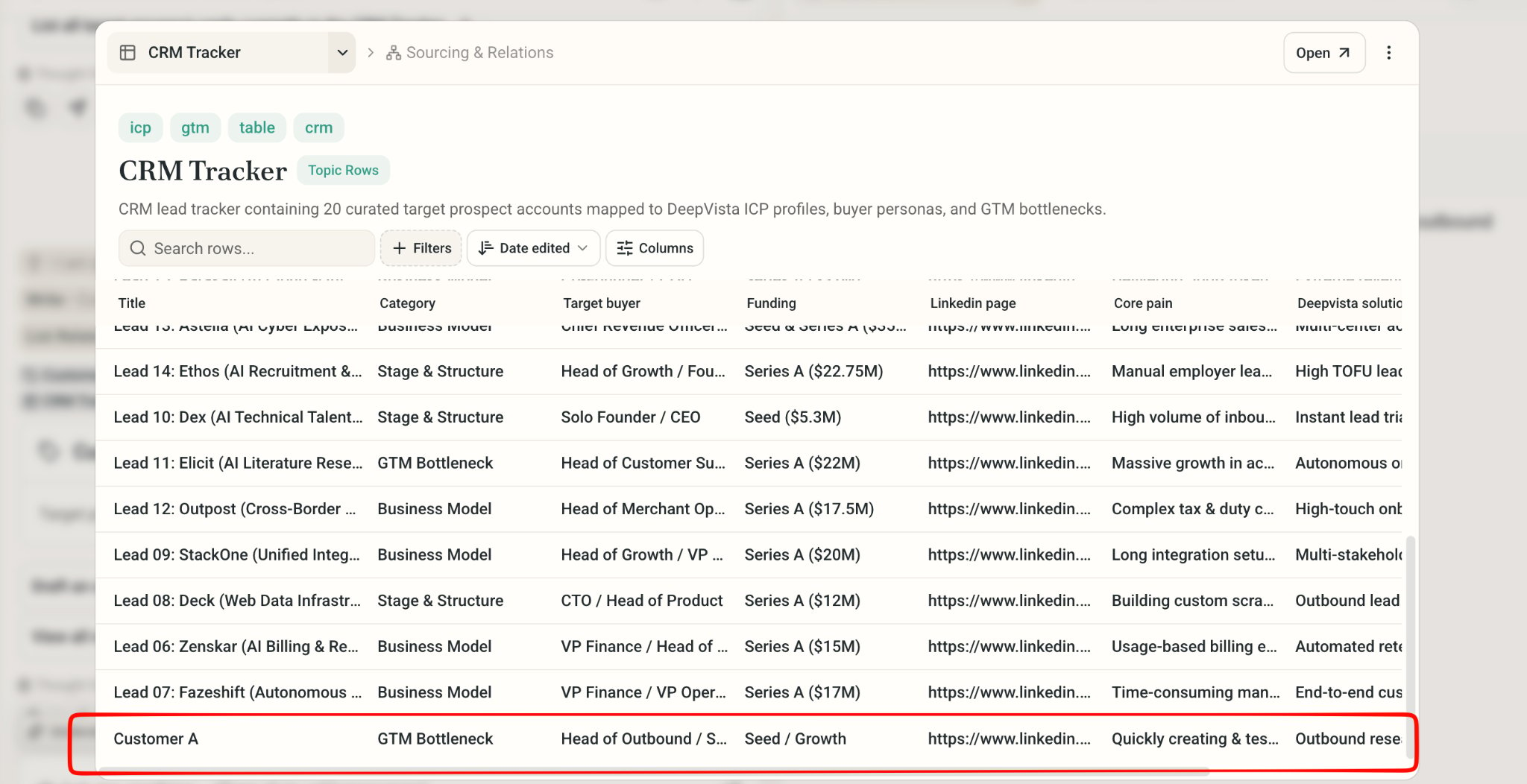
Monitor your Email
Ask DeepVista: Monitor my email inbox and update the CRM Tracker everyday.
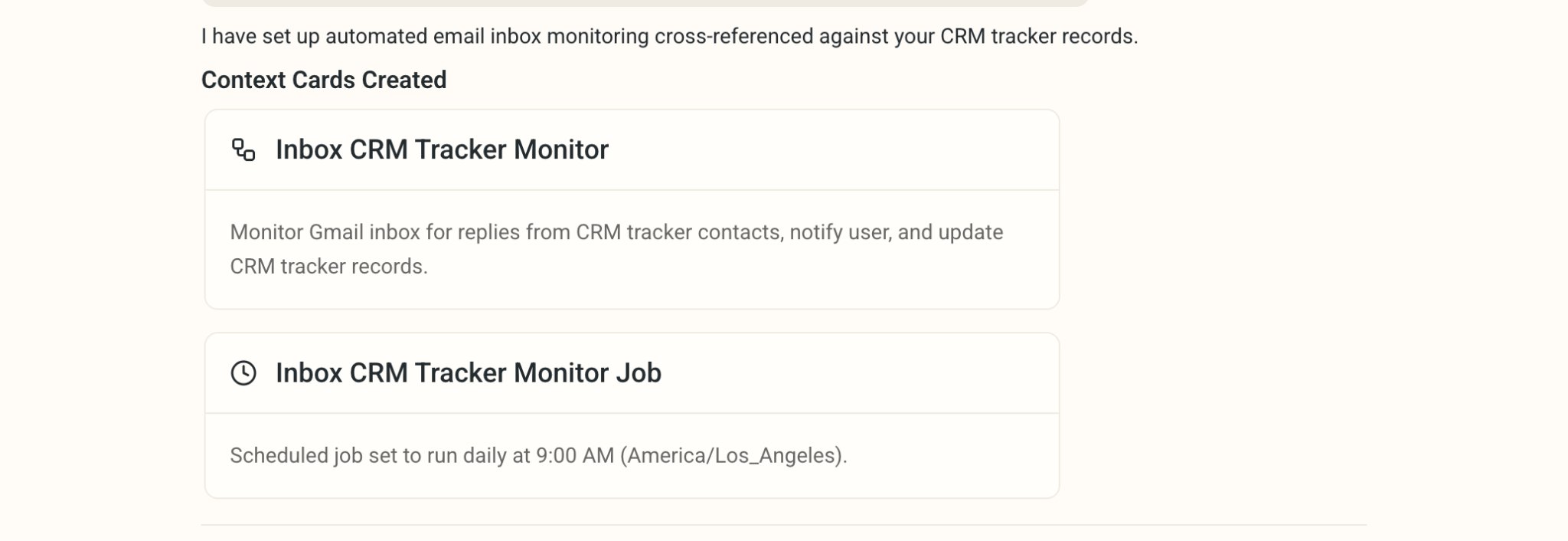
Get an email alert when a CRM contact has an update.
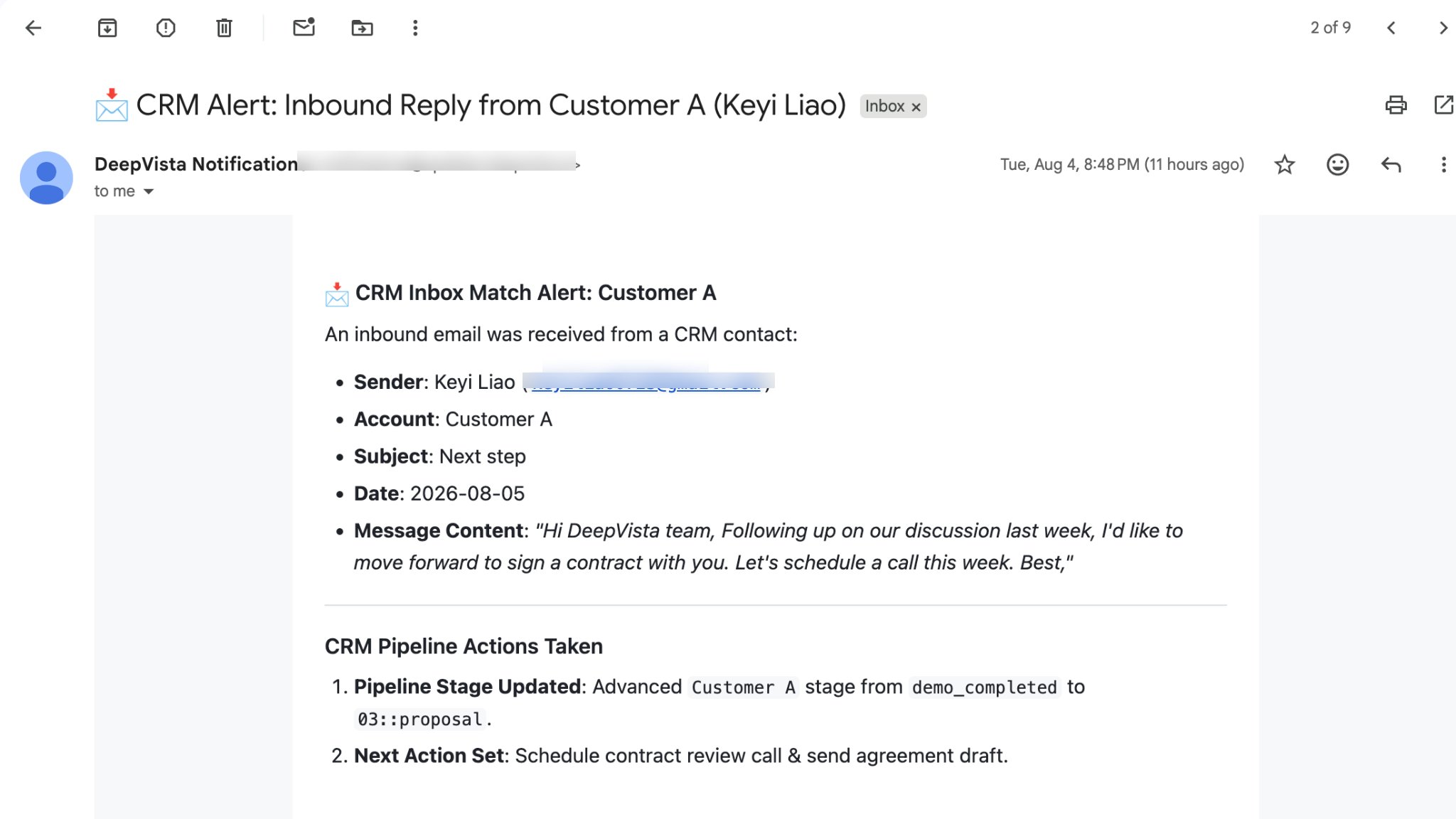
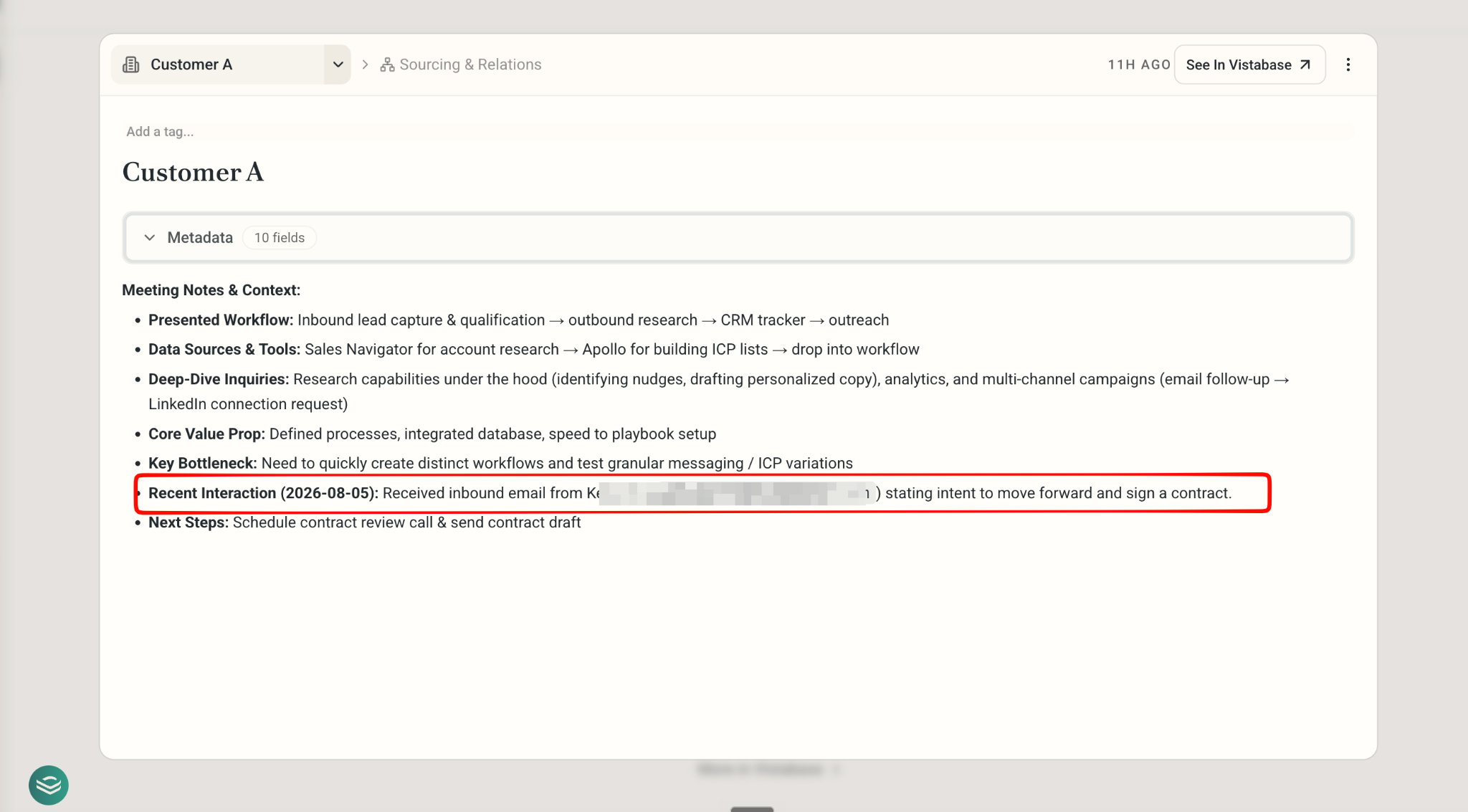
On the CRM tracker, click to check Person Card for recent interaction.