.png?fit=max&auto=format&n=jKjpuy2fz57OUcfn&q=85&s=d5b9cacebbb4a94e2c6bac33ad479982)
.png?fit=max&auto=format&n=jKjpuy2fz57OUcfn&q=85&s=0e6d93d474315b69b3046316150e4582)
Overview
Integrating the Rebrandly CLI with DeepVista lets your workflows create, customize, and manage branded short URLs (e.g.link.yourdomain.com/xyz) directly from prompts.
Your Rebrandly API key is given to DeepVista once, through a sensitive message in chat, a message DeepVista doesn’t save to chat history. From there, the key is only ever used by your connected machine to run Rebrandly CLI commands; it’s never handled as regular chat text or stored in a normal message.
Prerequisites
Deep Workflows need a connected machine before you can run them. Complete these three setup steps first, in order:
Mac Setup
Install the developer tools and Claude Code CLI this setup depends on.
Set Up Your Claude Code Connector
Authenticate Claude Code with your Claude account.
Connect Your Own Machine
Install the DeepVista CLI and connect your machine as a local runner.
deepvista tasks run polling, you’ll also need a Rebrandly account with an active workspace API key.
Step-by-step guide
1
Open your Rebrandly settings
In Rebrandly, click your account menu and select Settings.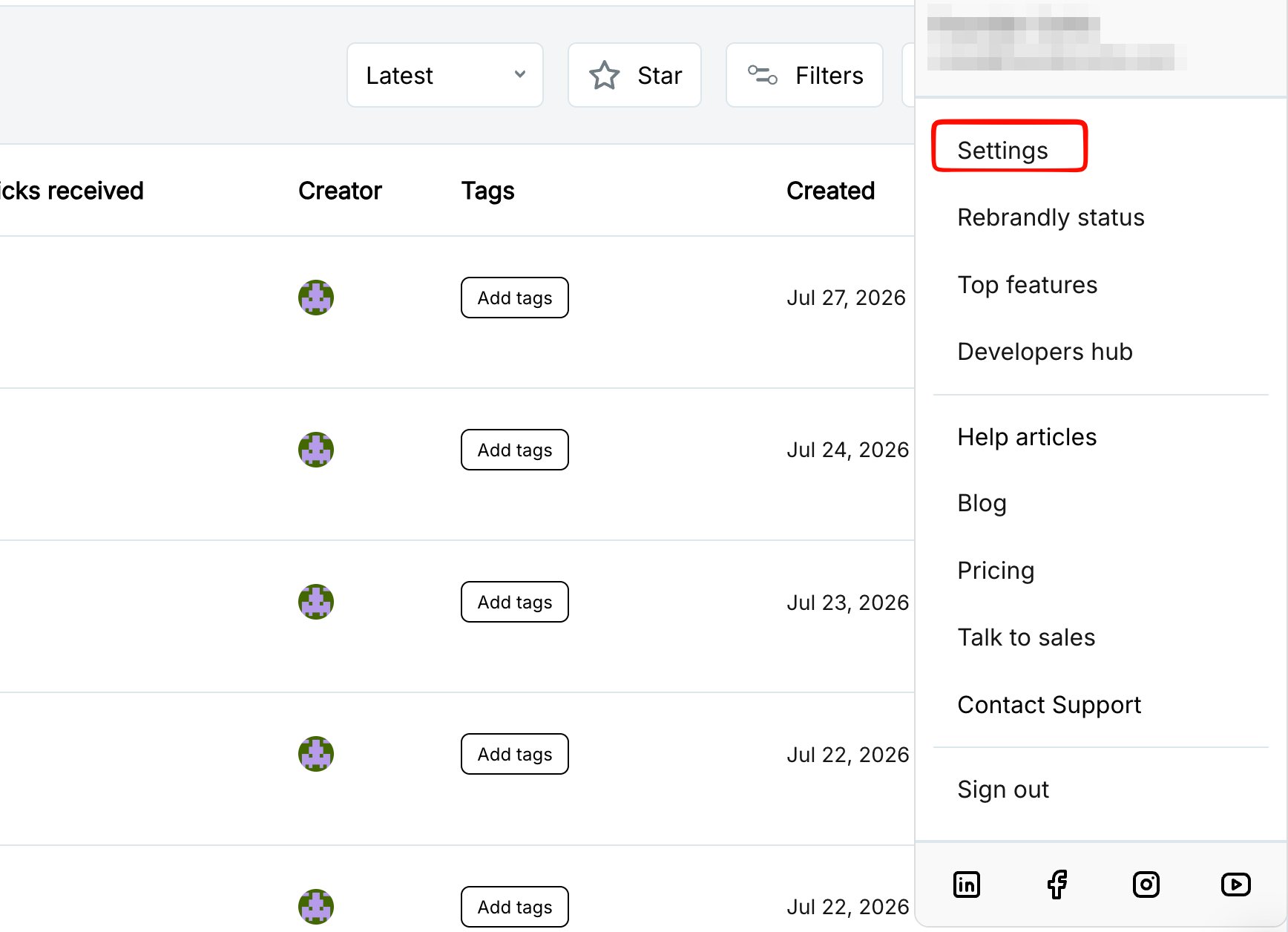
2
Go to API Keys
Under Connections & Data, select API Keys.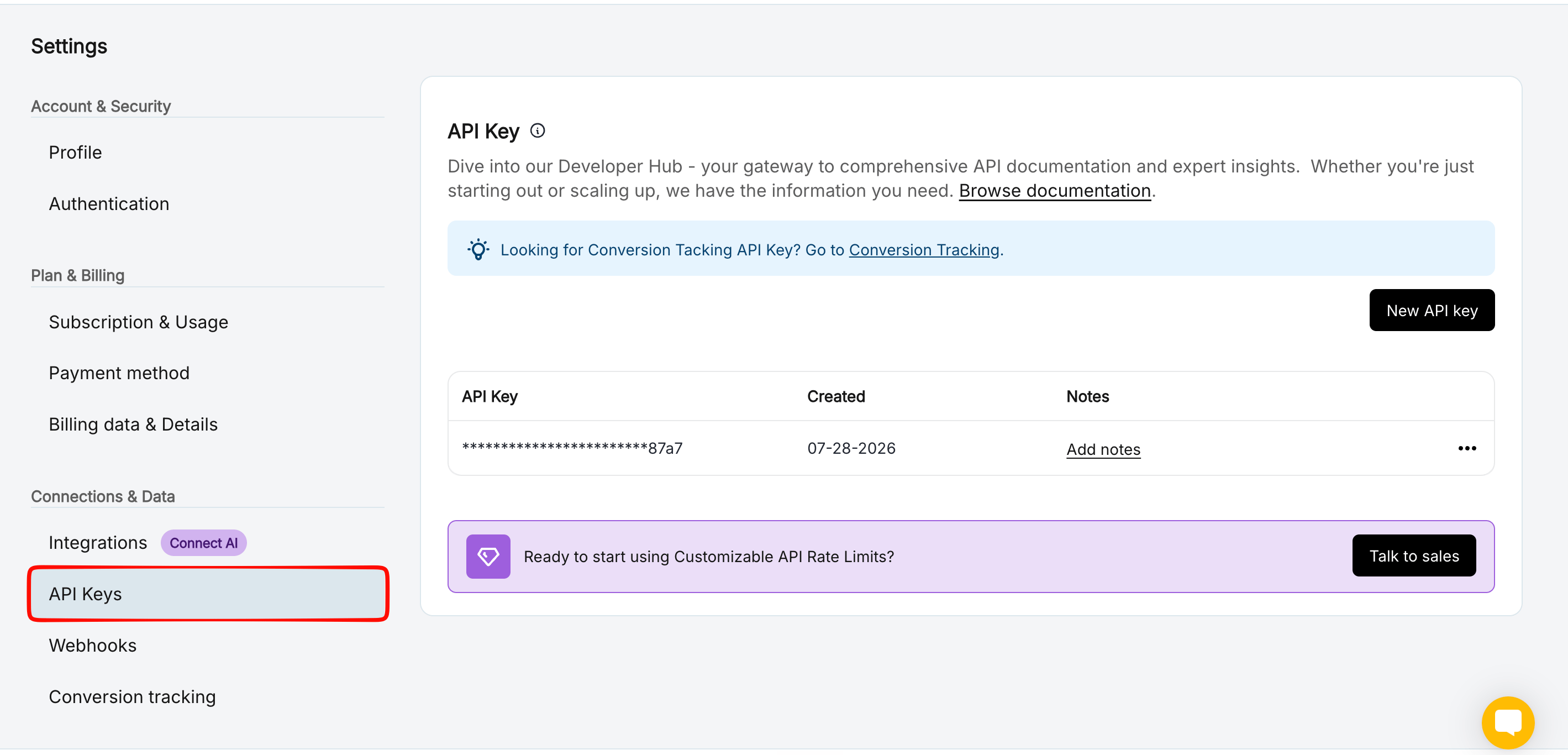
3
Copy your API key
Click the Copy button next to your key.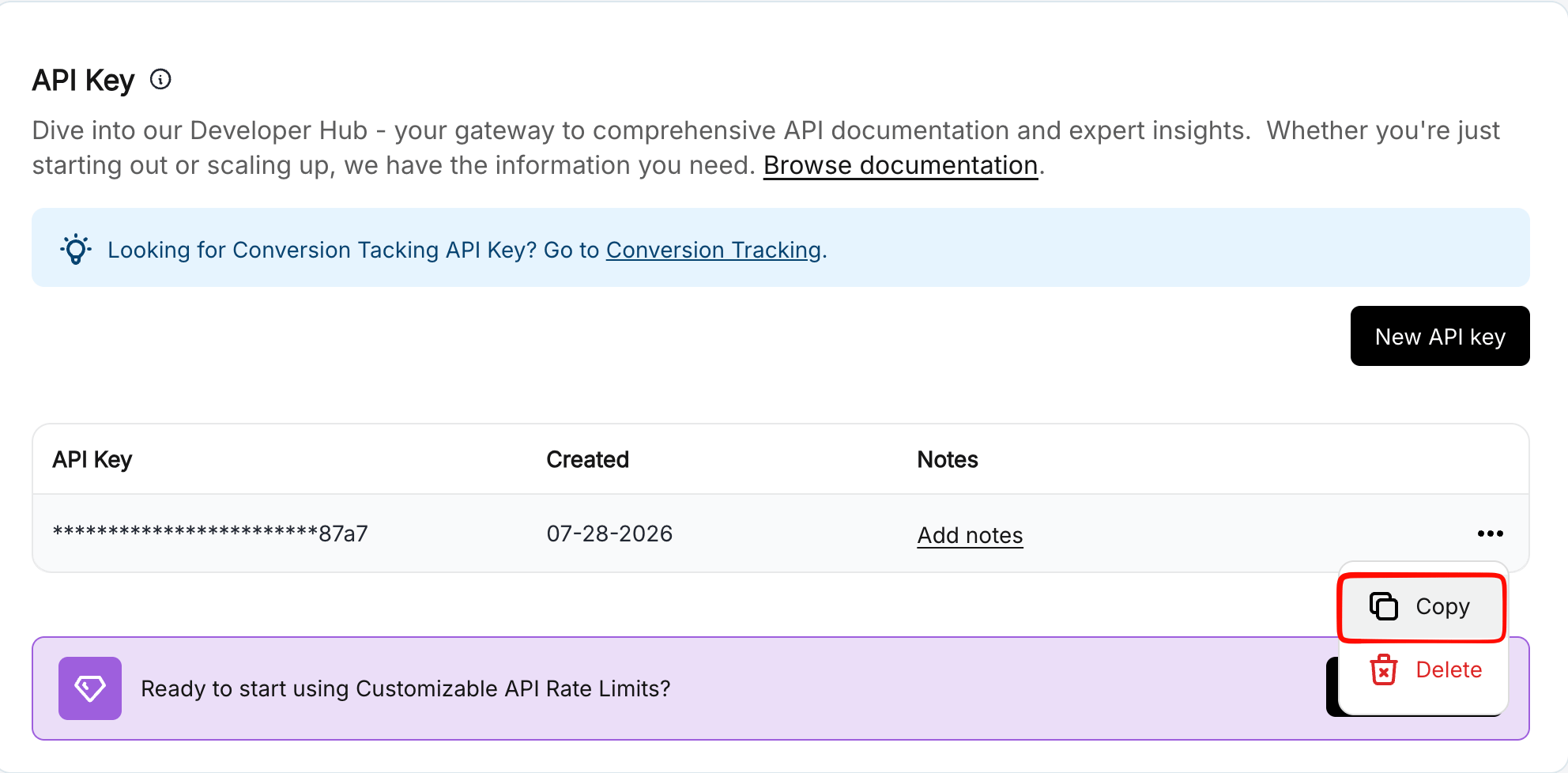
4
Give the key to DeepVista as a sensitive message
Back in DeepVista chat, paste the key using the sensitive message toggle (the crossed-out eye icon next to send). Messages sent this way are delivered to your connected machine but are not saved to chat history.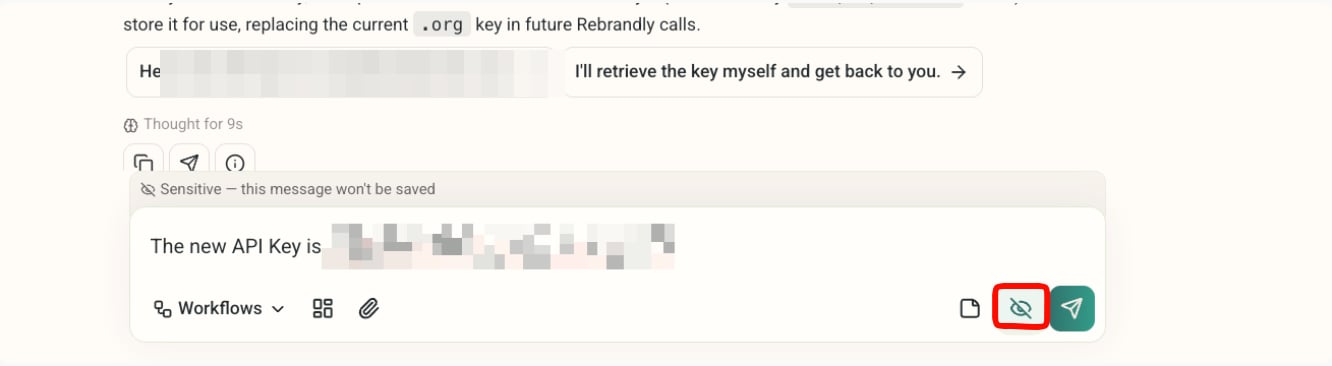
Next steps
Automating Linear Tickets via DeepVista Task Delegation
See the same local-credential pattern used to file Linear tickets headlessly.
Set Up an X Posting Workflow
Research, draft, and publish X posts with the Buffer CLI.