You can easily capture lead details by creating public forms in DeepVista. When a user submits the form, it automatically triggers your workflow and passes the captured information directly into your pipeline.
Note: Before enabling your form, ensure your workflow inputs (like Name, Email, or Company) are properly configured. You can always edit or update these fields at any time if your data needs change.

Configuration Steps

1

Enable the Input Form

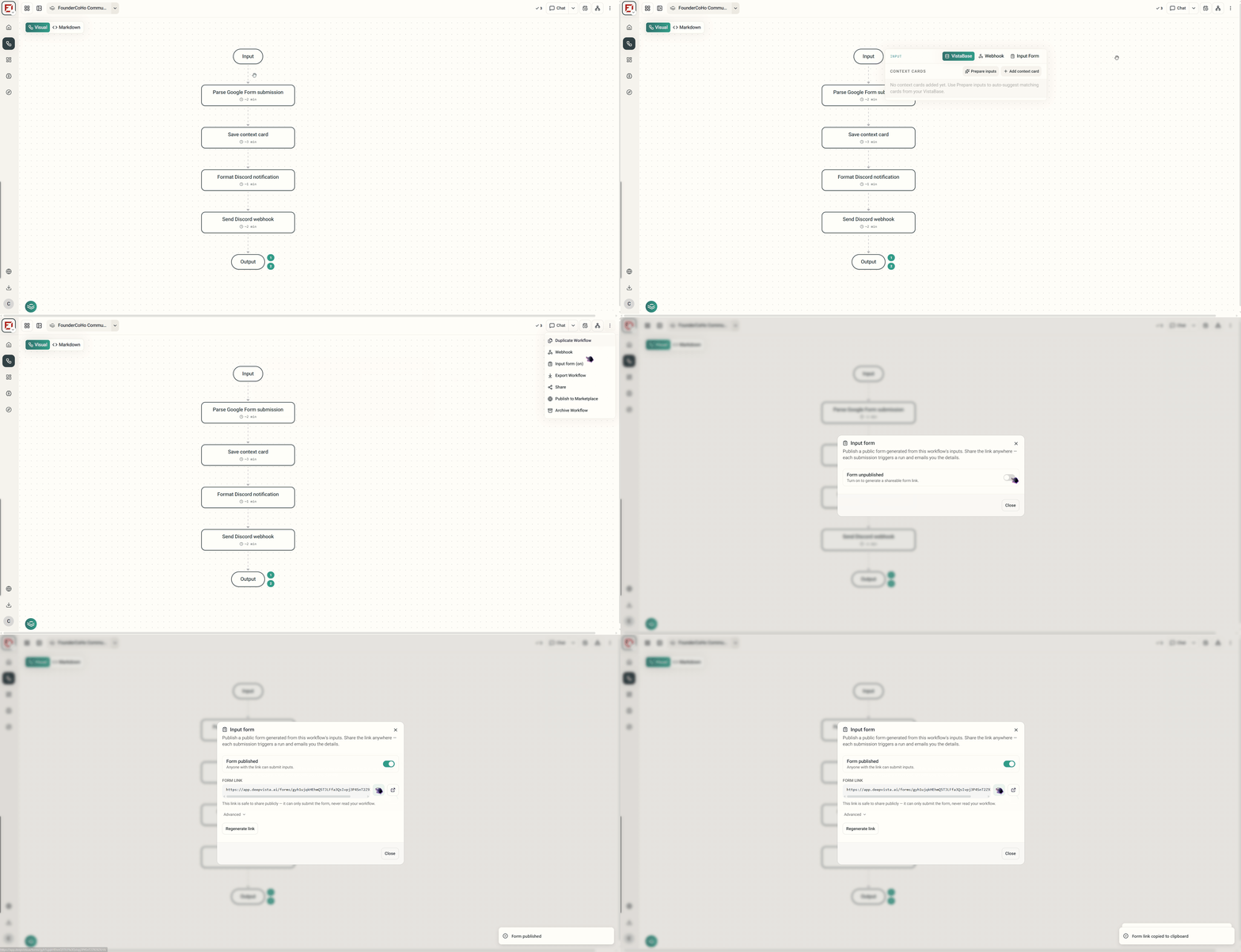
Navigate to your active workflow and click on the Settings menu. Locate the Input Form section and toggle it On. This automatically publishes a public form generated directly from your workflow’s input configuration.Enable Input Form
2

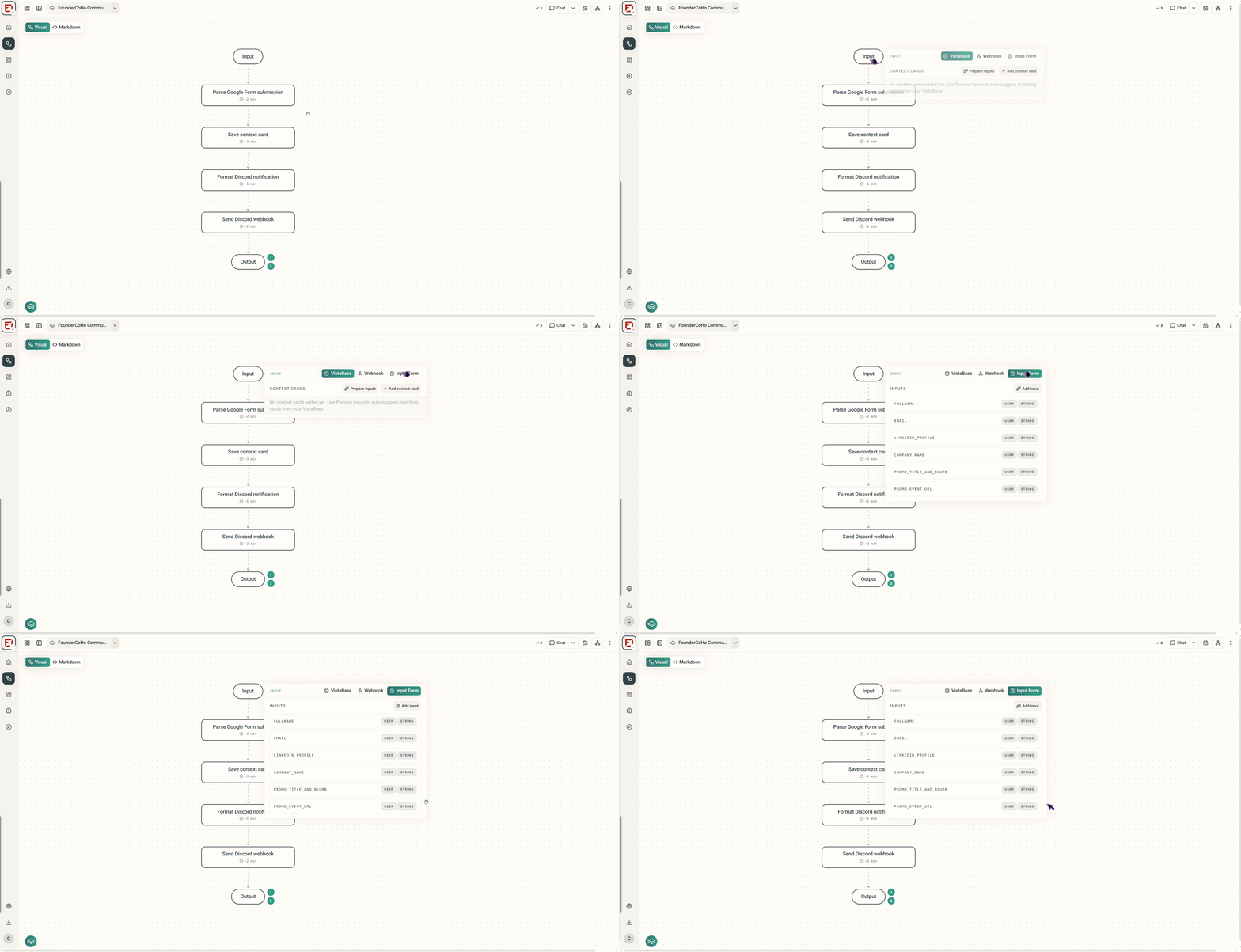
Verify Form Labels

Review the public form’s appearance to ensure all field labels and descriptions accurately reflect the information you want to collect.Verify Form Labels
3

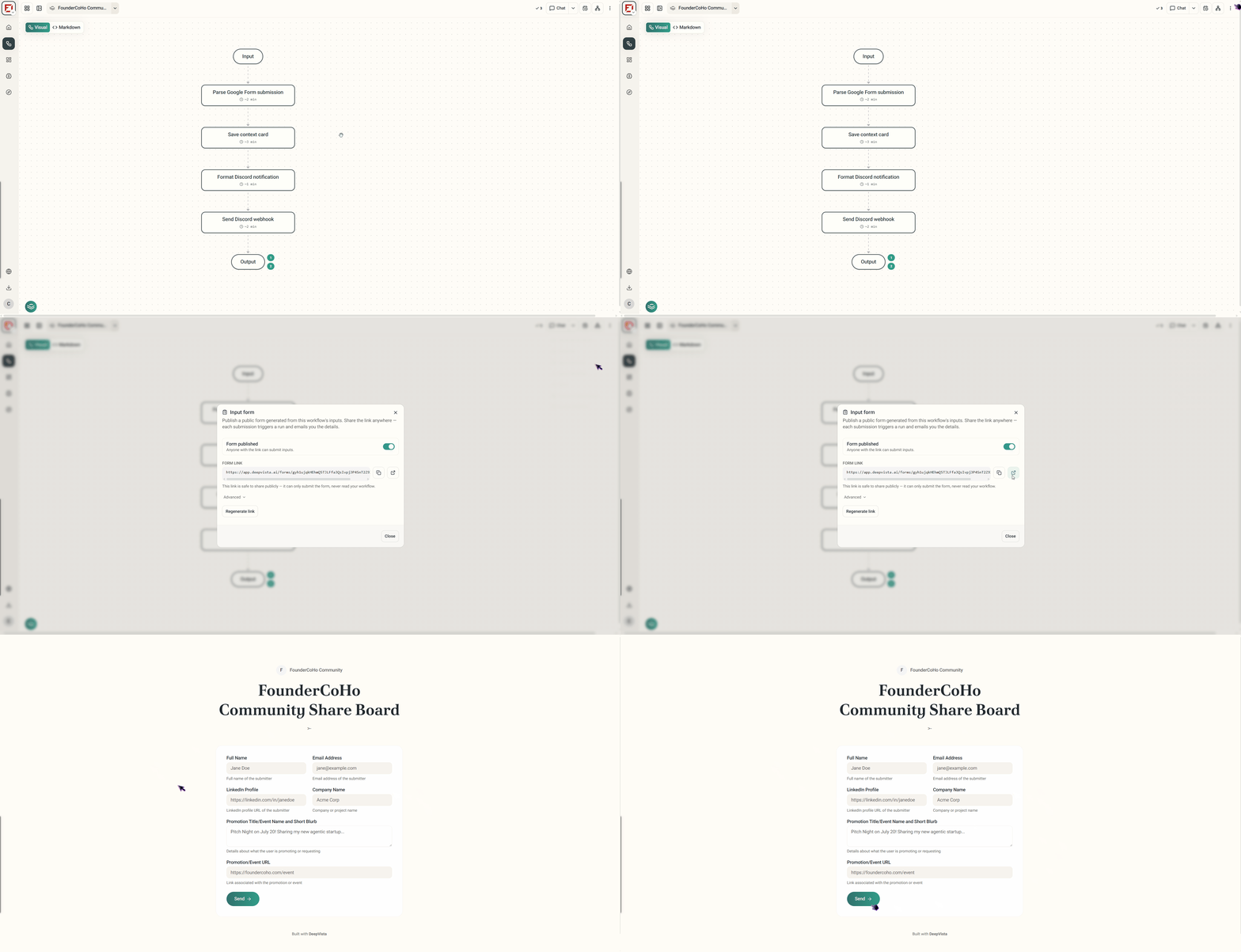
Test and Share the Link

Copy the generated public form link and open it in a new window. Submit a test response to verify that the form successfully kicks off your automated run.Test Form Submission

What happens next? Every time someone fills out your public link, DeepVista instantly triggers a new workflow run and emails you the submission details so you never miss a lead.