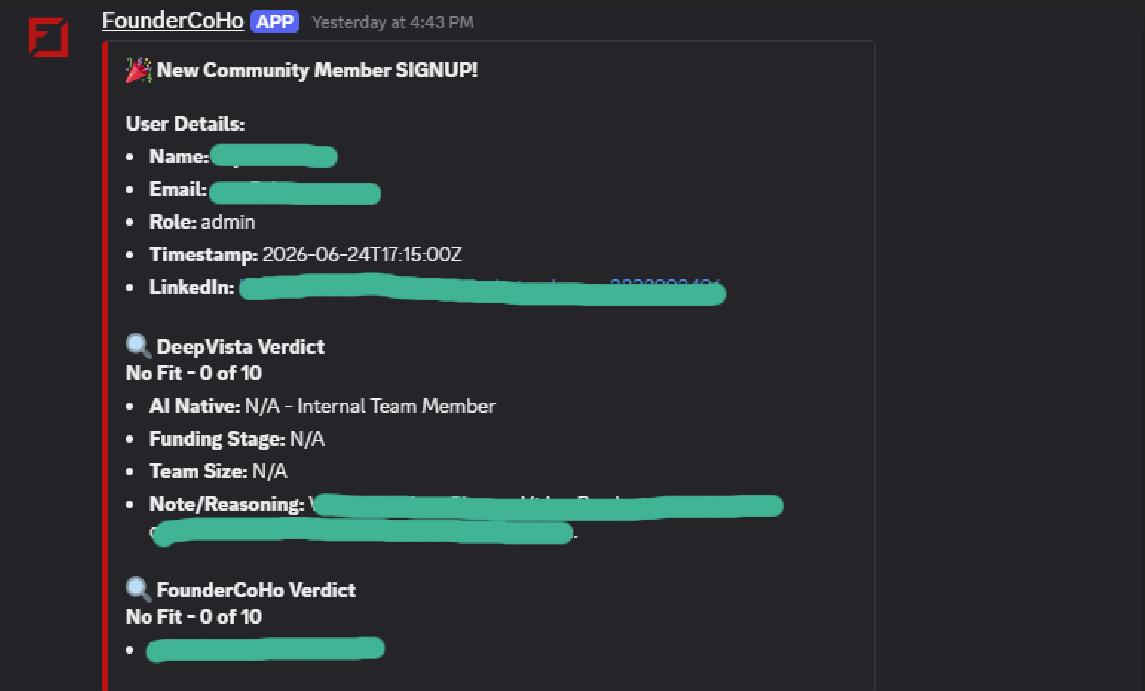
Overview
Connecting your front-end web form to a Discord notification requires a simple two-way webhook process:- Inbound: Fetching form submission data from your website manager (Framer, Webflow, etc.) into DeepVista.
- Outbound: Routing that parsed data from DeepVista into your Discord channel.
Step-by-Step Setup Guide
Link DeepVista to Your Website Manager
Generate an inbound webhook URL inside your DeepVista workflow dashboard. Copy this URL, navigate to your website manager (such as Framer), and paste it into your signup form’s webhook settings. This allows DeepVista to catch form entry details automatically.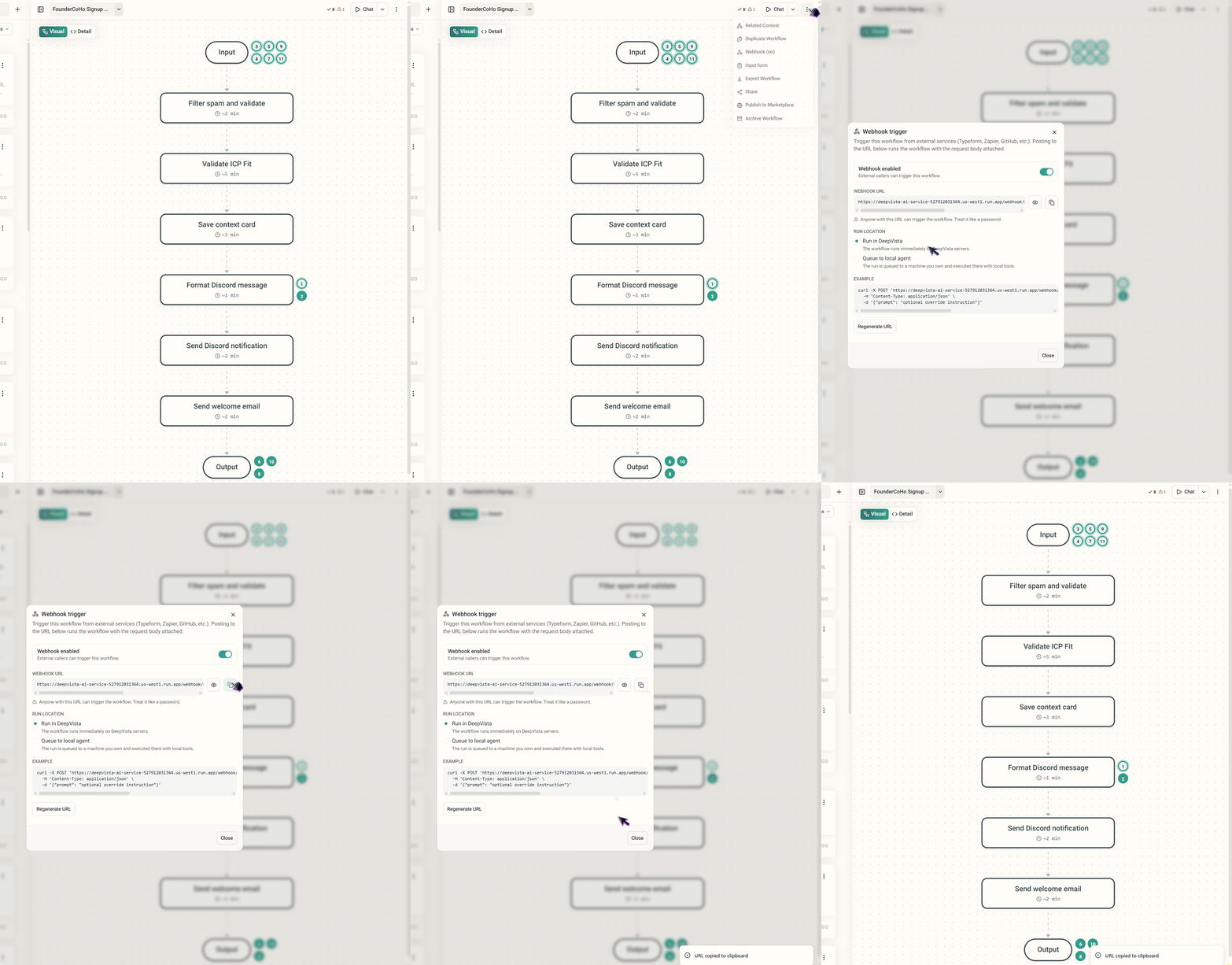
Train the Workflow with a UI Screenshot
Take a clean screenshot of your website’s signup form interface. Back on the DeepVista canvas, upload this screenshot alongside the following text prompt: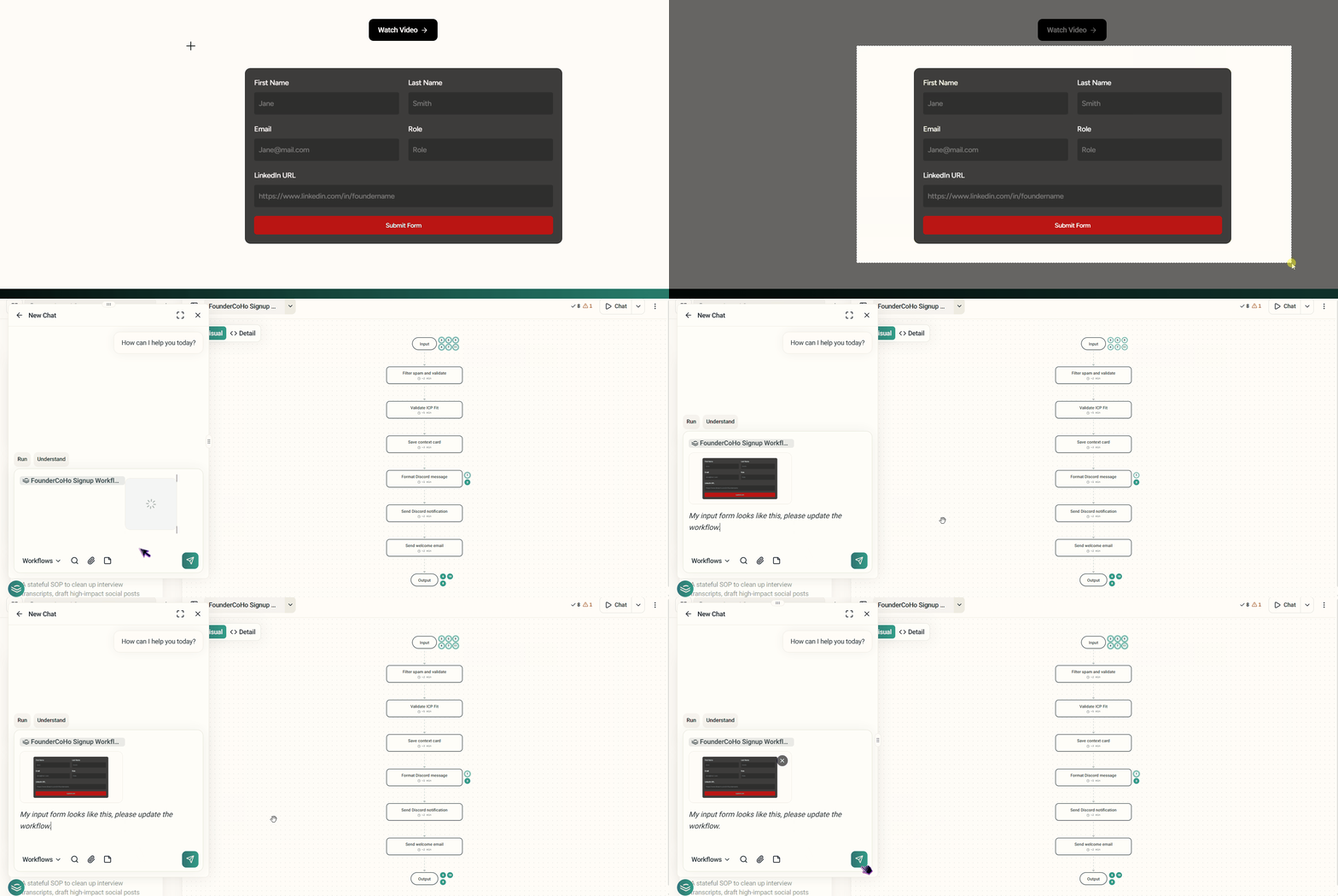
“My input form looks like this, please update the workflow.”DeepVista will analyze the visual layout and map the form submission fields to your workflow logic.
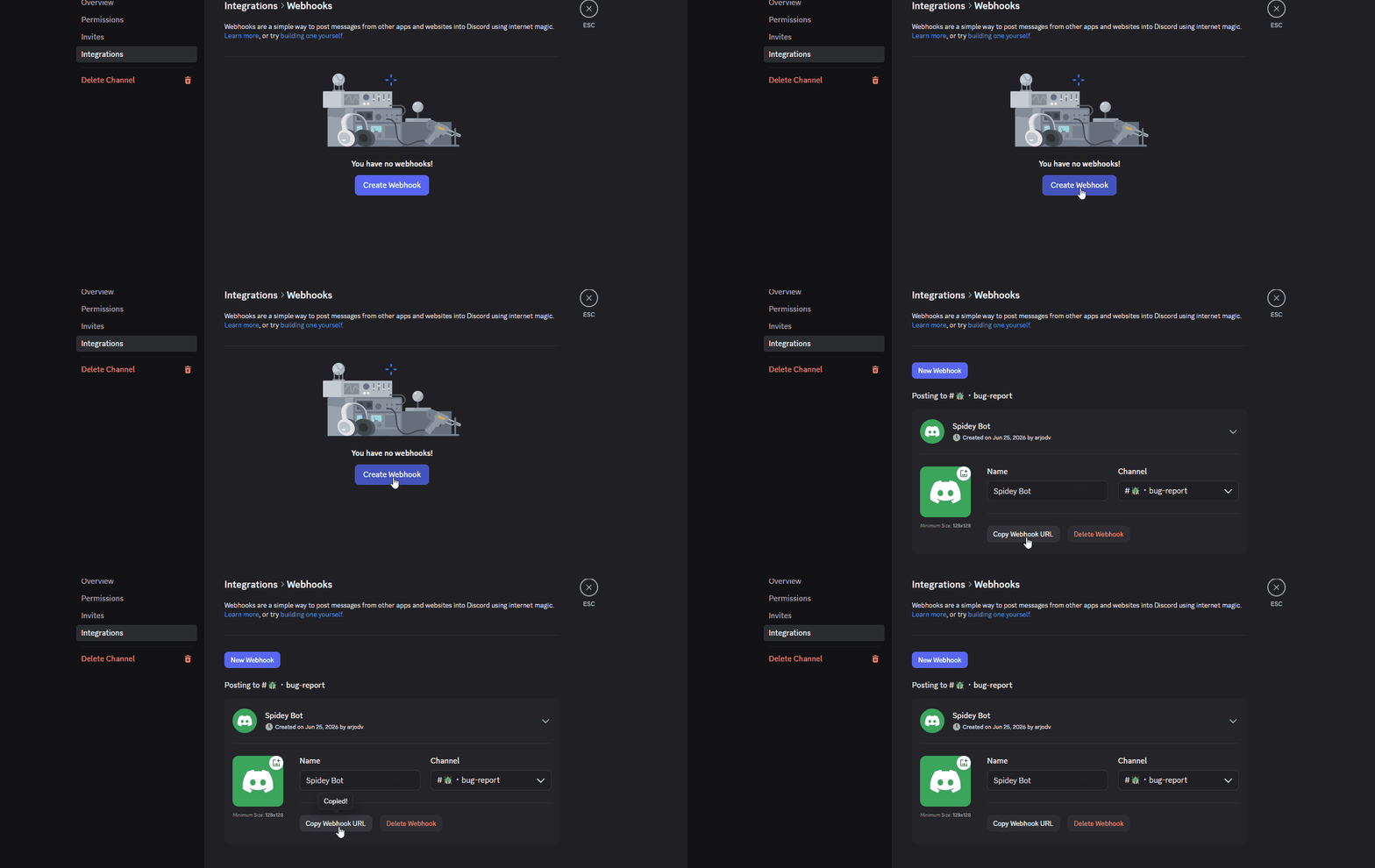
Generate a Discord Webhook
To set up live success alerts, open your Discord application:
- Go to your Server Settings > Integrations > Webhooks.
- Click New Webhook, name it, and select your target notification channel.
-
Click Copy Webhook URL and save.