> ## Documentation Index
> Fetch the complete documentation index at: https://docs.deepvista.ai/llms.txt
> Use this file to discover all available pages before exploring further.
# Version 1.1.1
> DeepVista 1.1.1: your message history on every person card, a fit call you can trust, and connectors in the main nav.
October 15, 2026
Judgment that sticks: your whole history with someone on their card, a fit call you can trust anywhere you see it, and your tools where you'd expect to find them.
#### **1. Walk into every conversation knowing your message history**
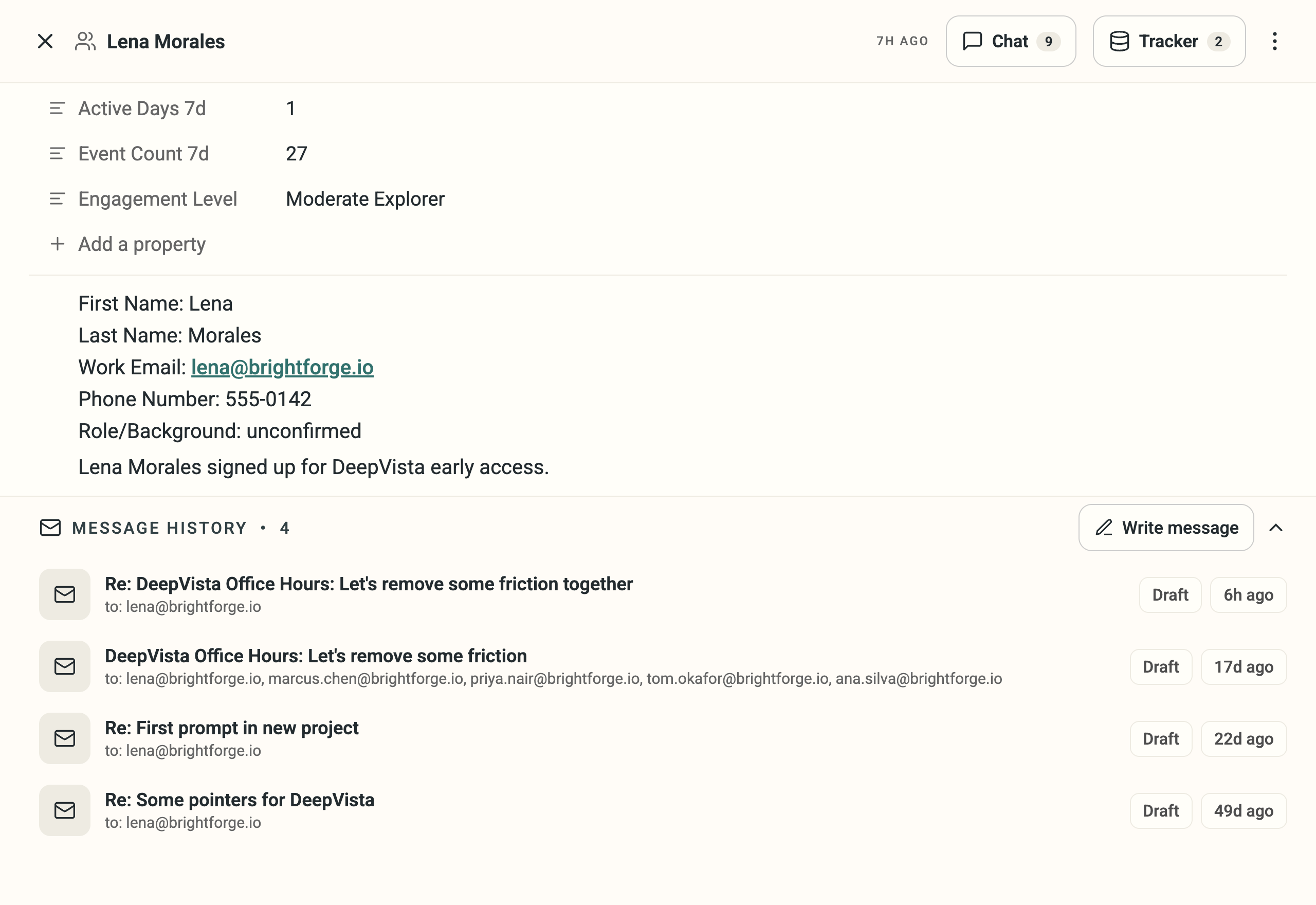 * Every touch you've had with someone now logs to their **person card**, so you don't have to dig through Gmail before you reply.
* Click **Write message** and the agent finds the relevant touchpoint, such as something you said you'd follow up on, and drafts from it.
Try it by opening a person's card and checking **Message History** before you write to them.
#### **2. Know which workbench needs you the moment you land**
* Every touch you've had with someone now logs to their **person card**, so you don't have to dig through Gmail before you reply.
* Click **Write message** and the agent finds the relevant touchpoint, such as something you said you'd follow up on, and drafts from it.
Try it by opening a person's card and checking **Message History** before you write to them.
#### **2. Know which workbench needs you the moment you land**
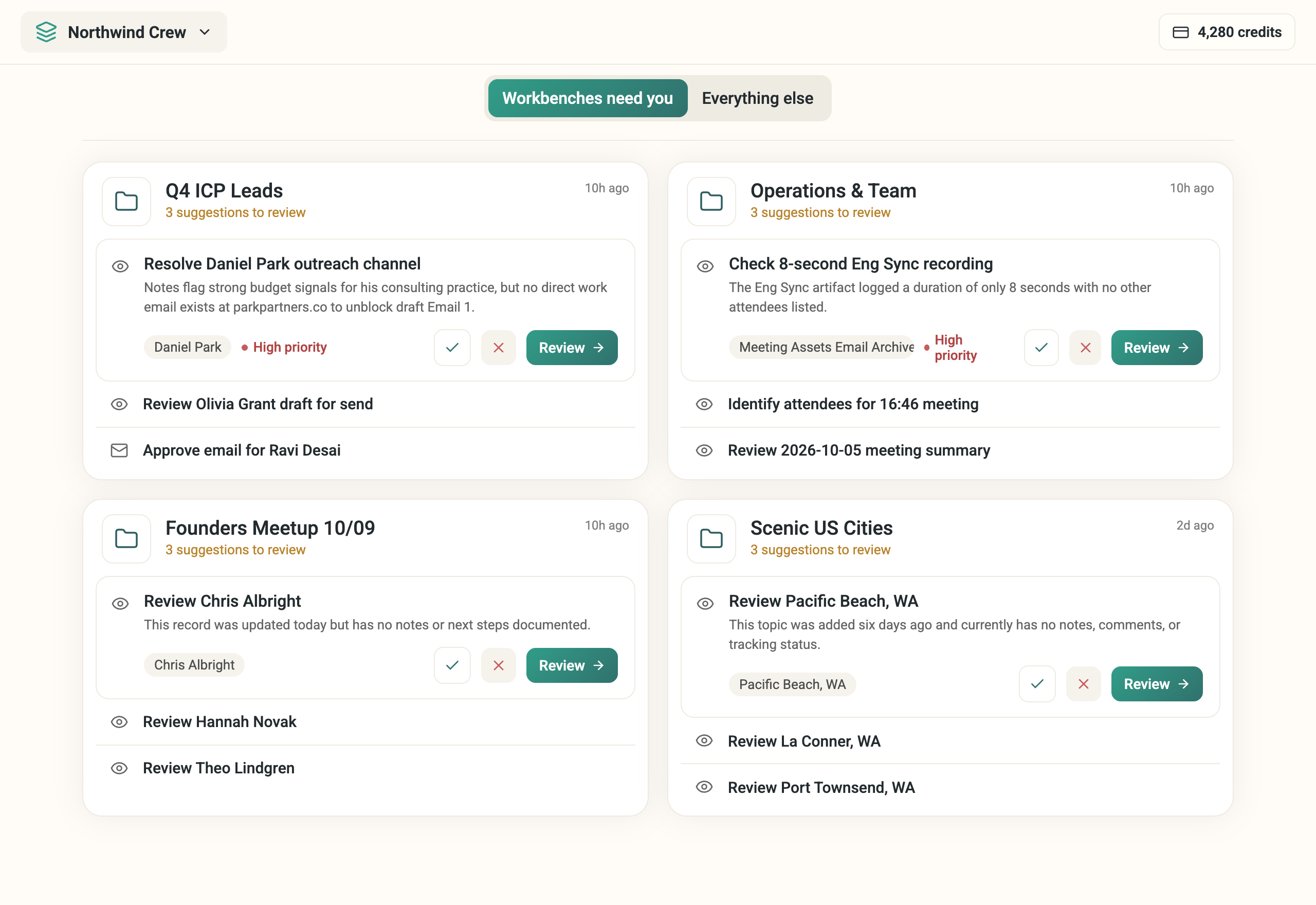 * If you run outreach across several accounts or clients, the morning question is "which one needs me today," not "let me open each one and check."
* Home now splits into **Workbenches need you** and **Everything else**, so the answer surfaces by workbench instead of sitting in one long list.
Try it by opening **Home** and checking **Workbenches need you** first.
#### **3. Calibrate your list. Your agent learns who to look for next.**
* If you run outreach across several accounts or clients, the morning question is "which one needs me today," not "let me open each one and check."
* Home now splits into **Workbenches need you** and **Everything else**, so the answer surfaces by workbench instead of sitting in one long list.
Try it by opening **Home** and checking **Workbenches need you** first.
#### **3. Calibrate your list. Your agent learns who to look for next.**
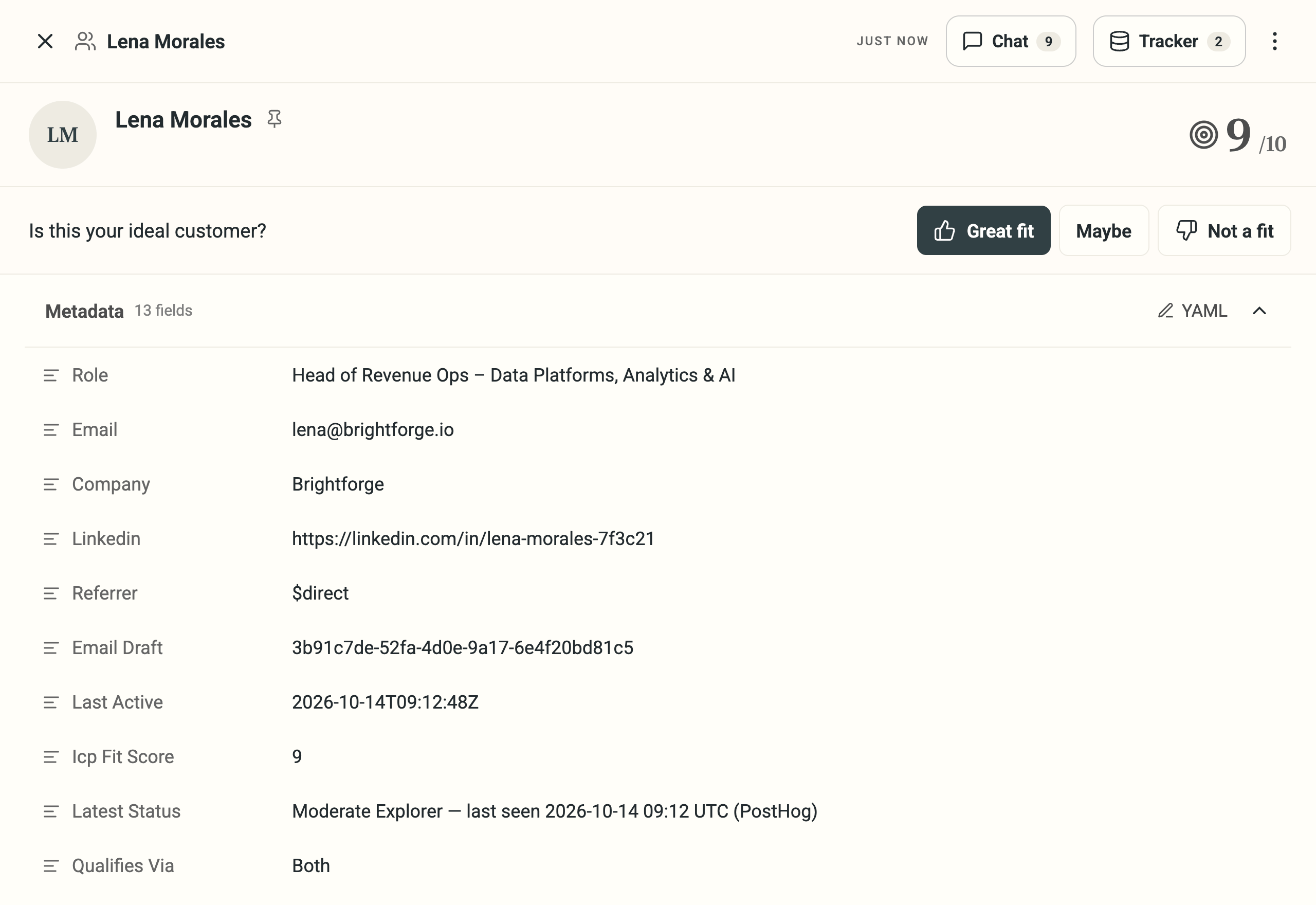 * Mark anyone **Great fit**, **Maybe**, or **Not a fit** from their card or the onboarding wizard, while you're already looking at them.
* Hover the score to see the reason, like "actively hiring for GTM roles, no recent fundraising news," instead of a bare number.
Try it by opening any **person card** and setting their fit right there.
#### **4. Find your connected tools in the main nav**
* Mark anyone **Great fit**, **Maybe**, or **Not a fit** from their card or the onboarding wizard, while you're already looking at them.
* Hover the score to see the reason, like "actively hiring for GTM roles, no recent fundraising news," instead of a bare number.
Try it by opening any **person card** and setting their fit right there.
#### **4. Find your connected tools in the main nav**
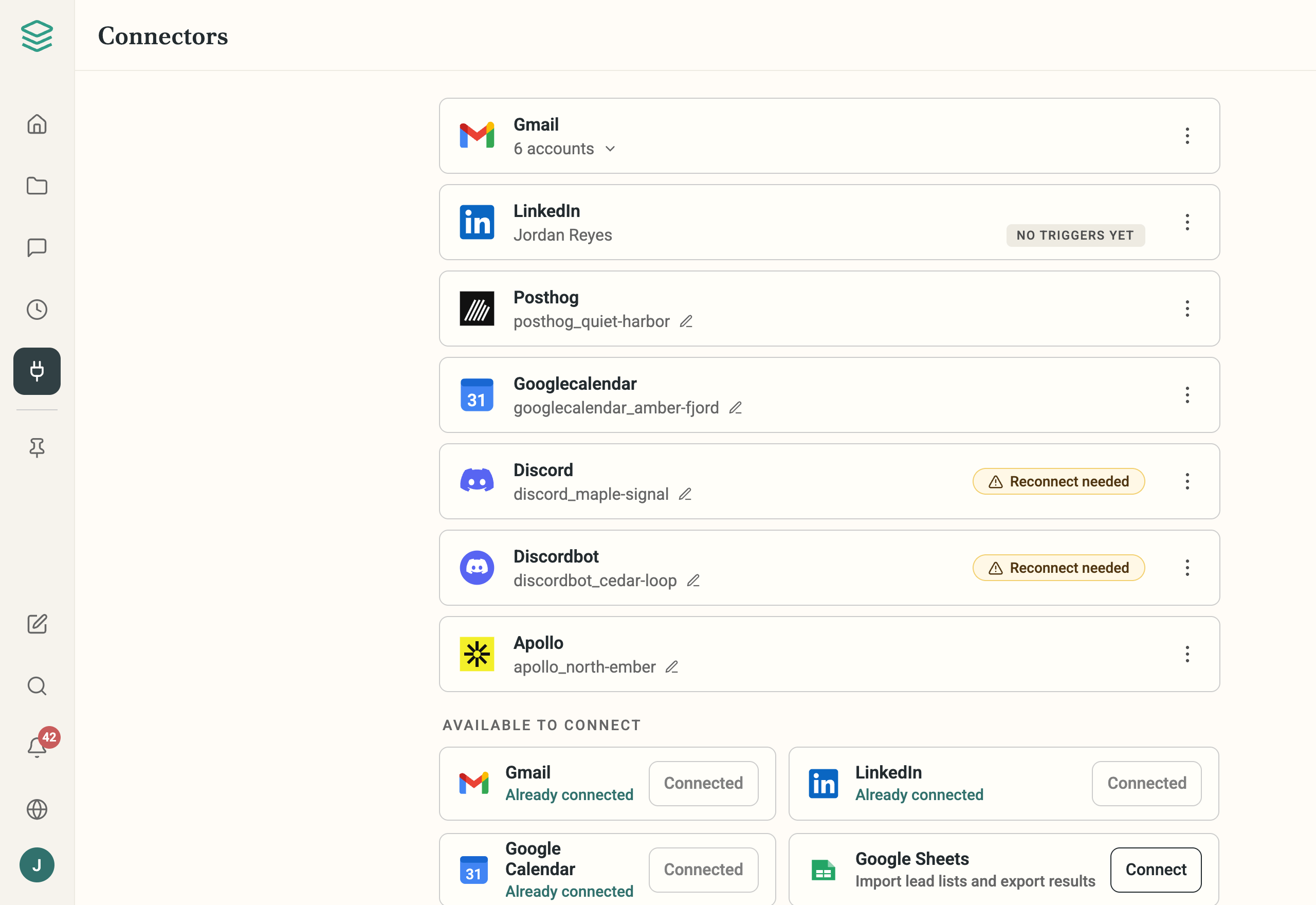 * **Connectors** now lives in the main nav, not buried in Settings.
* Connect LinkedIn and you land back on **Connectors** with a confirmation that it worked.
Try it by opening **Connectors** from the main nav and checking what's connected.
This documentation is built and hosted on [Mintlify](https://mintlify.com), a developer documentation platform.
* **Connectors** now lives in the main nav, not buried in Settings.
* Connect LinkedIn and you land back on **Connectors** with a confirmation that it worked.
Try it by opening **Connectors** from the main nav and checking what's connected.
This documentation is built and hosted on [Mintlify](https://mintlify.com), a developer documentation platform.