> ## Documentation Index
> Fetch the complete documentation index at: https://docs.deepvista.ai/llms.txt
> Use this file to discover all available pages before exploring further.
# Version 0.7.5
> Turn any database into an automated workflow, set up new projects in guided steps, jump from workflow outputs straight to your database, and browse an updated Playbook library.
September 10, 2026
#### **1. Turn any database into an automated workflow**
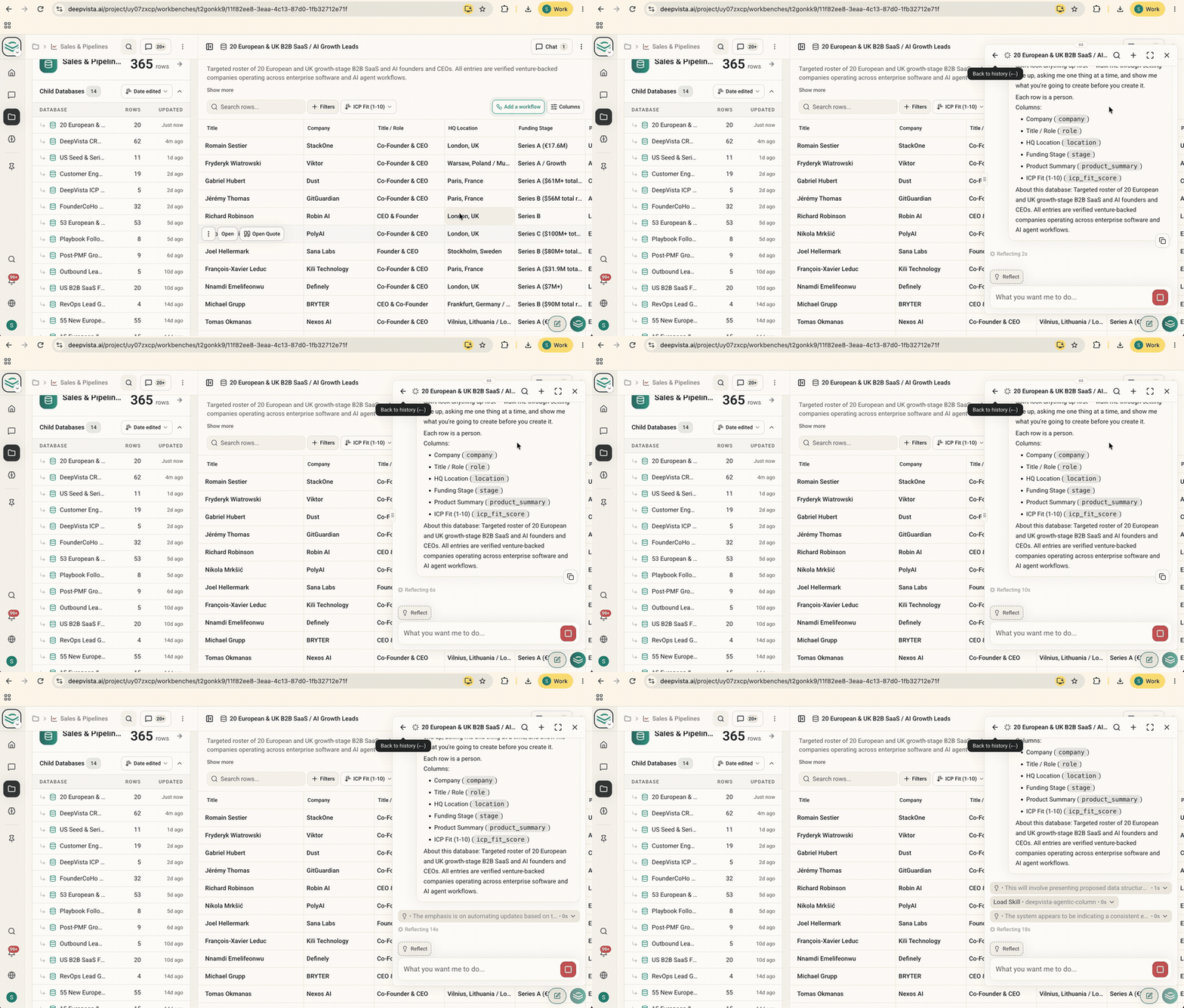
Your un-automated databases now display an **Add a workflow** button in the toolbar. Clicking it starts a quick, guided chat setup where DeepVista helps you choose what data to track, sources the answers, and keeps your columns populated automatically.
Get started by opening any database and clicking `Add a workflow` in the toolbar.
 #### **2. Set up new projects in a few guided steps**
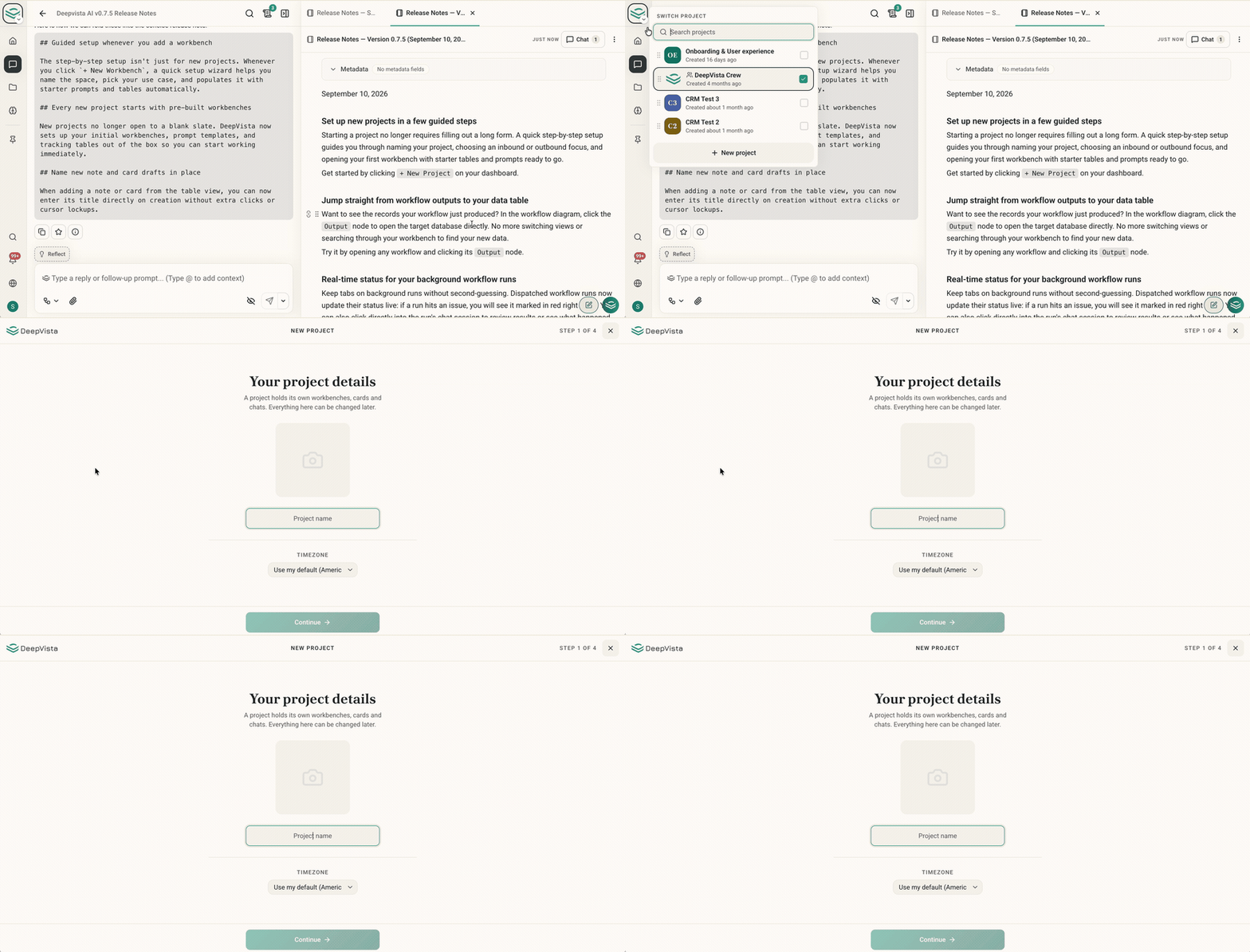
Starting a project no longer requires filling out a long form. A quick step-by-step setup guides you through naming your project, choosing an inbound or outbound focus, and opening your first workbench with starter tables and prompts ready to go.
Get started by clicking `+ New Project` on your dashboard.
#### **2. Set up new projects in a few guided steps**
Starting a project no longer requires filling out a long form. A quick step-by-step setup guides you through naming your project, choosing an inbound or outbound focus, and opening your first workbench with starter tables and prompts ready to go.
Get started by clicking `+ New Project` on your dashboard.
 #### **3. Jump straight from workflow outputs to your database**
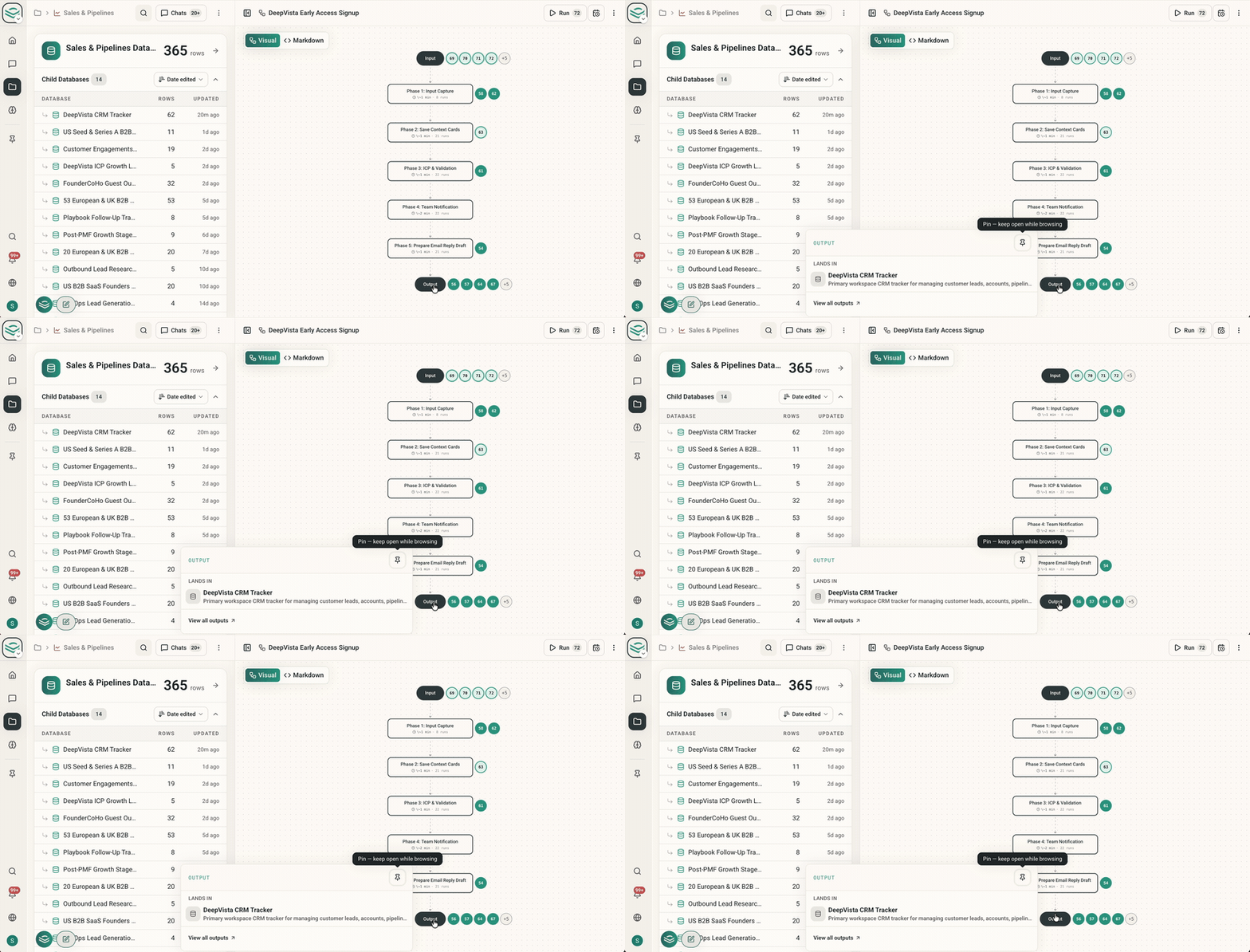
Want to see the records your workflow just produced? In the workflow diagram, click the `Output` node to open the target database directly. No more switching views or searching through your workbench to find your new data.
Try it by opening any workflow and clicking its `Output` node.
#### **3. Jump straight from workflow outputs to your database**
Want to see the records your workflow just produced? In the workflow diagram, click the `Output` node to open the target database directly. No more switching views or searching through your workbench to find your new data.
Try it by opening any workflow and clicking its `Output` node.
 #### **4. Open your rollup database automatically**
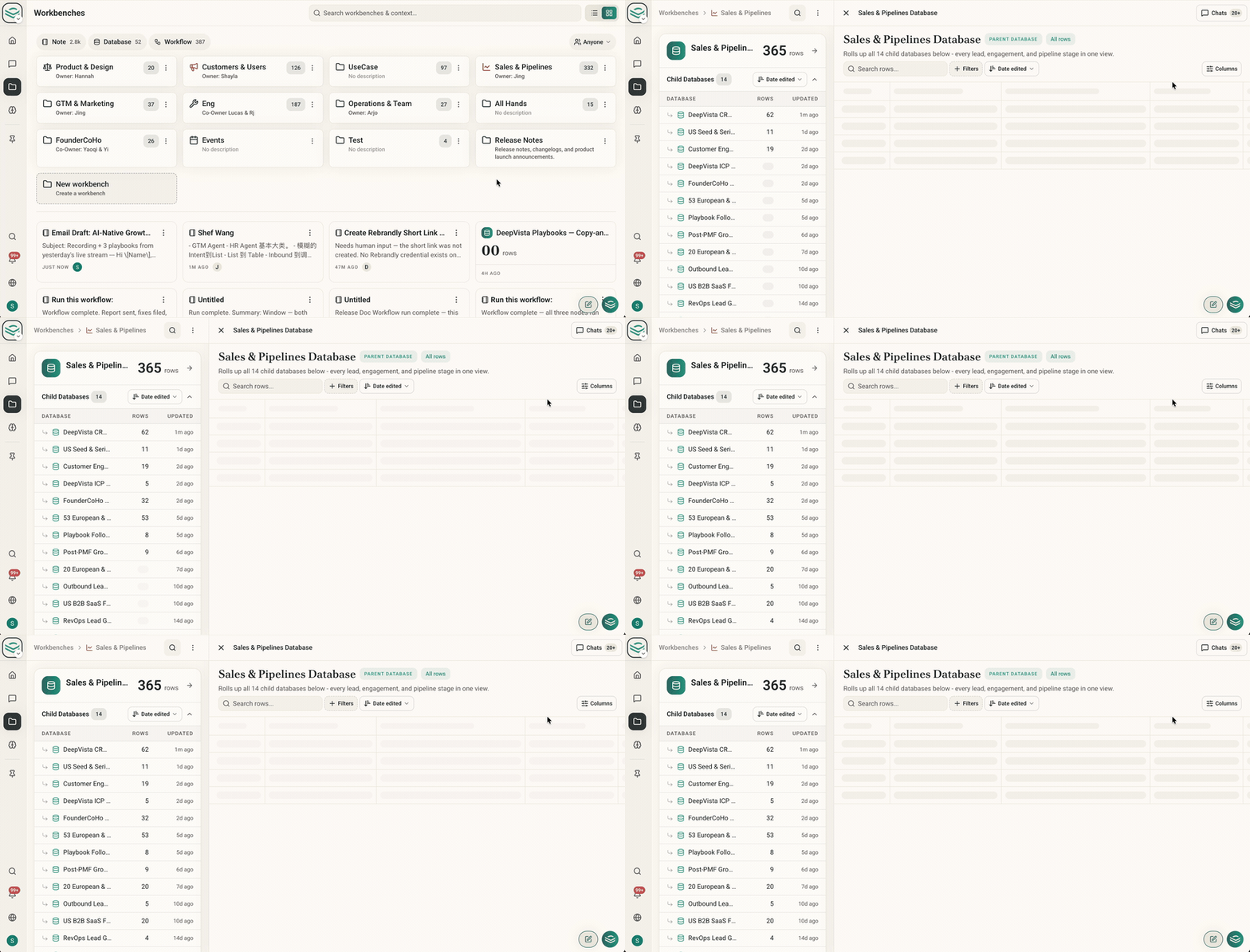
Workbenches now open directly to your aggregated database view. When you open a workbench to check leads, contacts, or research, your rollup table appears right away so you can get to work without an extra click.
Try it by navigating to any workbench from your sidebar.
#### **4. Open your rollup database automatically**
Workbenches now open directly to your aggregated database view. When you open a workbench to check leads, contacts, or research, your rollup table appears right away so you can get to work without an extra click.
Try it by navigating to any workbench from your sidebar.
 #### **5. Browse and copy prompts in the updated Playbook library**
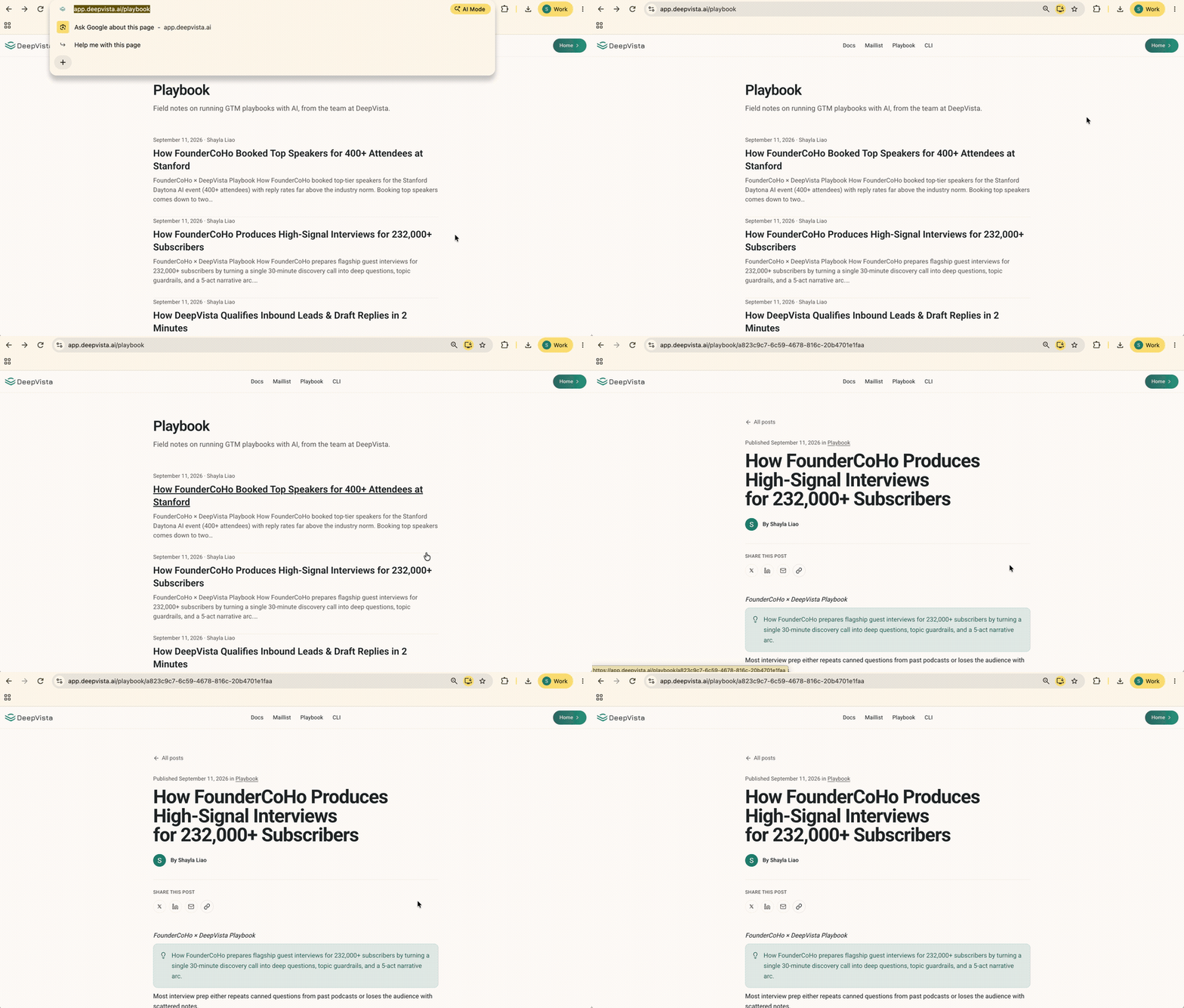
Looking for prompt templates? The `/playbook` directory has a clean new layout with prompt cards you can copy in one click, plus quick controls to save prompts and database settings directly to your workbenches.
Get started by visiting `app.deepvista.ai/playbook`.
#### **5. Browse and copy prompts in the updated Playbook library**
Looking for prompt templates? The `/playbook` directory has a clean new layout with prompt cards you can copy in one click, plus quick controls to save prompts and database settings directly to your workbenches.
Get started by visiting `app.deepvista.ai/playbook`.
 #### **6. Real-time status for your background workflow runs**
Keep tabs on background runs without second-guessing. Dispatched workflow runs now update their status live: if a run hits an issue, you will see it marked in red right away. You can also click directly into the run's chat session to review results or see what happened.
Try it in any workflow from the `Runs` tab.
#### **6. Real-time status for your background workflow runs**
Keep tabs on background runs without second-guessing. Dispatched workflow runs now update their status live: if a run hits an issue, you will see it marked in red right away. You can also click directly into the run's chat session to review results or see what happened.
Try it in any workflow from the `Runs` tab.