> ## Documentation Index
> Fetch the complete documentation index at: https://docs.deepvista.ai/llms.txt
> Use this file to discover all available pages before exploring further.
# Version 0.6.9
**From this moment, you can unlock more magic on DeepVista, just by using a quick enable button and chatting!**
We've expanded DeepVista's connectivity engine to integrate with third-party applications via Composio, run real-time deep research with Exa Agent, and add interactive chat decision controls to conversations.
**Also, collaborating with your team members remotely & organizing context across projects are getting smarter here [aga](/version/0-6-8)in.**
You can now:
* Co-edit a doc with multiple team members in real time.
* Ask the agent to drop your recent output or any ongoing work process (e.g., a note, a workflow, or any context card) into a workbench and find them easily later.
**Try out a new workflow we unlocked last week:**
Auto-reply to new LinkedIn messages triggered by a webhook using a Unipile account.
## Want to dive in the latest changes?
**Technically, you can:**
* **Connect external software natively with Composio MCP & OAuth2:** Securely pass managed credentials and grant agents live access to third-party APIs without manual key configuration.
* **Batch-find lead emails with Exa Agent:** Run live web queries directly inside agent workflows for up-to-date market intelligence and company research.
* **Guide your agent to act more precisely in chat:** Make choices via structured checkbox widgets (`` blocks) without typing out manual instructions.
* **Organize projects easily with agent-created Workbenches:** Let agents automatically create custom Workbenches and pin your favorites for instant access.
***
## Try these on DeepVista
#### 1. Composio Managed MCP & Exa Web Search
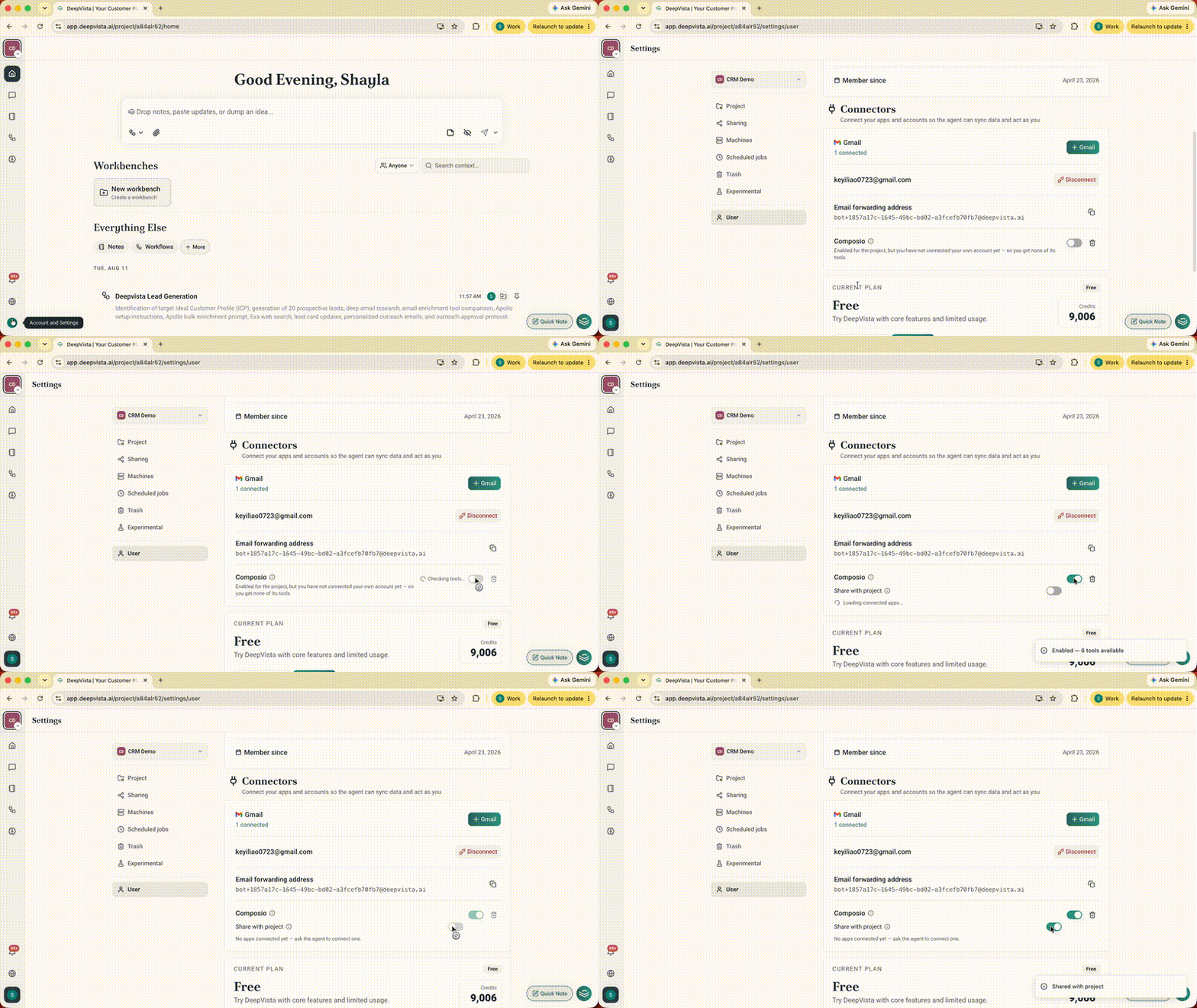
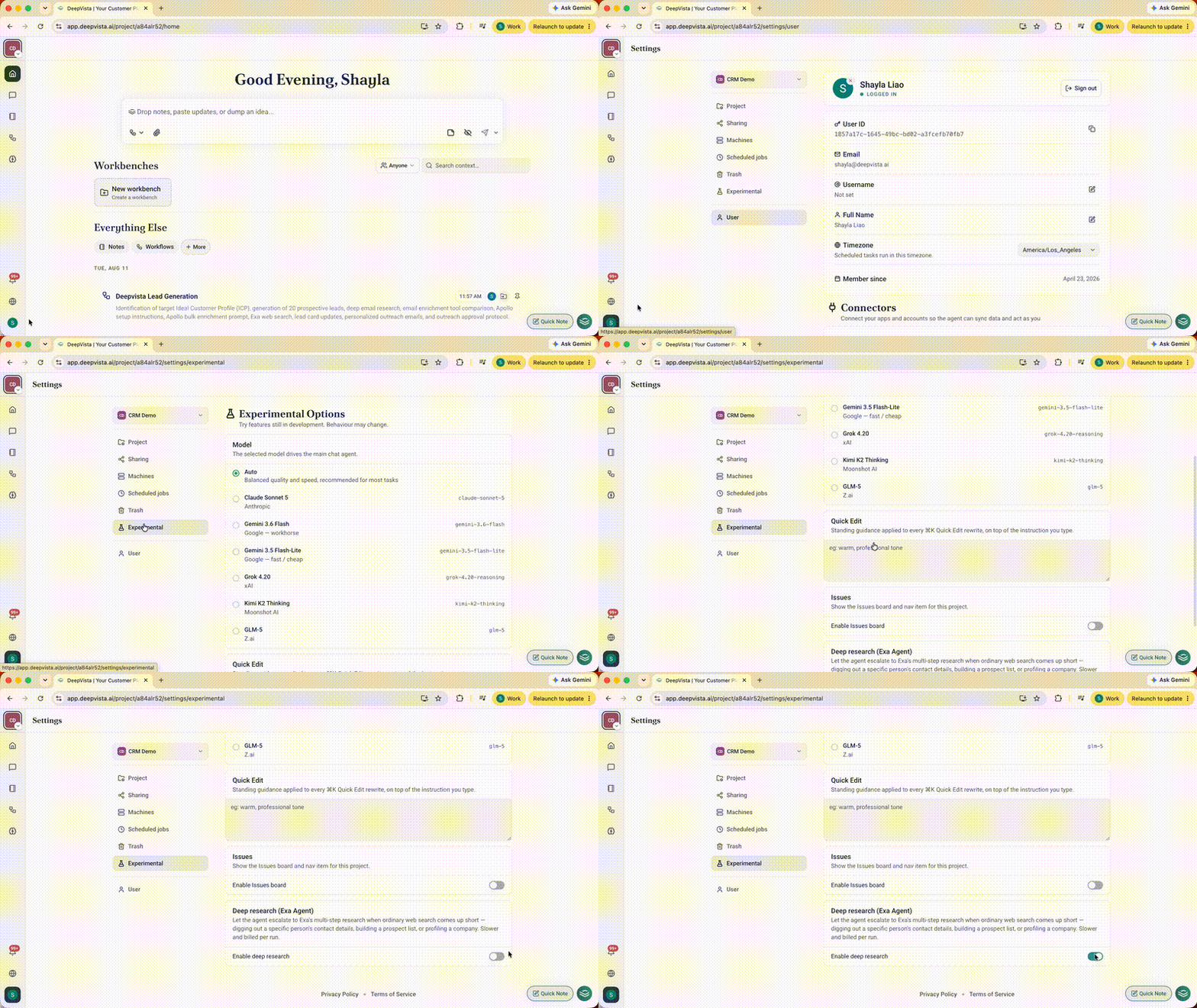
Connect live APIs and query real-time web content natively inside your agent workflows.
**How to use it:**
* To enable Composio, navigate to **User → Composio**.
 * To enable Exa Agent, navigate to **Experimental → Enable Deep Research.**
 #### 2. \ Blocks That Present Questions & Options Inside Chat
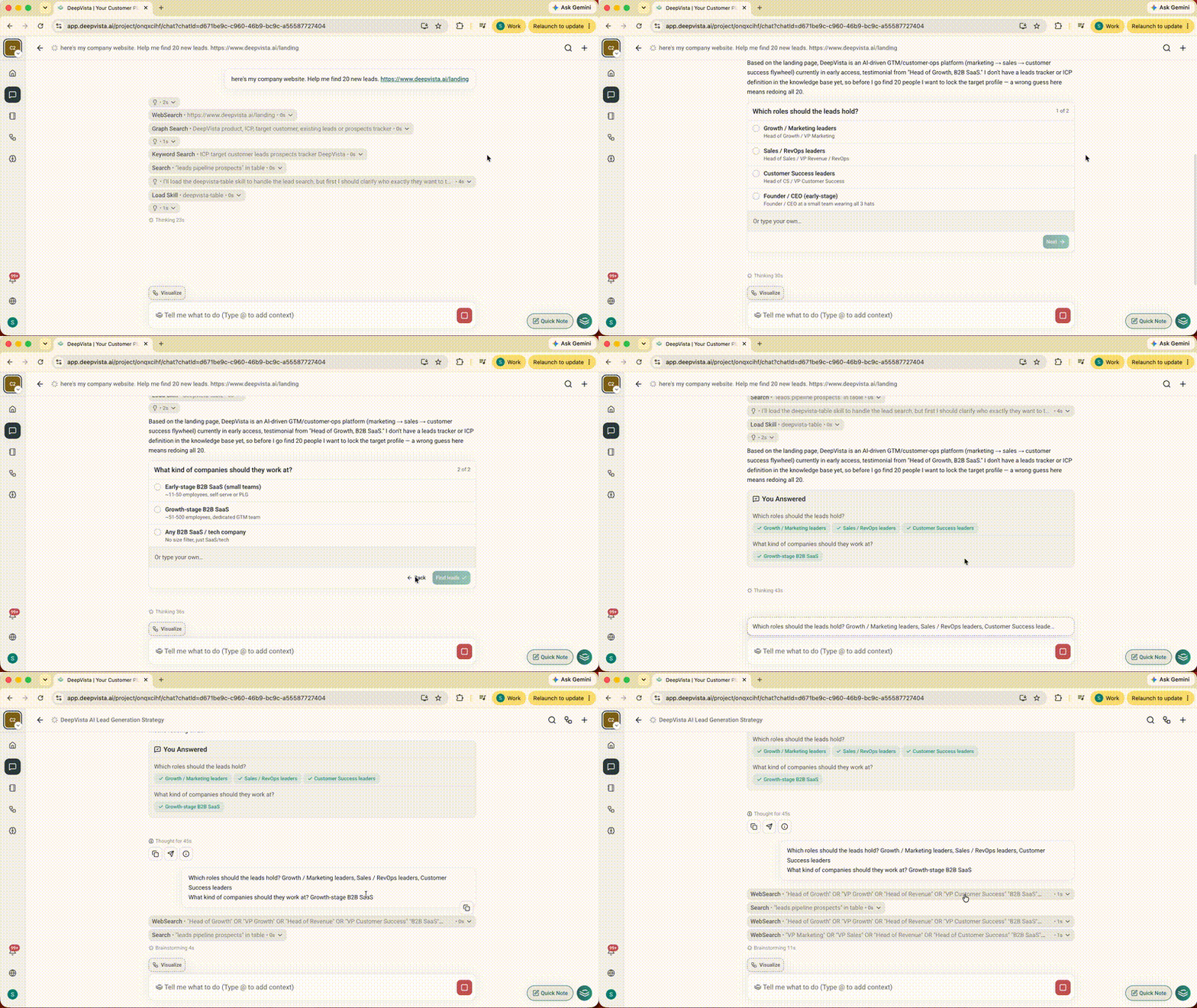
Prevent your agent from guessing missing context or stopping mid-workflow to ask open-ended questions.
* **How to use it:** When an agent presents options during a run, click your preferred choices directly on the interactive card to resume execution.
#### 2. \ Blocks That Present Questions & Options Inside Chat
Prevent your agent from guessing missing context or stopping mid-workflow to ask open-ended questions.
* **How to use it:** When an agent presents options during a run, click your preferred choices directly on the interactive card to resume execution.
 #### 3. Agent Workbench Organization
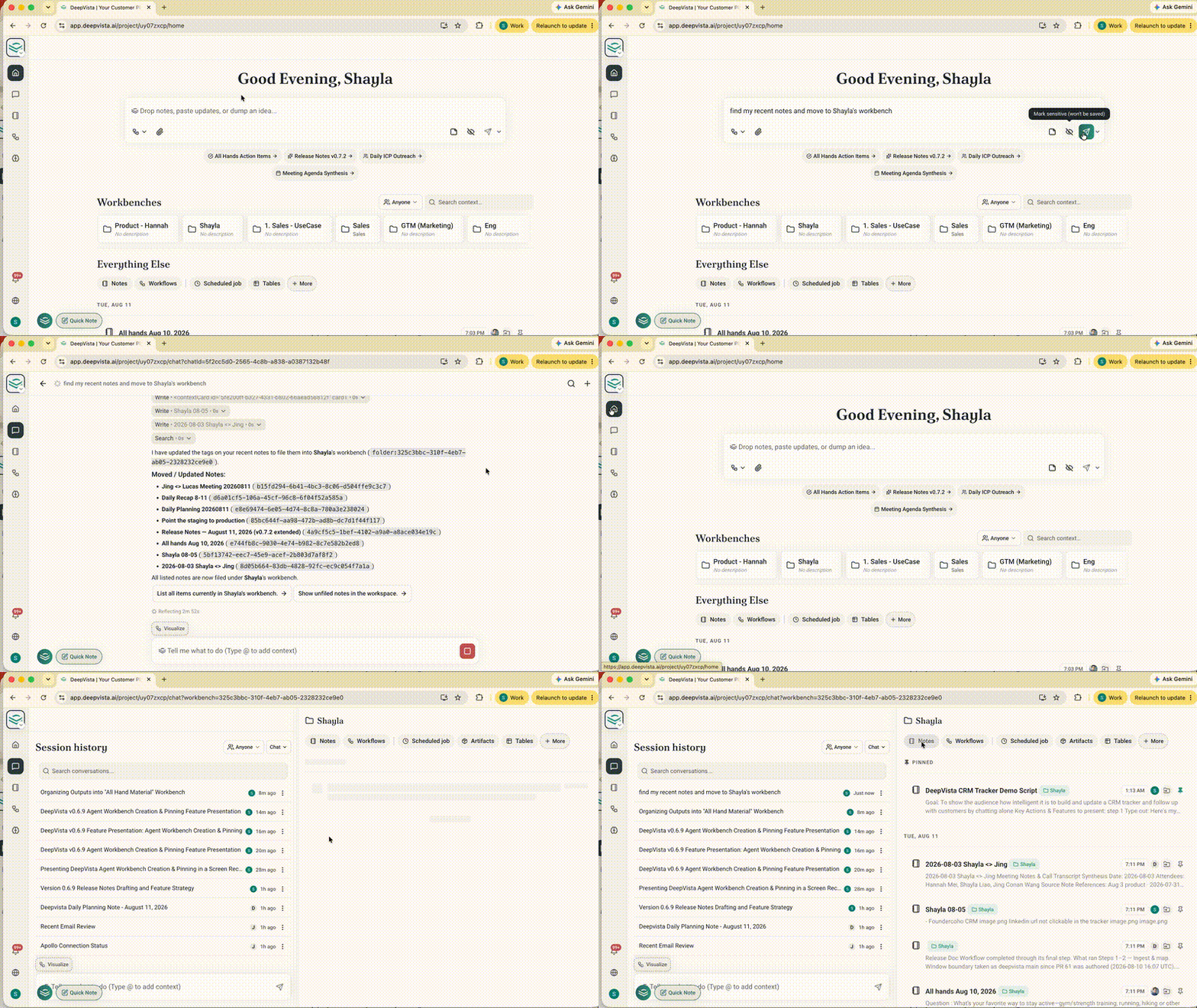
Keep growing projects structured automatically without requiring manual folder creation and navigation.
* **How to use it:** Ask your agent to organize outputs into a new Workbench.
#### 3. Agent Workbench Organization
Keep growing projects structured automatically without requiring manual folder creation and navigation.
* **How to use it:** Ask your agent to organize outputs into a new Workbench.
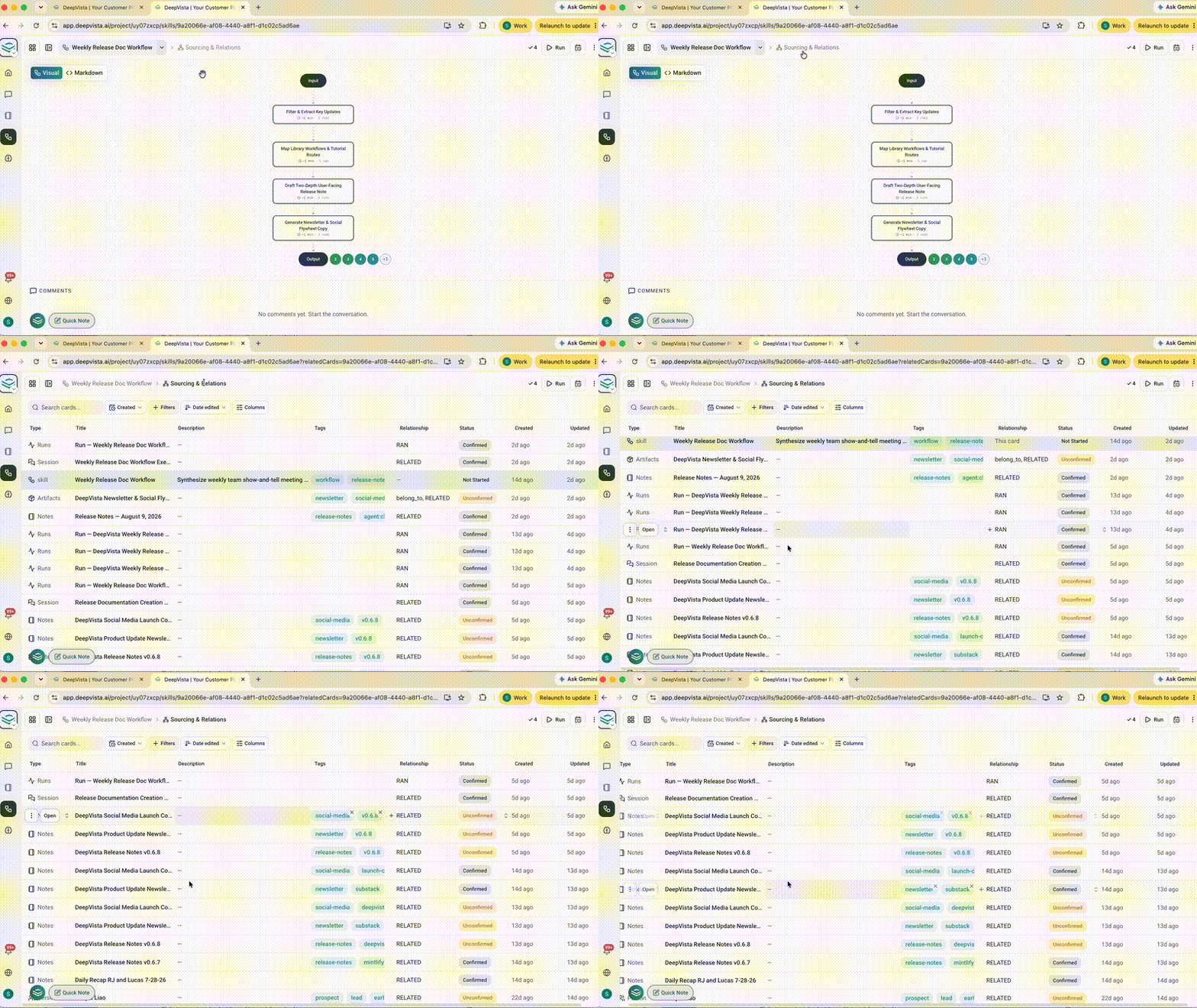
 #### 4. Card Lineage Tracing & Attribution
Trace which chat session or workflow execution generated every context card in your project, so you can audit team and multi-agent runs.
* **How to use it:** Open any context card details panel to view its connected source chat sessions and workflow executions.
#### 4. Card Lineage Tracing & Attribution
Trace which chat session or workflow execution generated every context card in your project, so you can audit team and multi-agent runs.
* **How to use it:** Open any context card details panel to view its connected source chat sessions and workflow executions.
 ***
## View our Light Workflow Gallery:
Set up a CRM tracker and let DeepVista keep pipeline stages and next steps up to date from your conversations.
Auto-reply to new LinkedIn messages triggered by a webhook using a Unipile account.
***
## View our Light Workflow Gallery:
Set up a CRM tracker and let DeepVista keep pipeline stages and next steps up to date from your conversations.
Auto-reply to new LinkedIn messages triggered by a webhook using a Unipile account.