> ## Documentation Index
> Fetch the complete documentation index at: https://docs.deepvista.ai/llms.txt
> Use this file to discover all available pages before exploring further.
# Social Media Campaign
> Build a 10-day lead generation sprint that creates your social media copy and tracks incoming leads automatically.
**Our Core Playbook:** This is the exact workflow our internal team uses to turn existing content into a 10-day social campaign with built-in lead tracking.
## What you'll get
* **10 days of ready-to-post content**, delivered to your inbox each day.
* **A unique tracking link for every post**, so you can see which post drives leads.
## Who should read this
* **Founders & Marketers**: Turn existing content into a steady drumbeat of social posts without writing from scratch.
* **Growth Leads**: Know exactly which post is driving inbound leads.
## What you'll learn
* Build a content library from a piece of content you already have (a landing page, release note, or tutorial).
* Turn that library into a 10-day campaign with a lead capture form on every post.
* Get your daily post emailed to you and start tracking which posts convert.
* Get notified the moment a lead comes in, and follow up automatically.
## 1. Research & Create a Content Library
### Prerequisites
Before you start, make sure you have a DeepVista account with an active project.
To create an account, [sign up here](https://app.deepvista.ai/login?redirectUrl=%2Fsign%2520in).
### Ask DeepVista to research and draft your content library
Provide an input — your landing page, a product release note, a tutorial, or any content asset you already have.
For example, we used this prompt:
```text wrap theme={null}
Research published tutorials from https://docs.deepvista.ai/ and propose 10 copies targeting my ICPs.
```
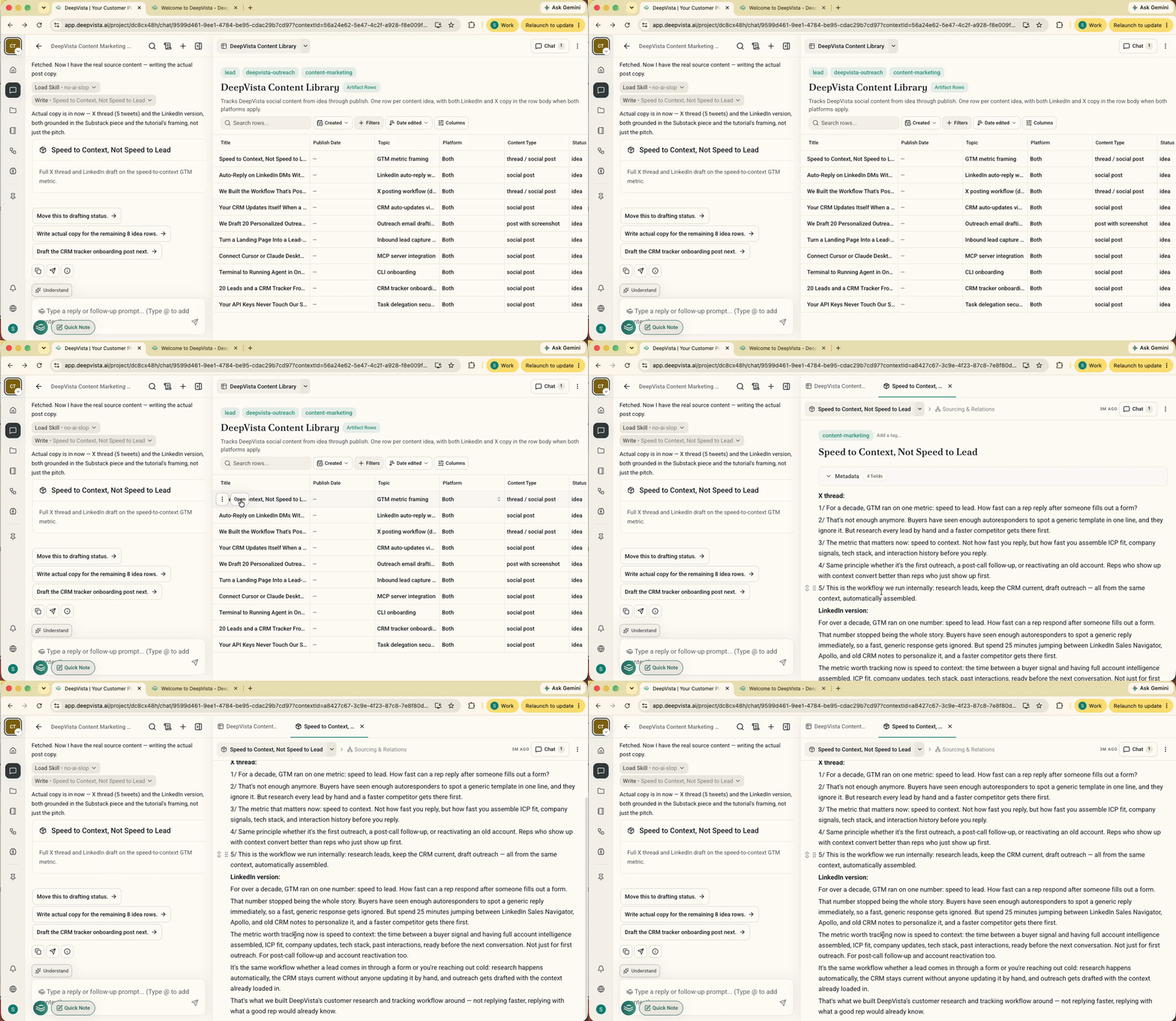
DeepVista researches the source content and drafts 10 posts targeting your ICPs.
 ## 2. Build a 10-Day Campaign
### Schedule the campaign
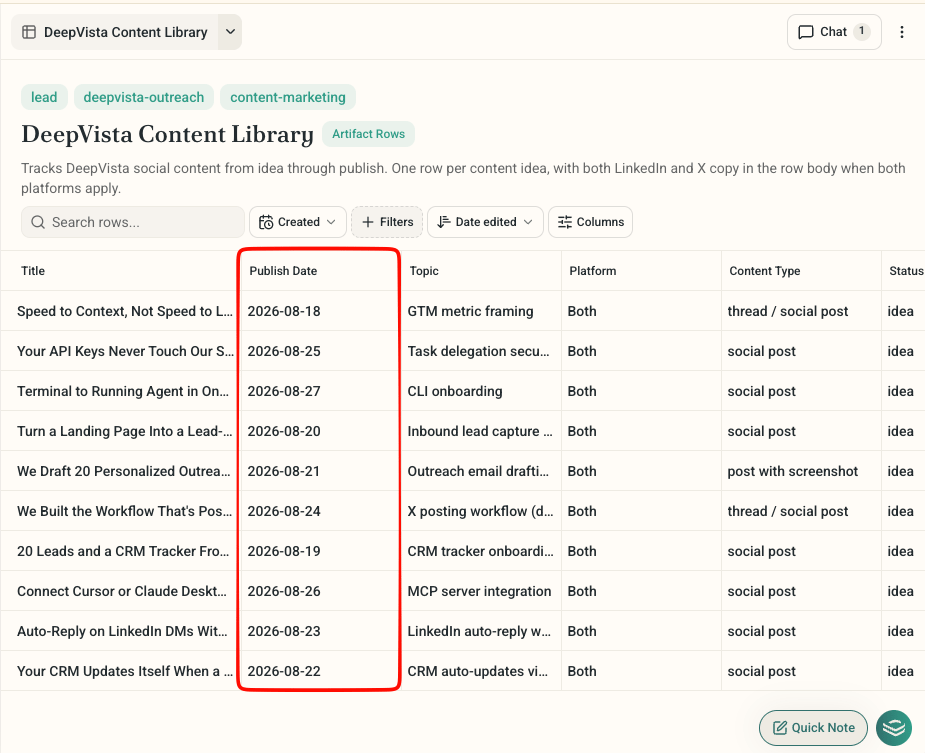
DeepVista schedules your content library into a 10-day campaign, one post per day.
## 2. Build a 10-Day Campaign
### Schedule the campaign
DeepVista schedules your content library into a 10-day campaign, one post per day.
 ### Add a lead capture form to each post
Use this prompt:
```text wrap theme={null}
Let's add an input form in each post. When someone fills it out, update the CRM tracker.
```
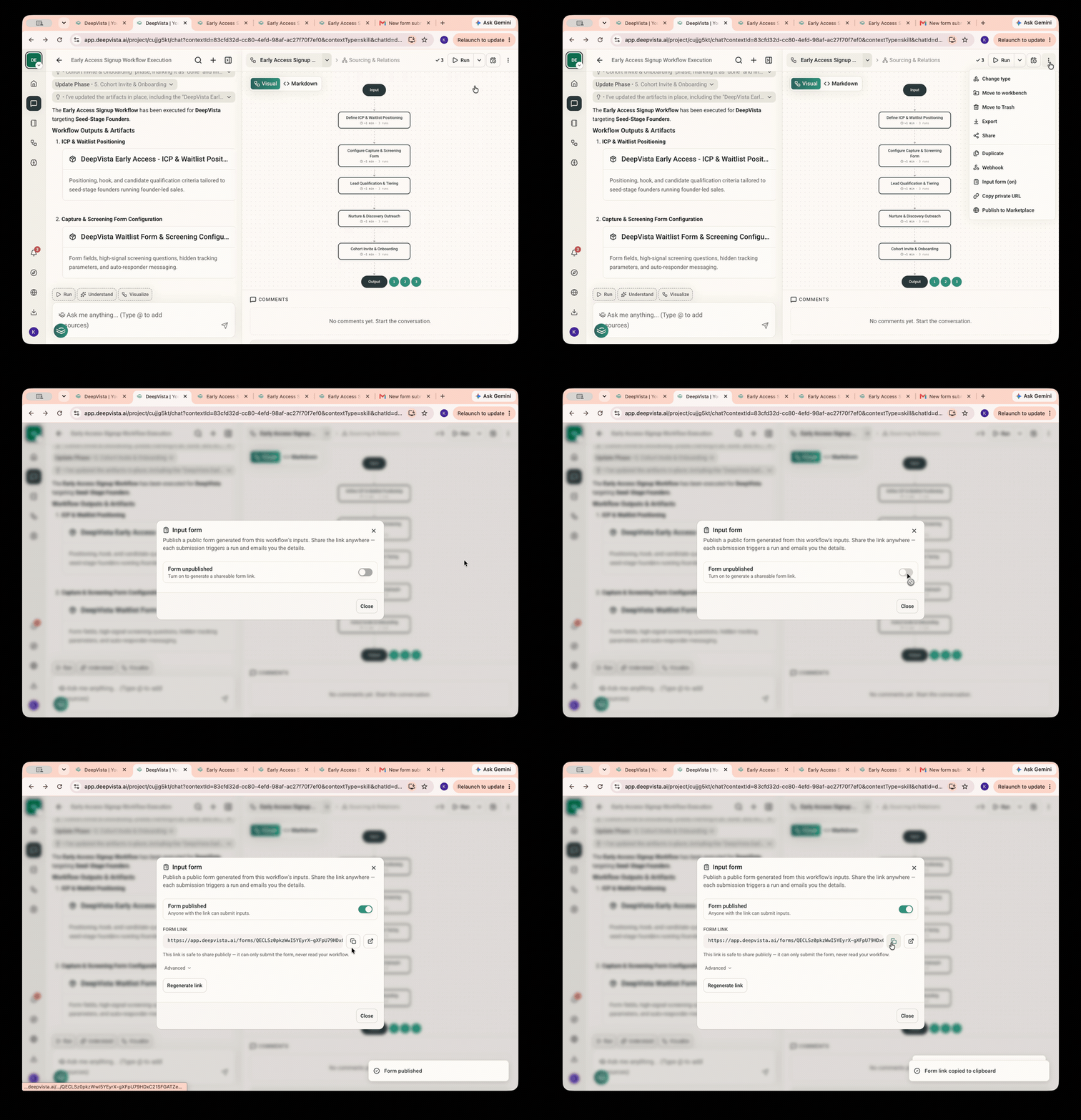
DeepVista creates a Lead Capture Workflow for the campaign.
Hover over the upper-right corner of the workflow card and generate a URL for your input form.
### Add a lead capture form to each post
Use this prompt:
```text wrap theme={null}
Let's add an input form in each post. When someone fills it out, update the CRM tracker.
```
DeepVista creates a Lead Capture Workflow for the campaign.
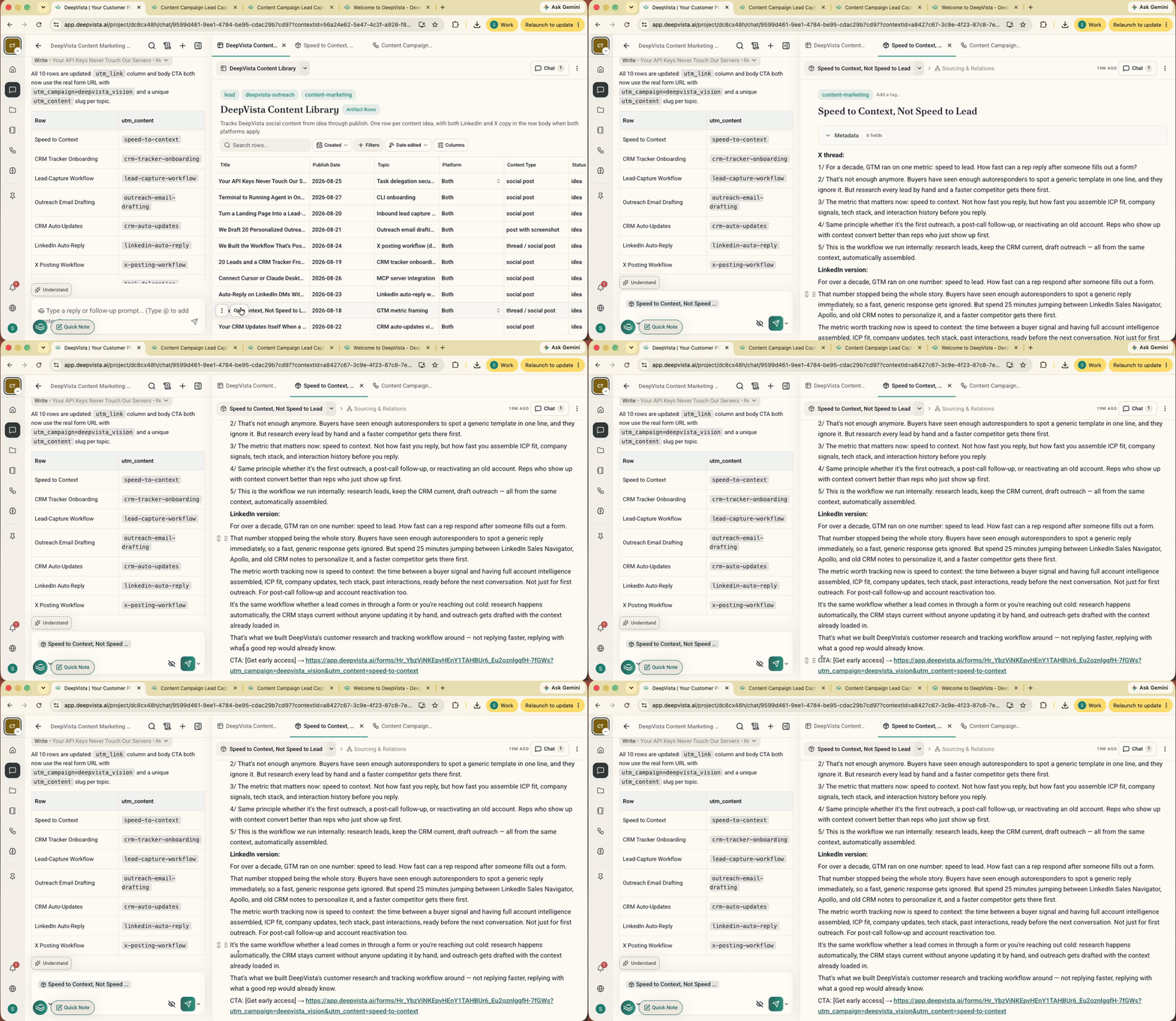
Hover over the upper-right corner of the workflow card and generate a URL for your input form.
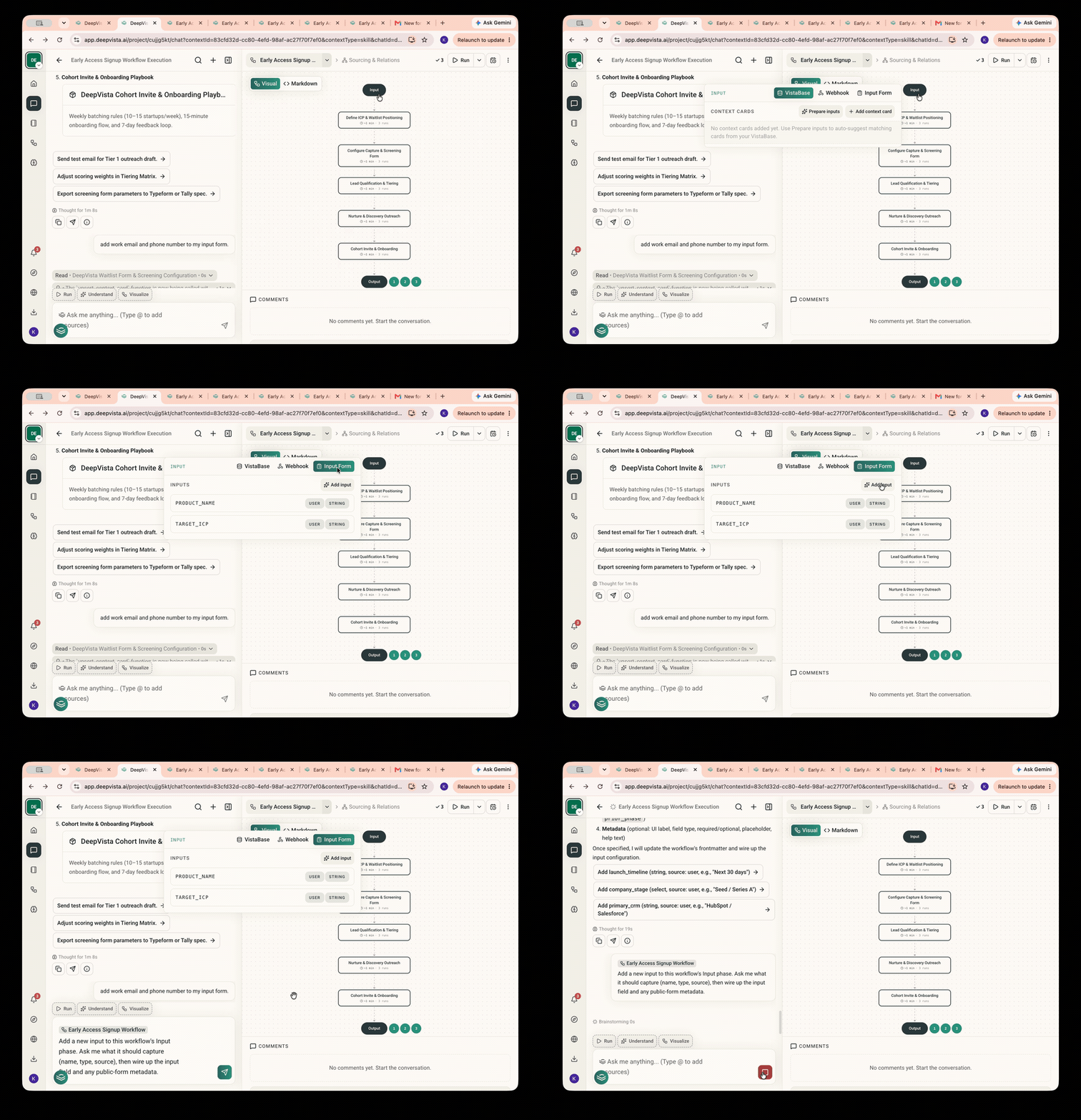
 On the workflow page, click **Input** > **Input Form** > **Add input** to get a sample prompt you can edit.
 Each post also gets its own unique tracking link — you'll find it on the workflow card.
 ## 3. Get Your Daily Copy & Start Tracking
### Ask DeepVista to email your daily post
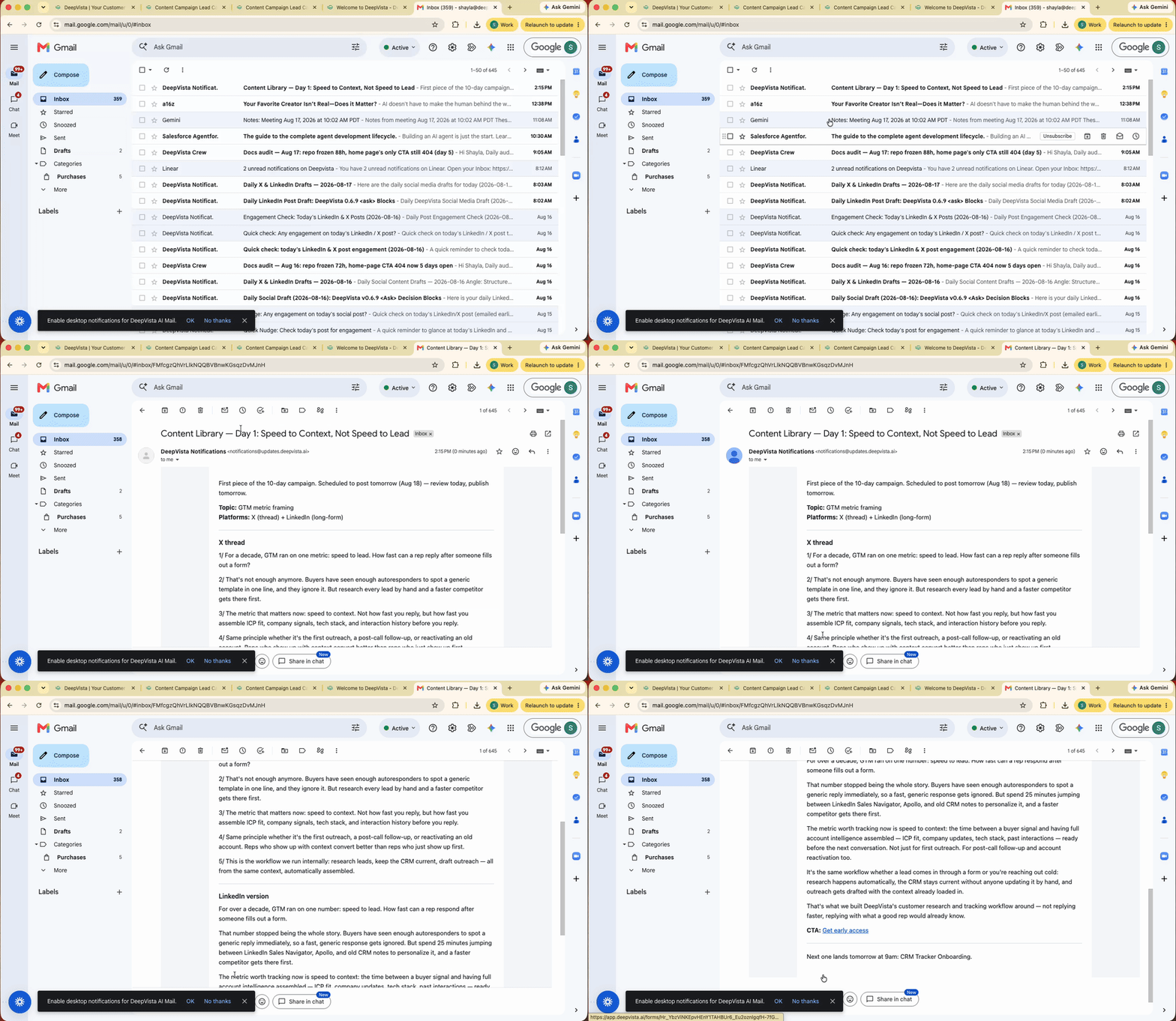
Check your inbox — your first post is on its way.
## 3. Get Your Daily Copy & Start Tracking
### Ask DeepVista to email your daily post
Check your inbox — your first post is on its way.
 Congratulations! You've set up a 10-day social media campaign. Start capturing leads with DeepVista.
## 4. Get Notified & Follow Up with Leads
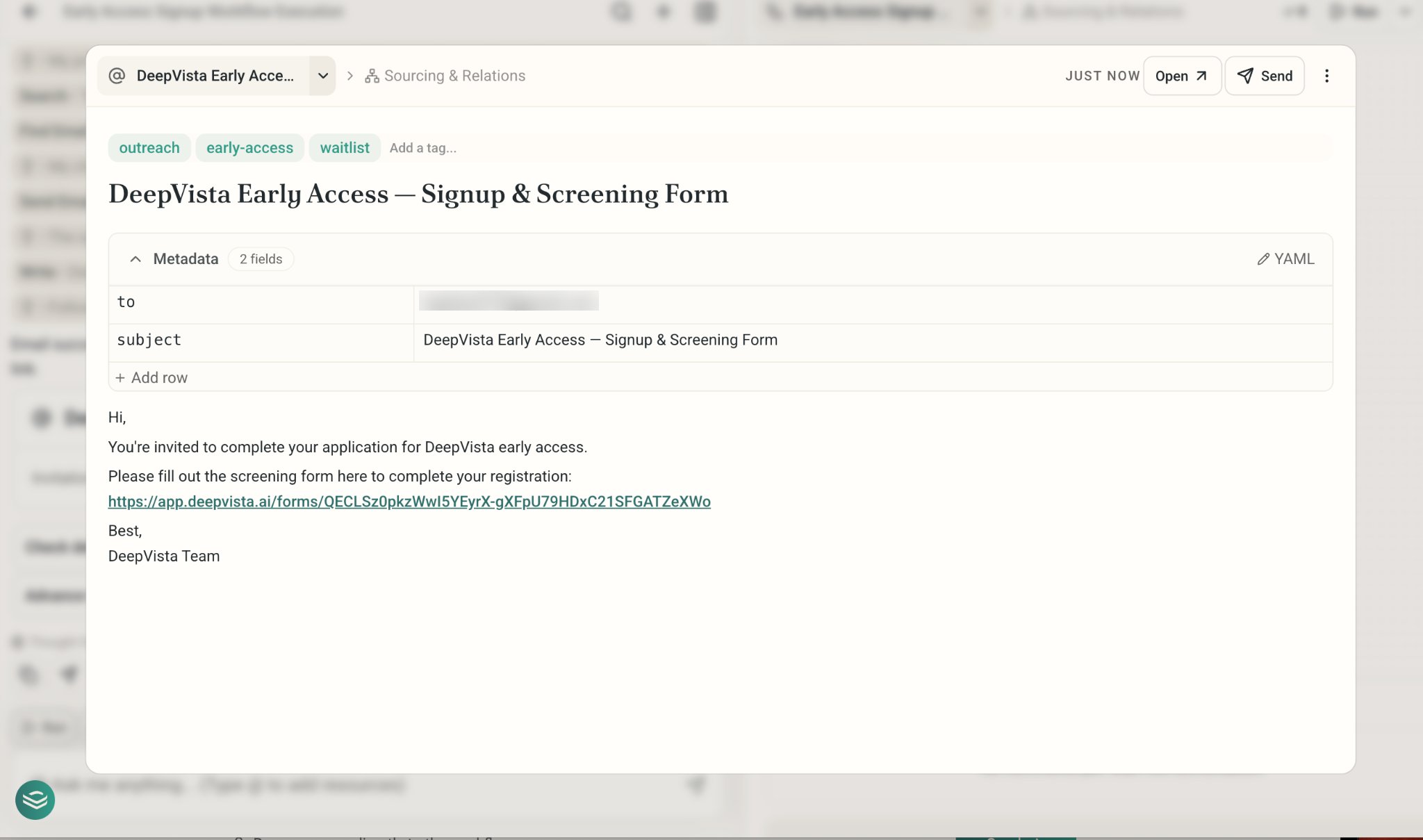
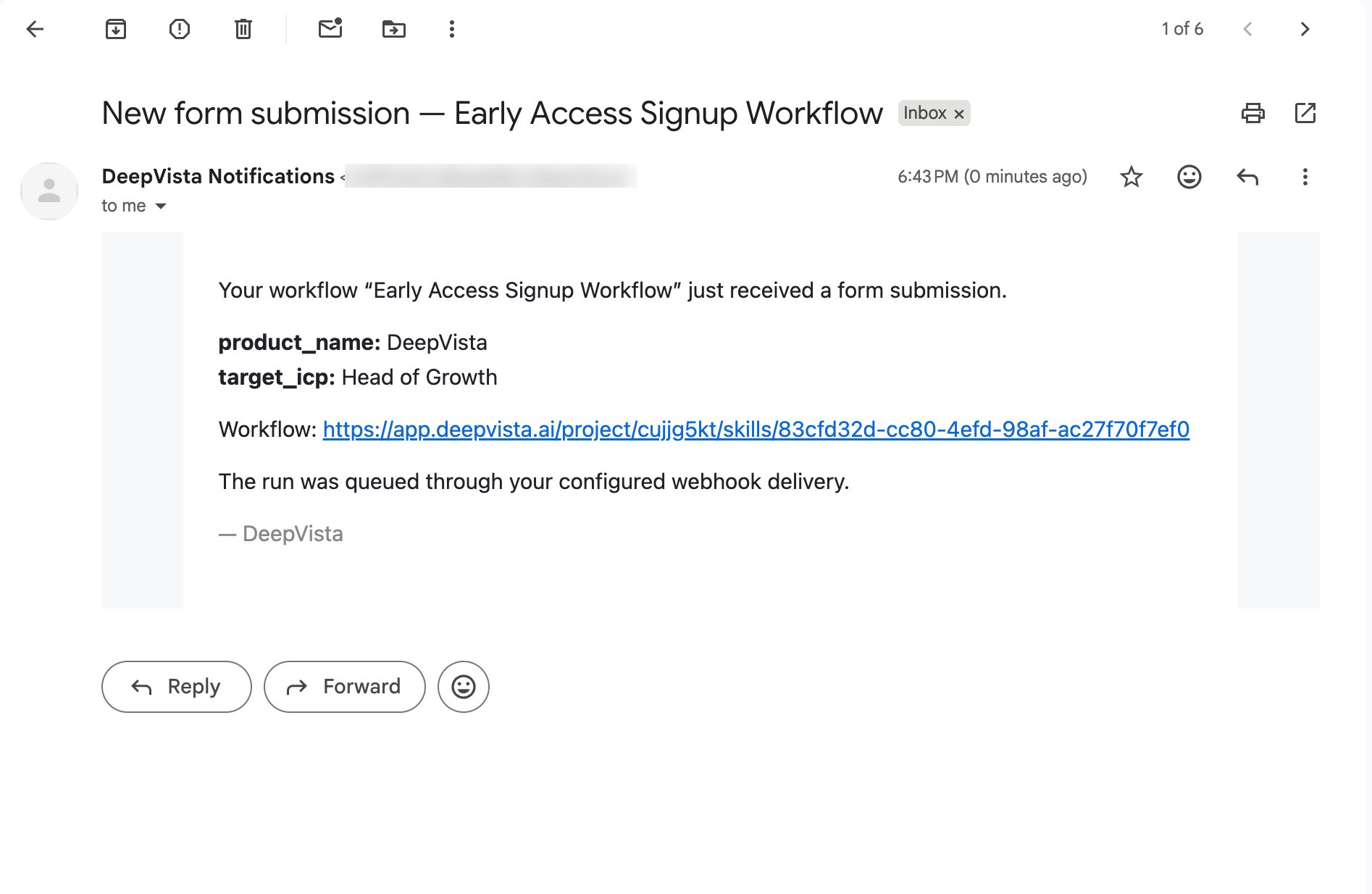
### Get Notified with Inbound Activities
Congratulations! You've set up a 10-day social media campaign. Start capturing leads with DeepVista.
## 4. Get Notified & Follow Up with Leads
### Get Notified with Inbound Activities
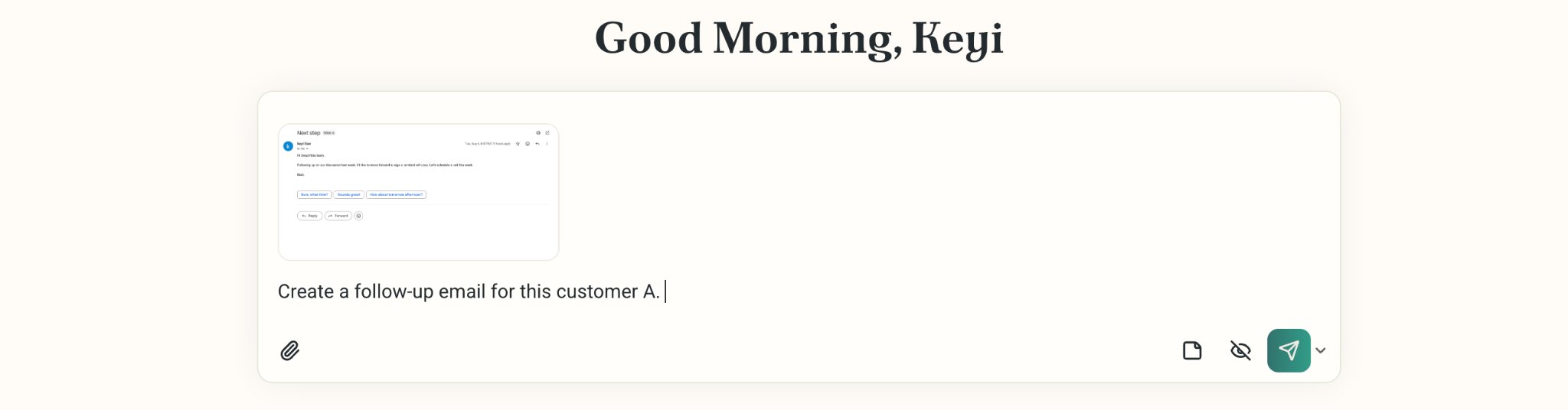
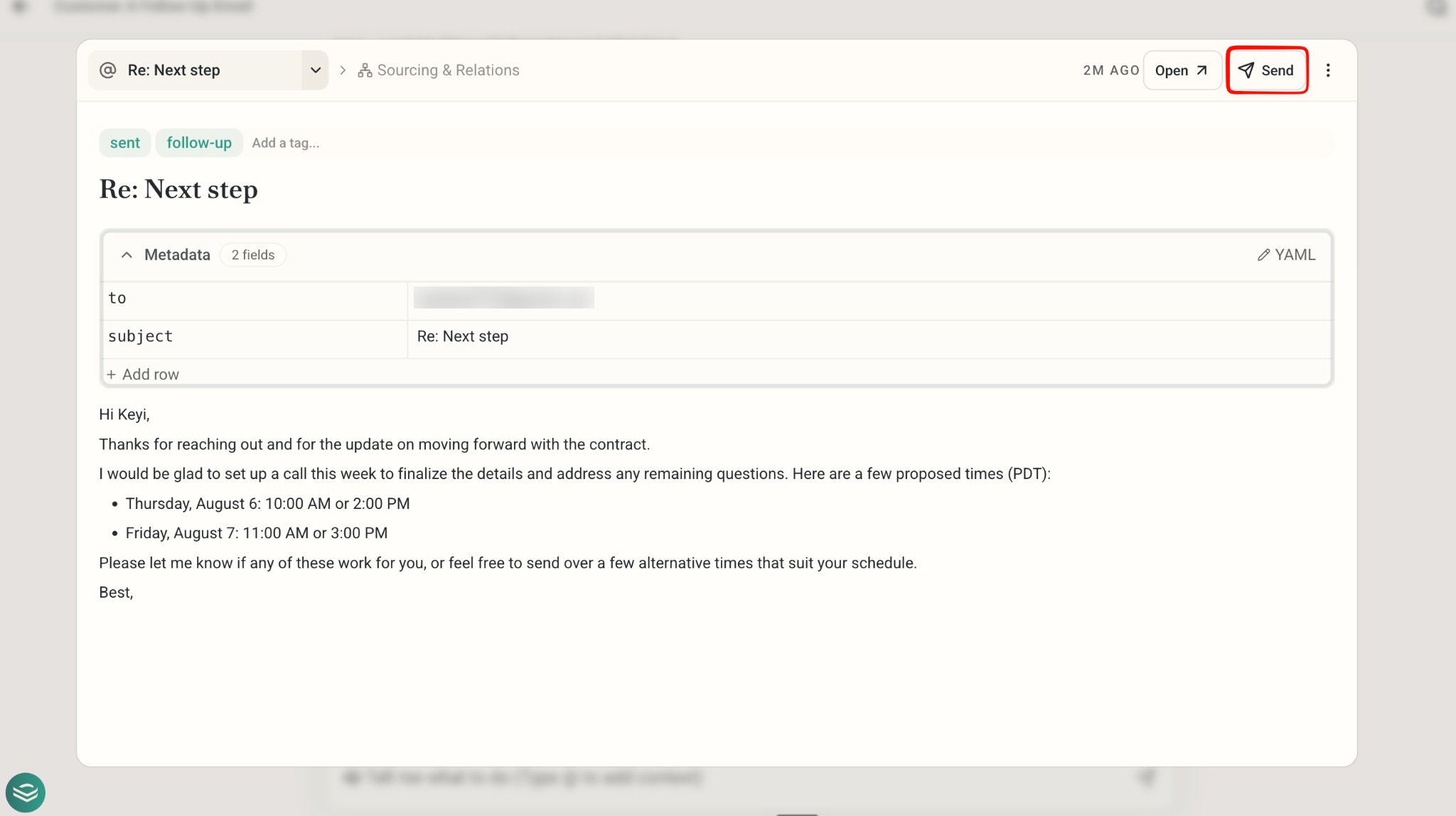
 ### Follow up with High-fit Leads
 ## Congratulations
You've closed the loop on your social media campaign — from content to conversion, with every lead captured and followed up on automatically.
## Congratulations
You've closed the loop on your social media campaign — from content to conversion, with every lead captured and followed up on automatically.