> ## Documentation Index
> Fetch the complete documentation index at: https://docs.deepvista.ai/llms.txt
> Use this file to discover all available pages before exploring further.
# Set Up Your Claude Code Connector
> Connect your machine to Claude Code Connectors and delegate any task by chatting with DeepVista.
## Overview
By the end of this tutorial, Claude Code will be authorized on your machine, you'll see which connectors are available to it, and you'll try delegating a task to one directly from DeepVista chat.
## What are you actually connecting?
Deep workflows ask you to set up **Claude Code**. Here's what happens every time you run a deep workflow:
* **Claude Code** runs on your own computer and signs in with your own Claude account. Your password never passes through our servers.
* On **Claude.ai**, you turn on a setting that lets Claude read a tool you've connected, like Google Drive.
* From there, DeepVista works through the Claude Code on your computer to fetch what it needs and bring the results back to you.
This uses your own Claude subscription's usage allowance, not a DeepVista quota.
## Prerequisites
Before you start, make sure you have:
1. A DeepVista account with an active project
2. The Claude Code CLI installed (see [Mac Setup](/tutorials/mac-setup))
3. A Claude account to authorize the connector with
## Step-by-step guide
On your machine, authenticate your terminal with Claude:
1. Open your terminal.
2. Run the following login command:
```bash theme={null}
claude login
```
3. Select the login method: **Claude account with subscription**.
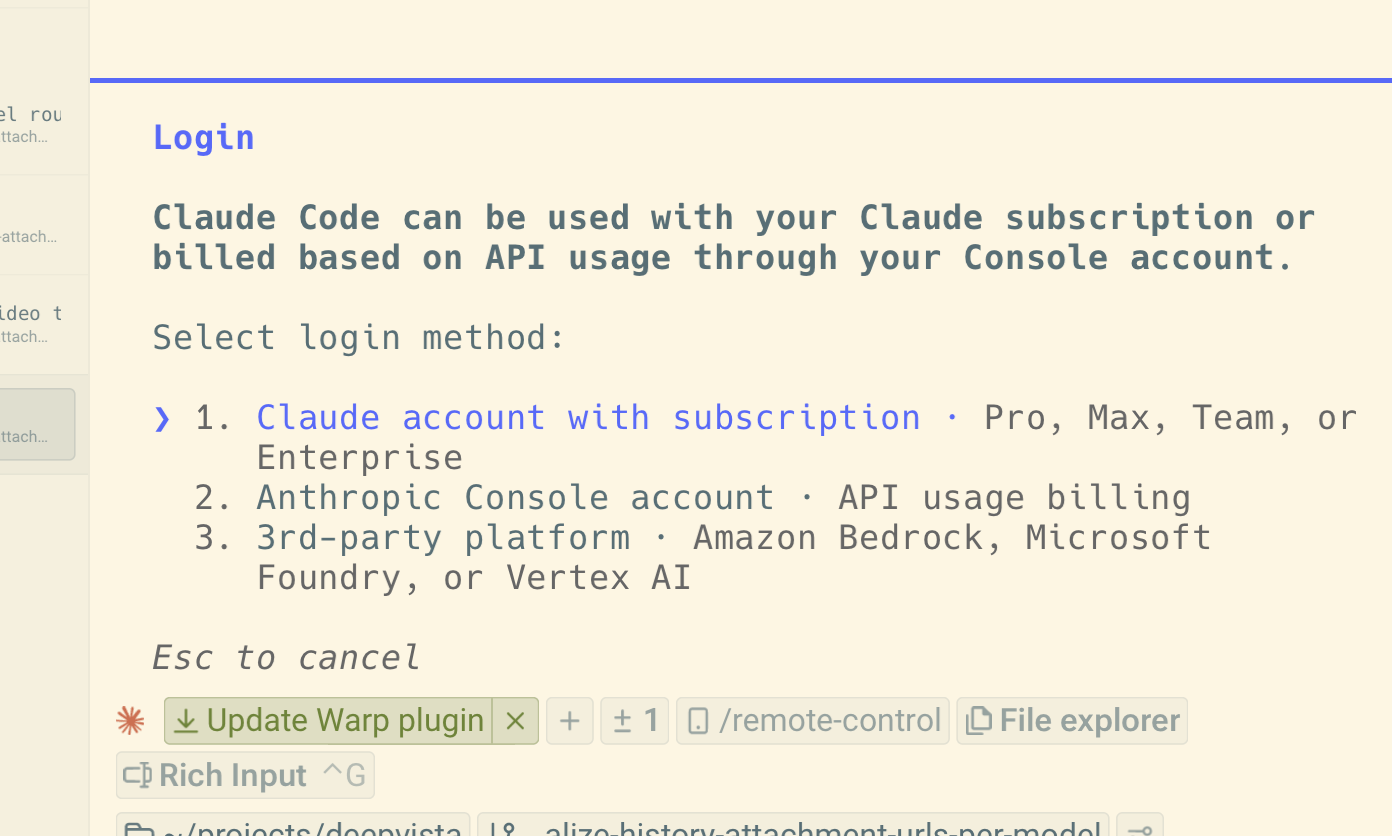 4. Your browser will automatically open to sign in (or you can copy the terminal-provided URL). It asks you to authorize Claude Code to connect to your Claude account.
5. Once signed in, an authentication code will be provided in your browser window.
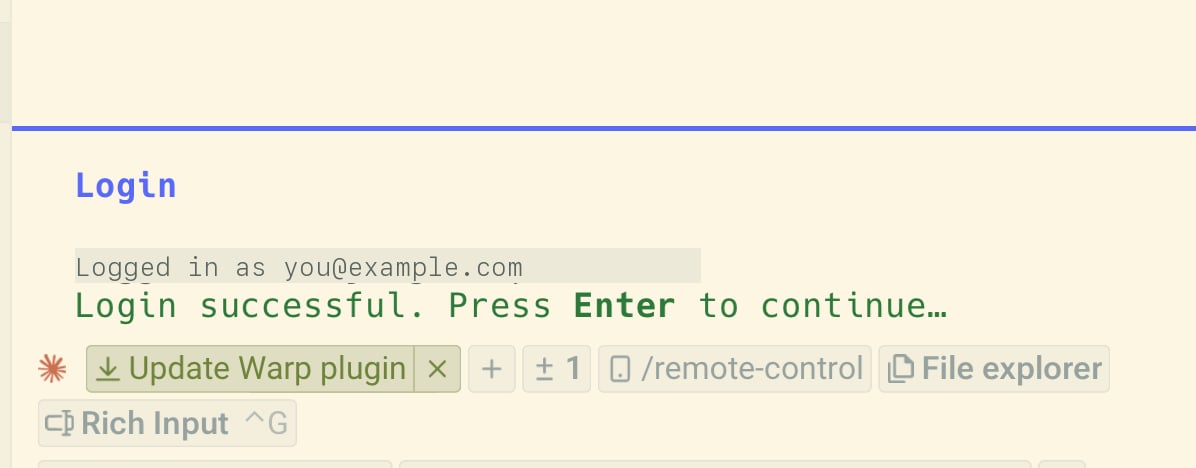
6. Copy and paste this code back into the terminal prompts. The terminal confirms you're logged in.
4. Your browser will automatically open to sign in (or you can copy the terminal-provided URL). It asks you to authorize Claude Code to connect to your Claude account.
5. Once signed in, an authentication code will be provided in your browser window.
6. Copy and paste this code back into the terminal prompts. The terminal confirms you're logged in.
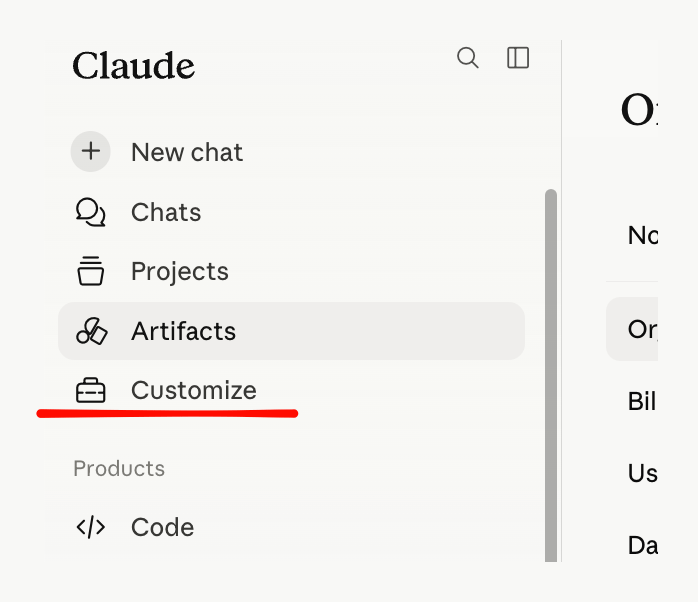
 To manage what's connected, open **Claude → Customize**.
 From there, **Connectors** shows every integration available to that machine and whether it's connected.
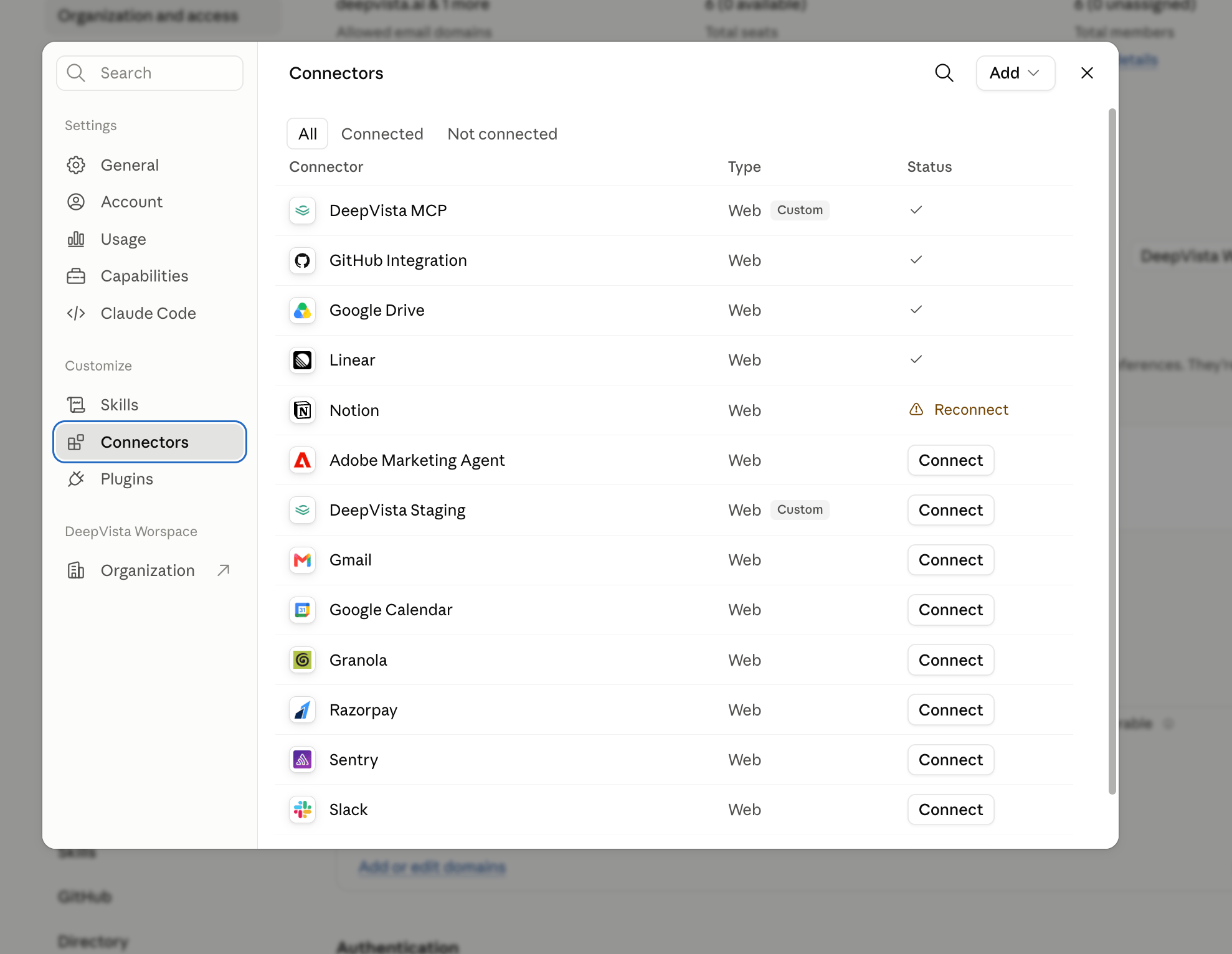 Once authorized, your machine gains the superpower of running background workflows using any of the available Claude Connectors configured on your account.
**Integrations:** Google Drive, Microsoft 365, Notion
Read, write, and index files automatically.
**Integrations:** Gmail, Slack, MS Teams
Draft replies, summarize emails, and send automated reports.
**Integrations:** GitHub, Linear
Manage repositories, pull requests, and delegate ticket creation.
**Integrations:** Figma, Canva
Generate diagrams, grab design specs, and create layouts.
**Integrations:** Google Calendar
Coordinate meetings and manage schedules autonomously.
## Try a simple task with a Claude Code Connector
For example, once Google Drive is connected, `@mention` your machine in DeepVista chat (type `@` followed by its name) to send it a task directly, and ask something like:
```text theme={null}
I have already authed the Google Drive connector, can you list all my recent Google files?
```
Your machine picks up the task, opens the connector, and returns the results right in chat — no need to open Google Drive yourself.
Once authorized, your machine gains the superpower of running background workflows using any of the available Claude Connectors configured on your account.
**Integrations:** Google Drive, Microsoft 365, Notion
Read, write, and index files automatically.
**Integrations:** Gmail, Slack, MS Teams
Draft replies, summarize emails, and send automated reports.
**Integrations:** GitHub, Linear
Manage repositories, pull requests, and delegate ticket creation.
**Integrations:** Figma, Canva
Generate diagrams, grab design specs, and create layouts.
**Integrations:** Google Calendar
Coordinate meetings and manage schedules autonomously.
## Try a simple task with a Claude Code Connector
For example, once Google Drive is connected, `@mention` your machine in DeepVista chat (type `@` followed by its name) to send it a task directly, and ask something like:
```text theme={null}
I have already authed the Google Drive connector, can you list all my recent Google files?
```
Your machine picks up the task, opens the connector, and returns the results right in chat — no need to open Google Drive yourself.
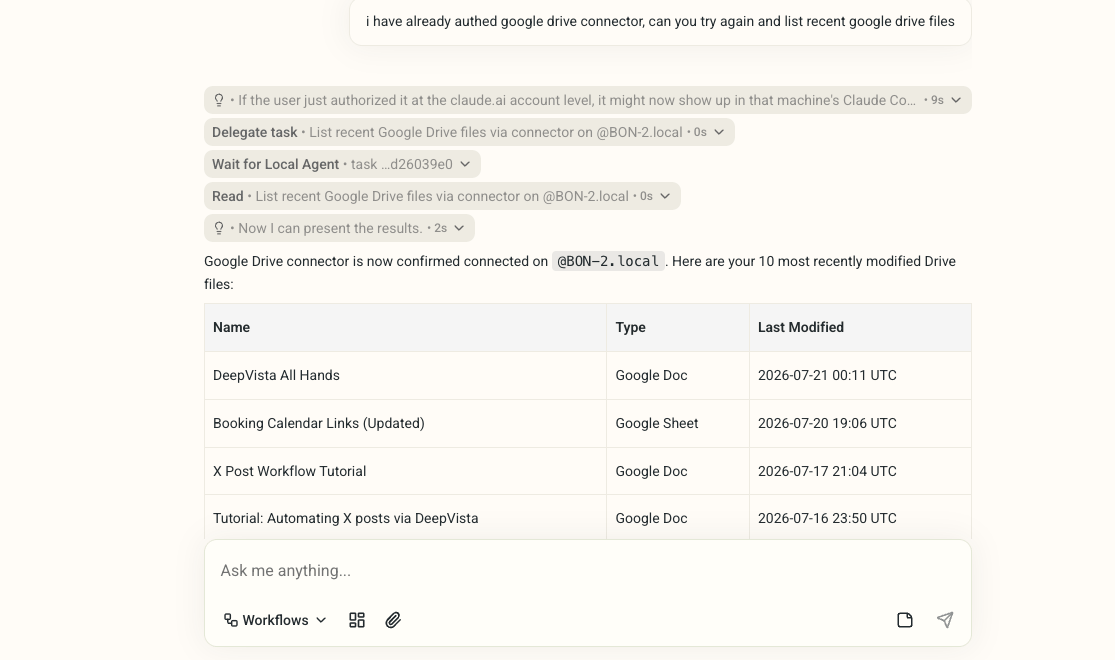 Try it yourself: pick any connector you already have configured — Slack, Notion, GitHub, whatever your machine has access to — and send a similar prompt from DeepVista chat. You'll get results back the same way, without leaving the conversation.
## Next steps
Turn your desktop, laptop, or on-premise server into an active DeepVista runner.
Try it yourself: pick any connector you already have configured — Slack, Notion, GitHub, whatever your machine has access to — and send a similar prompt from DeepVista chat. You'll get results back the same way, without leaving the conversation.
## Next steps
Turn your desktop, laptop, or on-premise server into an active DeepVista runner.