> ## Documentation Index
> Fetch the complete documentation index at: https://docs.deepvista.ai/llms.txt
> Use this file to discover all available pages before exploring further.

# Draft, Send, Schedule Outreach Email

## Ask DeepVista to Draft Outreach Email

<Steps>
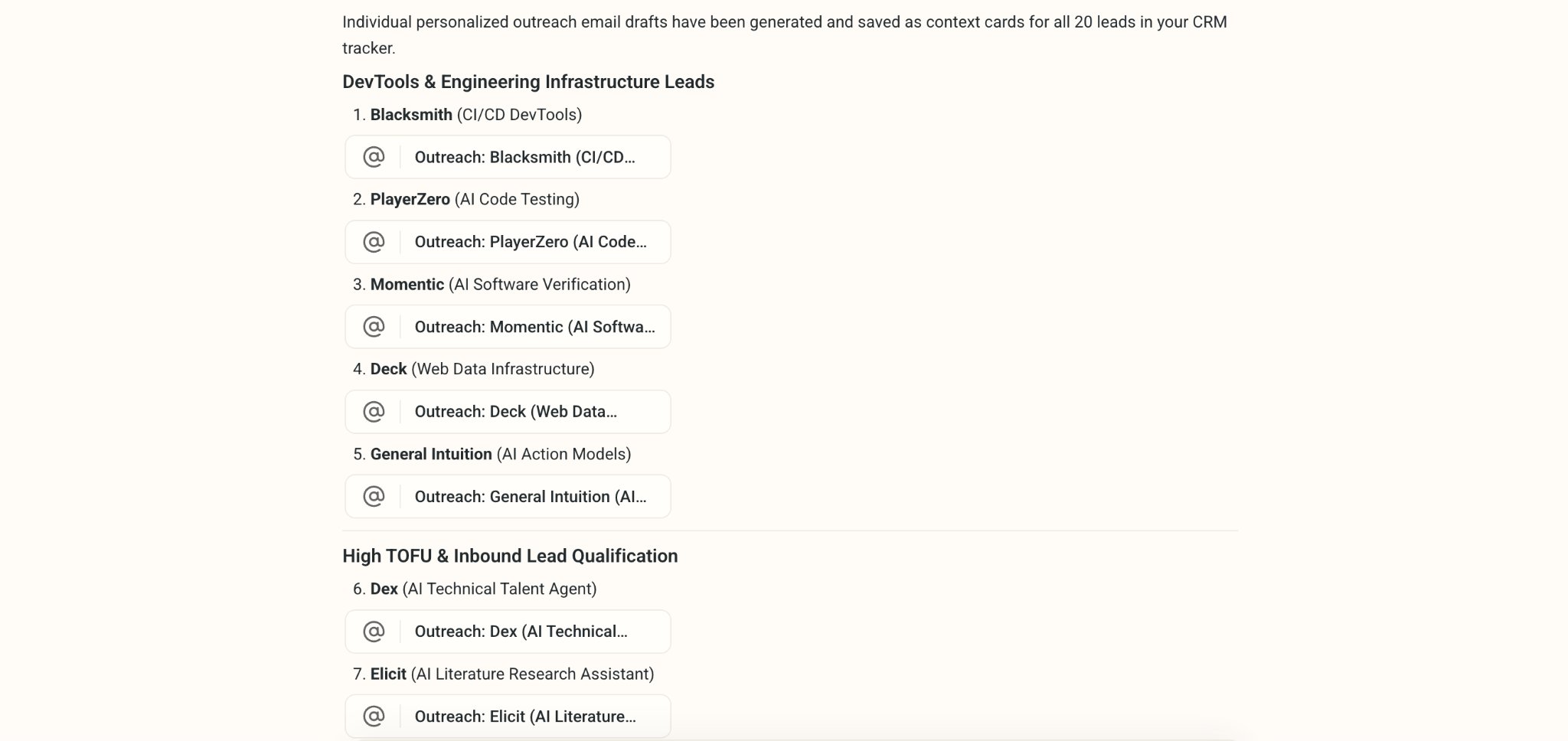
  <Step title="Ask DeepVista: &#x22;Help me draft outreach emails for all of the leads.&#x22;">
    DeepVista will save your email drafts as context cards.
    <Frame>
      <img src="https://mintcdn.com/deepvistainc/_inCNvsT8zxiIr7Z/images/lightworkflow-doc-outreach-drafts-list.png?fit=max&auto=format&n=_inCNvsT8zxiIr7Z&q=85&s=eae44e9bbcfcc6caccf7485b45652192" alt="" width="2048" height="968" data-path="images/lightworkflow-doc-outreach-drafts-list.png" />
    </Frame>
  </Step>

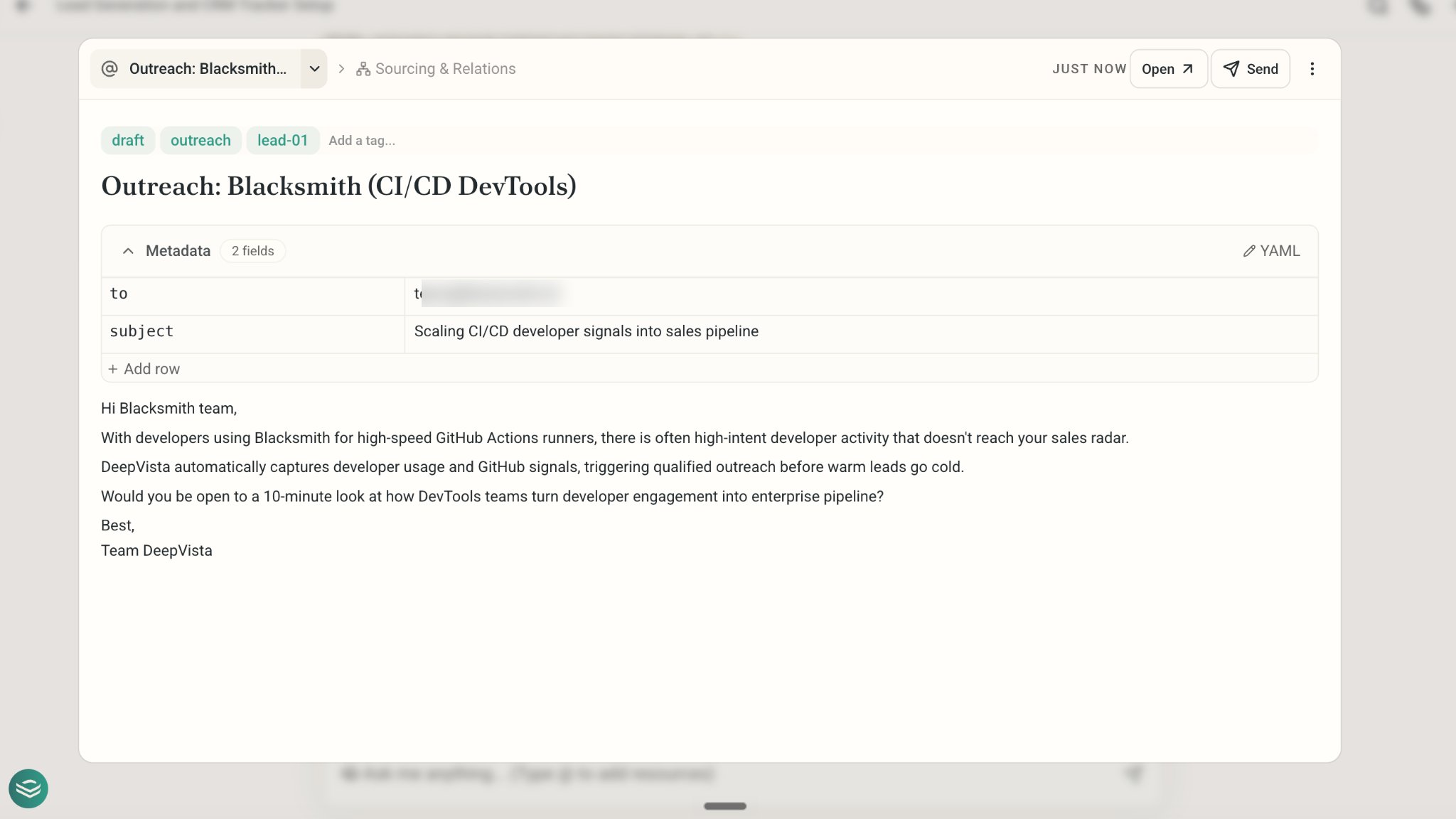
  <Step title="Click into the email card to view and edit the draft.">
    <Frame>
      <img src="https://mintcdn.com/deepvistainc/8IMk2x8hPeYfO5OI/images/lightworkflow-doc-outreach-email-draft.png?fit=max&auto=format&n=8IMk2x8hPeYfO5OI&q=85&s=1839a8f0166c76be47d6560fc78af579" alt="" width="2048" height="1152" data-path="images/lightworkflow-doc-outreach-email-draft.png" />
    </Frame>

    To make changes, you can also ask DeepVista directly: "Add my email signature."

    DeepVista will automatically pull the necessary information from your VistaBase context cards.
  </Step>
</Steps>

## Connect Your Gmail and Send Your Email
<Steps>
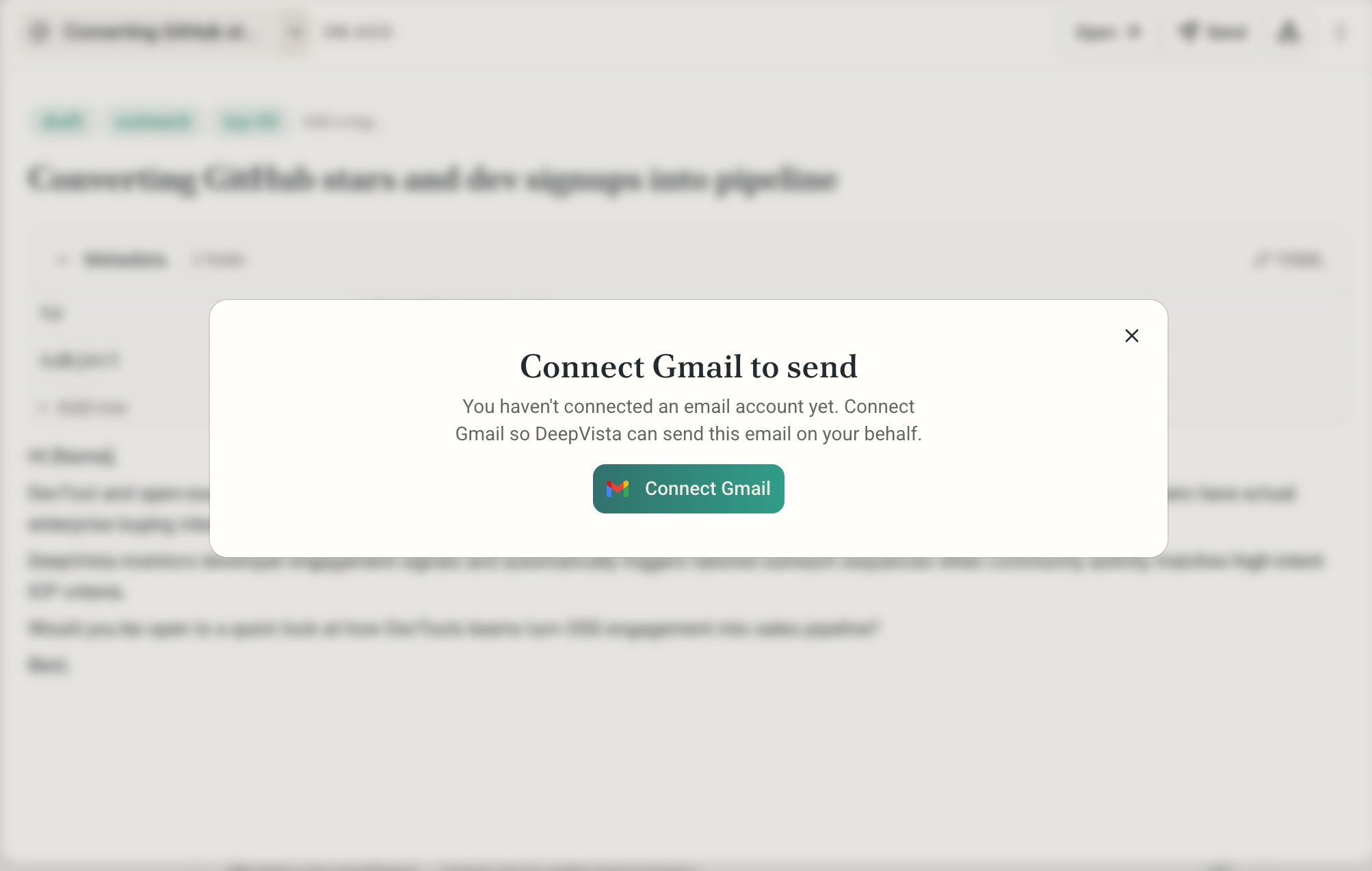
  <Step title="To send out an email, Click Send and connect your Gmail.">
    <Frame>
      <img src="https://mintcdn.com/deepvistainc/_inCNvsT8zxiIr7Z/images/lightworkflow-doc-connect-gmail-modal.png?fit=max&auto=format&n=_inCNvsT8zxiIr7Z&q=85&s=3f6a2cf93d42c6901d7015f426181058" alt="" width="2006" height="1274" data-path="images/lightworkflow-doc-connect-gmail-modal.png" />
    </Frame>
  </Step>

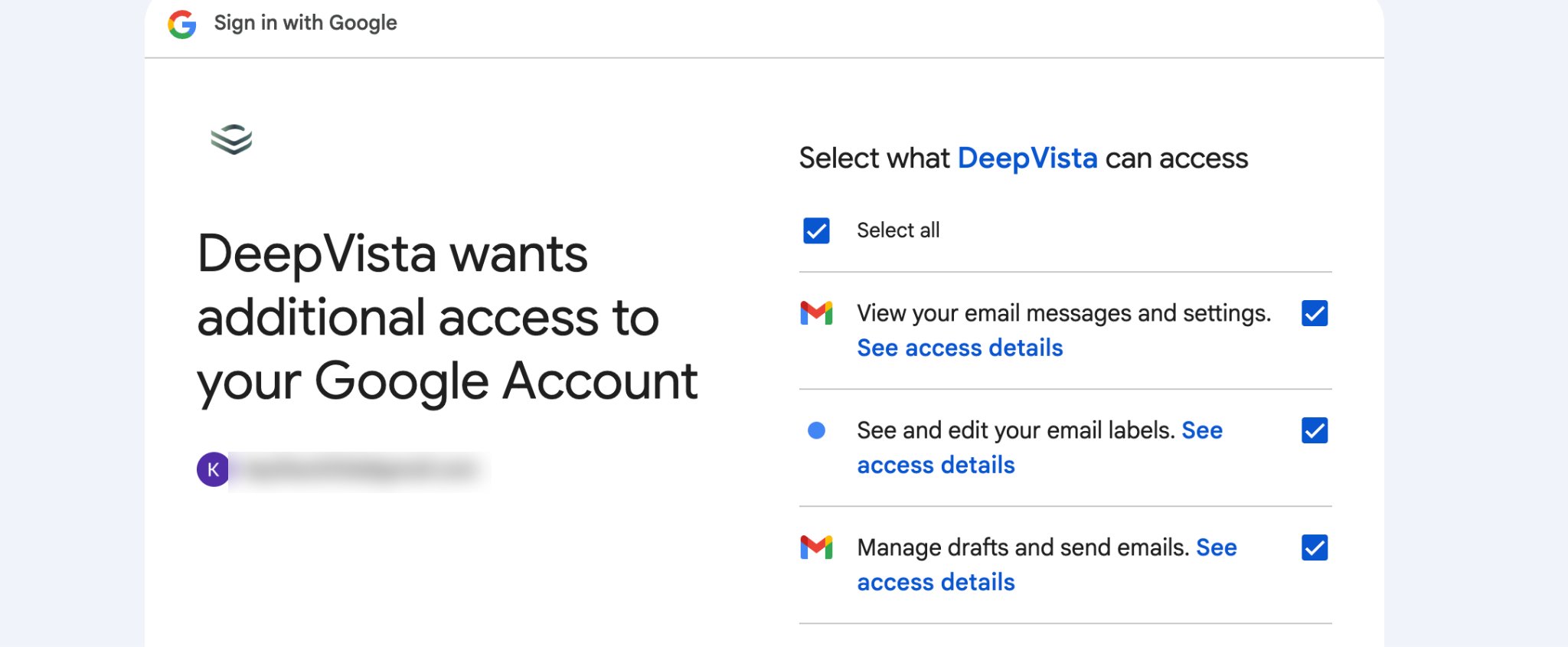
  <Step title="Make sure DeepVista has all the access it needs.">
    <Frame>
      <img src="https://mintcdn.com/deepvistainc/8IMk2x8hPeYfO5OI/images/lightworkflow-doc-gmail-oauth-consent.png?fit=max&auto=format&n=8IMk2x8hPeYfO5OI&q=85&s=85f66cbf19d1c68b7b9bb8a30b160ce0" alt="" width="2048" height="845" data-path="images/lightworkflow-doc-gmail-oauth-consent.png" />
    </Frame>
  </Step>

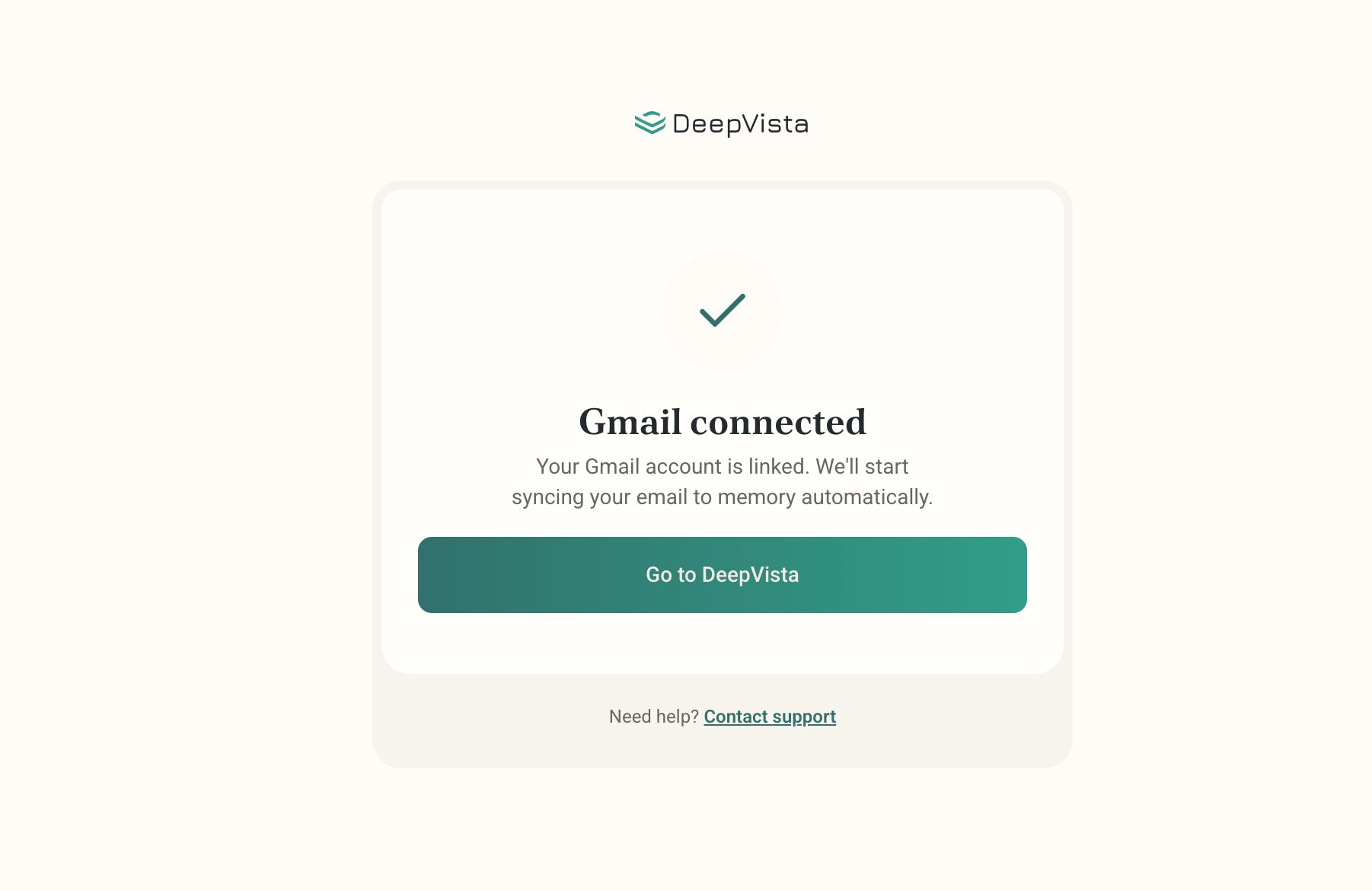
  <Step title="Upon success, you'll see the confirmation page below.">
    <Frame>
      <img src="https://mintcdn.com/deepvistainc/_inCNvsT8zxiIr7Z/images/lightworkflow-doc-gmail-connected.png?fit=max&auto=format&n=_inCNvsT8zxiIr7Z&q=85&s=c24b64a2add2fbe7d0740fa8f3e8dba2" alt="" width="1802" height="1170" data-path="images/lightworkflow-doc-gmail-connected.png" />
    </Frame>
  </Step>

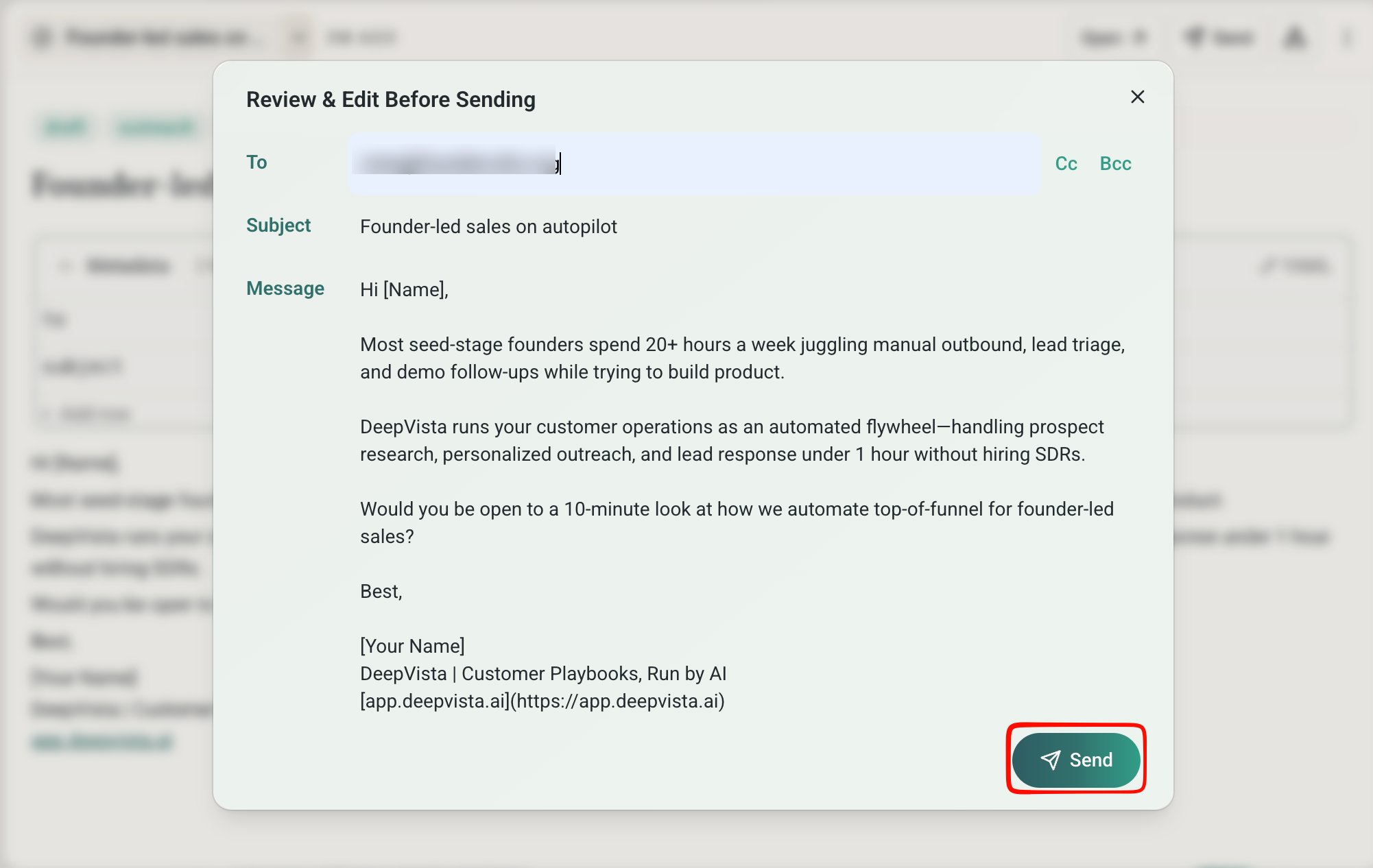
  <Step title="Once ready, click Send in the bottom-right corner, or ask DeepVista to send all of them automatically.">
    <Frame>
      <img src="https://mintcdn.com/deepvistainc/8IMk2x8hPeYfO5OI/images/lightworkflow-doc-outreach-review-send.png?fit=max&auto=format&n=8IMk2x8hPeYfO5OI&q=85&s=1544a1f74dbd0d580124763785e9460a" alt="" width="2002" height="1266" data-path="images/lightworkflow-doc-outreach-review-send.png" />
    </Frame>
  </Step>

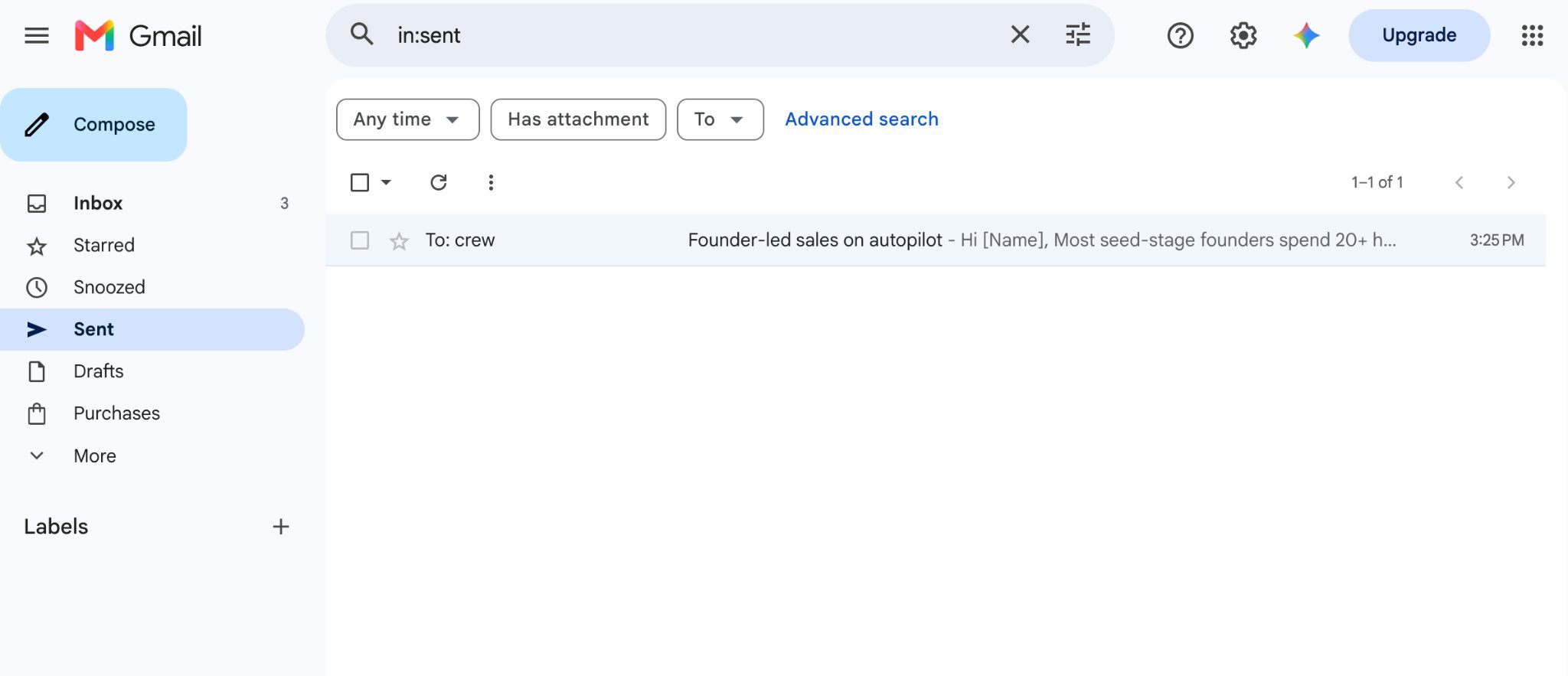
  <Step title="To confirm, open Gmail and find the sent email in your Gmail &#x22;Sent&#x22; tab.">
    <Frame>
      <img src="https://mintcdn.com/deepvistainc/_inCNvsT8zxiIr7Z/images/lightworkflow-doc-gmail-sent-tab.png?fit=max&auto=format&n=_inCNvsT8zxiIr7Z&q=85&s=52dac8052a05190711d4a724f04558c1" alt="" width="2048" height="883" data-path="images/lightworkflow-doc-gmail-sent-tab.png" />
    </Frame>
  </Step>
</Steps>

## Ask DeepVista to Schedule a Daily Job

<Steps>
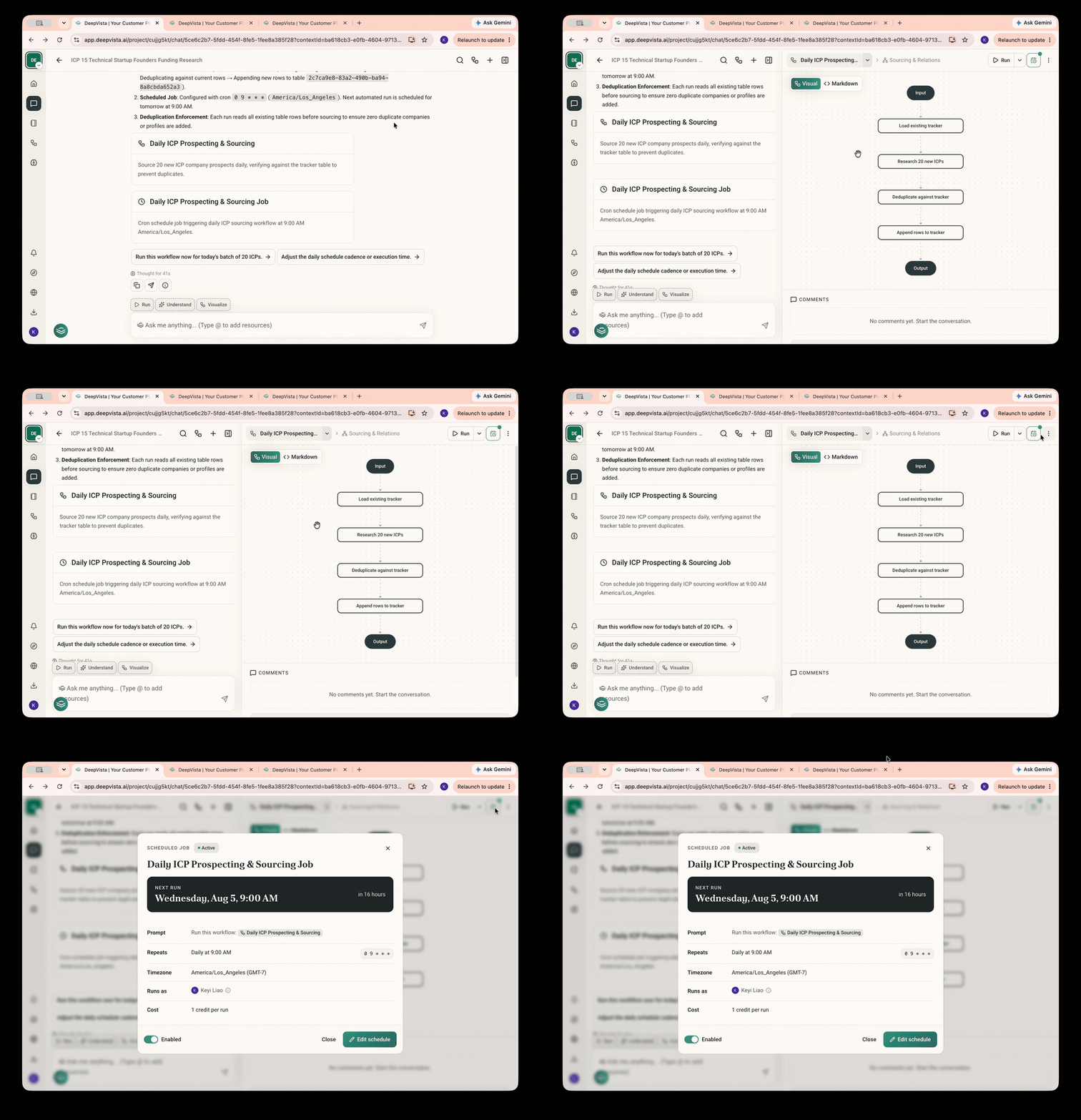
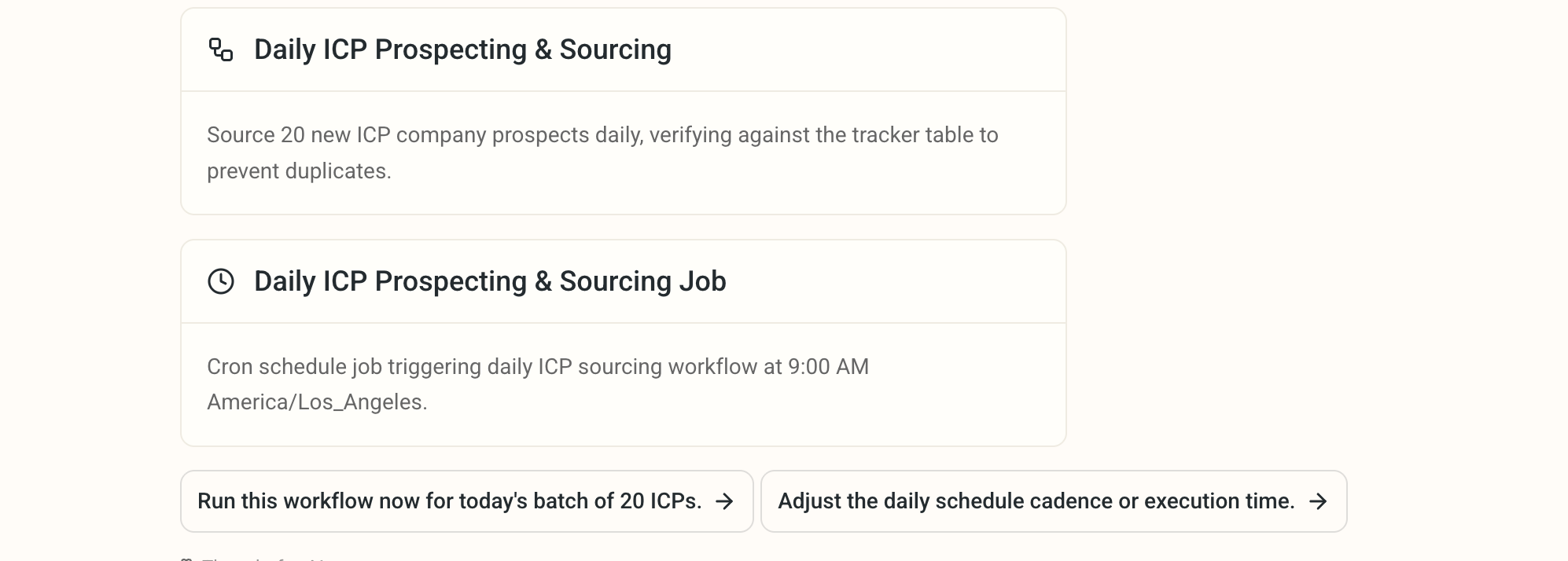
  <Step title="Ask DeepVista: &#x22;Schedule a daily task to source 20 new leads every day. Never repeat companies already in the tracker.&#x22;">
    DeepVista will create an automated **workflow** and a **scheduled job** for you.
    <Frame>
      <img src="https://mintcdn.com/deepvistainc/_inCNvsT8zxiIr7Z/images/lightworkflow-doc-daily-job-cards.png?fit=max&auto=format&n=_inCNvsT8zxiIr7Z&q=85&s=0e3a30a70c6e96365f074c74daace7b6" alt="" width="1994" height="714" data-path="images/lightworkflow-doc-daily-job-cards.png" />
    </Frame>
  </Step>

  <Step title="Click the context cards to view details and make changes.">
    <Frame>
      <img src="https://mintcdn.com/deepvistainc/_inCNvsT8zxiIr7Z/images/lightworkflow-doc-daily-job-detail.gif?s=9c904bfbeb4777bcc185404d48f02403" alt="" width="1000" height="691" data-path="images/lightworkflow-doc-daily-job-detail.gif" />
    </Frame>
  </Step>
</Steps>

## Next step: Capture, Follow up with Inbound Leads

<Card title="3. Capture, Follow up with Inbound Leads" icon="inbox" href="/tutorials/inbound-lead-capture-qualification" />