> ## Documentation Index
> Fetch the complete documentation index at: https://docs.deepvista.ai/llms.txt
> Use this file to discover all available pages before exploring further.

# 3. Capture, Notified, and Follow up with Inbound Leads

## Capture Inbound Leads
<Steps>
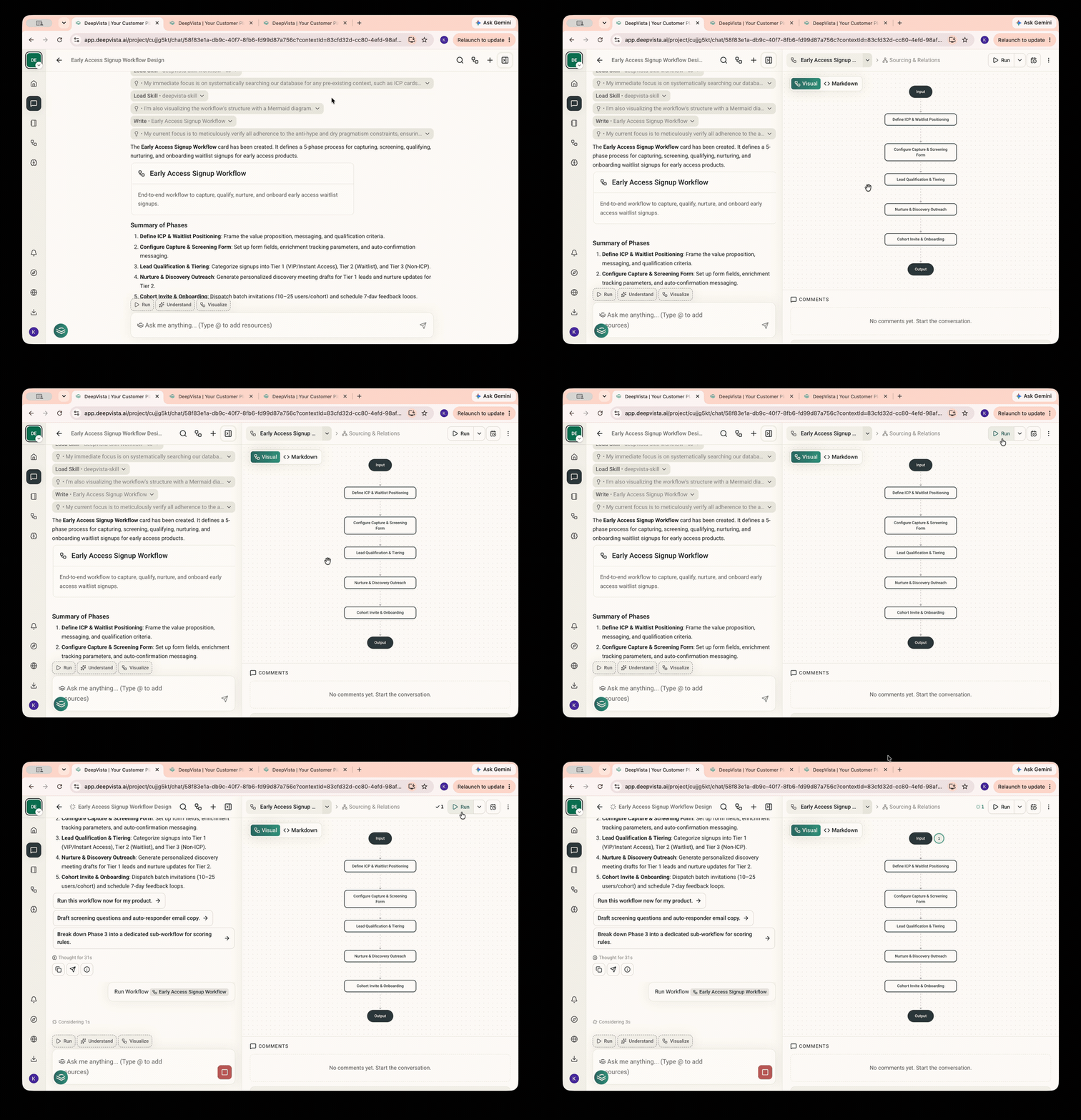
  <Step title="Ask DeepVista: Help me create an early-access signup workflow." />

  <Step title="Click into the context card to Run the workflow.">
    <Frame>
      <img src="https://mintcdn.com/deepvistainc/_inCNvsT8zxiIr7Z/images/lightworkflow-doc-signup-workflow-diagram.gif?s=436a1e43c35e539ea7c90d1dd7096973" alt="" width="1000" height="691" data-path="images/lightworkflow-doc-signup-workflow-diagram.gif" />
    </Frame>
  </Step>

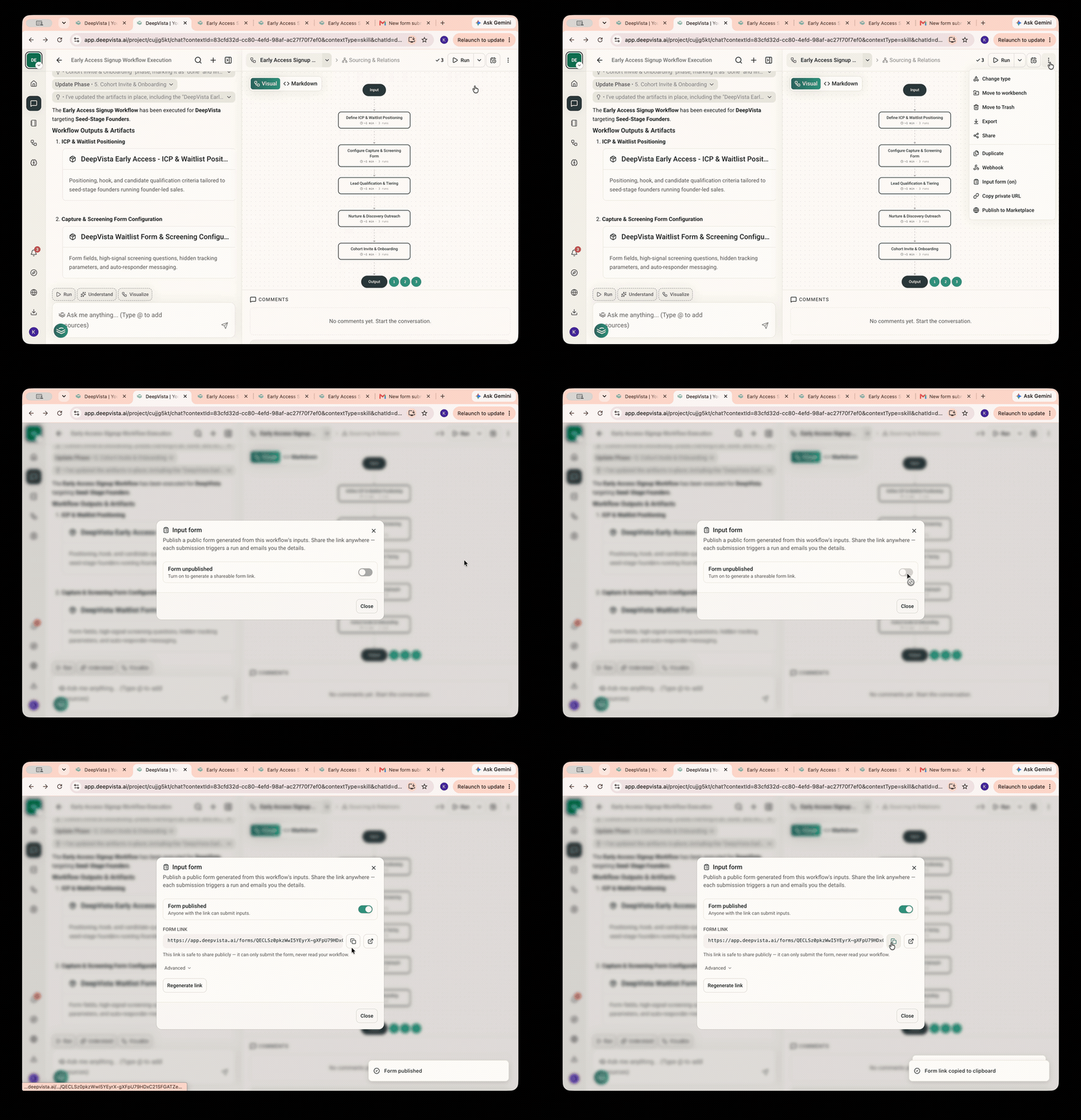
  <Step title="You'll be asked to set up an input form. Hover over to the upper right corner and generate a URL for your input form.">
    <Frame>
      <img src="https://mintcdn.com/deepvistainc/_inCNvsT8zxiIr7Z/images/lightworkflow-doc-signup-workflow-detail-1.gif?s=6953221280a643a7076661bb5577477f" alt="" width="1000" height="691" data-path="images/lightworkflow-doc-signup-workflow-detail-1.gif" />
    </Frame>
  </Step>

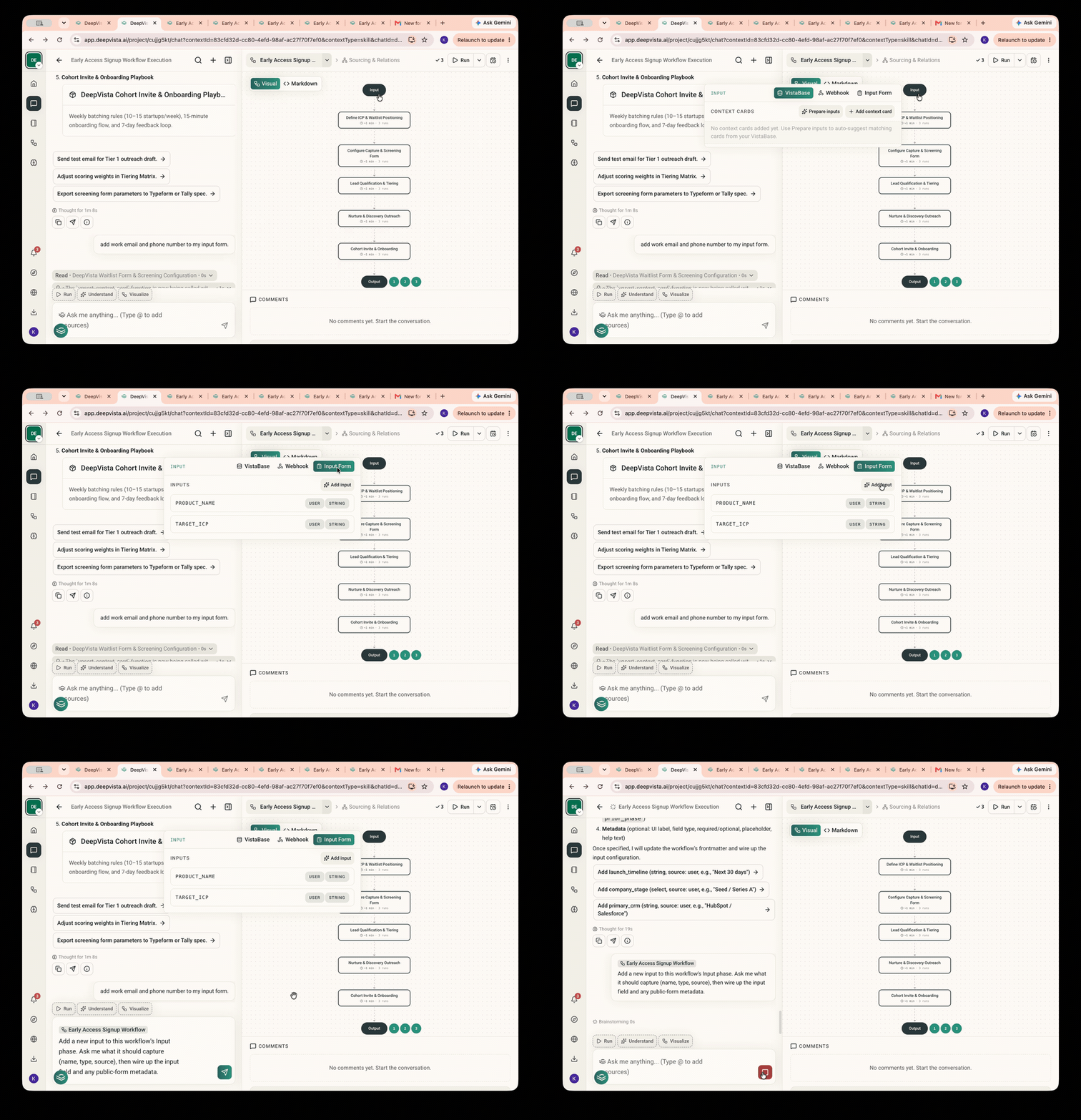
  <Step title="To customize the input form, on the workflow page, click &#x22;Input&#x22; >&#x22;Input Form&#x22; > &#x22;Add input&#x22; to get a sample prompt you can modify easily.">
    <Frame>
      <img src="https://mintcdn.com/deepvistainc/_inCNvsT8zxiIr7Z/images/lightworkflow-doc-signup-workflow-detail-2.gif?s=fa0eeb2537697e6ebc3664dcadaacefb" alt="" width="1000" height="691" data-path="images/lightworkflow-doc-signup-workflow-detail-2.gif" />
    </Frame>
  </Step>
</Steps>

## Get Notified with Inbound Activities
<Steps>
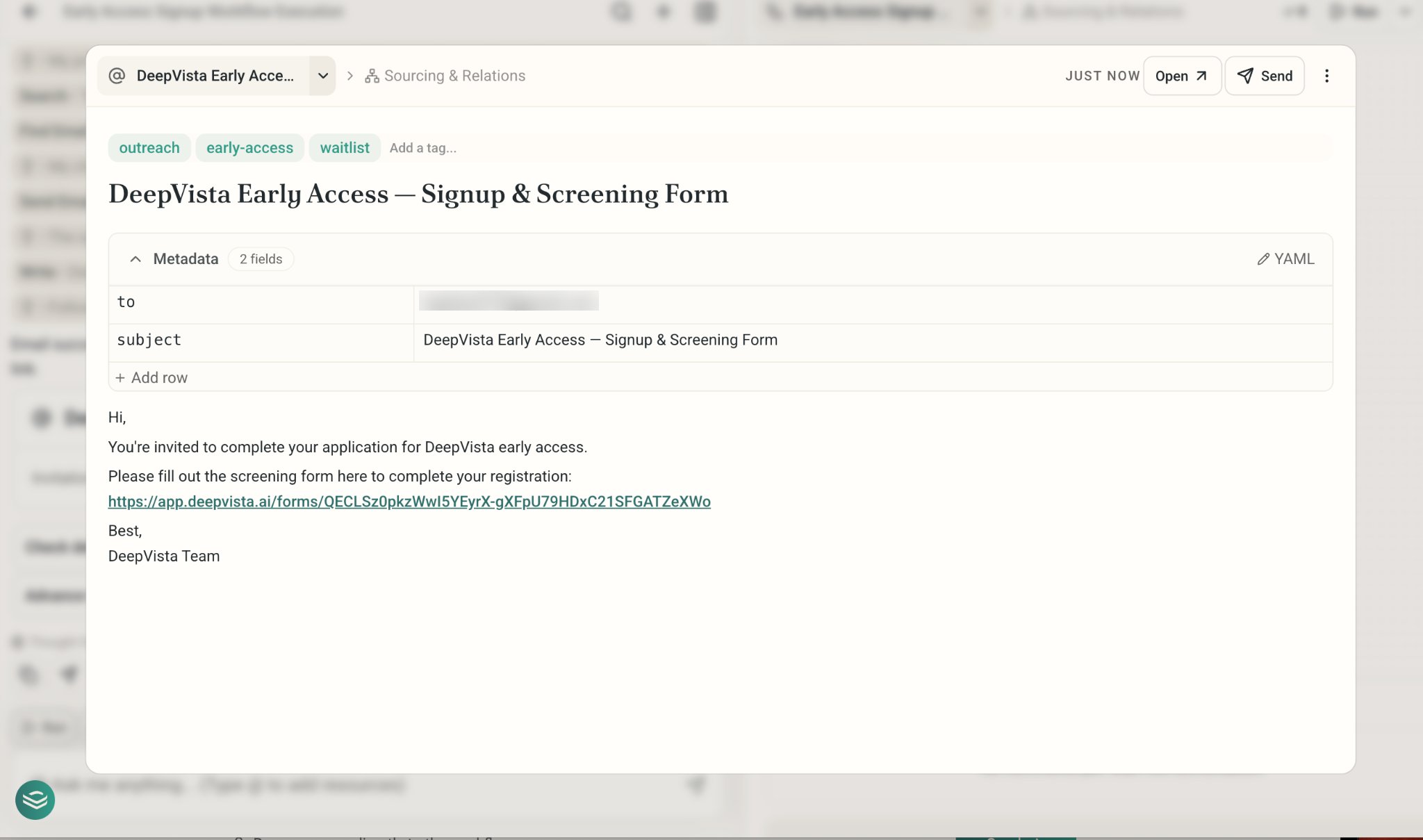
  <Step title="You can now share the input form URL with potential leads via email.">
    <Frame>
      <img src="https://mintcdn.com/deepvistainc/8IMk2x8hPeYfO5OI/images/lightworkflow-doc-signup-form-email.png?fit=max&auto=format&n=8IMk2x8hPeYfO5OI&q=85&s=821f67293ddc552ee248b1a5462b90b5" alt="" width="2048" height="1209" data-path="images/lightworkflow-doc-signup-form-email.png" />
    </Frame>
  </Step>

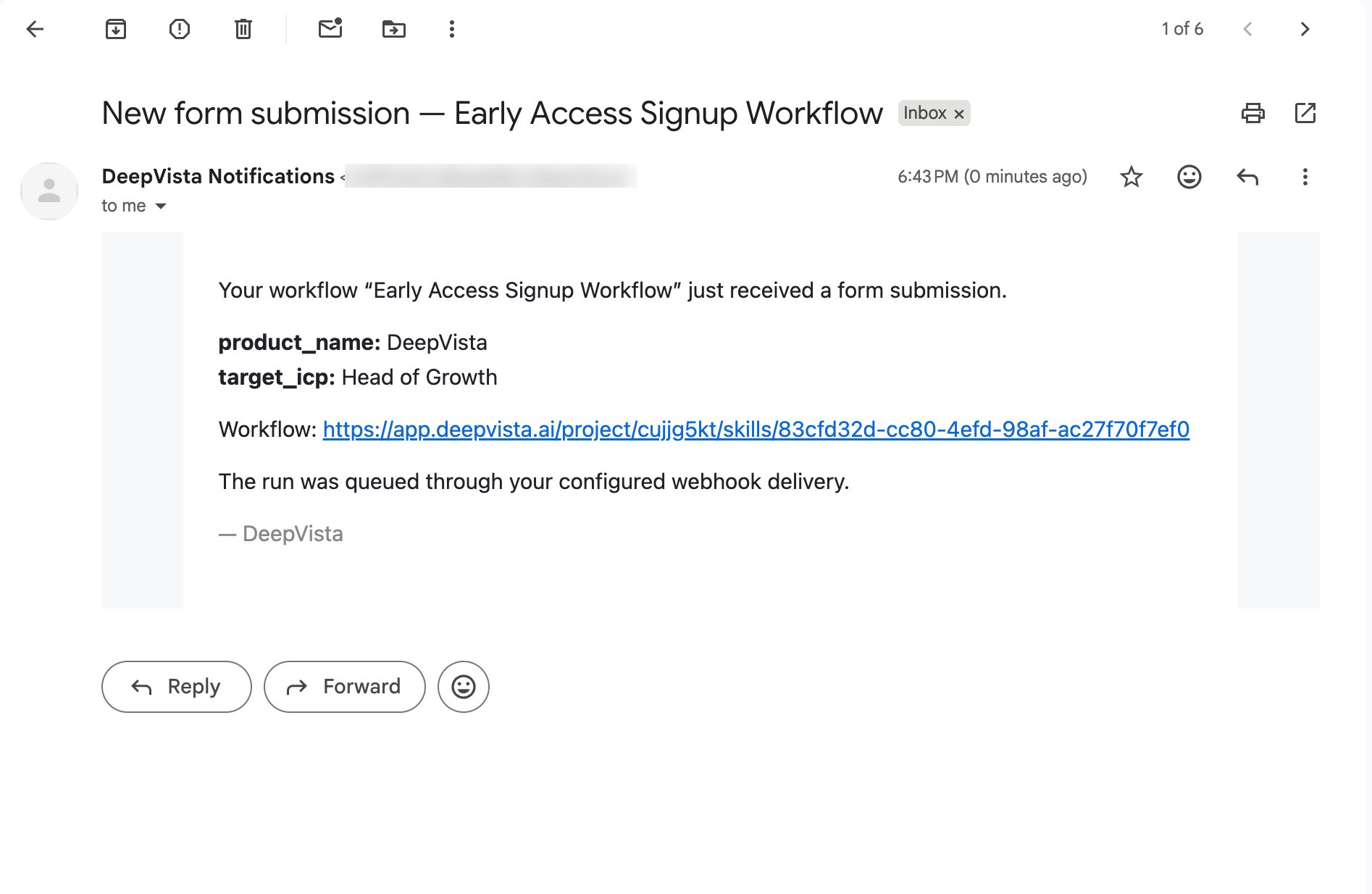
  <Step title="Once someone fills out the form, you'll get an email notification.">
    <Frame>
      <img src="https://mintcdn.com/deepvistainc/8IMk2x8hPeYfO5OI/images/lightworkflow-doc-form-submission-notification.png?fit=max&auto=format&n=8IMk2x8hPeYfO5OI&q=85&s=d3edfa5a538022b39492252a4fefd393" alt="" width="1894" height="1234" data-path="images/lightworkflow-doc-form-submission-notification.png" />
    </Frame>
  </Step>
</Steps>

## Follow up with High-fit Leads

<Steps>
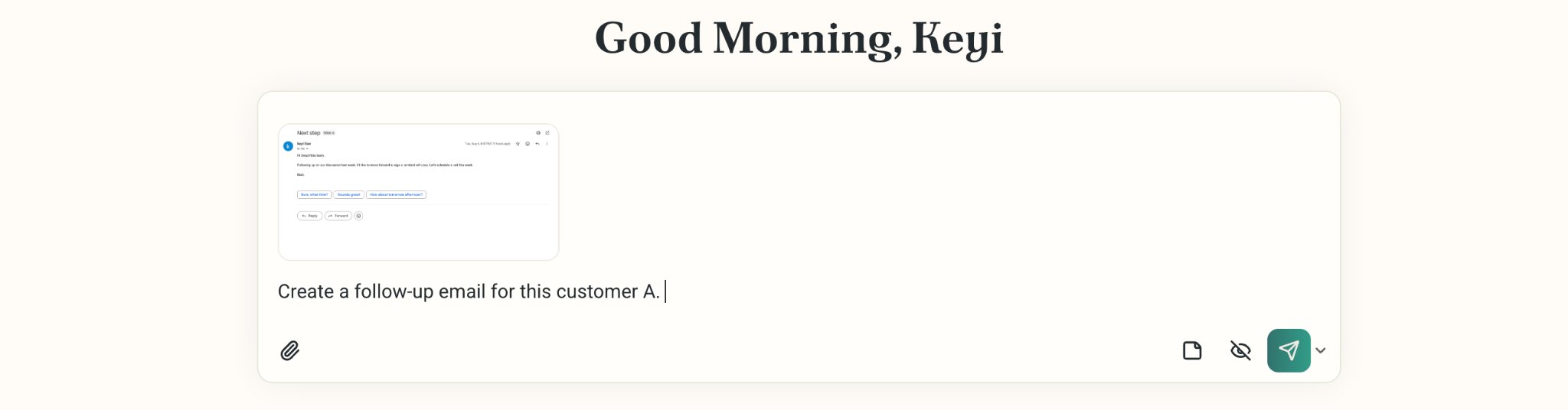
  <Step title="Capture a screenshot of the message. Copy and paste to DeepVista. Ask it: Create a follow up email for me.">
    <Frame>
      <img src="https://mintcdn.com/deepvistainc/_inCNvsT8zxiIr7Z/images/lightworkflow-doc-followup-request-chat.png?fit=max&auto=format&n=_inCNvsT8zxiIr7Z&q=85&s=ce92a01686fcb56523a3d1d3d2485d5a" alt="" width="2048" height="536" data-path="images/lightworkflow-doc-followup-request-chat.png" />
    </Frame>
  </Step>

  <Step title="DeepVista will search across VistaBase to retrieve relevant context about this person, email, and relationship." />

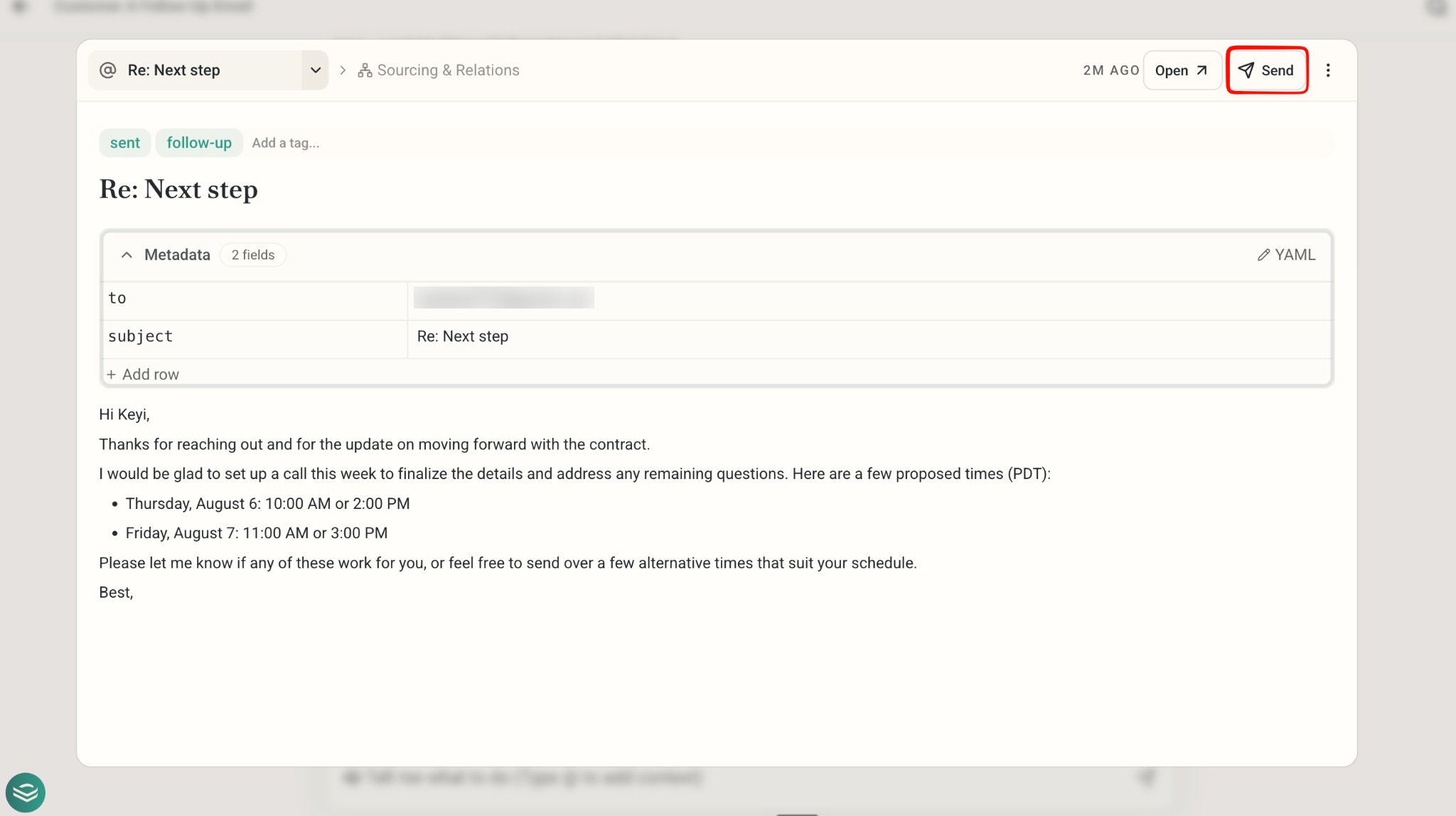
  <Step title="In the email card, edit and hit Send.">
    <Frame>
      <img src="https://mintcdn.com/deepvistainc/8IMk2x8hPeYfO5OI/images/lightworkflow-doc-followup-email-draft.png?fit=max&auto=format&n=8IMk2x8hPeYfO5OI&q=85&s=98e9b7eb34648714f3d6d89d81629e21" alt="" width="2048" height="1148" data-path="images/lightworkflow-doc-followup-email-draft.png" />
    </Frame>
  </Step>
</Steps>

## Next step: Keep Your CRM Running With You

<Card title="4. Keep Your CRM Running With You" icon="arrows-rotate" href="/tutorials/customer-relationship-tracker-updates" />