> ## Documentation Index
> Fetch the complete documentation index at: https://docs.deepvista.ai/llms.txt
> Use this file to discover all available pages before exploring further.

# Customer Research & Tracking

> Speed up customer acquisition with an intelligent system that captures, researches, and follows up for you.

<Tip>
  **Our Core Playbook:** This is the exact workflow our internal team uses daily to research leads, automate CRM updates, and handle outbound outreach.
</Tip>

<Frame>
  <video src="https://mintcdn.com/deepvistainc/UAE35m6ZqGLsw-GM/videos/customer-research-crm-tracker-demo.mp4?fit=max&auto=format&n=UAE35m6ZqGLsw-GM&q=85&s=dbf08dcff2110ae316e1781fe1fefeaa" controls data-path="videos/customer-research-crm-tracker-demo.mp4" />
</Frame>

## Who should read this

* **Founders & Operators**: Automate GTM busywork and maintain pipeline visibility.
* **Growth & Sales Leads**: Qualify inbound leads and draft personalized outreach instantly.

## What you'll learn

* Build your own intelligent CRM tracker in minutes.
* Learn how DeepVista handles the busywork for you by researching outbound leads, sending outreach emails, and capturing and following up with inbound leads.
* Win the new metric for AI-native GTM: [Speed to context](https://foundercoho.substack.com/p/speed-to-context-the-new-metric-for?utm_source=publication-search).

## 1. Research Leads and Set Up a CRM Tracker

### Prerequisites

Before you start, make sure you have a DeepVista account with an active project.

To create an account, [sign up here](https://app.deepvista.ai/login?redirectUrl=%2Fsign%2520in).

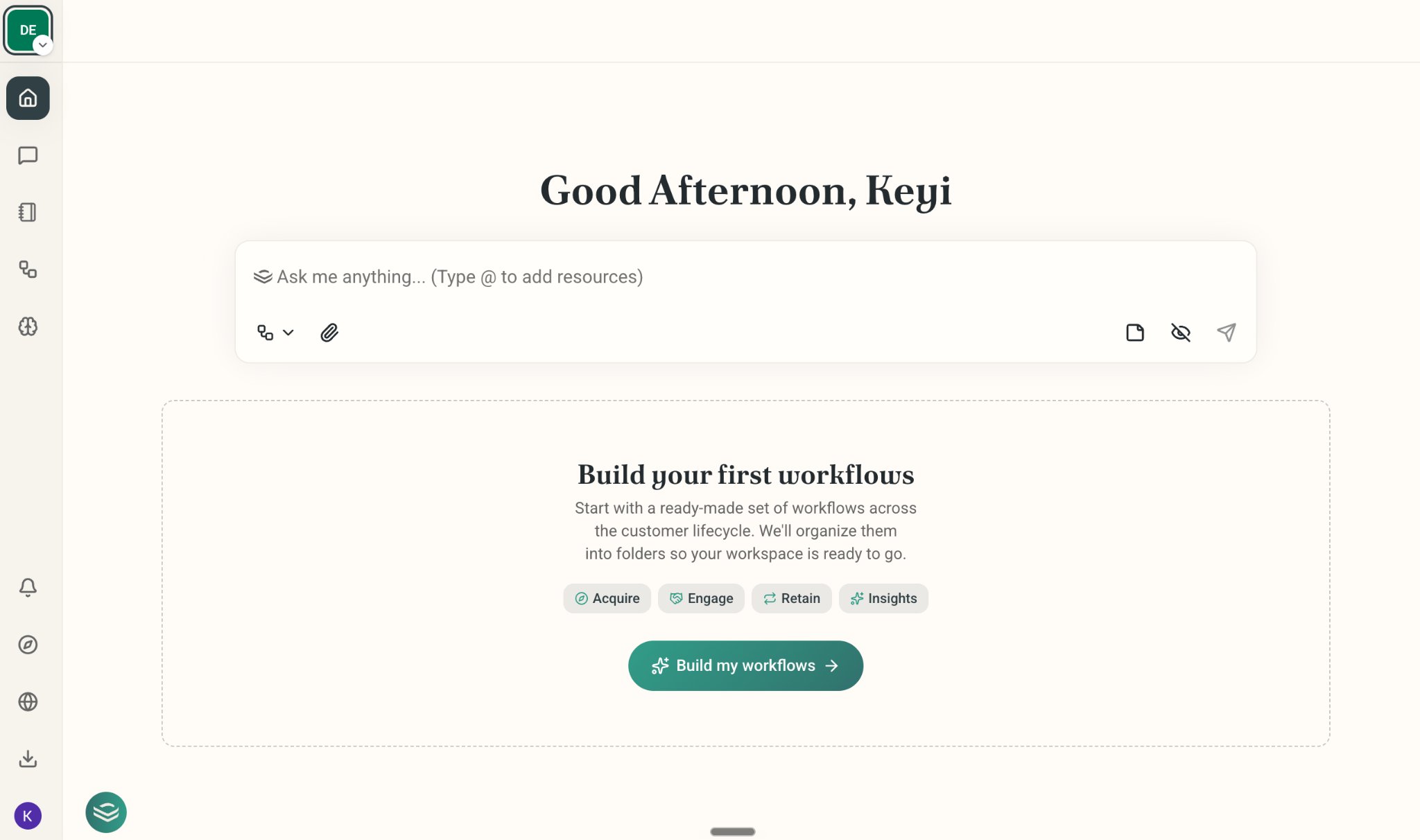
Once you're in, you'll land on a blank homepage, ready to start.
<Frame>
  <img src="https://mintcdn.com/deepvistainc/_inCNvsT8zxiIr7Z/images/lightworkflow-doc-homepage.png?fit=max&auto=format&n=_inCNvsT8zxiIr7Z&q=85&s=c2fcde2912058f4d2d1a69f3fb0c0751" alt="" width="2048" height="1212" data-path="images/lightworkflow-doc-homepage.png" />
</Frame>

### Onboard Your Company and Ask DeepVista to Search Leads for You

<Steps>
  <Step title="Ask DeepVista: &#x22;Here's my company website: https://www.yourcompany.com. Help me find 20 leads.&#x22;">
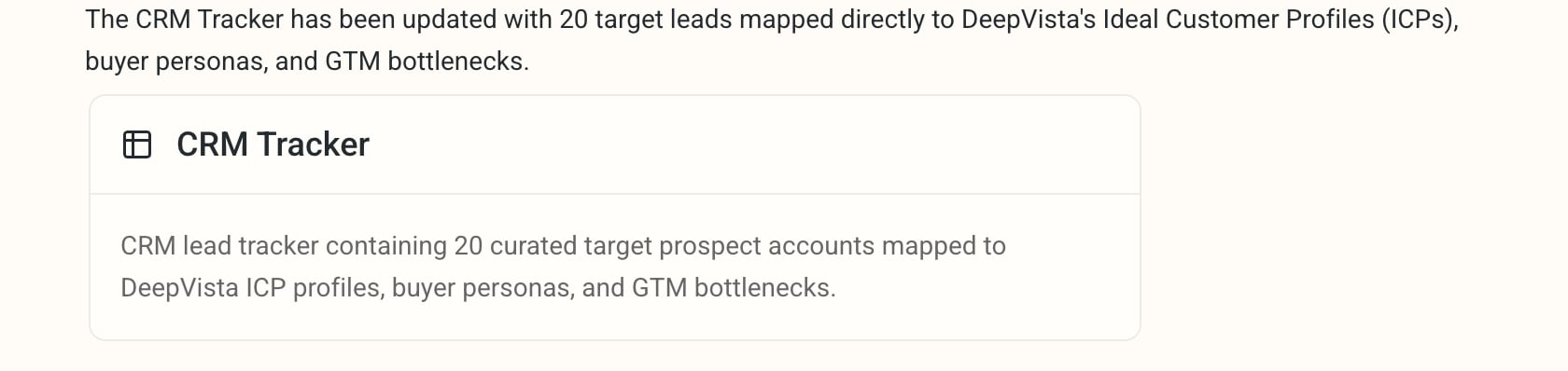
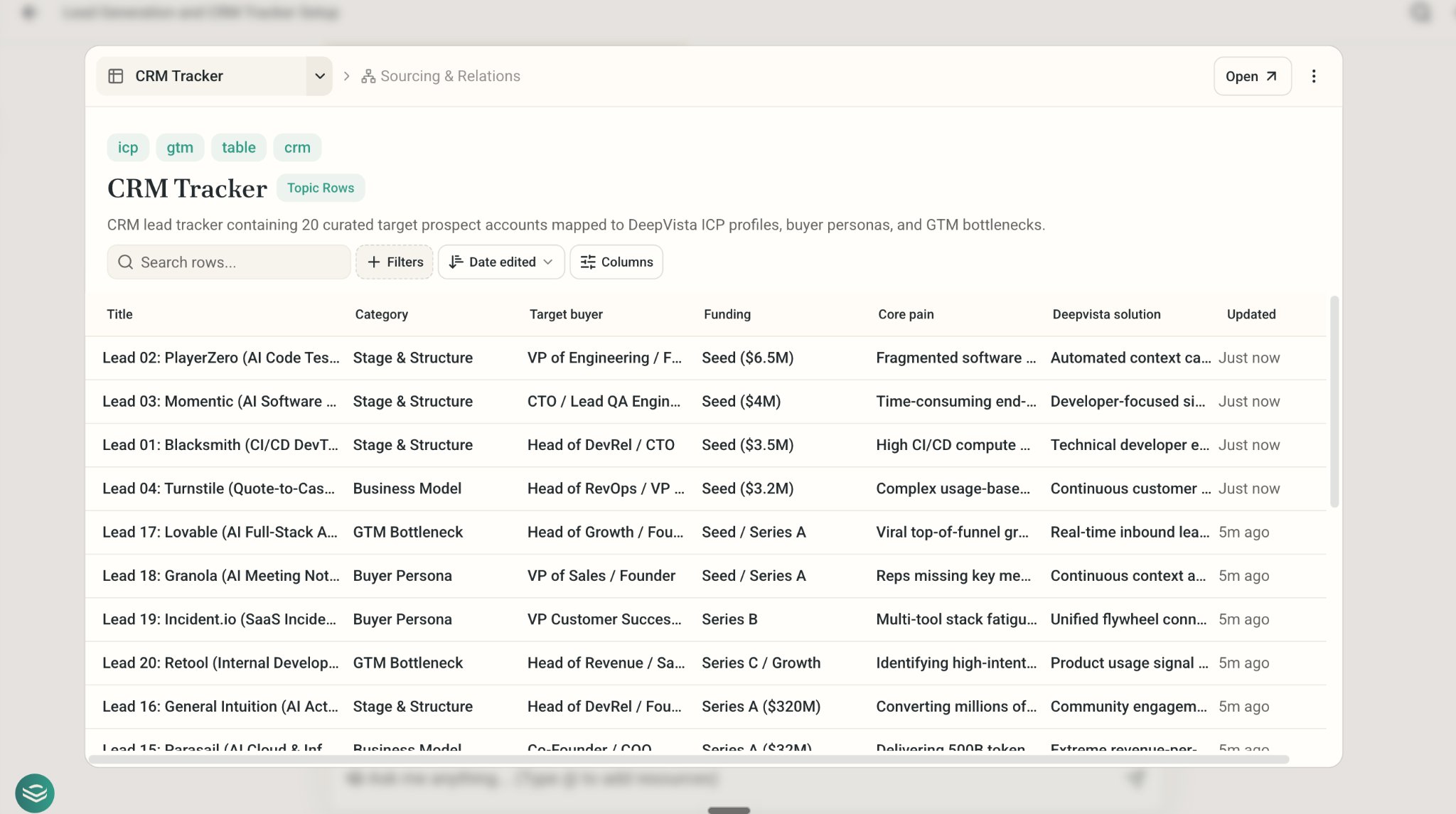
    DeepVista will learn your value propositions, ICPs, and key capabilities, then research and generate a **table card**, which serves as your CRM tracker 1.0.
    <Frame>
      <img src="https://mintcdn.com/deepvistainc/_inCNvsT8zxiIr7Z/images/lightworkflow-doc-crm-tracker-created.png?fit=max&auto=format&n=_inCNvsT8zxiIr7Z&q=85&s=4317bf74eb3e8ced0643ff72a18cbb08" alt="" width="1680" height="398" data-path="images/lightworkflow-doc-crm-tracker-created.png" />
    </Frame>
  </Step>

  <Step title="Click the table card to expand the full list.">
    <Frame>
      <img src="https://mintcdn.com/deepvistainc/_inCNvsT8zxiIr7Z/images/lightworkflow-doc-crm-tracker-expanded.png?fit=max&auto=format&n=_inCNvsT8zxiIr7Z&q=85&s=23262d285f4066f4c1471a9baddf35b3" alt="" width="2048" height="1145" data-path="images/lightworkflow-doc-crm-tracker-expanded.png" />
    </Frame>
  </Step>

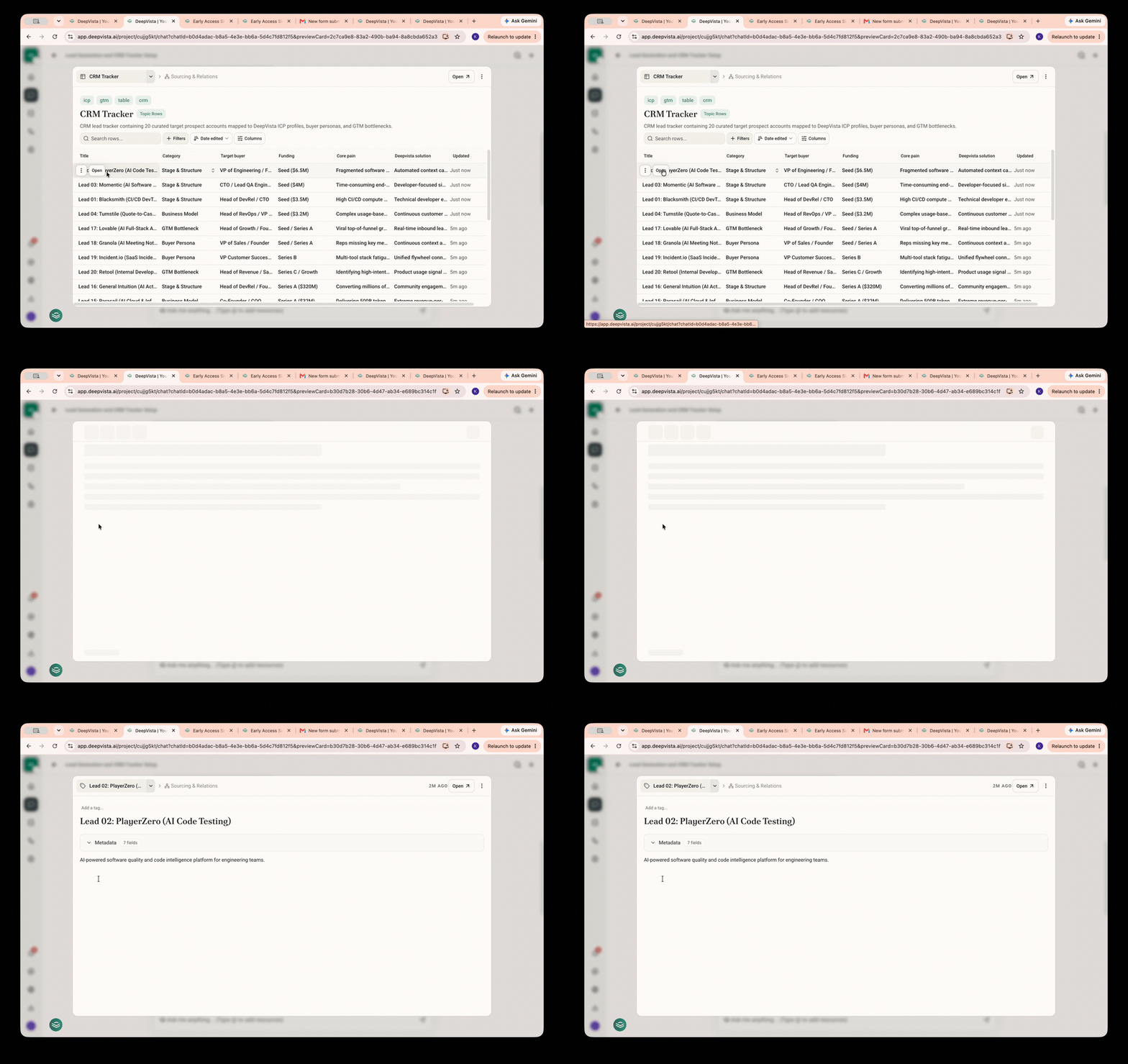
  <Step title="To view details for a specific entry, hover over the table row and click &#x22;Open.&#x22;">
    <Frame>
      <img src="https://mintcdn.com/deepvistainc/_inCNvsT8zxiIr7Z/images/lightworkflow-doc-crm-tracker-open-entry.gif?s=c10d294c0e4735525a4b7a234e4417e6" alt="" width="1000" height="629" data-path="images/lightworkflow-doc-crm-tracker-open-entry.gif" />
    </Frame>
  </Step>
</Steps>

### Customize Your Search Fields

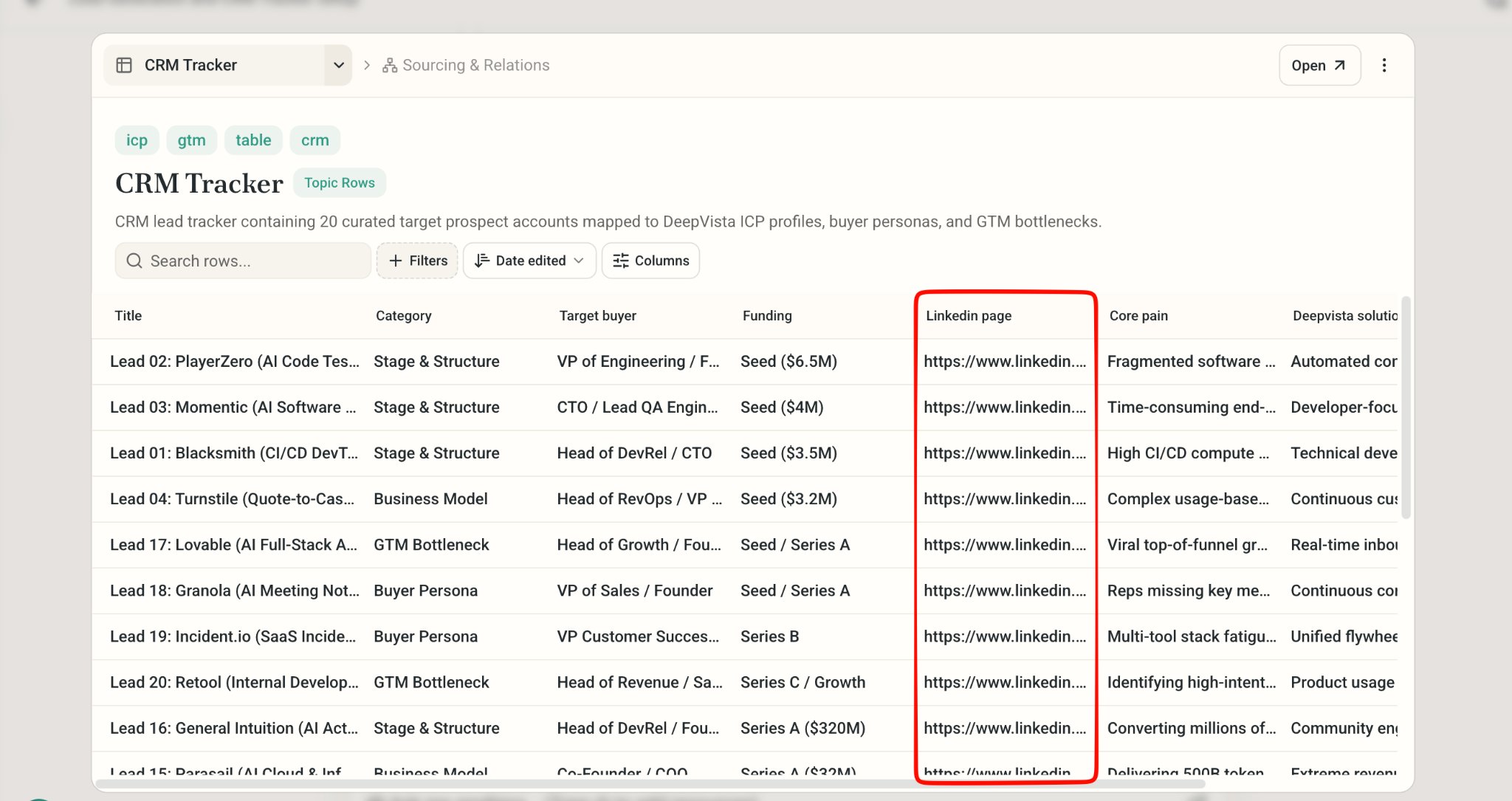
1. To retrieve additional information, prompt DeepVista: "Please add a column for the LinkedIn page. Research and populate it." The system will automatically add and populate the new column with the requested data.
   <Frame>
     <img src="https://mintcdn.com/deepvistainc/_inCNvsT8zxiIr7Z/images/lightworkflow-doc-crm-tracker-linkedin-column.png?fit=max&auto=format&n=_inCNvsT8zxiIr7Z&q=85&s=c9a84967dcca4ec9fca31861c236b6d2" alt="" width="2048" height="1085" data-path="images/lightworkflow-doc-crm-tracker-linkedin-column.png" />
   </Frame>

<Tip>
  Want contacts verified against a live database instead of deep research? Connect [Apollo integration](/tutorials/apollo-integration) for **Apollo Verified** tracker rows.
</Tip>

## 2. Draft, Send, and Schedule Outreach Email

### Ask DeepVista to Draft Outreach Email

<Steps>
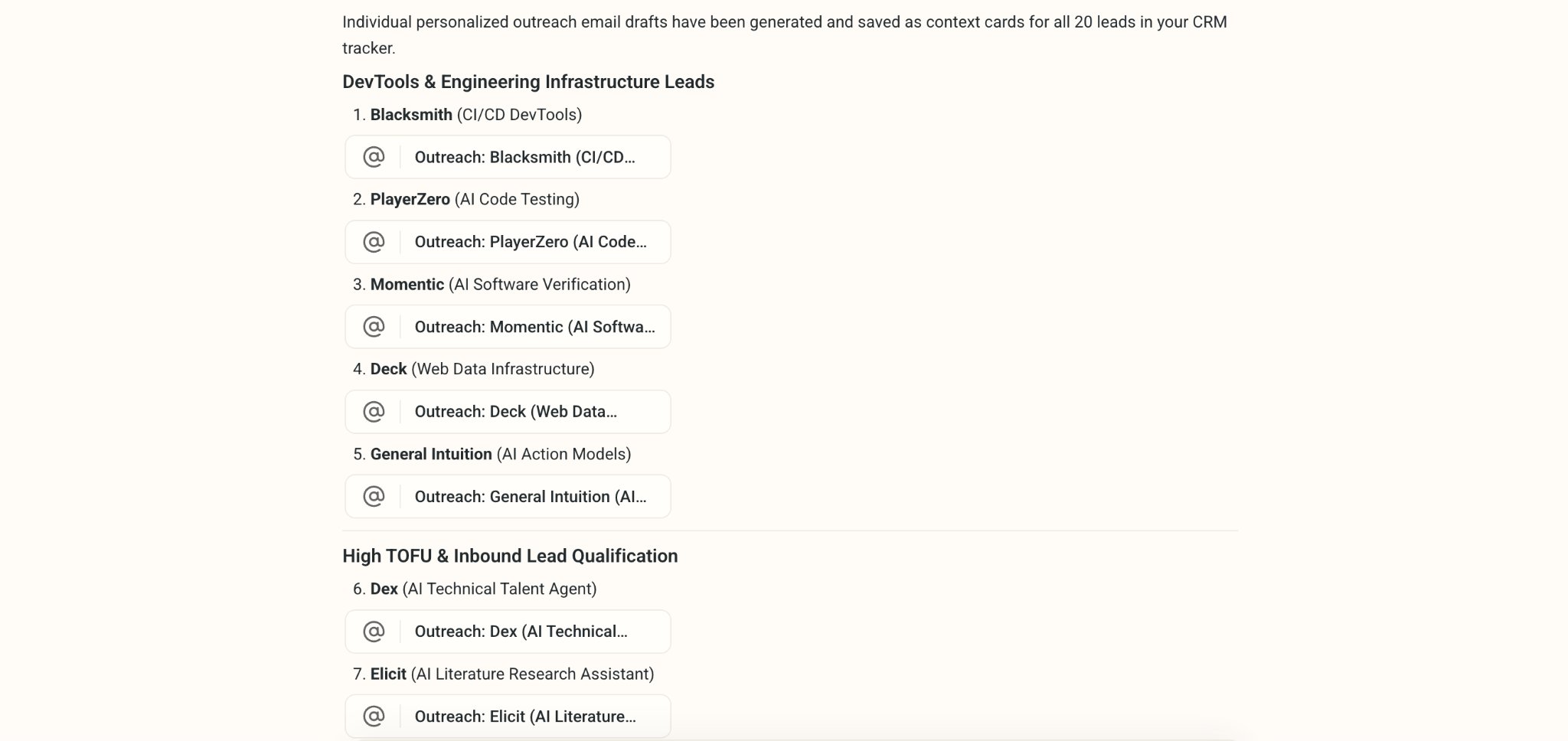
  <Step title="Ask DeepVista: &#x22;Help me draft outreach emails for all of the leads.&#x22;">
    DeepVista will save your email drafts as context cards.
    <Frame>
      <img src="https://mintcdn.com/deepvistainc/_inCNvsT8zxiIr7Z/images/lightworkflow-doc-outreach-drafts-list.png?fit=max&auto=format&n=_inCNvsT8zxiIr7Z&q=85&s=eae44e9bbcfcc6caccf7485b45652192" alt="" width="2048" height="968" data-path="images/lightworkflow-doc-outreach-drafts-list.png" />
    </Frame>
  </Step>

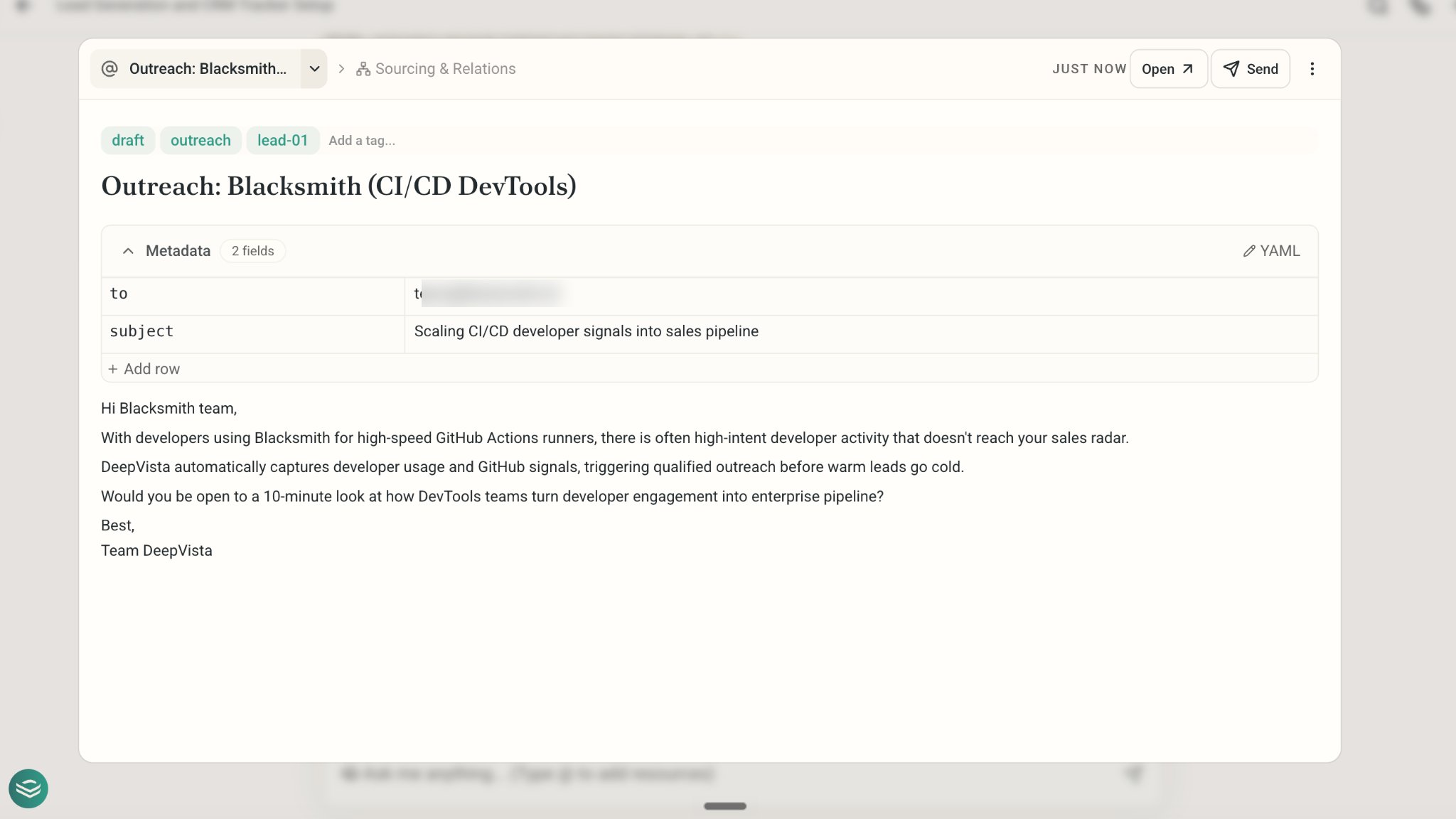
  <Step title="Click into the email card to view and edit the draft.">
    <Frame>
      <img src="https://mintcdn.com/deepvistainc/8IMk2x8hPeYfO5OI/images/lightworkflow-doc-outreach-email-draft.png?fit=max&auto=format&n=8IMk2x8hPeYfO5OI&q=85&s=1839a8f0166c76be47d6560fc78af579" alt="" width="2048" height="1152" data-path="images/lightworkflow-doc-outreach-email-draft.png" />
    </Frame>

    To make changes, you can also ask DeepVista directly: "Add my email signature."

    DeepVista will automatically pull the necessary information from your VistaBase context cards.
  </Step>
</Steps>

### Connect Your Gmail and Send Your Email
<Steps>
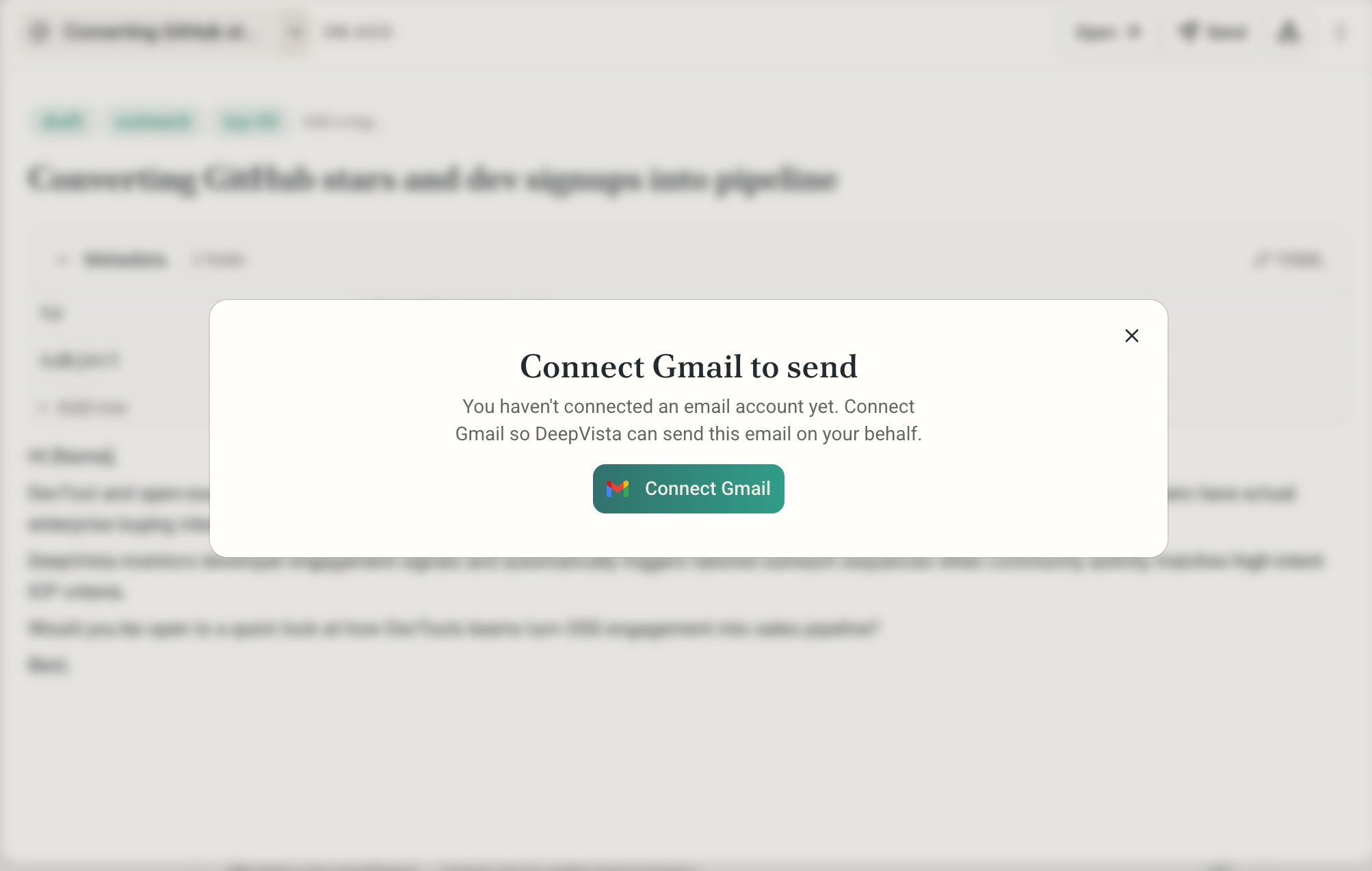
  <Step title="To send out an email, Click Send and connect your Gmail.">
    <Frame>
      <img src="https://mintcdn.com/deepvistainc/_inCNvsT8zxiIr7Z/images/lightworkflow-doc-connect-gmail-modal.png?fit=max&auto=format&n=_inCNvsT8zxiIr7Z&q=85&s=3f6a2cf93d42c6901d7015f426181058" alt="" width="2006" height="1274" data-path="images/lightworkflow-doc-connect-gmail-modal.png" />
    </Frame>
  </Step>

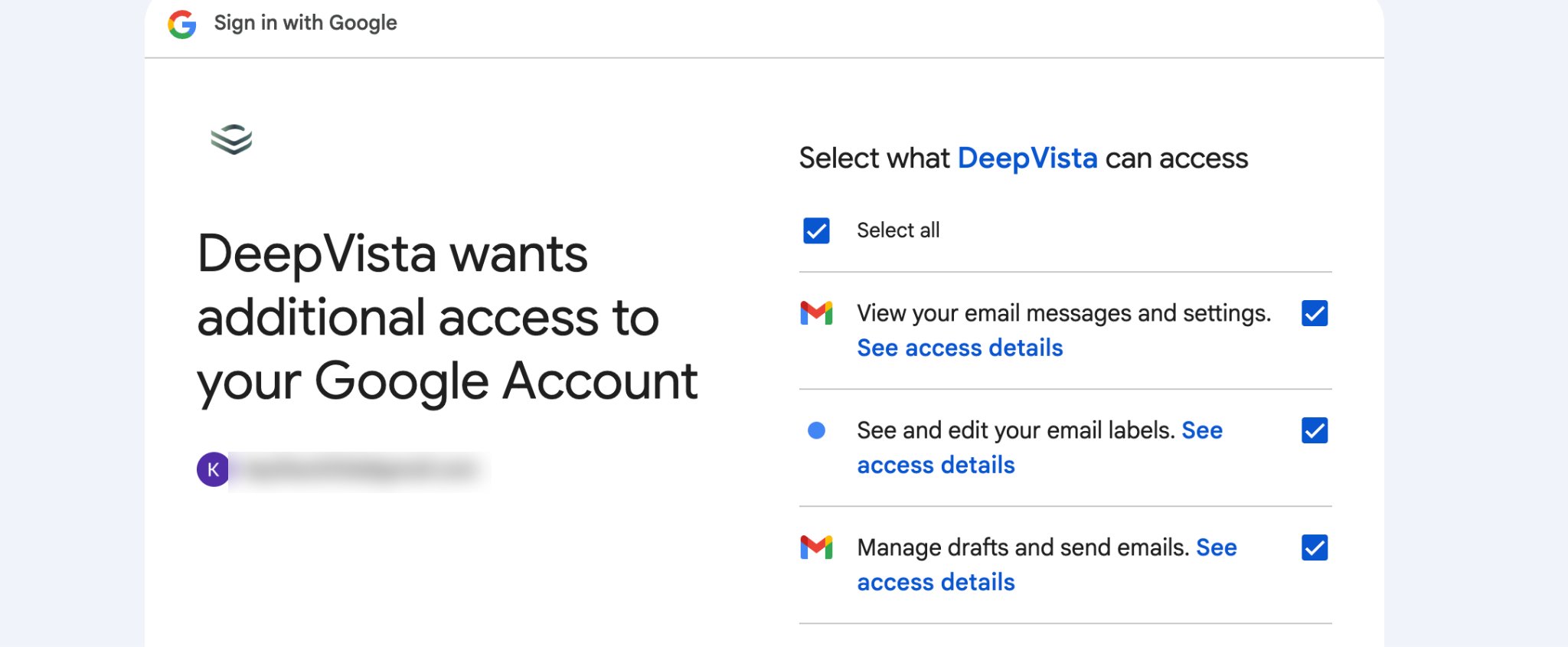
  <Step title="Make sure DeepVista has all the access it needs.">
    <Frame>
      <img src="https://mintcdn.com/deepvistainc/8IMk2x8hPeYfO5OI/images/lightworkflow-doc-gmail-oauth-consent.png?fit=max&auto=format&n=8IMk2x8hPeYfO5OI&q=85&s=85f66cbf19d1c68b7b9bb8a30b160ce0" alt="" width="2048" height="845" data-path="images/lightworkflow-doc-gmail-oauth-consent.png" />
    </Frame>
  </Step>

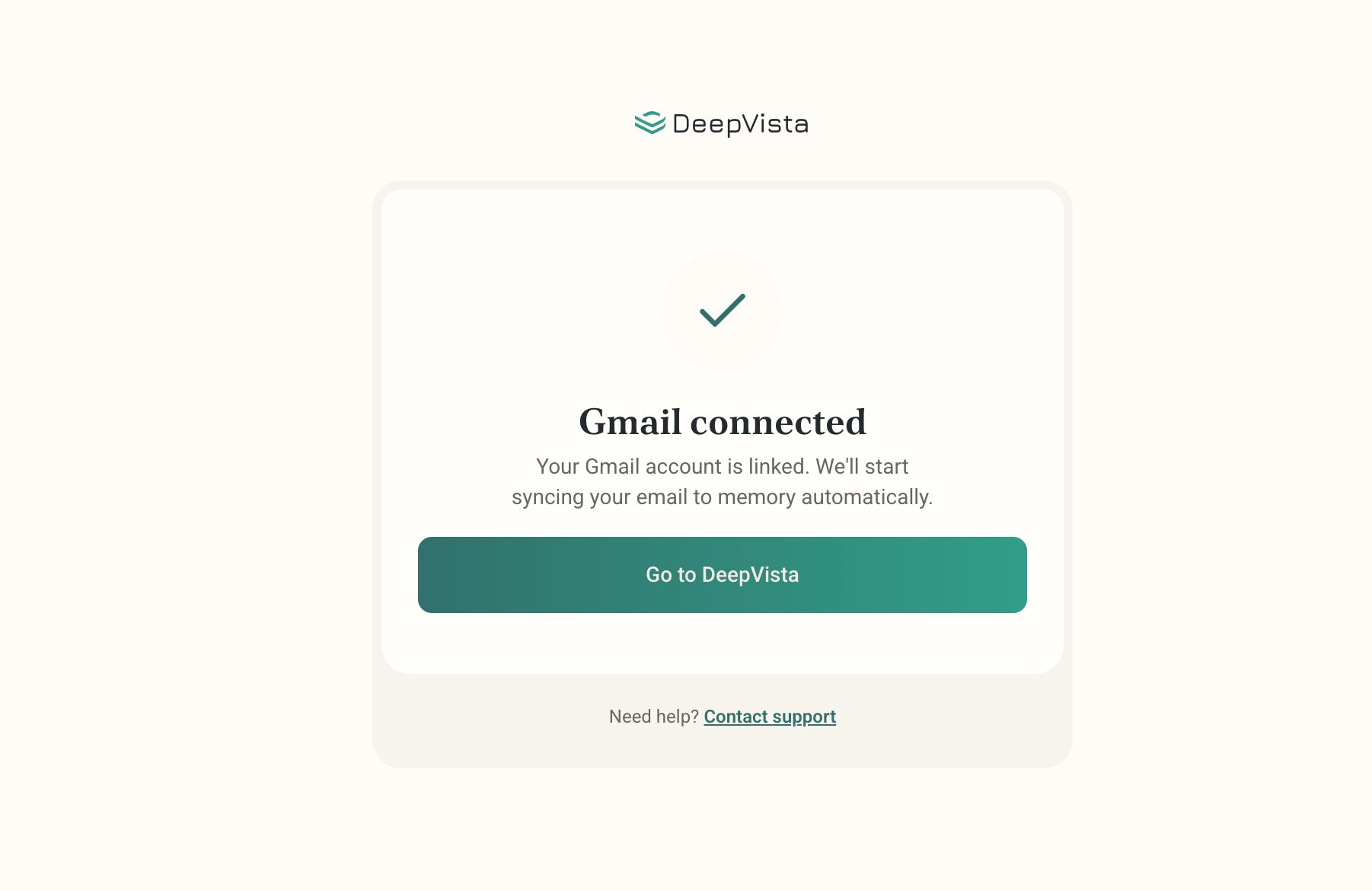
  <Step title="Upon success, you'll see the confirmation page below.">
    <Frame>
      <img src="https://mintcdn.com/deepvistainc/_inCNvsT8zxiIr7Z/images/lightworkflow-doc-gmail-connected.png?fit=max&auto=format&n=_inCNvsT8zxiIr7Z&q=85&s=c24b64a2add2fbe7d0740fa8f3e8dba2" alt="" width="1802" height="1170" data-path="images/lightworkflow-doc-gmail-connected.png" />
    </Frame>
  </Step>

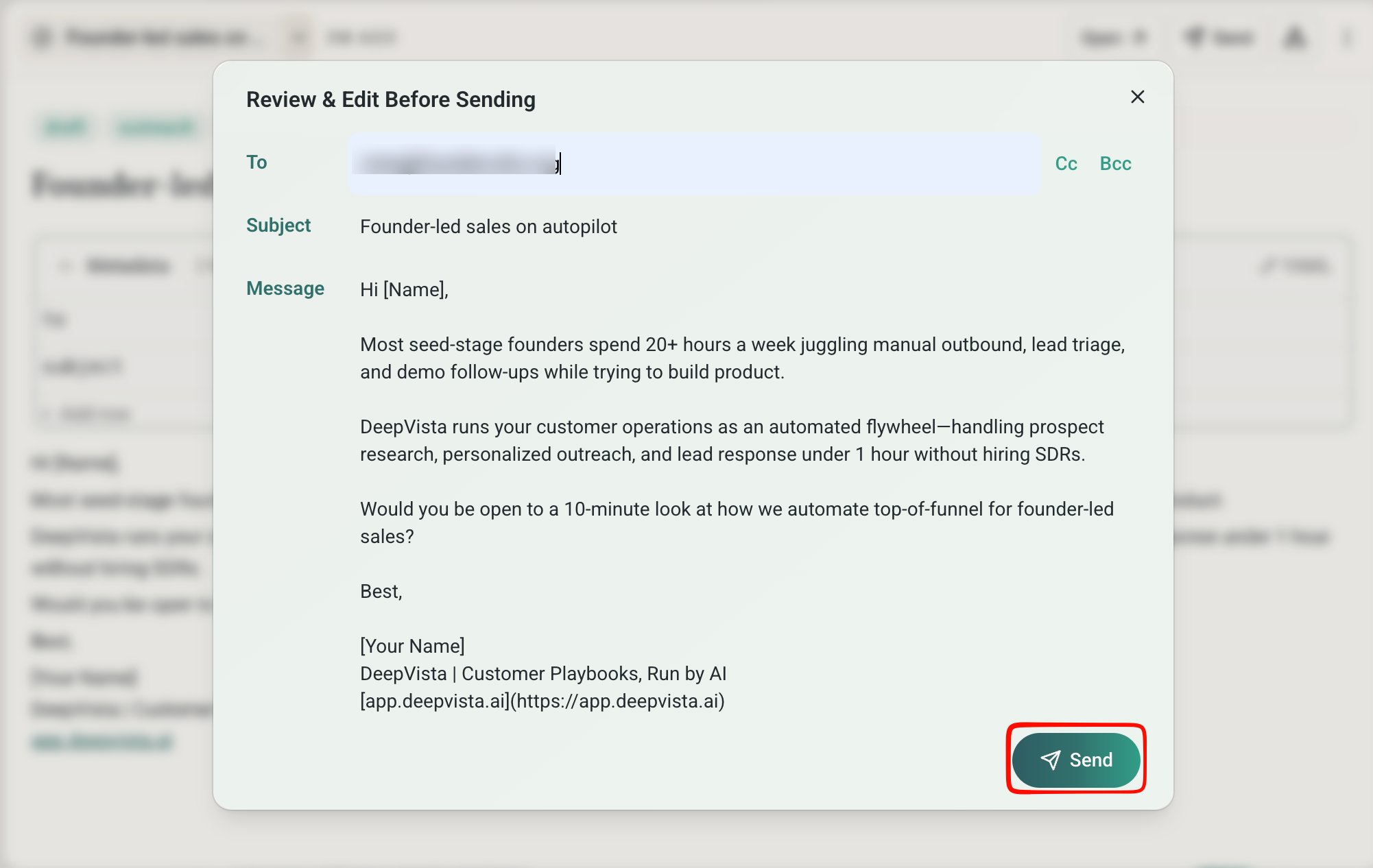
  <Step title="Once ready, click Send in the bottom-right corner, or ask DeepVista to send all of them automatically.">
    <Frame>
      <img src="https://mintcdn.com/deepvistainc/8IMk2x8hPeYfO5OI/images/lightworkflow-doc-outreach-review-send.png?fit=max&auto=format&n=8IMk2x8hPeYfO5OI&q=85&s=1544a1f74dbd0d580124763785e9460a" alt="" width="2002" height="1266" data-path="images/lightworkflow-doc-outreach-review-send.png" />
    </Frame>
  </Step>

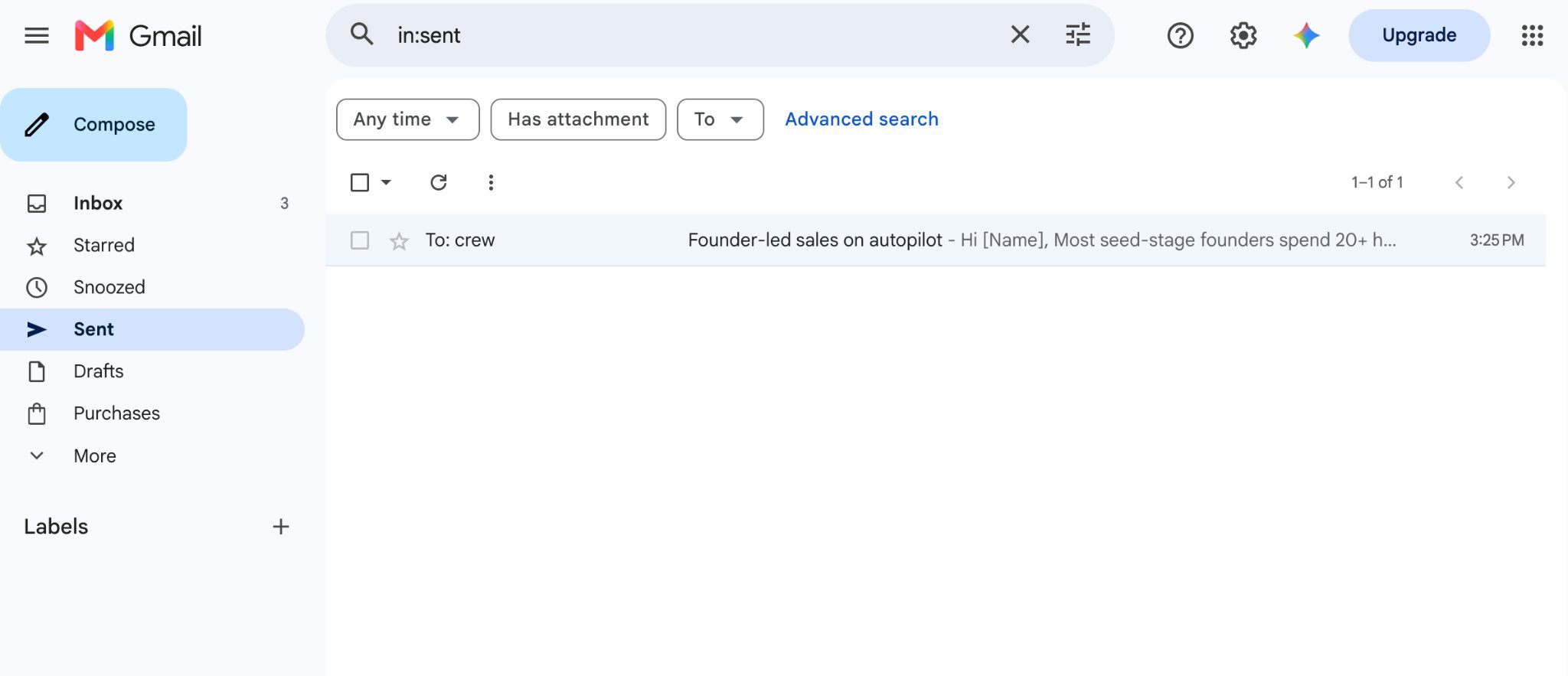
  <Step title="To confirm, open Gmail and find the sent email in your Gmail &#x22;Sent&#x22; tab.">
    <Frame>
      <img src="https://mintcdn.com/deepvistainc/_inCNvsT8zxiIr7Z/images/lightworkflow-doc-gmail-sent-tab.png?fit=max&auto=format&n=_inCNvsT8zxiIr7Z&q=85&s=52dac8052a05190711d4a724f04558c1" alt="" width="2048" height="883" data-path="images/lightworkflow-doc-gmail-sent-tab.png" />
    </Frame>
  </Step>
</Steps>

### Ask DeepVista to Schedule a Daily Job

<Steps>
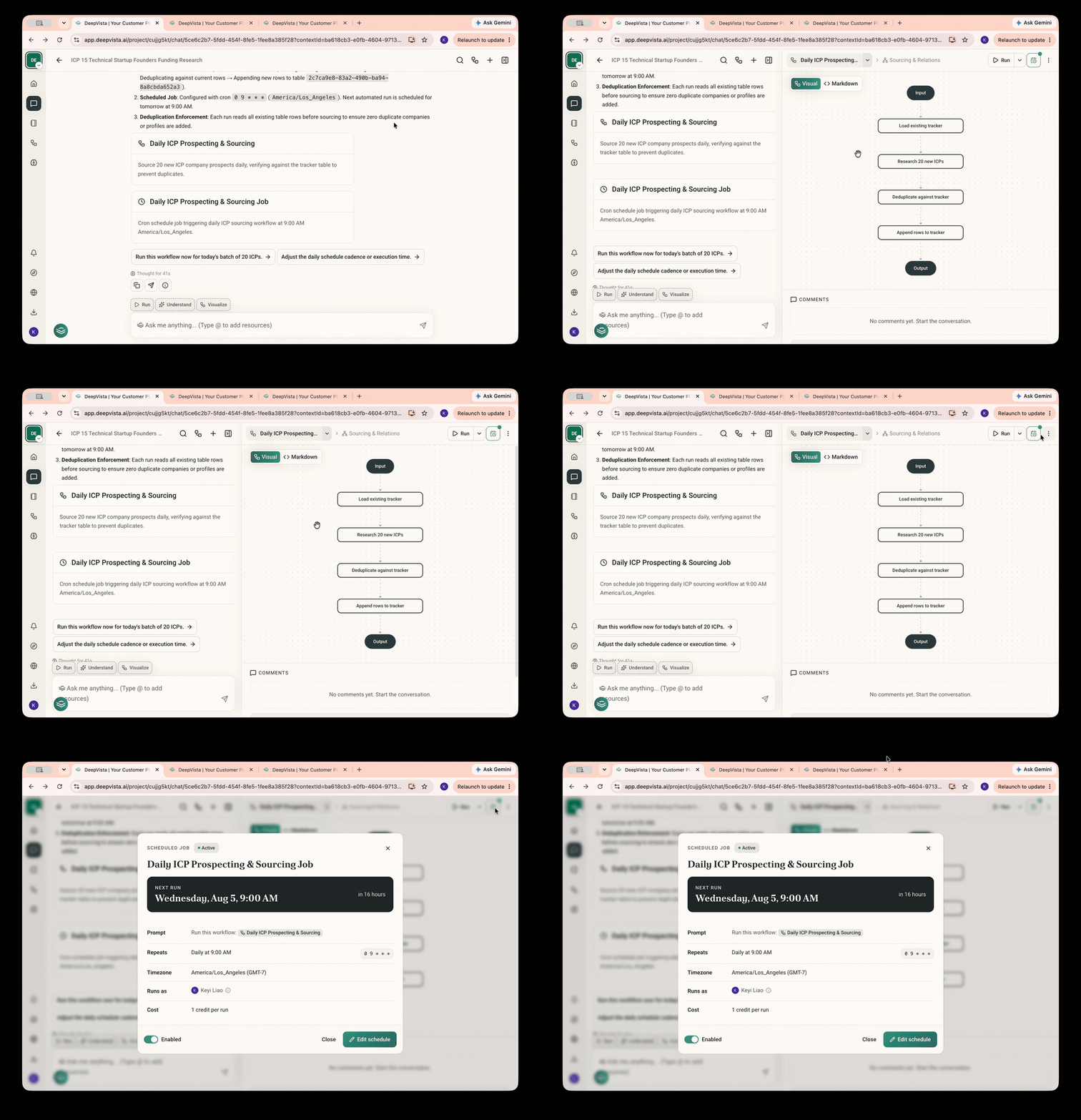
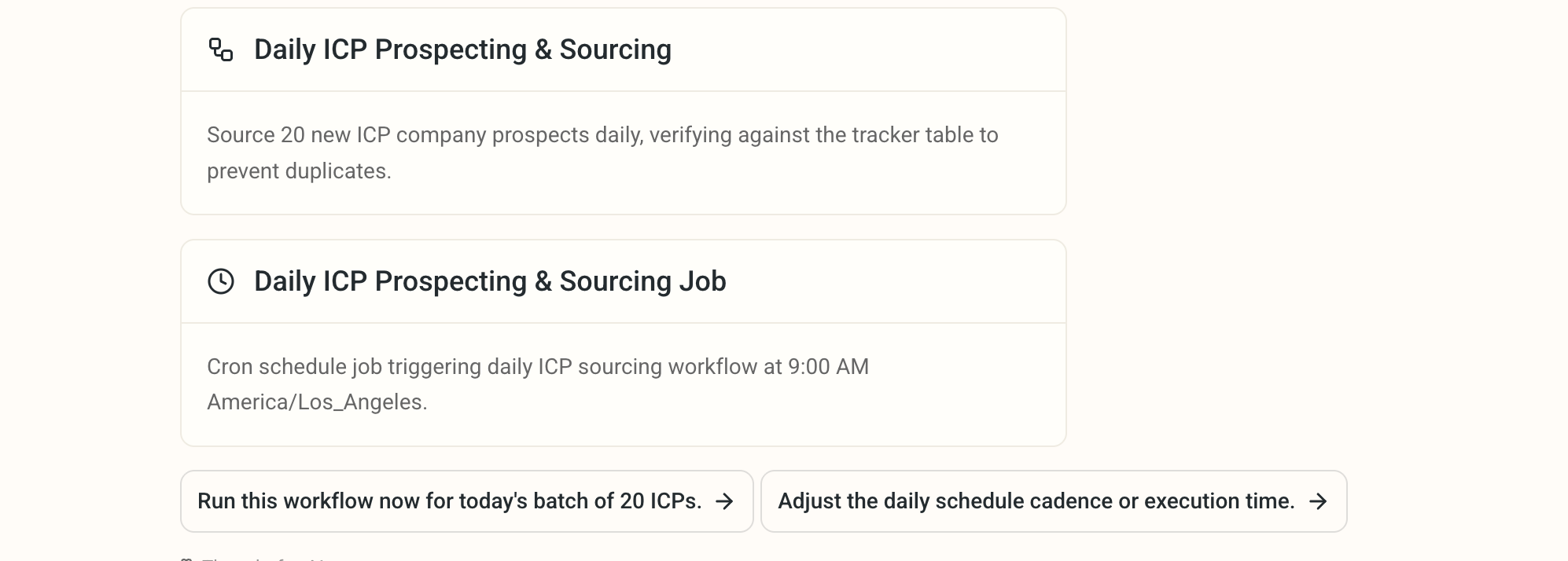
  <Step title="Ask DeepVista: &#x22;Schedule a daily task to source 20 new leads every day. Never repeat companies already in the tracker.&#x22;">
    DeepVista will create an automated **workflow** and a **scheduled job** for you.
    <Frame>
      <img src="https://mintcdn.com/deepvistainc/_inCNvsT8zxiIr7Z/images/lightworkflow-doc-daily-job-cards.png?fit=max&auto=format&n=_inCNvsT8zxiIr7Z&q=85&s=0e3a30a70c6e96365f074c74daace7b6" alt="" width="1994" height="714" data-path="images/lightworkflow-doc-daily-job-cards.png" />
    </Frame>
  </Step>

  <Step title="Click the context cards to view details and make changes.">
    <Frame>
      <img src="https://mintcdn.com/deepvistainc/_inCNvsT8zxiIr7Z/images/lightworkflow-doc-daily-job-detail.gif?s=9c904bfbeb4777bcc185404d48f02403" alt="" width="1000" height="691" data-path="images/lightworkflow-doc-daily-job-detail.gif" />
    </Frame>
  </Step>
</Steps>

## 3. Keep Your CRM Running With You

### Capture a Note or a Screenshot

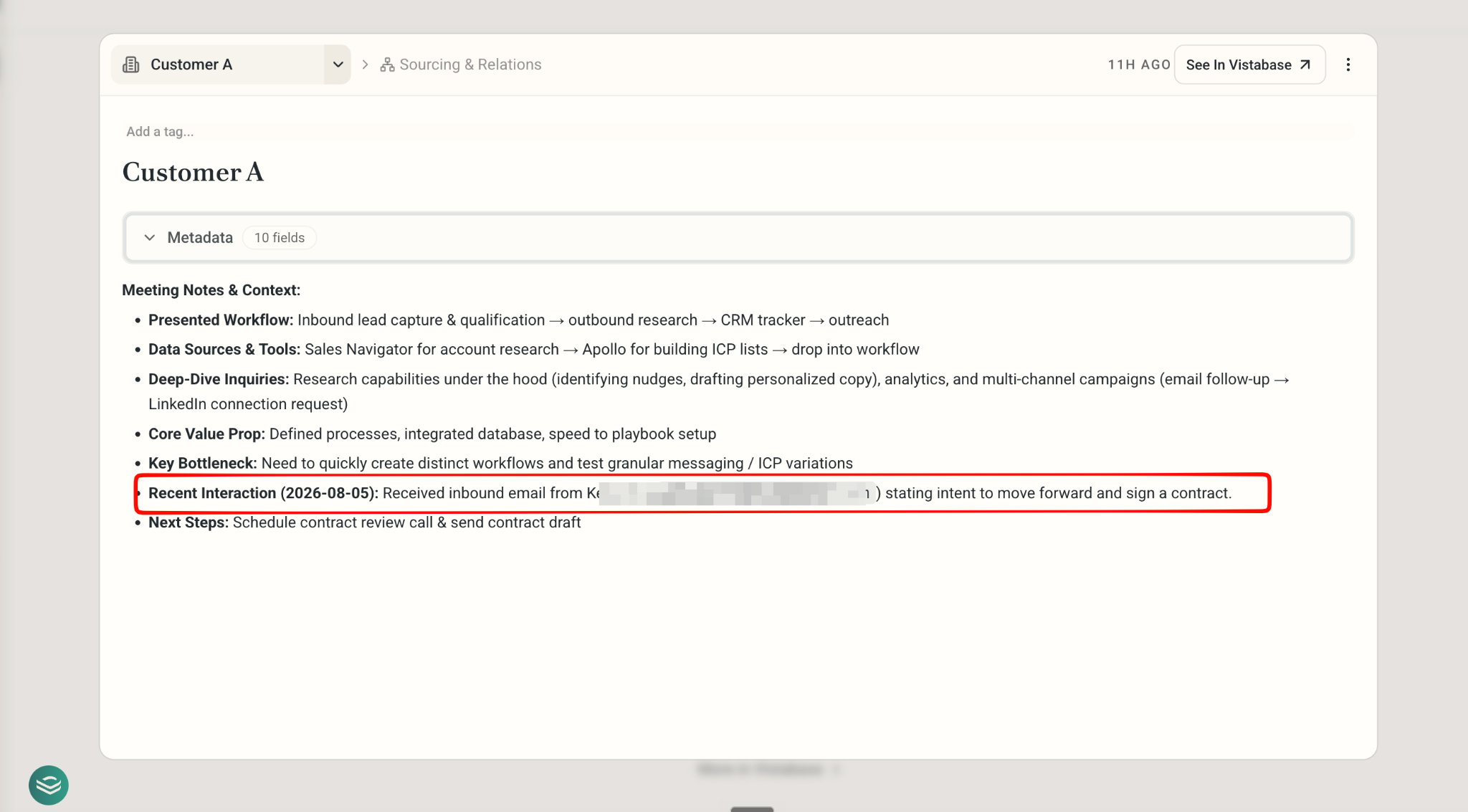
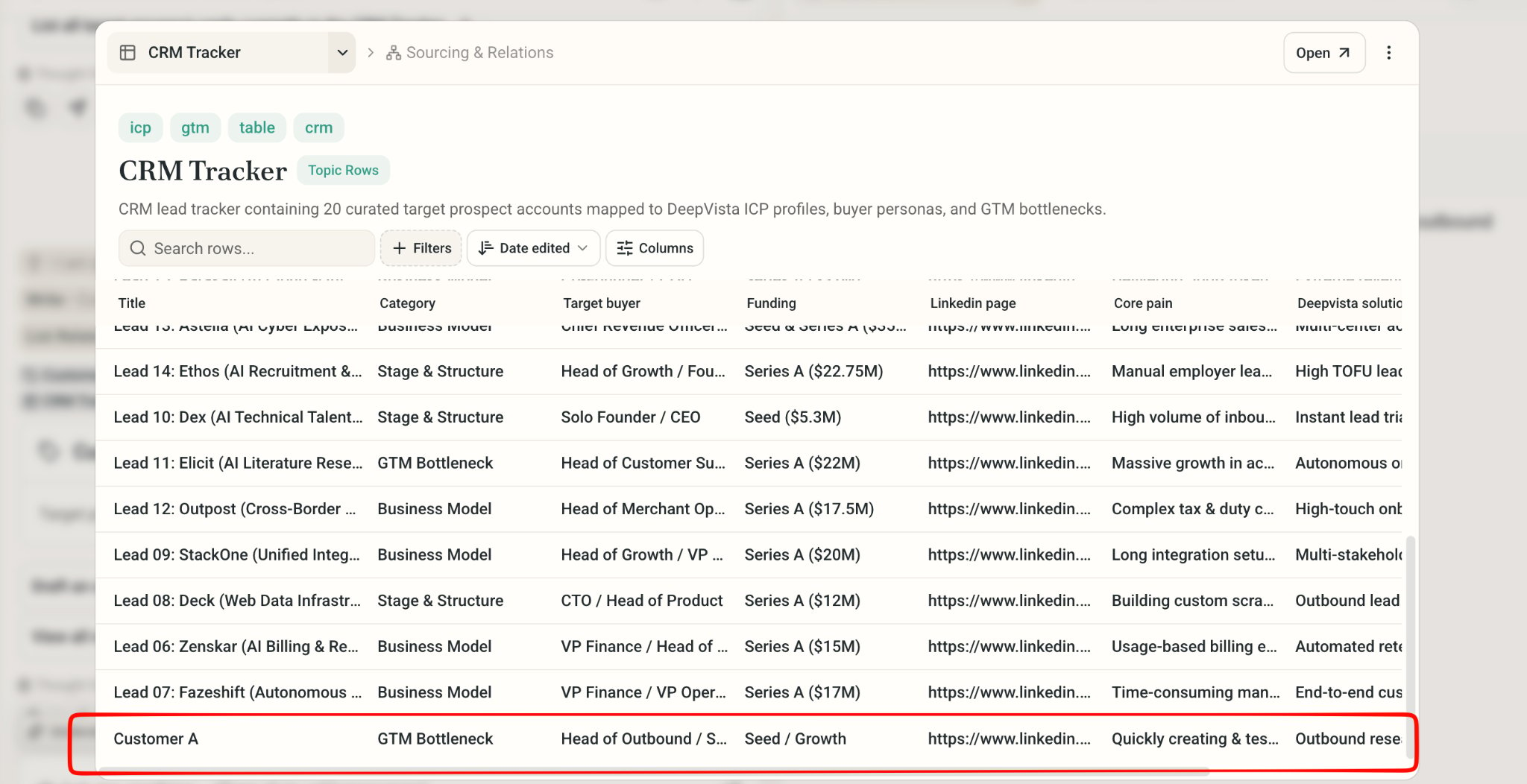
1. Copy and paste it in chat, ask DeepVista to "add customer A to my CRM Tracker."
   DeepVista will automatically update the row.
<Frame>
  <img src="https://mintcdn.com/deepvistainc/_inCNvsT8zxiIr7Z/images/lightworkflow-doc-crm-tracker-customer-a.png?fit=max&auto=format&n=_inCNvsT8zxiIr7Z&q=85&s=3cdcdfe4f2227dd6fd4594e495827c0b" alt="" width="2048" height="1052" data-path="images/lightworkflow-doc-crm-tracker-customer-a.png" />
</Frame>

### Monitor your Email

<Steps>
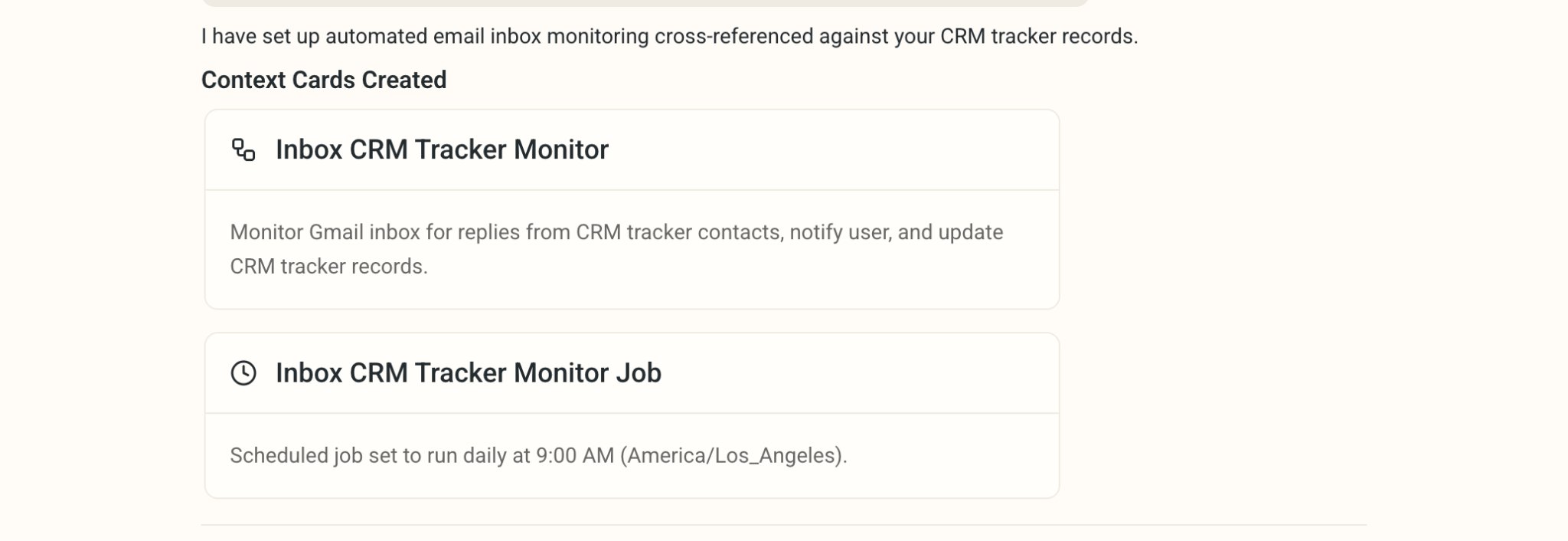
  <Step title="Ask DeepVista: Monitor my email inbox and update the CRM Tracker everyday.">
    DeepVista will create a **Scheduled job** to run the monitor **workflow** automatically.
    <Frame>
      <img src="https://mintcdn.com/deepvistainc/_inCNvsT8zxiIr7Z/images/lightworkflow-doc-inbox-monitor-cards.png?fit=max&auto=format&n=_inCNvsT8zxiIr7Z&q=85&s=d7aff1cda3faa5dbcbaf8e1132de76dd" alt="" width="2048" height="706" data-path="images/lightworkflow-doc-inbox-monitor-cards.png" />
    </Frame>
  </Step>

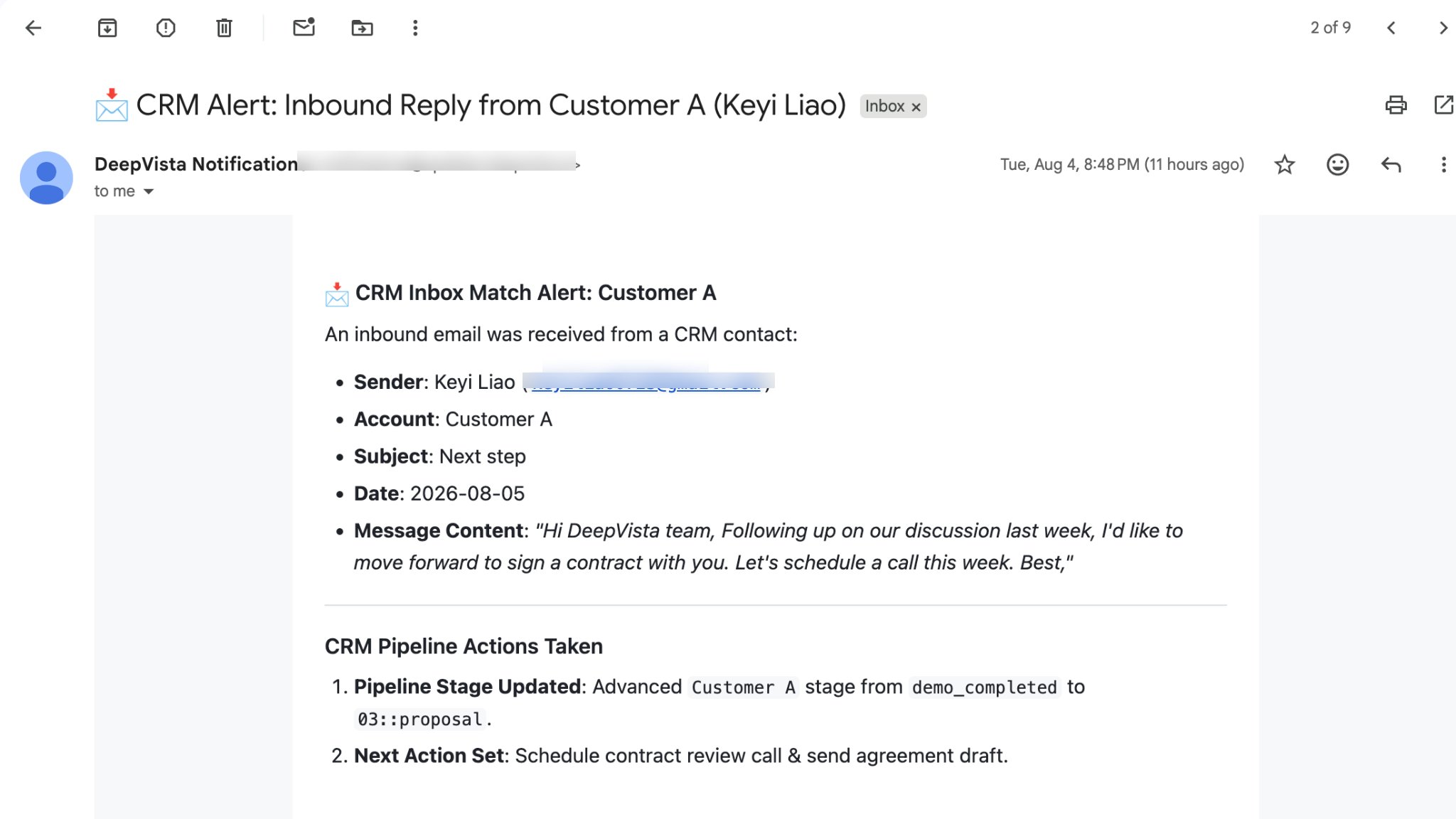
  <Step title="Get an email alert when a CRM contact has an update.">
    <Frame>
      <img src="https://mintcdn.com/deepvistainc/8IMk2x8hPeYfO5OI/images/lightworkflow-doc-inbox-alert-email.png?fit=max&auto=format&n=8IMk2x8hPeYfO5OI&q=85&s=e67e9b692e8aaff0c1b6d00f673edc22" alt="" width="2048" height="1152" data-path="images/lightworkflow-doc-inbox-alert-email.png" />
    </Frame>
  </Step>

  <Step title="On the CRM tracker, click to check Person Card for recent interaction.">
    <Frame>
      <img src="https://mintcdn.com/deepvistainc/_inCNvsT8zxiIr7Z/images/lightworkflow-doc-person-card-interaction.png?fit=max&auto=format&n=_inCNvsT8zxiIr7Z&q=85&s=f8937c2a9b0d78ac435ffa349bcea703" alt="" width="2048" height="1133" data-path="images/lightworkflow-doc-person-card-interaction.png" />
    </Frame>
  </Step>
</Steps>

## Congratulations

You just built an intelligent CRM Tracker. Start acquire, engage, and retain!