> ## Documentation Index
> Fetch the complete documentation index at: https://docs.deepvista.ai/llms.txt
> Use this file to discover all available pages before exploring further.
# Research your leads and add them to a CRM Tracker
> Set up a CRM tracker and let DeepVista keep pipeline stages and next steps up to date from your conversations.
## Prerequisites
Before you start, make sure you have a DeepVista account with an active project.
To create an account, [sign up here](https://app.deepvista.ai/login?redirectUrl=%2Fsign%2520in).
Once you're in, you'll land on a blank homepage, ready to start.
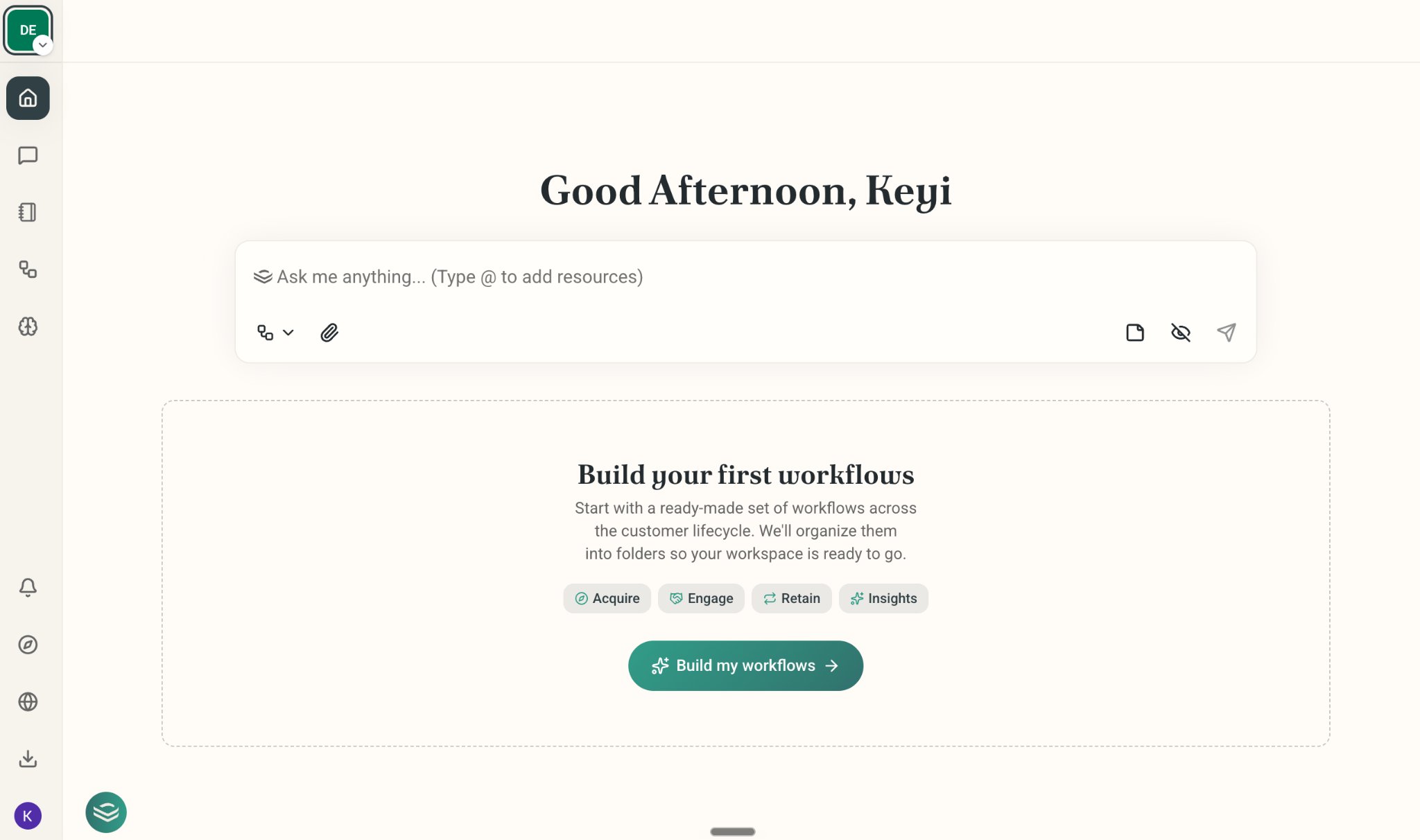 ## Onboard Your Company and Ask DeepVista to Search Leads for You
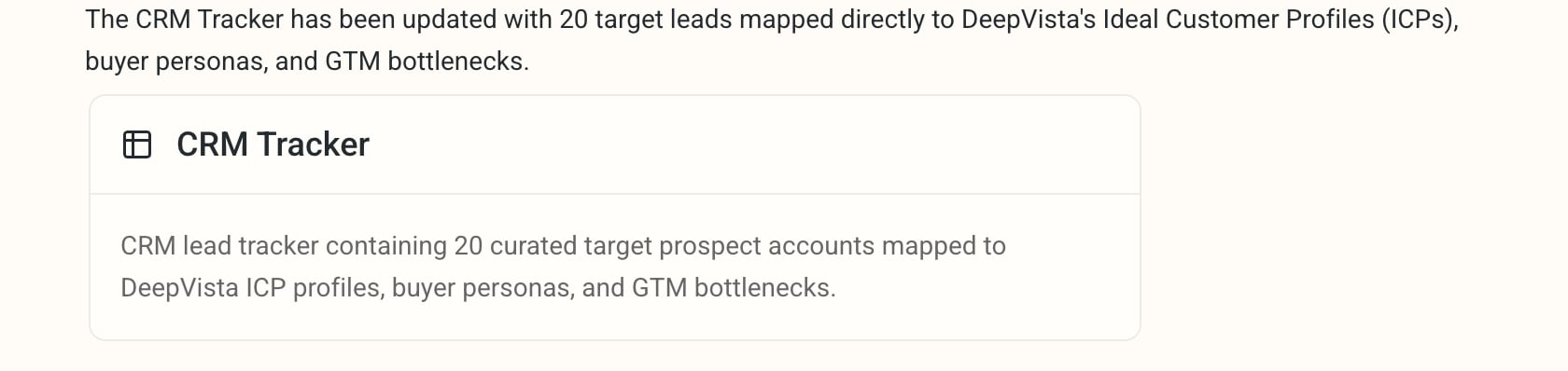
DeepVista will learn your value propositions, ICPs, and key capabilities, then research and generate a **table card**, which serves as your CRM tracker 1.0.
## Onboard Your Company and Ask DeepVista to Search Leads for You
DeepVista will learn your value propositions, ICPs, and key capabilities, then research and generate a **table card**, which serves as your CRM tracker 1.0.
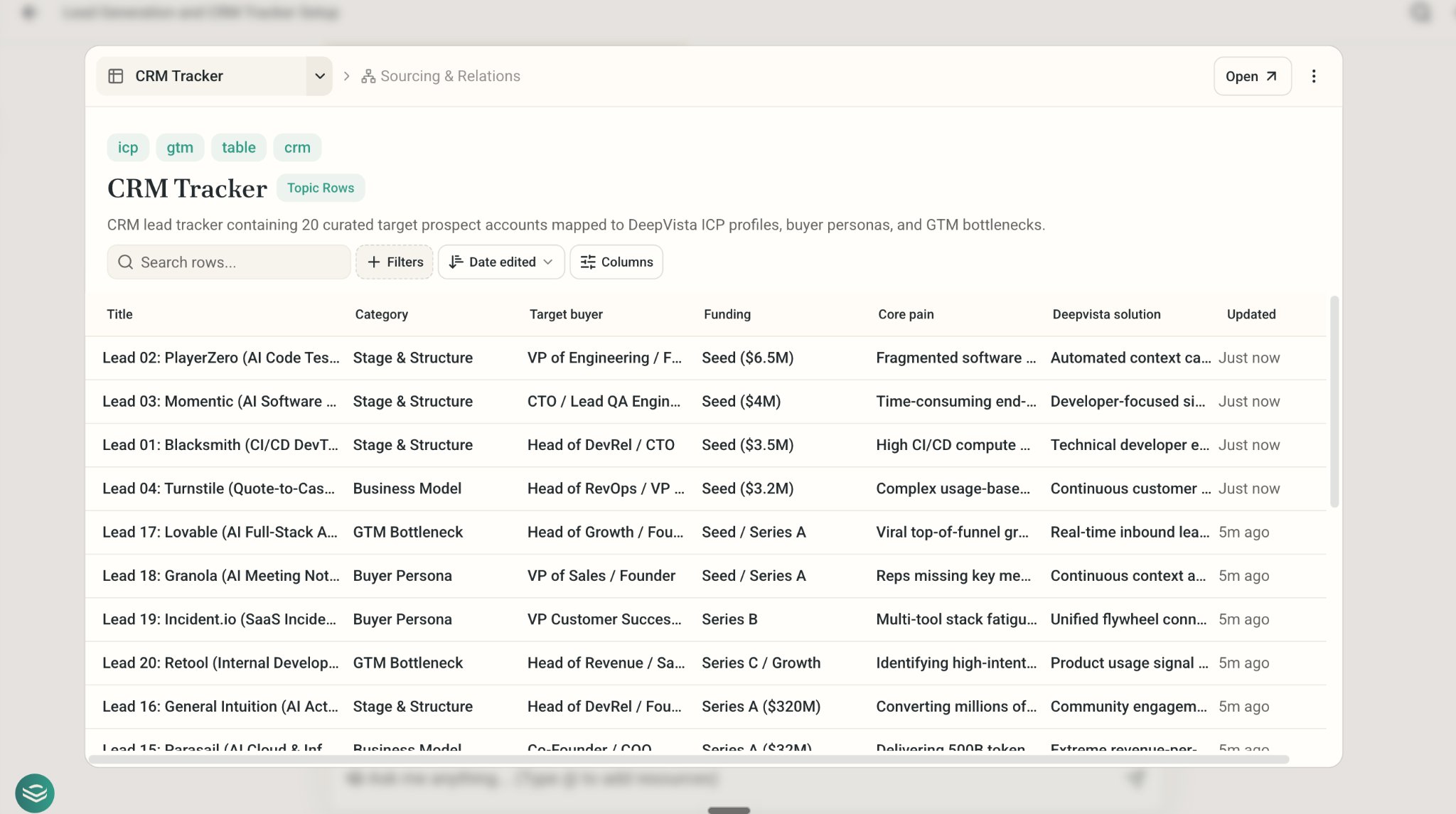
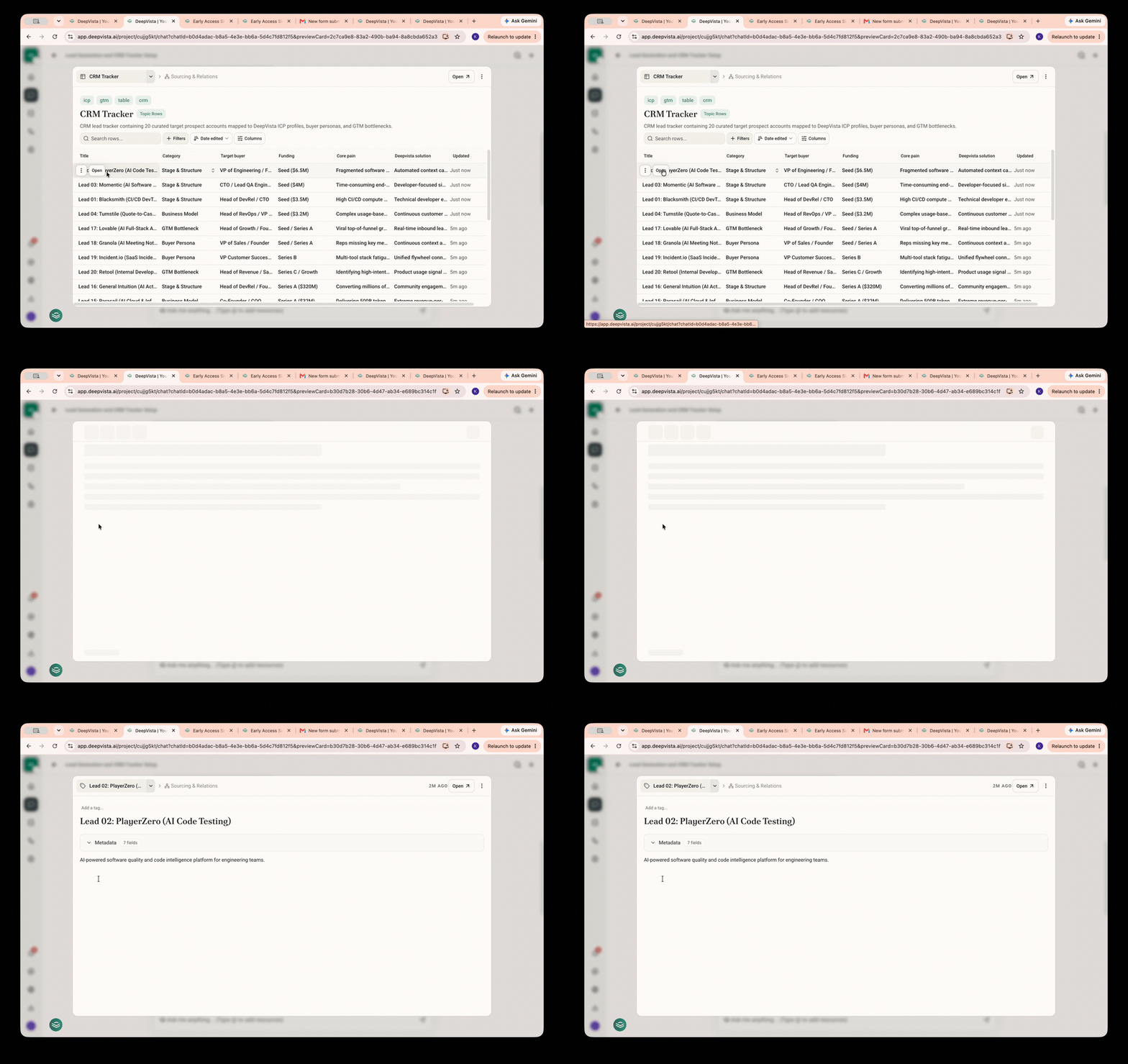 ## Customize Your Search Fields
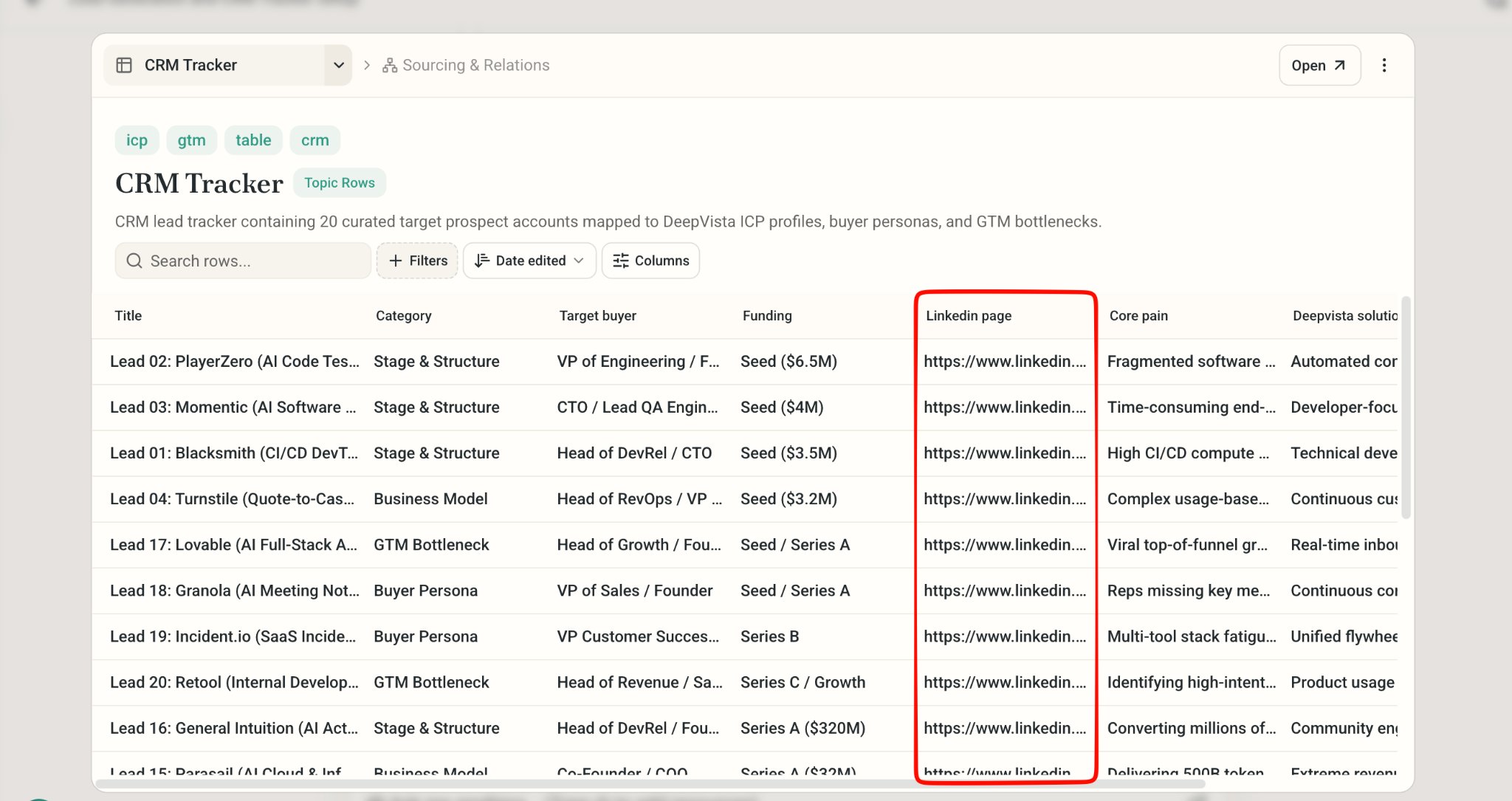
1. To retrieve additional information, prompt DeepVista: "Please add a column for the LinkedIn page. Research and populate it." The system will automatically add and populate the new column with the requested data.
## Customize Your Search Fields
1. To retrieve additional information, prompt DeepVista: "Please add a column for the LinkedIn page. Research and populate it." The system will automatically add and populate the new column with the requested data.
 ## Next steps: Draft, Send, and Schedule Outreach Email